
Visio 2019 Professional (1PC)
- License
- Retail · 1 PC
- Delivery
- Instant, by e-mail
- Download
- Official Microsoft
- Brand
- Microsoft
€28,99
One-time payment · no subscription
- Instant delivery to your e-mailkey + download links
- Key won't activate? We replace itunused keys: refund within 7 days
- Official invoice with every order
- 24/7 live chat help with activation
Visio 2019 Professional for one Windows PC: database model diagrams without an add-in, website wireframes, UML diagrams and AutoCAD 2017 import. One-time purchase.
What you get with Visio 2019 Professional
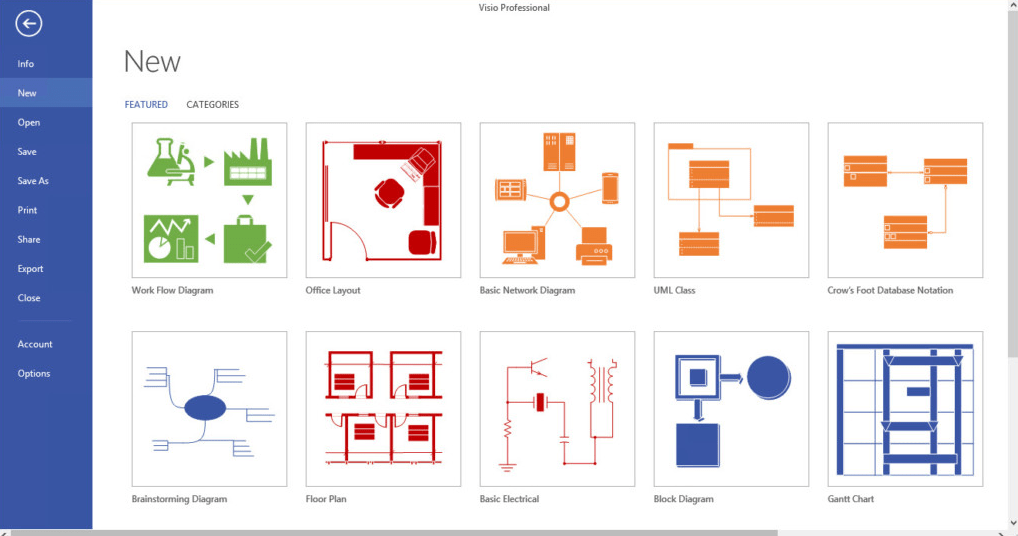
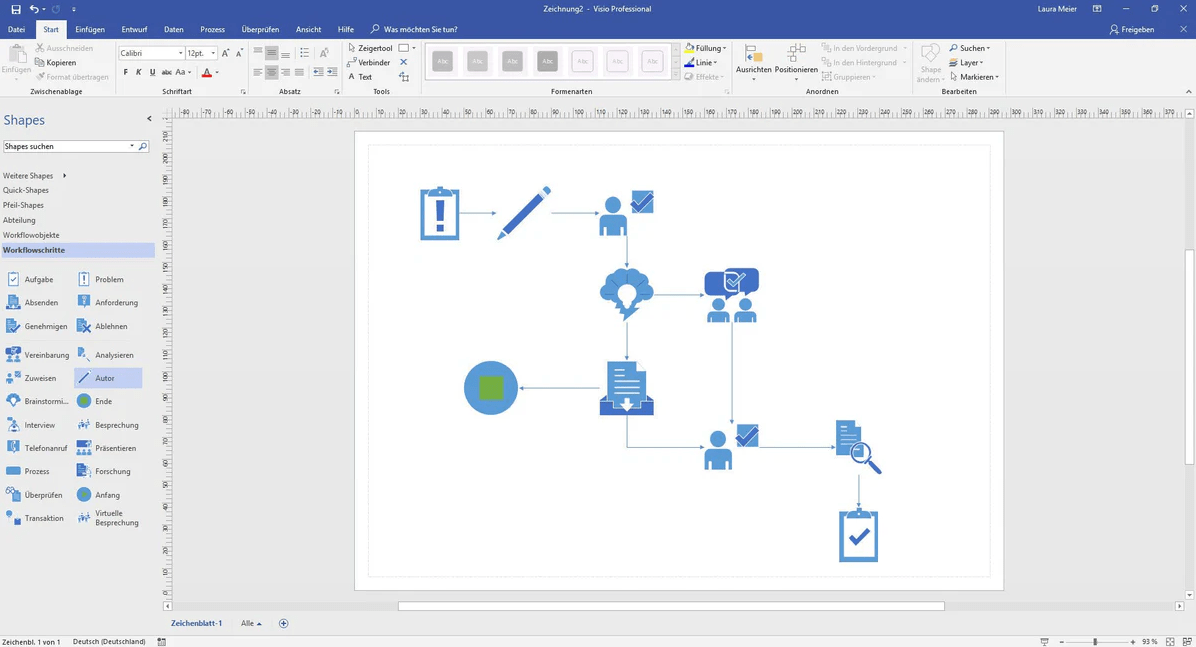
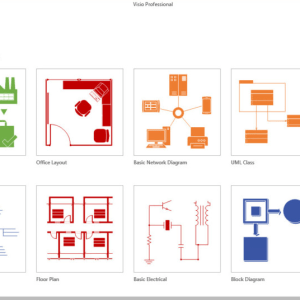
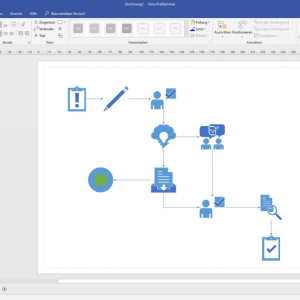
Visio 2019 Professional (1PC) is the 2019 release of Microsoft’s desktop diagramming app in its Professional edition, for one PC with Windows 10 or Windows 11. It handles flowcharts, network diagrams, floor plans, UML and database models, and it imports AutoCAD drawings. Once payment is confirmed, we send the key, the link to download Visio from Microsoft and our instructions by e-mail, usually within a few minutes, and attach a PDF invoice to the completed order. You pay one time, with no subscription.
What Visio 2019 added
- Starter diagrams for the SDL, Organization Chart and Brainstorming templates, so a new drawing begins from a worked example.
- A built-in Database Model Diagram template for tables and relationships, with no add-in to install.
- Website templates for low-fidelity wireframes and design sketches.
- Three more UML types: component, communication and deployment diagrams.
- Import of files from AutoCAD 2017 and earlier, where Visio previously stopped at the AutoCAD 2007 format, with better scaling and faster imports.
Visio 2019 or a later release
Visio 2019 is a good fit when your diagrams rely on the templates above and the PC already runs Office 2019. The 2021 release brought AWS stencils, mobile app wireframes and crime scene stencils; see Visio 2021 Professional. The current release is Visio Professional 2024, with Kubernetes shapes and over ten new Azure stencils.
How to activate Visio 2019 Professional
- Open setup.office.com and click Get Started.
- Sign in to the Microsoft account that should own Visio 2019, or create a new account there.
- Type the key, select Next, set the language and confirm with Redeem. Visio Professional 2019 then downloads.
- Open the downloaded setup file and allow the installer to run until it finishes.
- Launch Visio 2019 and wait for the Activation Wizard, which opens after a few seconds; select activation over the Internet and then Next.
Each step is shown with screenshots in our Visio setup guide. If the activation doesn’t complete, our live chat and e-mail support help 24/7.
System requirements
| Windows | Windows 11 or 10, or Windows Server 2019–2025 |
|---|---|
| Processor | Two cores at 1.6 GHz or more |
| RAM | 4 GB (2 GB for the 32-bit build) |
| Storage | 4 GB of free space |
| Screen | 1280 × 768 |
| Graphics | Hardware acceleration: DirectX 9+, WDDM 2.0+ on Windows 10 |
| .NET | Certain features need .NET 3.5 or 4.6+ |
Questions about Visio 2019 Professional
Which AutoCAD files can Visio 2019 import?
Files from AutoCAD 2017 and earlier. Microsoft also notes faster imports and correct scaling when the AutoCAD layout tab and the matching Visio scale are set.
Can Visio 2019 share a PC with Office 2021 or Microsoft 365?
Yes. All of them are Click-to-Run with version 16.0, and Microsoft lists Visio 2019 with Microsoft 365 Apps Version 1808 or newer as a supported pair. Visio and Office must both be 32-bit or both be 64-bit.
Are Visio 2019 files compatible with Visio 2021 and 2024?
Yes. They all use the XML-based .vsdx format introduced with Visio 2013, so drawings can be exchanged between these versions.
Be the first to review “Visio 2019 Professional (1PC)”
You must be logged in to post a review.
- Genuine Retail licenses. Every key is a genuine license that activates with Microsoft, or with ESET or Avast for antivirus. Unless the License line next to the price says OEM, it is a Retail license.
- Replacement if a key won't activate. Contact our support on live chat or by e-mail, day or night: we help you finish the activation or send a replacement key.
- Refund for unused keys. A key that has not been redeemed can be refunded within 7 calendar days of purchase, as set out in our Refund Policy.
- Invoice and instructions. Every order comes with a PDF invoice and instructions to download, install and activate the software.
You may also need









Reviews
There are no reviews yet.