
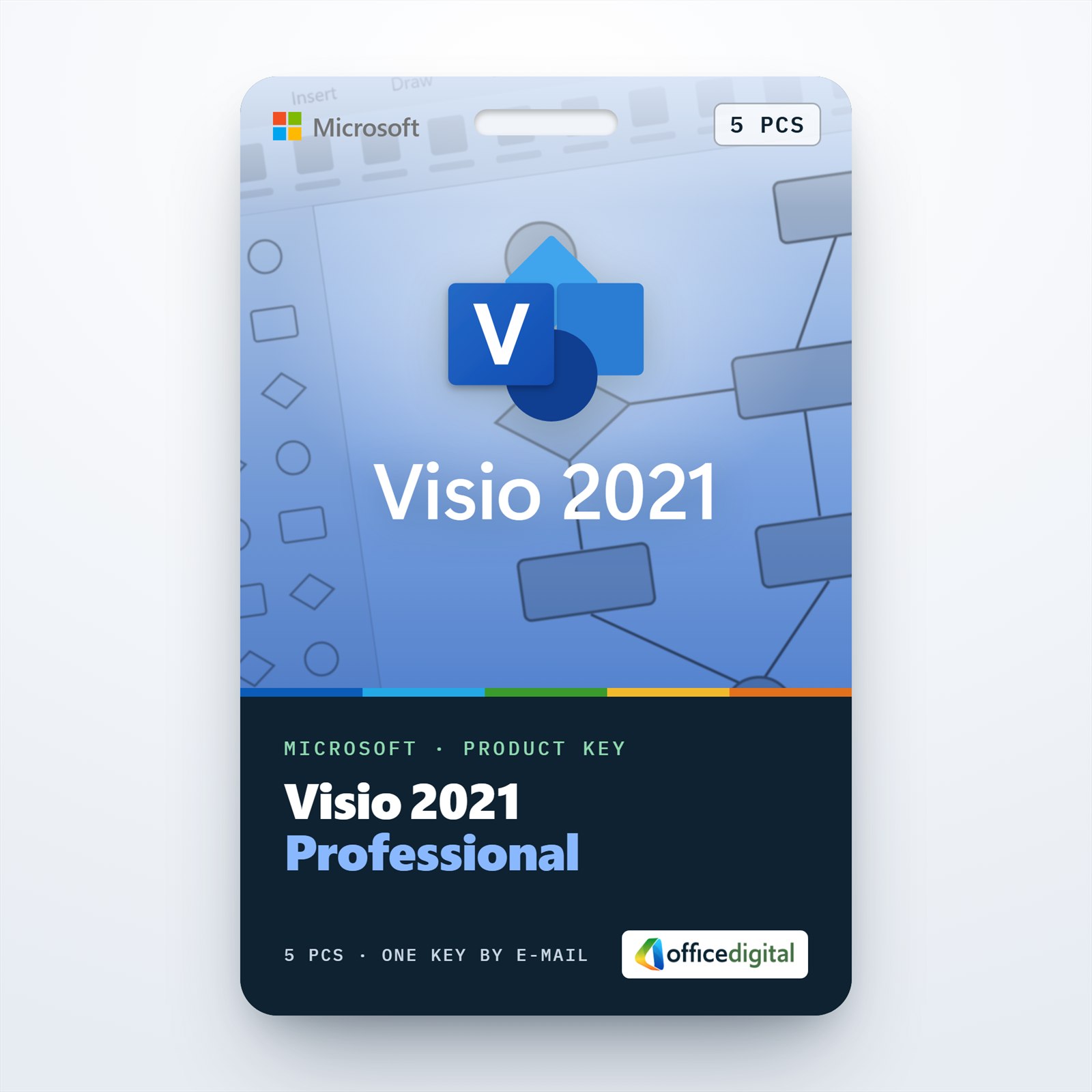
Visio 2021 Professional for 5 PCs
- License
- Retail · 5 PC
- Delivery
- Instant, by e-mail
- Download
- Official Microsoft
- Brand
- Microsoft
€109,99
One-time payment · no subscription
- Instant delivery to your e-mailkey + download links
- Key won't activate? We replace itunused keys: refund within 7 days
- Official invoice with every order
- 24/7 live chat help with activation
One key that activates Visio 2021 Professional on up to five PCs with Windows: Azure and AWS stencils, shapes linked to data and co-authoring on each of them. One payment covers all five installations.
What you get with Visio 2021 Professional for 5 PCs
One key activates Visio 2021 Professional on up to five PCs with Windows, so a small office can give every desk that draws diagrams the same tools. Each installation is the full Professional edition, with AWS and Azure stencils, data linking and simultaneous editing. The key, together with the link to Microsoft’s download and our instructions, is e-mailed to you after the payment goes through, usually within a few minutes; the PDF invoice follows with the completed order. One payment covers all five PCs, and nothing renews.

Tools on every one of the five computers
- Templates for flowcharts, cross-functional swimlane diagrams, org charts, network diagrams and office layouts.
- AWS and Azure shapes for cloud diagrams, and reworked UML and ERD stencils for software and database models.
- Shapes connected to Excel, Access, SharePoint lists or SQL Server, with data graphics that display the values.
- Org charts generated from an Excel sheet, Exchange or Azure Active Directory.
- Import of AutoCAD DWG files as a base for floor plans and site drawings.
Sharing diagrams between the five users
Visio Professional 2021 lets several people work on a single diagram at the same time when the file is kept in OneDrive for Business or SharePoint (sold separately). Comments can be attached to specific shapes, so feedback stays next to the part of the drawing it refers to. A single desk is covered by the Visio 2021 Professional (1PC) License, and Visio Professional 2024 is the current release.
How to activate Visio 2021 Professional on 5 PCs
- Start with one PC: open setup.office.com and click Get Started.
- Sign in to the Microsoft account you want the license on, or create one.
- Enter the key, select Next, pick a language and select Redeem; Visio Professional 2021 starts downloading.
- Run the installer and let Visio finish installing.
- Open Visio. After a few seconds the Activation Wizard appears: pick activation over the Internet and select Next.
- Set up the other four PCs the same way, entering the same key on each one. Colleagues may each use their own Microsoft account, because the license counts devices (up to five), not accounts.
Our Microsoft Visio installation walkthrough pictures the main steps.
System requirements
| OS | Windows 11, Windows 10, or Windows Server 2019 to 2025 |
|---|---|
| Processor | At least 1.1 GHz with two cores |
| Memory | 4 GB |
| Disk | 4 GB available |
| Display | At least 1280 × 768 |
| Graphics | DirectX 9 or newer for hardware acceleration |
| Software | Some features also need .NET 3.5 or 4.6+ |
Questions about the 5 PC Visio license
Can the five installs be on a mix of Windows 10 and 11 machines?
Yes. Each PC only has to meet Microsoft’s minimum: Windows 10 or 11, a 1.1 GHz dual-core processor, 4 GB of RAM and 4 GB of free disk space.
Some of our PCs have 32-bit Office. Does that matter?
It does. Microsoft doesn’t support a 32-bit Visio next to a 64-bit Office on one computer, or the other way round, so pick the Visio build that matches the Office already installed.
Which file format do the diagrams use?
The XML-based .vsdx format of Visio 2013 and later. File → Save As with the Visio 2003–2010 Drawing type makes a copy for older versions.
Who helps if an installation goes wrong?
We do, through live chat or e-mail, 24 hours a day: we walk you through setup and activation, and a key that won’t activate is replaced.
Be the first to review “Visio 2021 Professional for 5 PCs”
You must be logged in to post a review.
- Genuine Retail licenses. Every key is a genuine license that activates with Microsoft, or with ESET or Avast for antivirus. Unless the License line next to the price says OEM, it is a Retail license.
- Replacement if a key won't activate. Contact our support on live chat or by e-mail, day or night: we help you finish the activation or send a replacement key.
- Refund for unused keys. A key that has not been redeemed can be refunded within 7 calendar days of purchase, as set out in our Refund Policy.
- Invoice and instructions. Every order comes with a PDF invoice and instructions to download, install and activate the software.
You may also need








Reviews
There are no reviews yet.