
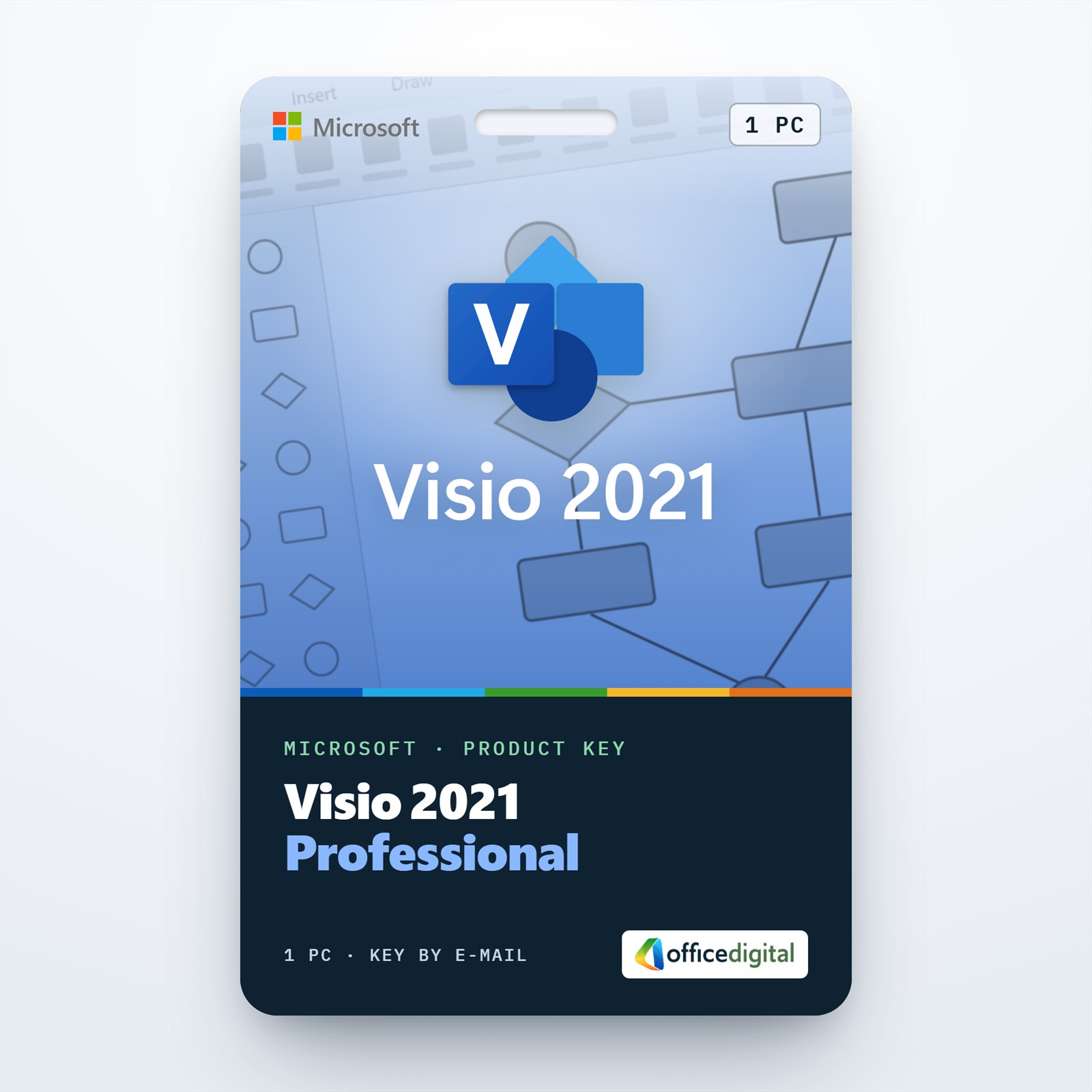




Visio 2021 Professional (1PC) License
- License
- Retail · 1 PC
- Delivery
- Instant, by e-mail
- Download
- Official Microsoft
- Brand
- Microsoft
€31,99
One-time payment · no subscription
- Instant delivery to your e-mailkey + download links
- Key won't activate? We replace itunused keys: refund within 7 days
- Official invoice with every order
- 24/7 live chat help with activation
Visio 2021 Professional for one Windows PC, with AWS and Azure shapes, linking of shapes to data and several people editing one diagram at once. One-time purchase, no renewal.
What you get with Visio 2021 Professional
Visio 2021 Professional (1PC) is the Professional edition of Microsoft’s 2021 diagramming app, licensed for one computer with Windows 10 or Windows 11. Beyond flowcharts, org charts and floor plans, it brings AWS and Azure stencils, shapes linked to data and editing of one diagram by several people at the same time. The key, the link to Microsoft’s download and setup steps come by e-mail when payment clears, usually within a few minutes, with a PDF invoice. You buy it once; there is no renewal.

Additions in the 2021 release
- Azure and AWS stencils for cloud architecture, including a sample SAP template for AWS.
- Wireframe templates for sketching mobile app screens at low fidelity.
- Evidence, Indoor and Outdoor stencils under Maps and Floor Plans for crime scene layouts, plus a template for planning distance between desks in a workplace.
- Reworked UML and ERD stencils for software and database diagrams.
- A Hex field in the Colors dialog, so exact brand colors can be typed in.
- Stock images and icons from Microsoft’s premium creative content collection.
Why the Professional edition
Microsoft’s notes for Visio Professional 2021 single out what this edition adds for groups who draw together: several people can work on a single diagram at the same time, diagrams can be linked to data straight away, and Information Rights Management limits what others can do with a drawing you share. Simultaneous editing needs the file stored in OneDrive for Business or SharePoint. If more than one desk needs Visio, the Visio 2021 Professional (5PC) License covers five PCs; the newer Visio Professional 2024 adds Kubernetes shapes and more Azure stencils.
How to activate Visio 2021 Professional
- Visit setup.office.com and press Get Started.
- Log in to the Microsoft account you want Visio attached to; a new account can be created there too.
- Type in the product key from our e-mail, click Next, pick a language and click Redeem. From then on the account holds the license, and the Visio download begins.
- Run the downloaded file, allow the security prompt and close the installer when it says you’re all set.
- Open Visio and give it a few seconds until the Activation Wizard appears. Select activation over the Internet, then Next, to complete it.
Screenshots of the whole process are in our Visio installation guide. If Visio doesn’t activate, contact our live chat or e-mail support, open 24/7.
System requirements
| Supported Windows | Windows 10 or 11; Windows Server 2019, 2022, 2025 |
|---|---|
| Processor | Dual-core, 1.1 GHz minimum |
| Memory | 4 GB of RAM |
| Disk | 4 GB free |
| Display | 1280 × 768 (4K and above needs 64-bit Visio) |
| Graphics | DirectX 9 or later for hardware acceleration |
| Additional | .NET 3.5 or 4.6+ for some features; Microsoft account to redeem |
Questions about Visio 2021 Professional
Can I open Visio 2010 drawings in Visio 2021?
Yes. Older .vsd drawings open with some features switched off for compatibility; File → Info → Convert turns them into the current format.
Does Visio 2021 install alongside Microsoft 365 Apps?
Microsoft supports the pair from Microsoft 365 Apps Version 2108 on, provided both are 32-bit or both are 64-bit.
Will Visio 2021 run on macOS?
No. Microsoft ships Visio Professional 2021 for Windows devices, and Office 2021 for Mac has no Visio app.
Can I get a refund for a key I haven’t used?
Yes, within 7 calendar days, as long as the key hasn’t been redeemed; our refund policy has the details.
Be the first to review “Visio 2021 Professional (1PC) License”
You must be logged in to post a review.
- Genuine Retail licenses. Every key is a genuine license that activates with Microsoft, or with ESET or Avast for antivirus. Unless the License line next to the price says OEM, it is a Retail license.
- Replacement if a key won't activate. Contact our support on live chat or by e-mail, day or night: we help you finish the activation or send a replacement key.
- Refund for unused keys. A key that has not been redeemed can be refunded within 7 calendar days of purchase, as set out in our Refund Policy.
- Invoice and instructions. Every order comes with a PDF invoice and instructions to download, install and activate the software.
You may also need




Reviews
There are no reviews yet.