
Project 2019 Professional (1PC)
- License
- Retail · 1 PC
- Delivery
- Instant, by e-mail
- Download
- Official Microsoft
- Brand
- Microsoft
€32,00
One-time payment · no subscription
- Instant delivery to your e-mailkey + download links
- Key won't activate? We replace itunused keys: refund within 7 days
- Official invoice with every order
- 24/7 live chat help with activation
Project 2019 Professional for one PC with Windows 10 or 11. It adds Team Planner and the Project Server connection to the Standard feature set. Pay once, no subscription.
What you get with Project 2019 Professional
One license for Project 2019 Professional, Microsoft’s desktop project management app, on a single PC with Windows 10 or Windows 11. Being the Professional edition, it includes Team Planner and the link to Project Server next to scheduling, cost tracking and reports. After payment is confirmed you receive the key, Microsoft’s download link and our setup steps by e-mail, usually within a few minutes, and a PDF invoice comes with the completed order. You pay once; there is no subscription.
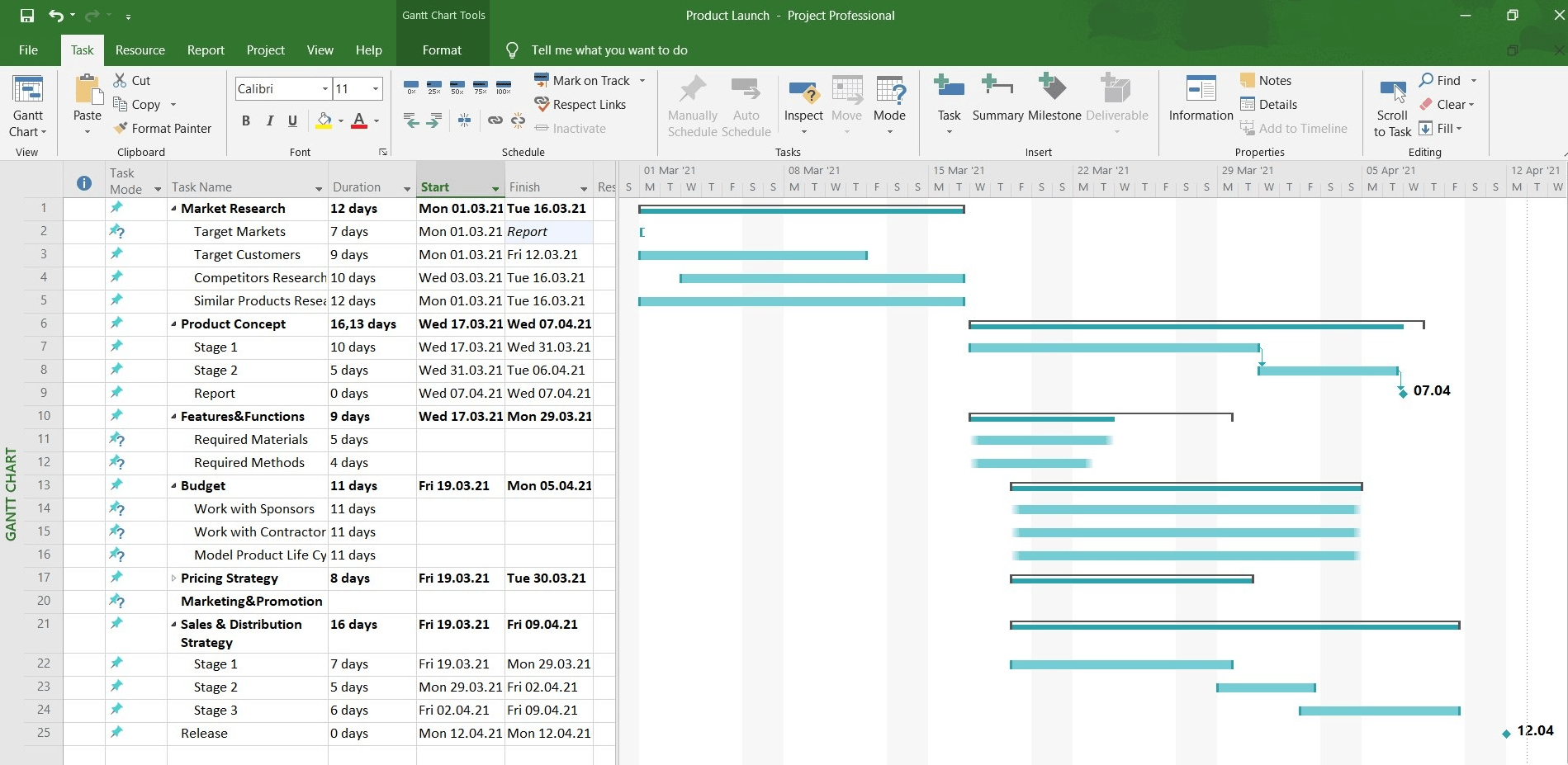
What changed in Project 2019
Microsoft’s notes for Project Professional 2019 list four additions:
- Predecessors and successors can be chosen from a drop-down list of all tasks in the plan, so you no longer have to remember task IDs.
- A read-only Task Summary Name column shows the summary task each task sits under.
- Bars on the Timeline can carry labels and show how far each task has progressed.
- Narrator and other assistive tools can read more of Project, and contrast and keyboard support were improved.
Professional features you would miss in Standard
Team Planner is available only with Project Professional: it shows each resource’s assignments on a timeline, which makes double bookings visible. Resource engagements, formal requests for a person’s time that a resource manager approves, work in Project Professional 2019 connected to Project Server 2016 or 2019; Project Standard has no resource engagements. Microsoft also lists Project Professional 2019 as a client for Project Server Subscription Edition.
Choosing between 2019, 2021 and 2024
Project 2019 is a sensible pick when the people you share plans with use 2019 too, though files move freely: Project 2010 through 2021 share one .mpp format. Project 2021 Professional is the next release, and Project Professional 2024 is the current one.
How to activate Project 2019 Professional
- Visit setup.office.com and select Get Started.
- Log in to a Microsoft account; the page also lets you set up a new one.
- Type the key from our e-mail, click Next, choose the language and select Redeem. The Project Professional 2019 installer then downloads to your PC.
- Run the installer you downloaded and allow it to make changes to the PC.
- Open Project 2019. The Activation Wizard shows up within a few seconds; select activation over the Internet and click Next to finish.
The same steps with pictures are in our step-by-step Microsoft Project guide.
System requirements
| Operating system | Windows 10 or 11; Server 2019, 2022 or 2025 |
|---|---|
| Processor | 1.6 GHz or faster, 2-core |
| Memory | 4 GB, or 2 GB for the 32-bit build of Project |
| Disk space | 4 GB available |
| Display | 1280 × 768 screen resolution |
| Graphics | DirectX 9 or later, with WDDM 2.0 or higher on Windows 10 |
| Other | .NET 3.5 or 4.6 and higher for some features |
Questions about Project 2019 Professional
Which Windows versions does Microsoft list for it?
Windows 10 and Windows 11, plus Windows Server 2019, 2022 and 2025, according to Microsoft’s current requirements table for Office 2019 products.
Can it run beside Microsoft 365 Apps?
Yes. Microsoft supports Office 2019 products next to Microsoft 365 Apps from Version 1808 on, as long as the two installs match: both 32-bit or both 64-bit.
Does the key arrive at night or on weekends?
Orders are processed day and night, and most keys go out a few minutes after payment; orders checked by hand take about an hour. Details are in our digital delivery policy.
1 review for Project 2019 Professional (1PC)
Add a review
You must be logged in to post a review.
- Genuine Retail licenses. Every key is a genuine license that activates with Microsoft, or with ESET or Avast for antivirus. Unless the License line next to the price says OEM, it is a Retail license.
- Replacement if a key won't activate. Contact our support on live chat or by e-mail, day or night: we help you finish the activation or send a replacement key.
- Refund for unused keys. A key that has not been redeemed can be refunded within 7 calendar days of purchase, as set out in our Refund Policy.
- Invoice and instructions. Every order comes with a PDF invoice and instructions to download, install and activate the software.
You may also need
Oliver Rees (verified owner) –
Amazing deal for Microsoft Project 2019 the key and instructions work flawlessly, everything is working fine and is connected with my Microsoft account. Thank you, Office Digital Team. I will surely buy Microsoft products again from you!