
Instructions
How to Remove Formatting in Word
May
Removing formatting in Word is useful when pasted text looks messy, fonts do not match, or a document has too many manual styling changes. Microsoft says you can clear formatting such as bold, underline, italics, color, superscript, subscript, and more, returning the selected text to its default formatting.
For most users, the fastest way is to select the text and use Clear All Formatting. Microsoft also lists a keyboard shortcut that removes manual character formatting, which is especially handy when you want to clean up text quickly without using the ribbon.
The Short Answer
To remove formatting in Word:
- select the text
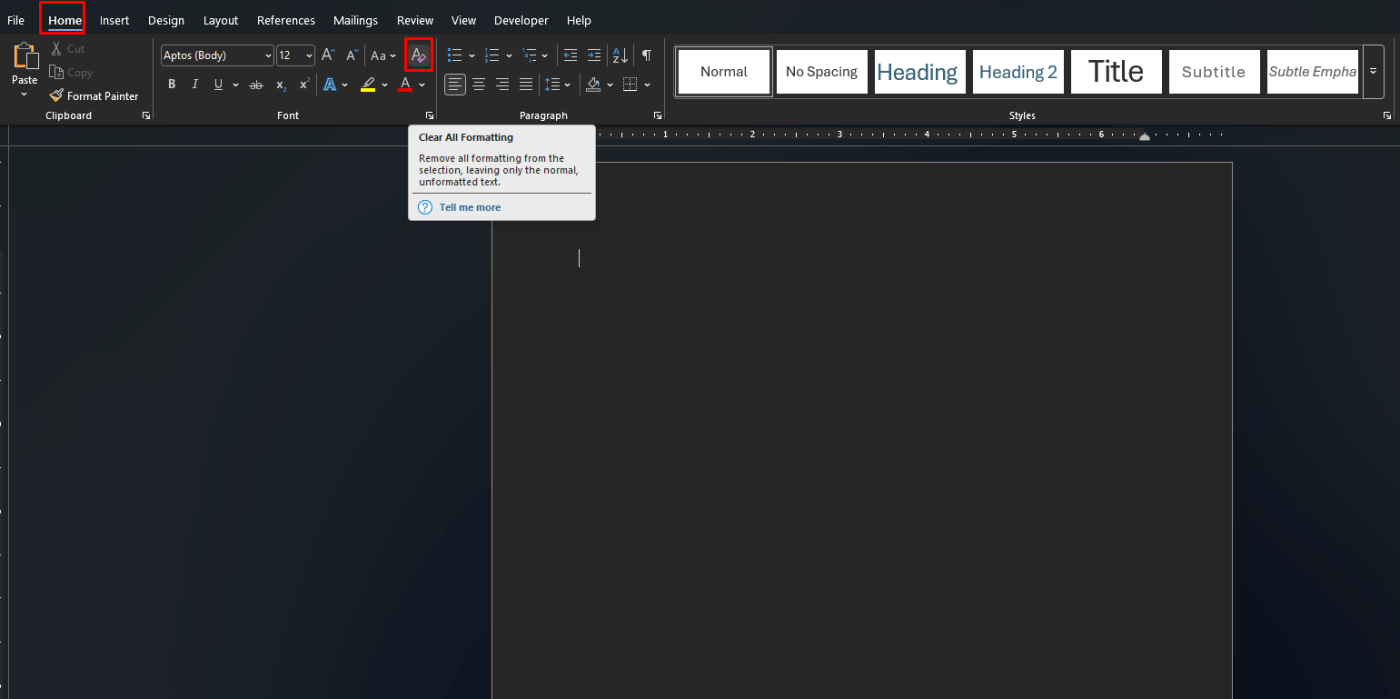
- go to Home
- click Clear All Formatting
Microsoft says this is the main built-in method in Word for returning selected text to its default formatting.
How to Remove Formatting with Clear All Formatting
This is the easiest method for most people.
Microsoft says to select the text you want to reset, then on the Home tab choose Clear All Formatting in the Font group. This removes formatting you added or changed, such as bold, italic, underline, color, superscript, and subscript.
What this removes
Microsoft’s support page says Clear All Formatting can remove:
- bold
- underline
- italics
- text color
- superscript
- subscript
- other manual text formatting changes
This is especially useful when text pasted from websites, emails, or PDFs does not match the rest of the document.
Keyboard Shortcut to Remove Formatting in Word
If you want a faster method, Word also has a keyboard shortcut.
Microsoft’s Word keyboard shortcuts page says Ctrl + Spacebar removes manual character formatting.
That means it is useful for clearing things like:
- bold
- italic
- underline
- font changes
- text color
- character-level formatting
This is one of the quickest ways to clean selected text without opening any menus.
Clear All Formatting vs Ctrl + Spacebar
These two methods are similar, but it helps to know the difference.
Microsoft’s support article presents Clear All Formatting as the main ribbon command for returning text to default formatting, while the Word shortcuts page specifically describes Ctrl + Spacebar as removing manual character formatting.
In practical use:
- use Clear All Formatting when you want the main built-in cleanup button
- use Ctrl + Spacebar when you want a quick keyboard shortcut for character formatting cleanup
How to Remove Formatting After Pasting Text
One of the most common reasons people need this is copying text from another source.
Microsoft’s Clear Formatting support article says the goal is to return text to its default formatting. That makes it useful after pasting content from:
- websites
- emails
- PDFs
- other Word documents
- chat messages or notes
A simple workflow is:
- paste the text
- select the messy part
- use Clear All Formatting or Ctrl + Spacebar
This is often faster than trying to manually remove bold, color, size, and spacing one by one.
How to Undo a Formatting Change
Sometimes you do not want to remove all formatting. You just want to undo the last formatting step.
Microsoft’s video page on clearing formatting says you can also use Undo when you simply want to reverse your most recent formatting change. It separately explains that Ctrl + Spacebar or Home > Clear All Formatting is used when you want to strip the text formatting itself.
So:
- use Undo if the last change was a mistake
- use Clear All Formatting if the text already has multiple unwanted styles
What Removing Formatting Does Not Always Change
It is useful to keep expectations clear.
Microsoft says Clear All Formatting applies to formatting you added or modified. That means it is focused on the selected text formatting rather than every possible layout or style setting in the whole document.
So if the issue is more about:
- page layout
- margins
- headers and footers
- section setup
then clearing text formatting may not solve it.
Common Mistakes to Avoid
Selecting too much text
If you select a whole section by mistake, you may remove formatting you wanted to keep.
Expecting it to fix page layout issues
Microsoft’s formatting-reset guidance is about text formatting, not every document layout setting.
Using the wrong cleanup method
If you only need to undo the last step, Undo is usually faster. If the text already contains lots of mixed styles, Clear All Formatting is usually better. Microsoft’s support and video pages make that distinction clear.
Best Use Cases for Removing Formatting in Word
This is especially useful for:
- pasted web text
- copied email text
- school assignments with inconsistent styles
- business documents with mixed fonts
- reports that need a clean, uniform look
- documents edited by multiple people
In short, it helps when text looks inconsistent and you want to reset it quickly.
FAQ
How do I remove formatting in Word?
Microsoft says to select the text, then on the Home tab choose Clear All Formatting.
What is the shortcut to remove formatting in Word?
Microsoft’s Word keyboard shortcuts page says Ctrl + Spacebar removes manual character formatting.
Does Clear All Formatting remove bold and italics?
Yes. Microsoft says it removes formatting such as bold, underline, italics, color, superscript, subscript, and more.
Is removing formatting the same as Undo?
No. Microsoft’s video page explains that Undo reverses the last formatting change, while Clear All Formatting strips the selected text formatting itself.
Create cleaner documents faster with genuine Office keys, instant delivery, and easy activation that keeps Word ready when you need it.