
Instructions
How to Add Checkboxes in Word
May
Adding checkboxes in Word is useful for checklists, forms, task lists, and printable documents. Microsoft’s Word support explains that there are two main ways to do this: you can add a clickable check box control for interactive documents, or use a bullet-style checkbox for a printed checklist. Microsoft also says clickable checkbox controls are added from the Developer tab.
The right method depends on how the document will be used. If people need to click boxes on-screen, the interactive control is better. If the document is mainly for printing, the checklist/bullet method is usually simpler. Microsoft’s checklist and forms guidance supports both approaches.
Method 1: Add Clickable Checkboxes in Word
This is the best option for a fillable or interactive document.
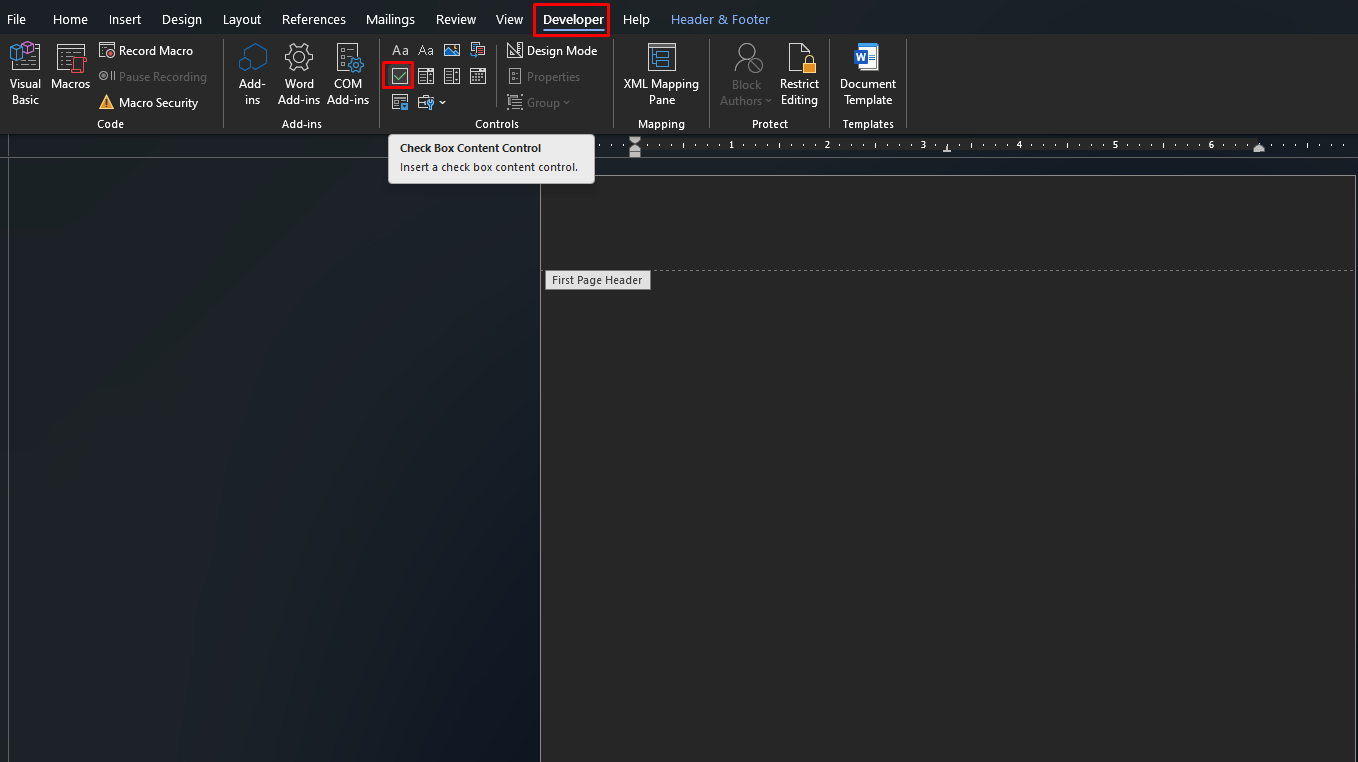
Microsoft says you should first make sure the Developer tab is visible, then click where you want the checkbox and choose Developer > Check Box Content Control. That inserts a checkbox users can click inside the document.
When to use clickable checkboxes
This is useful for:
- fillable forms
- digital checklists
- approval forms
- interactive office documents
Step 1: Turn On the Developer Tab
If you do not see the Developer tab, you need to enable it first.
Microsoft says to show the Developer tab in Word before creating forms and content controls. Its form-creation page links directly to the instruction for showing the Developer tab in the ribbon.
Once it is visible, you will be able to insert checkbox controls, text controls, drop-down lists, and other form elements.
Step 2: Insert the Check Box Content Control
After the Developer tab is available:
- click where you want the checkbox
- go to Developer
- click Check Box Content Control
Microsoft says this is the standard path for inserting a clickable checkbox into a Word form or document.
Step 3: Add More Checkboxes
If you are building a checklist, repeat the process for each new line.
This is useful for:
- to-do lists
- internal forms
- task tracking
- applications and surveys
Microsoft’s form guidance presents checkbox controls as one of the basic content controls you can insert repeatedly as needed.
Step 4: Customize the Checkbox Properties
If you want more control, you can change the checkbox settings.
Microsoft says you can select the content control and go to Developer > Properties to change its properties. This is the same workflow used for other content controls like drop-down lists and date pickers.
This is useful if you want to fine-tune how the checkbox behaves in a form.
Method 2: Add Checkbox Bullets for a Printable Checklist
If the document is meant to be printed, a bullet-style checkbox is often easier.
Microsoft’s checklist support page explains that a checklist can be made in Word using a bulleted list and customizing the bullet symbol so it looks like a checkbox. This is not the same as a clickable control, but it works very well for print-friendly checklists.
When to use checkbox bullets
This is useful for:
- printed task lists
- handout checklists
- paper forms
- study or planning sheets
Clickable Checkbox vs Printable Checkbox
This is the main difference users need to understand.
Clickable checkbox
Use this when the document will be filled out on-screen. Microsoft says the Check Box Content Control is part of the form-building tools in Word.
Printable checkbox
Use this when the document is meant to be printed and checked by hand. Microsoft’s checklist guidance supports using list formatting for that type of document.
How to Use Checkboxes in Fillable Forms
Checkboxes are especially useful in Word forms because they let users choose yes/no or tick-style responses quickly.
Microsoft says Word forms can include content controls such as:
- check boxes
- text boxes
- date pickers
- combo boxes
- drop-down lists
That makes checkboxes one of the most useful form elements when you want simple choices without typed responses.
How to Protect a Form with Checkboxes
If you want people to fill in the checkboxes without changing the document layout, protection helps.
Microsoft says you can use Developer > Restrict Editing, then apply editing restrictions and choose Yes, Start Enforcing Protection. It also notes that you can protect only parts of a document if needed by using sections.
This is useful for:
- office forms
- internal documents
- checklists shared with others
- documents where the layout should stay fixed
FAQ
How do I add clickable checkboxes in Word?
Microsoft says to turn on the Developer tab, click where you want the box, and choose Developer > Check Box Content Control.
Where is the checkbox option in Word?
For interactive checkboxes, Microsoft places it under the Developer tab in the Controls group as Check Box Content Control.
Can I make a printable checklist in Word?
Yes. Microsoft’s checklist guidance supports using list formatting with checkbox-style bullets for printable checklists.
Can I protect a Word form with checkboxes?
Yes. Microsoft says you can use Developer > Restrict Editing and then enforce protection so users can fill the form without changing the layout.
Upgrade your workflow with genuine Office keys, instant delivery, and easy activation so you can create smarter Word documents without delays.