
Instructions
How to Print Double-Sided in Word
May
Double-sided printing in Word is useful when you want to save paper, make documents look more professional, or print reports and assignments in a cleaner format. Microsoft says that if your printer supports duplex printing, Word can print on both sides automatically, and if it does not, you can still use manual duplex printing instead.
The exact steps depend on your printer and whether you are using Word on Windows or Word for Mac. Microsoft’s support pages explain both methods: automatic two-sided printing for duplex-capable printers, and manual odd/even page printing when duplex is not available.
How to Check If Your Printer Supports Double-Sided Printing
Before anything else, it helps to know whether your printer supports automatic duplex printing.
Microsoft says one simple check is to open File > Print and then look under Settings. If Print on Both Sides is available instead of only Print One Sided, the printer is set up for duplex printing. Microsoft also notes that if you have more than one printer installed, one may support duplex printing while another may not.
How to Print Double-Sided in Word on Windows
If your printer supports duplex printing, this is the easiest method.
Microsoft says to:
- go to File
- select Print
- under Settings, choose Print One Sided
- then select Print on Both Sides
This tells Word to send the document as a duplex print job to the printer.
Long-edge vs short-edge flipping
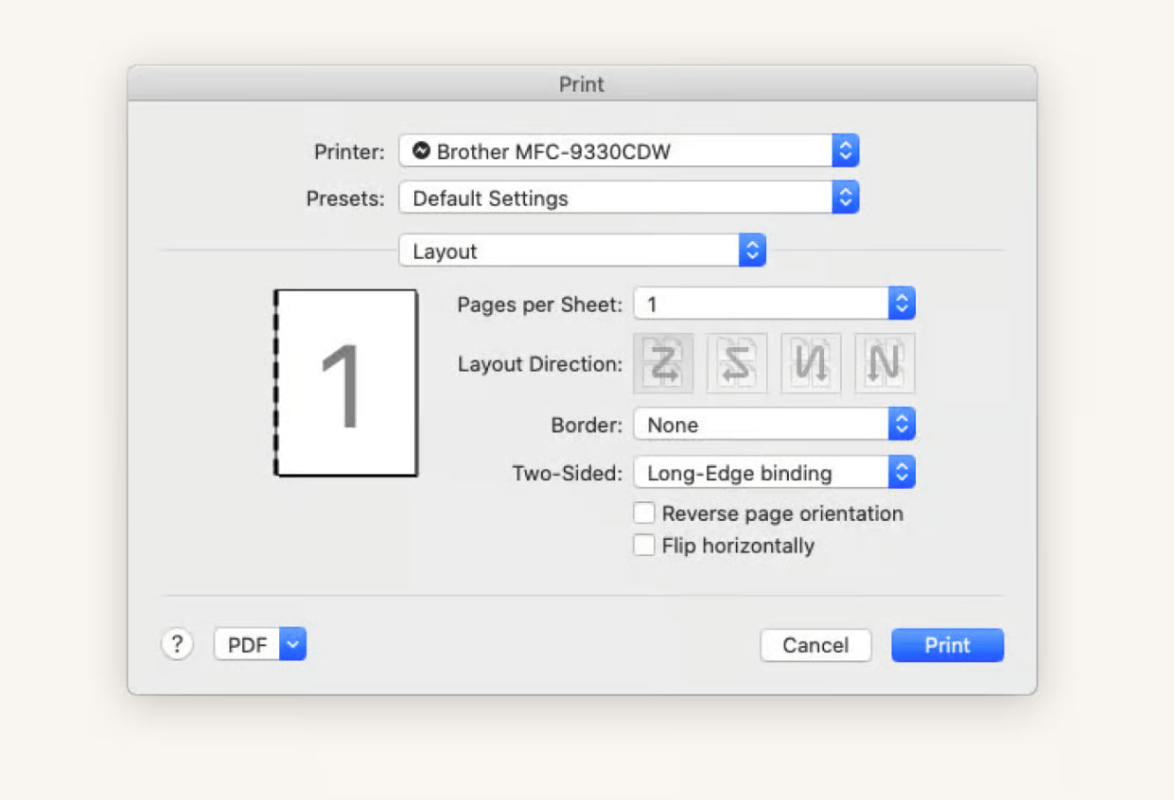
Some printers or printer dialogs may also show options related to how pages flip. Microsoft’s Mac support page explains the difference clearly: Long-Edge binding flips pages on the long side, while Short-Edge binding flips them on the short side. The same idea generally applies when printer drivers expose similar options on Windows.
This matters because:
- long edge is usually best for normal portrait documents
- short edge is often used for pages that flip like a notepad or for certain landscape layouts
How to Print Double-Sided Manually in Word
If your printer does not support automatic duplex printing, Microsoft says you can still print on both sides manually.
In Word on Windows, Microsoft says to:
- go to File
- select Print
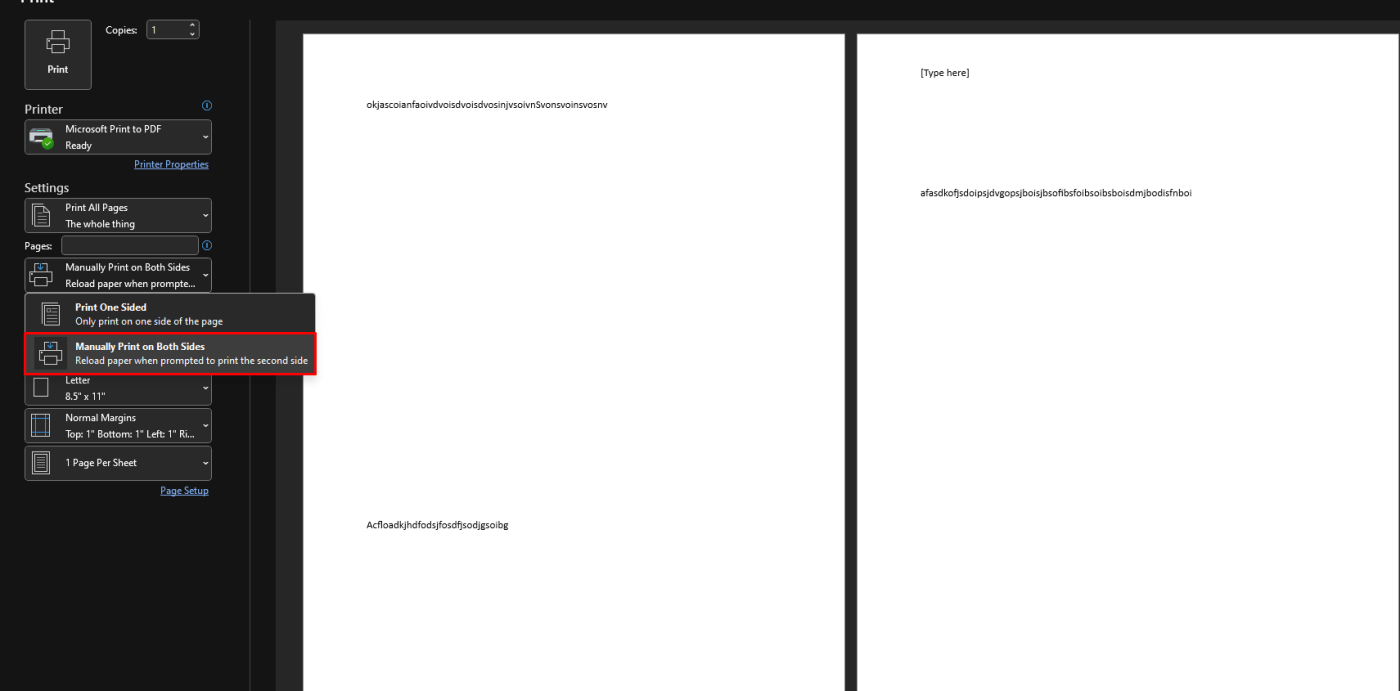
- under Settings, choose Print One Sided
- then select Manually Print on Both Sides
After Word prints one side, you turn the paper stack over and feed it back into the printer when prompted.
This is useful when:
- your printer does not support automatic duplex
- you still want a two-sided result
- you are printing a longer document and want to save paper
How to Print Odd and Even Pages Separately
Microsoft also gives another manual method using odd and even pages.
For Windows, Microsoft says you can:
- go to File
- select Print
- under Settings, choose Print All Pages
- near the bottom, select Only Print Odd Pages
- print those pages
- then flip the printed stack
- return to Print All Pages
- select Only Print Even Pages
- print again
This can be helpful if:
- you want more control than the manual duplex prompt gives
- your printer feeds paper in a way that makes manual duplex tricky
- you want to test the orientation first on a small batch
How to Print Double-Sided in Word for Mac
Word for Mac uses the Mac print dialog, so the steps look a little different.
Microsoft says to:
- go to File
- select Print
- choose Copies & Pages
- then choose Layout
- click Two-Sided
- select Long-Edge binding or Short-Edge binding
If your printer does not support automatic duplex, Microsoft says Word for Mac also lets you print manually by choosing Odd pages only first, then Even pages only.
Which Double-Sided Option Should You Use?
The best option depends on your printer and the type of document.
Use automatic duplex printing if:
- your printer supports Print on Both Sides
- you want the simplest method
- you want the pages aligned automatically
Use manual duplex printing if:
- your printer does not support automatic duplex
- you are willing to reinsert the pages yourself
- you want a two-sided print result anyway
Use odd/even page printing if:
- you want more manual control
- you are testing orientation
- the normal manual duplex option is not working well
These options are all described in Microsoft’s Word support pages for Windows and Mac.
FAQ
How do I print double-sided in Word?
Microsoft says to go to File > Print, then under Settings choose Print One Sided and switch it to Print on Both Sides if your printer supports duplex printing.
What if my printer does not support double-sided printing?
Microsoft says you can use Manually Print on Both Sides, or print Only Print Odd Pages first and then Only Print Even Pages after flipping the paper.
How do I print double-sided in Word for Mac?
Microsoft says to go to File > Print, select Copies & Pages, then Layout, and choose Two-Sided with either Long-Edge binding or Short-Edge binding.
What is the difference between long-edge and short-edge binding?
Microsoft says Long-Edge binding flips the pages on the long end, while Short-Edge binding flips them on the short end.
Get genuine Office keys with instant delivery, easy activation, and the tools you need to create, edit, and print documents without the extra hassle.