
Instructions
How to Use PowerPoint Templates
May
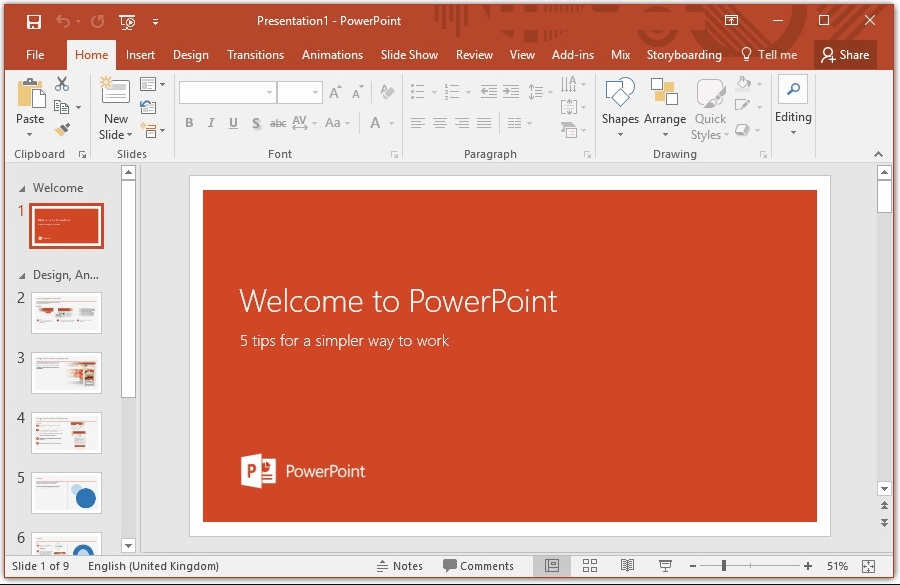
PowerPoint templates are one of the easiest ways to create better-looking presentations faster. Microsoft says templates help you start with a prebuilt design, and PowerPoint includes built-in Office design templates that you can access from the New screen. PowerPoint for the web also offers standard Office presentation templates through File > New.
Templates are useful because they already include layouts, themes, colors, and formatting choices. Microsoft also says you can create your own PowerPoint template by building a presentation and saving it as a .potx file, then reuse it later.
How to Start with a Built-In PowerPoint Template
This is the easiest option for most people.
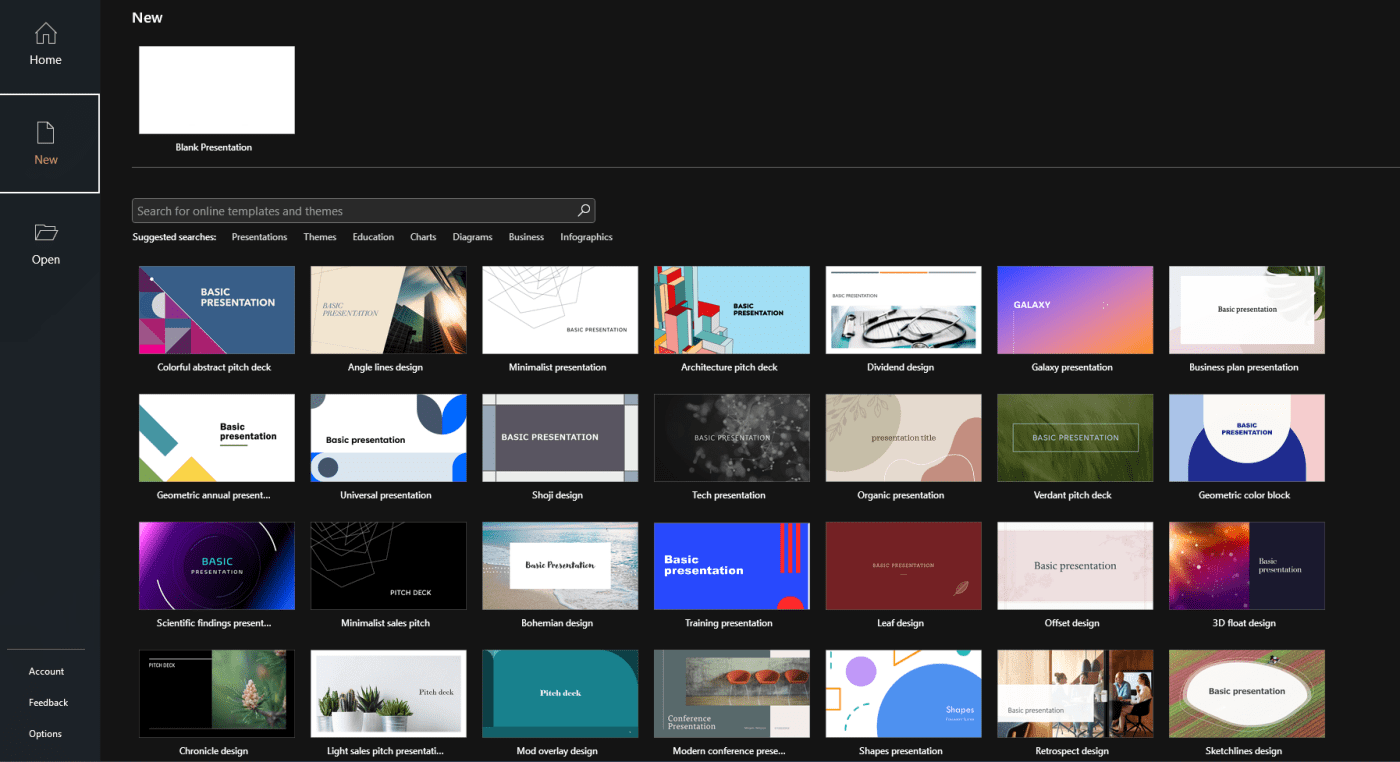
Microsoft says standard Office design templates for presentations are available in PowerPoint, and in PowerPoint for the web you can access them by choosing File > New and selecting a template thumbnail. In PowerPoint on Windows, you can start from New on launch or from File > New if a presentation is already open.
This is useful for
- school presentations
- business slide decks
- project summaries
- class reports
- quick presentation drafts
How to Use a Personal Template in PowerPoint
If you already have a saved template, Microsoft says you can use a personal template to create a new presentation. Its support page also explains how to see or change the default personal templates location through File > Options > Save under Default personal templates location.
This is useful when you:
- reuse the same presentation style often
- want a branded design
- need a custom layout for recurring presentations
How to Apply a Template to an Existing Presentation
Sometimes you already have slides and want to change the design later.
Microsoft has a support page specifically for applying a template to an existing presentation. It also explains where personal templates are stored and how PowerPoint uses the default personal templates location.
A related Microsoft support page says you can also apply a theme from the Design tab and choose Apply to All Slides or Apply to Selected Slides by right-clicking a theme in the gallery.
This is useful for
- refreshing an old presentation
- matching slides to a brand style
- making mixed slides look consistent
- updating a project deck quickly
How to Import Existing Slides into a New Template
Microsoft says that if you want to move old slides into a new template, you can open the file with the existing slides, copy the slides you want, switch to the new file, then paste them and choose Use Destination Theme.
This is one of the best ways to:
- keep your content
- adopt the new template’s style
- avoid rebuilding slides from scratch
How to Customize a PowerPoint Template
Once you open a template, you can edit it like any normal presentation.
You can usually customize:
- text
- colors
- images
- layouts
- fonts
- slide order
Microsoft’s support pages on slide layouts and themes explain that layouts can be edited, placeholders can be added or removed, and themes can be changed from the Design tab.
How to Save Your Own PowerPoint Template
If you built a presentation style you want to reuse, Microsoft says you can save it as a PowerPoint template file. Its support page explains that when you create a presentation and save it as a .potx file, you can reuse and share it later.
This is useful for:
- school presentation formats
- branded business presentations
- reusable classroom slides
- recurring meeting decks
How Slide Master Affects Templates
Templates in PowerPoint are closely tied to the Slide Master.
Microsoft explains that a template is created by modifying a slide master and its slide layouts. It also says the topmost slide is the Slide Master, and the layouts below it inherit those design settings.
This matters because if you want a template to be truly reusable and consistent, editing the Slide Master is usually better than formatting each slide one by one.
How Templates Work in PowerPoint for the Web
Templates also work in PowerPoint for the web, but there is an important limit.
Microsoft says PowerPoint for the web offers standard Office design templates through File > New, but templates themselves must be created in PowerPoint for Windows or Mac, not in the web version.
That means:
- you can use templates on the web
- but you should create custom templates in desktop PowerPoint
How to Use Organization Templates
If your school or organization provides branded templates, PowerPoint can show those too.
Microsoft says organization templates appear in a dedicated folder when you choose New, and this works on Windows, Mac, and PowerPoint for the web if the organization has the required Microsoft 365 setup.
This is useful when:
- you need approved branding
- your team uses shared presentation styles
- your school or workplace provides official templates
FAQ
How do I use PowerPoint templates?
Microsoft says you can start from File > New, then choose a built-in template to create a new presentation.
Can I apply a template to an existing PowerPoint?
Yes. Microsoft has a support page specifically for applying a template to an existing presentation.
Can I save my own PowerPoint template?
Yes. Microsoft says you can create a presentation and save it as a .potx template file for reuse.
Can I create a PowerPoint template in the web version?
No. Microsoft says templates can be used on any platform, but they must be created in PowerPoint for Windows or Mac, not in PowerPoint for the web.
Create polished presentations faster with genuine Office keys, instant delivery, and smooth activation that gets PowerPoint ready when you need it.