
Instructions
How to Add Animations in PowerPoint
May
Animations in PowerPoint help make slides more dynamic by controlling how text, pictures, shapes, charts, and other objects appear or move. Microsoft says you can animate text, pictures, shapes, and more by selecting the object, going to the Animations tab, choosing an effect, and then adjusting the effect options if needed.
This is useful for presentations where you want content to appear step by step, highlight important points, or make slides feel more polished. Microsoft also provides separate guidance for changing or removing animation effects, setting timing and speed, making text appear one line at a time, and applying more than one animation to the same object.
Step 1: Select the Object You Want to Animate
Before adding any effect, choose the item on the slide.
Microsoft says the first step is to select the object or text you want to animate. This can include:
- text
- pictures
- shapes
- charts
- other slide objects.
Step 2: Choose an Animation Effect
Once the object is selected, go to the Animations tab.
Microsoft says that on the Animations tab, you can choose an effect based on what you want the object to do. Its support page groups effects into common purposes such as:
- appear on the slide
- receive emphasis
- exit the slide.
This means animations are useful when you want an object to:
- enter the slide
- draw attention to itself
- leave the slide later
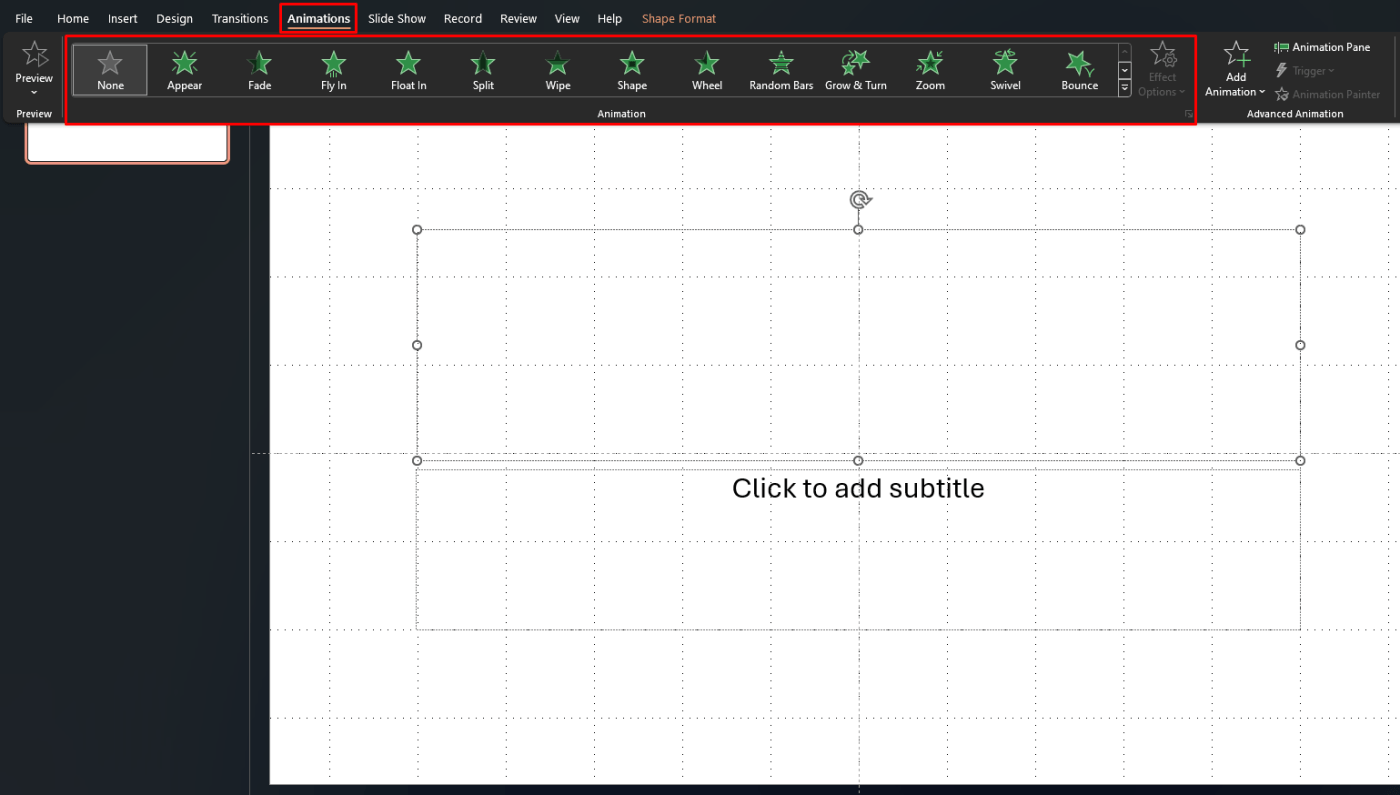
Step 3: Use Effect Options
After choosing an animation, you can change how it behaves.
Microsoft says to select Effect Options after choosing the animation, then choose the specific variation you want.
This is useful because the same animation effect can often play in different directions or styles depending on the object type.
How to Add Animation to Text
Text is one of the most common things people animate.
Microsoft says you can animate text just like other objects by selecting the text, going to the Animations tab, and choosing an effect. It also has a separate support page for making words or lines appear one at a time.
This is useful for:
- bullet points
- step-by-step teaching slides
- presenting ideas in sequence
- reducing too much text on screen at once
How to Make Text Appear One Line at a Time
Sometimes you do not want all the text to appear at once.
Microsoft says that in the Animation Pane, you can select the animation effect, use the arrow next to Text Animations, and then change the animation so text appears By letter, By word, or line by line depending on the setup.
This is especially useful for:
- bullet lists
- lecture slides
- training presentations
- cleaner pacing during a talk
How to Change an Existing Animation
If you already added an animation but want a different one, you do not need to start over.
Microsoft says to select the object that has the effect, then on the Animations tab choose a new animation. This replaces the old effect with the new one.
This is useful when:
- the effect feels too distracting
- the wrong effect was chosen
- you want something simpler or more professional
How to Set Animation Timing
Timing is one of the most important parts of using animations well.
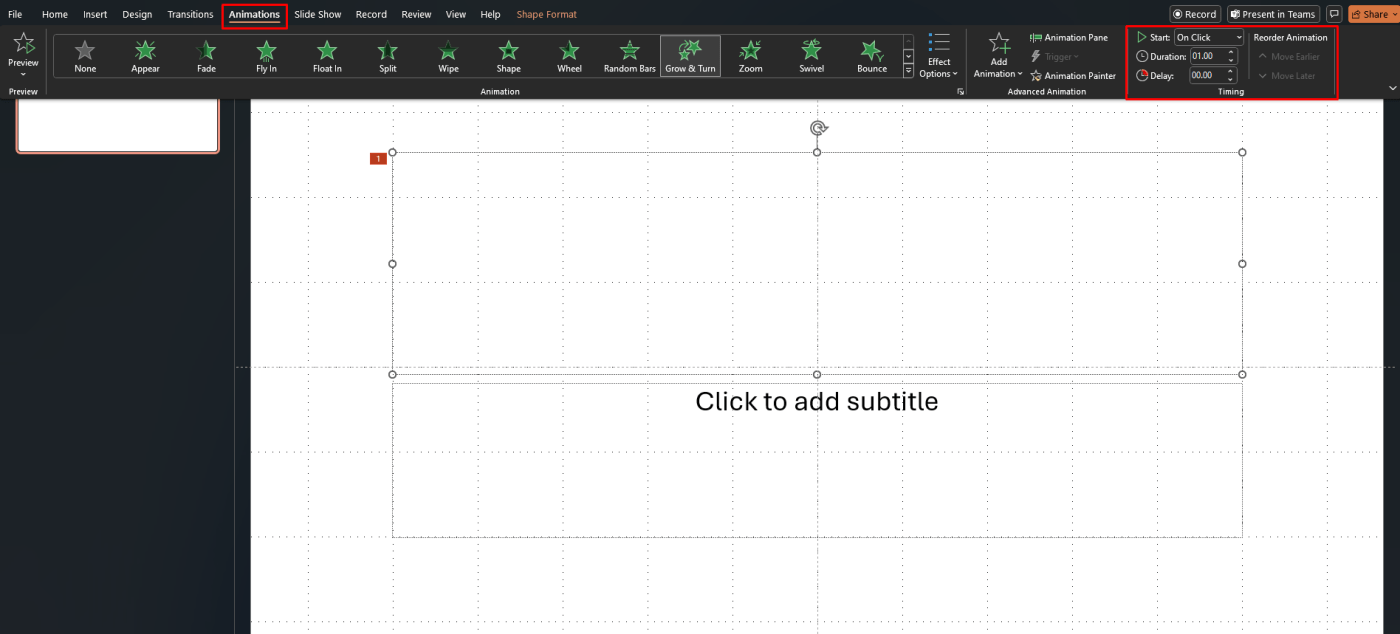
Microsoft says you can control when an animation starts by selecting the animated object, going to the Animations tab, and using the Start options. It says you can choose:
- On Click
- With Previous
- After Previous.
What these options mean
- On Click starts the animation when you click
- With Previous starts it at the same time as the previous effect
- After Previous starts it automatically after the previous one ends.
How to Change Animation Speed
Microsoft says you can change the speed of an effect using the Duration box on the Animations tab. A shorter duration makes the effect faster, while a larger number makes it slower.
This is useful when:
- animations feel too slow
- animations happen too quickly to notice
- you want smoother pacing in a presentation
How to Add a Delay Before an Animation Starts
Microsoft also says you can add a delay before an effect begins. On the Animations tab, use the Delay box to set how many seconds the effect should wait before starting.
This is useful when:
- you want a pause between effects
- you want better pacing
- you are timing the slide to narration or other animations
How to Apply More Than One Animation to One Object
Sometimes one effect is not enough.
Microsoft has a dedicated support page for applying multiple animation effects to one object. It says you can then use the Animation Pane and Timing settings to control how those effects play.
This is useful when you want something to:
- appear first
- then receive emphasis
- then exit later
How to Use the Animation Pane
The Animation Pane is one of the best tools for managing more than one effect.
Microsoft says to open the Animation Pane from the Animations tab. It also uses the Animation Pane in its support pages for editing text animations, timing, and triggers.
This is useful because it helps you:
- see all effects on a slide
- change the order of animations
- adjust timing more precisely
- manage complex slides more easily
How to Trigger an Animation by Clicking an Object
PowerPoint also supports triggered animations.
Microsoft says you can select an object, add an animation, open the Animation Pane, select the animated object there, then go to Animations > Trigger > On Click and choose the object that will trigger it.
This is useful for:
- interactive slides
- click-to-reveal content
- quiz or training presentations
How to Copy an Animation to Another Object
If you want another object to use the same effect, Microsoft also has Animation Painter.
Microsoft says on the Animations tab you can choose Animation Painter, then click the object you want to apply the same animation to.
This saves time when:
- multiple objects need the same effect
- you want consistent animation style
- you are building a larger slide deck
How to Remove an Animation
If you no longer want an effect, Microsoft says you can change, remove, or turn off animation effects. Its support page for changing or removing effects explains that you can select the animated object and replace the effect from the Animations tab.
For simple slides, removing extra effects can often make the presentation look cleaner.
FAQ
How do I add animations in PowerPoint?
Microsoft says to select the object or text, go to the Animations tab, choose an animation, and then use Effect Options if needed.
How do I change an animation in PowerPoint?
Microsoft says to select the object that already has the effect, then choose a new animation on the Animations tab.
How do I control when an animation starts?
Microsoft says to use the Start options on the Animations tab and choose On Click, With Previous, or After Previous.
Can I apply more than one animation to one object?
Yes. Microsoft has a support page specifically for applying multiple animation effects to one object.
Build better presentations with genuine Office keys, instant delivery, and easy activation that gets PowerPoint ready right when you need it.