
Instructions
How to Add Transitions in PowerPoint
May
Transitions in PowerPoint control how one slide changes to the next during a presentation. Microsoft says you can apply a transition to a slide, change it, customize effect options, and adjust how long it lasts. It also explains that if you want the same transition on all slides, you can apply it across the whole presentation.
This is useful when you want a presentation to feel smoother and more polished. For most users, the best approach is to keep transitions simple and consistent, then use timing settings only when they help the flow of the presentation. Microsoft’s transition support pages focus on selecting a transition from the Transitions tab, then adjusting options like effect variations, duration, and when the slide advances.
Step 1: Select the Slide
Transitions are applied to slides, not to text boxes or images.
So the first step is to click the slide thumbnail you want to affect. Microsoft’s transition instructions are built around choosing the slide first, then picking the transition effect from the Transitions tab.
Step 2: Choose a Transition Effect
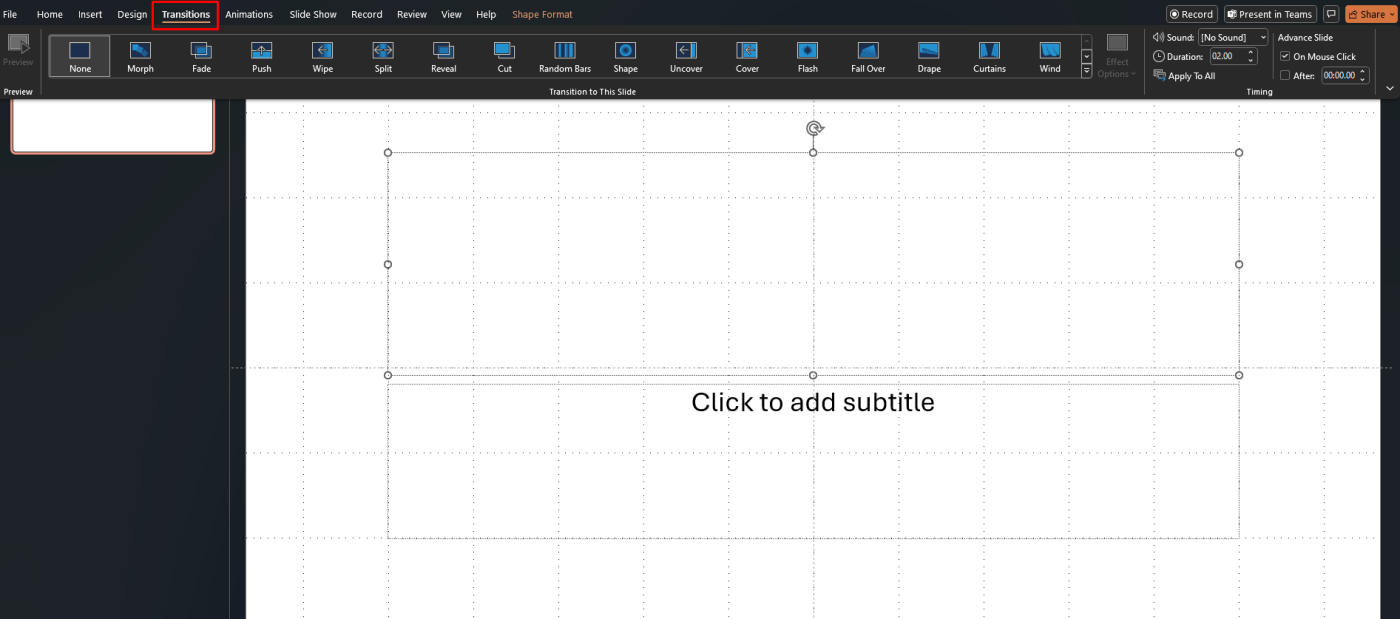
Once the slide is selected, go to the Transitions tab.
Microsoft says you can apply a transition by selecting the slide and choosing the effect you want from the transition gallery. This controls how the presentation moves from the current slide to the next one.
This is useful for:
- smoother slide changes
- cleaner presentation flow
- making a deck feel more polished
Step 3: Use Effect Options
Some transitions have variations.
Microsoft says that after selecting a transition, you can use Effect Options to choose a variation of that effect.
This is useful when you want to adjust:
- the direction of the transition
- how the movement appears
- which variation looks best for the slide
Step 4: Change the Transition Speed
Timing matters more than many people realize.
Microsoft says you can control the length of a transition using the Duration box on the Transitions tab. A smaller value makes the transition faster, while a larger value slows it down.
This is useful when:
- transitions feel too slow
- slide changes happen too quickly
- you want more consistent pacing
Step 5: Set When the Slide Advances
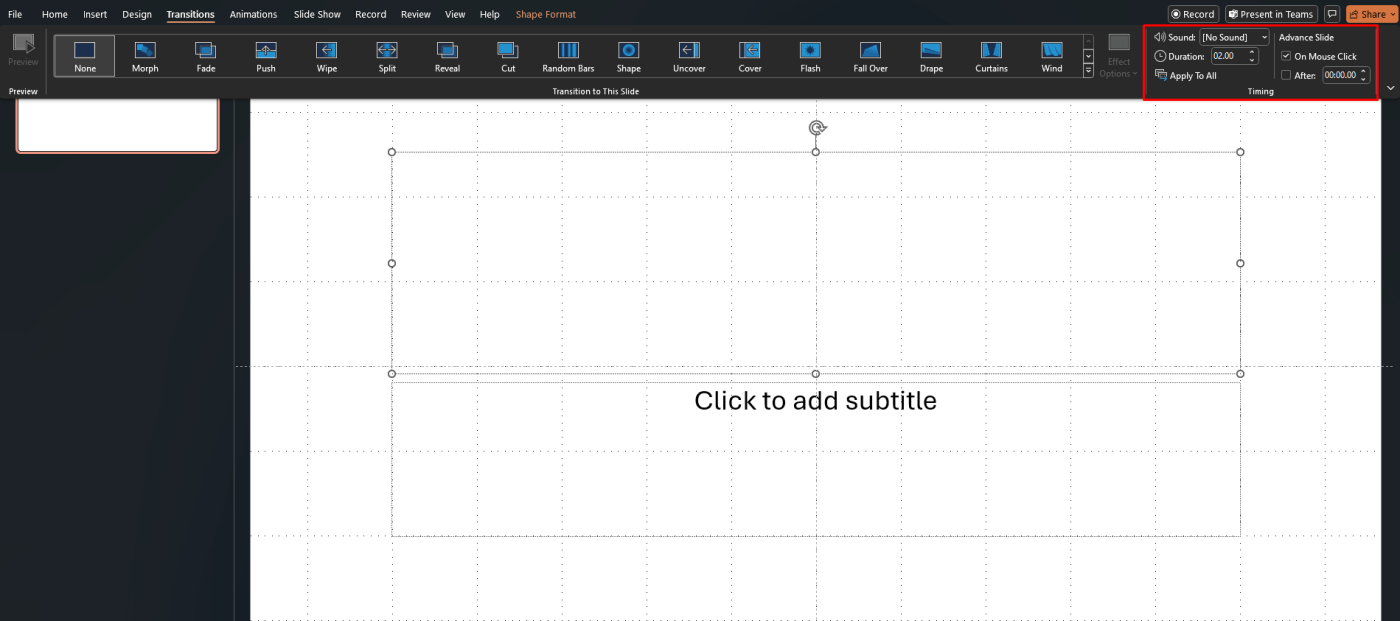
Microsoft also explains that slide advancement can be controlled from the Timing group on the Transitions tab.
You can choose to advance:
- On Mouse Click
- After a certain amount of time
Microsoft’s transition timing guidance says these controls determine how and when the presentation moves to the next slide.
This is helpful for:
- self-running presentations
- timed demo presentations
- kiosks or recorded slide shows
How to Apply the Same Transition to All Slides
If you want the entire presentation to use one transition, PowerPoint can do that quickly.
Microsoft says after choosing the transition, you can use Apply To All to put that same transition on every slide in the deck.
This is useful when:
- you want a consistent presentation style
- you do not want to apply transitions one slide at a time
- you prefer a clean, uniform look
How to Change a Transition in PowerPoint
If you already added a transition but want a different one, you do not need to remove it first.
Microsoft says you can select the slide and then choose a different transition from the gallery. That replaces the old transition with the new one.
This is useful when:
- the current effect feels too distracting
- you want something simpler
- you want a more professional look
How to Remove a Transition
If you no longer want a transition effect, PowerPoint lets you remove it.
Microsoft says you can remove a transition by selecting the slide and choosing None from the transition gallery.
This is useful if:
- a slide should change normally
- you want to simplify the deck
- you added a transition by mistake
How to Preview a Transition
Before presenting, it helps to check how the transition looks.
Microsoft’s transition workflow includes selecting the effect and reviewing the result from the slide so you can see whether the motion fits the presentation. This is a practical use of the Transitions tab behavior described in Microsoft’s support guidance.
Previewing is useful because:
- some transitions feel too dramatic
- timing may need adjusting
- consistency is easier to spot before presenting
Transitions vs Animations
This is one of the most common PowerPoint mix-ups.
Transitions affect how the presentation moves between slides. Animations affect how objects on a slide appear, move, or disappear. Microsoft keeps transitions and animations as separate features in PowerPoint, with different tabs and different controls.
So:
- use transitions for slide-to-slide movement
- use animations for text, pictures, and shapes on a slide
FAQ
How do I add transitions in PowerPoint?
Microsoft says to select a slide, go to the Transitions tab, and choose a transition from the gallery.
How do I change how long a transition lasts?
Microsoft says you can use the Duration box on the Transitions tab to change the speed of the transition.
How do I apply one transition to all slides?
Microsoft says you can choose a transition and then use Apply To All to place it on every slide.
How do I remove a transition in PowerPoint?
Microsoft says you can remove a transition by selecting the slide and choosing None from the transition gallery.
Create smoother presentations with genuine Office keys, instant delivery, and easy activation that gets PowerPoint ready when you need it.