
Instructions
Windows Search Improvements on Copilot+ PCs Explained
Jun
Search is one of those Windows features people use every day but rarely think about until it fails. Most users have had the same problem at some point: you know the file is on your PC, you roughly remember what it was about, but you do not remember the exact filename or where you saved it.
That is exactly the problem Microsoft is trying to solve with the improved Windows Search experience on Copilot+ PCs.
In simple terms, this newer search experience is designed to make Windows better at understanding what you mean, not just what you type exactly.
The Short Answer
If you want the quick version:
- improved Windows Search is a smarter search experience on Copilot+ PCs
- it helps find files, photos, and settings more naturally
- it works in places like File Explorer, the taskbar Search box, and Settings
- it is meant to understand intent better instead of depending only on exact file names
The easiest way to describe it is this:
It is a more natural, AI-enhanced Windows Search experience designed for Copilot+ PCs.
What Makes It Different from Normal Search?
Traditional search often works best when you already know exactly what you are looking for.
That means:
- the exact file name
- the exact folder
- the exact wording
- or something very close to it
The improved search experience is different because it is designed to be more forgiving.
Instead of needing perfect matches, it aims to understand:
- what you meant
- what the file is about
- what kind of item you are trying to find
- what you remember, even if the wording is not exact
That is what makes this feature feel more useful in real everyday use.
Where Improved Windows Search Works
One of the good things about this feature is that it is not locked into just one corner of Windows.
It is built into:
- File Explorer
- the Windows Search box on the taskbar
- Settings
That matters because it makes the experience feel more integrated into normal Windows use instead of feeling like a separate AI demo.
What Can It Find?
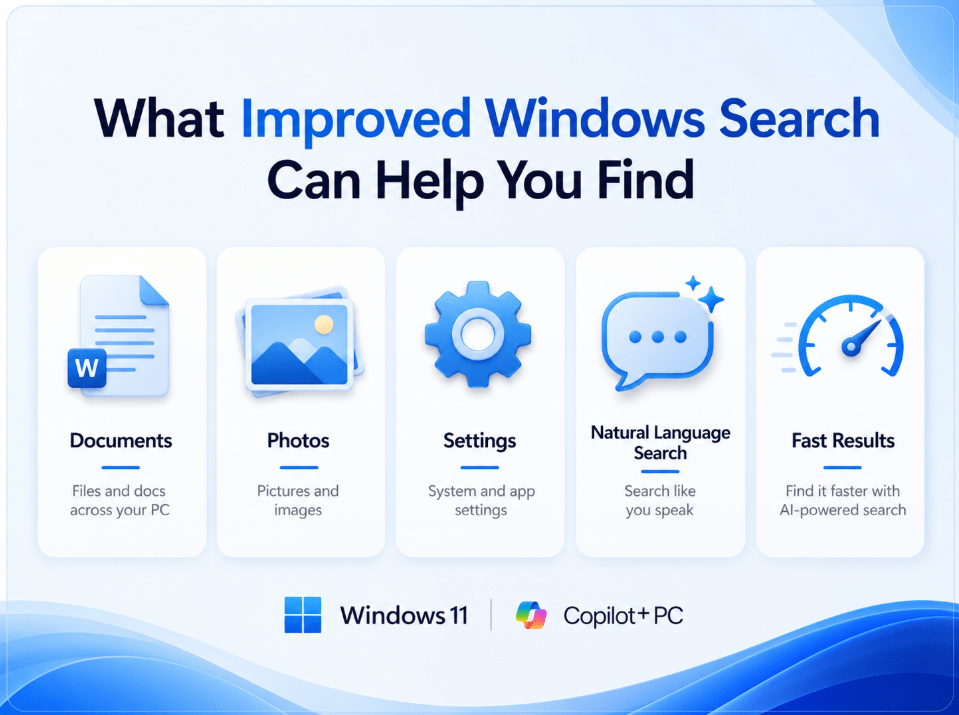
For most users, the most useful part is that it can help find:
- documents
- photos
- settings
- files you remember by meaning rather than exact name
This is important because many people do not actually remember file names. They remember things like:
- “budget slides”
- “trip photos”
- “the presentation from last month”
- “the setting to change my theme”
That is the kind of real-world search behavior this feature is trying to improve.
Why Copilot+ PCs Matter Here
This search experience is tied to Copilot+ PCs because those devices are built with more on-device AI capability.
That means the feature is not just about cloud search or a prettier search box. It is part of a broader push to make Windows better at understanding content on the device itself.
For users, the practical meaning is simple:
not every Windows 11 PC gets the same level of improved search behavior.
So if someone has a normal older Windows 11 laptop, they should not automatically expect this exact experience.
How It Feels in Practice
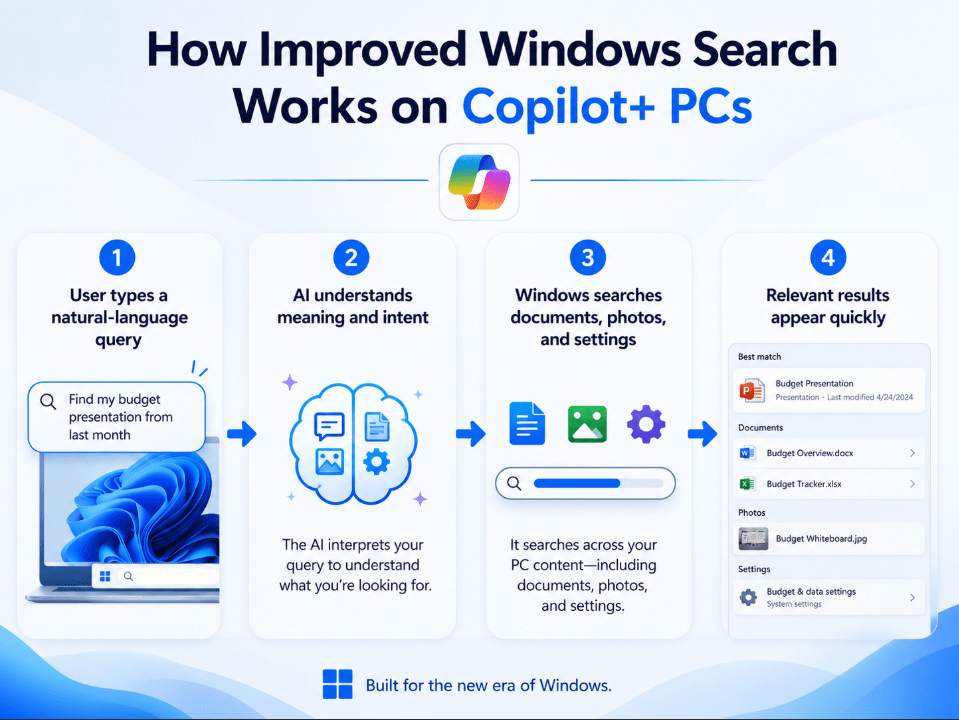
The biggest change is that search becomes more natural.
Instead of forcing yourself to think:
- “What was the exact file name?”
- “What folder was it in?”
- “What exact phrase do I need to type?”
you can think more like:
- “find the budget deck”
- “find the trip photos”
- “find the theme setting”
- “find the document about the project plan”
That is the kind of shift Microsoft is clearly aiming for.
What Makes It Better for Files
For file search, the real improvement is that Windows becomes more useful when your memory is incomplete.
That is important because most users do not search like archivists. They search like normal people:
- by topic
- by memory
- by rough description
- by what the thing was about
That is where this improved search can feel much more practical than older exact-match search habits.
What Makes It Better for Photos
Photos are another place where this can matter.
A lot of users have large photo libraries but do not name or organize every image carefully. Searching by exact file name is not realistic for most people.
A smarter search approach is much more useful in that kind of situation because people remember the subject or context more often than the actual image file name.
What Makes It Better for Settings
This may actually be one of the most practical improvements for many users.
A lot of people know what they want to change, but they do not know:
- which Settings page it is under
- the official name of the option
- whether it is in System, Personalization, Accessibility, or somewhere else
So if users can describe the change more naturally, that makes Windows feel easier instead of more confusing.
How to Manage Indexing
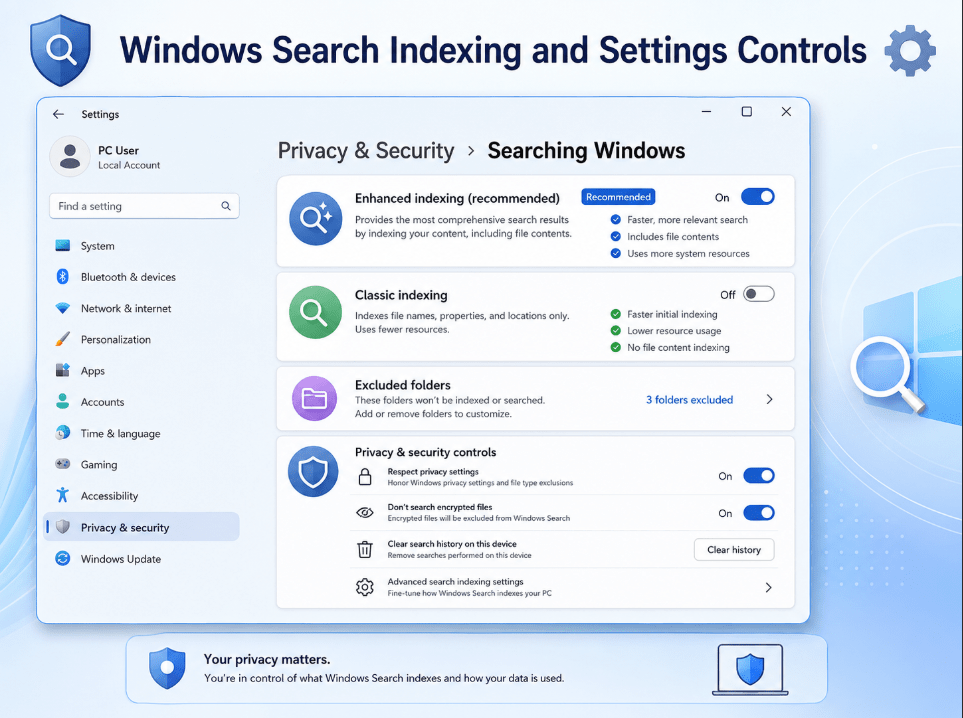
Even with smarter search, indexing still matters.
If you want better results, you should check what Windows is indexing.
A good basic setup is:
- review indexed locations
- decide whether you want broader indexing
- use Enhanced indexing if you want the whole PC covered
- let the initial indexing finish properly
For many users, this is the part that matters most behind the scenes. A smarter search experience still depends on what Windows is actually allowed to index.
Why Initial Setup Matters
One thing many users miss is that improved search is not always instant in the fullest sense right away.
If indexing is still building in the background, search may not feel as complete at first.
That is why it helps to:
- leave the PC plugged in
- give indexing time to finish
- avoid judging the feature too early on the very first day
For users expecting immediate magic, that is worth remembering.
What File Types It Supports
This feature is not meant for literally every possible file type in existence.
For most normal users, that is fine because the main target is everyday content like:
- Word files
- PowerPoint files
- Excel files
- PDFs
- text documents
- common image formats
That makes it useful for school, office work, research, photos, and personal productivity.
Which Languages It Is Optimized For
This feature also has language limitations users should know about.
It is optimized for a specific group of major languages rather than every language equally. So while it may feel smarter for many users, it is still not something to assume works identically across every language and every content scenario.
That matters if your audience includes international users or multilingual workflows.
Is This the Same as Copilot?
Not exactly.
Copilot is the broader AI assistant experience across Microsoft’s ecosystem.
Improved Windows Search is more specific. It is about helping you find things on the device more naturally.
So the difference is:
- Copilot = broader AI assistant
- improved Windows Search = smarter on-device search experience in Windows
Who Will Benefit Most?
This feature is especially useful for users who:
- save lots of documents
- keep messy folders
- forget exact file names
- search settings often
- manage lots of photos
- want a more natural Windows workflow
That makes it particularly relevant for:
- students
- office workers
- remote workers
- content creators
- researchers
- general productivity users
Who Might Not Notice Much Difference?
Not everyone will care equally.
Some users may not notice a huge difference if they:
- keep extremely organized folders
- remember exact file names
- use very few local files
- do not own a Copilot+ PC
So while this is a real improvement, it is most useful for people whose search habits are more natural and less exact.
Common Mistakes to Avoid
Thinking it works on every Windows 11 PC
This search experience is tied to Copilot+ PC capabilities, not all Windows 11 hardware.
Expecting perfect results before indexing finishes
The feature can feel better once indexing has had time to complete properly.
Forgetting to check indexed locations
Search quality depends partly on what Windows is actually set to index.
Assuming it supports every language or file type equally
It is optimized for specific languages and common file and image formats.
Quick Verdict
Windows Search improvements on Copilot+ PCs are really about making search feel more human. Instead of demanding exact file names, exact phrasing, or perfect memory, Windows is being pushed toward understanding what users mean.
For the right hardware and the right user, that makes search one of the most practical AI improvements in Windows 11, because it helps with a problem almost everyone already has.
FAQ
What are Windows Search improvements on Copilot+ PCs?
They are AI-enhanced search improvements designed to help users find files, photos, and settings more naturally on supported Copilot+ PCs.
Where does improved Windows Search work?
It is built into File Explorer, the taskbar Search box, and Settings.
Does improved Windows Search need exact filenames?
No. One of its main benefits is that it is meant to understand intent better, so users can search more naturally.
Do all Windows 11 PCs have improved Windows Search?
No. This experience is part of the Copilot+ PC class of features, so it is not the same on every Windows 11 device.
Get more from Windows 11 with a genuine license, instant delivery, and simple activation that keeps your PC ready for the latest AI features.