
Instructions
Dynamic Arrays in Excel: What Does the #SPILL! Error Mean?
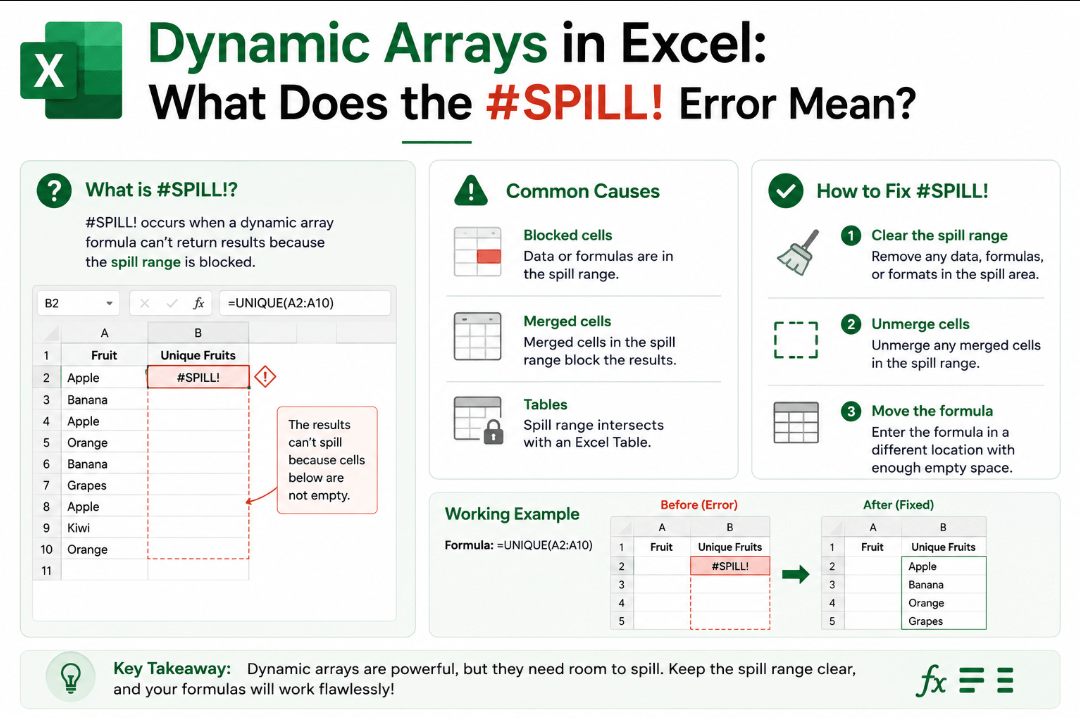
Aug
You enter a formula in Excel expecting a result, but instead you see #SPILL!.
The Excel #SPILL! error is usually connected to dynamic array formulas. It means Excel wants to return multiple results into nearby cells but something is preventing those results from appearing.
Fortunately, the problem is often easy to fix.
What Are Dynamic Arrays in Excel?
Traditional Excel formulas often return one result into one cell.
Dynamic array formulas can return multiple results from a single formula.
For example, a formula such as:
=SORT(A2:A10)
can return a sorted list across several cells automatically.
Excel calls this behavior spilling. The cells containing the results are known as the spill range.
Functions commonly associated with dynamic arrays include:
- FILTER
- SORT
- SORTBY
- UNIQUE
- SEQUENCE
- RANDARRAY
Instead of copying the formula into many cells, Excel automatically fills the required area.
What Does the #SPILL! Error Mean?
A #SPILL! error means Excel has calculated multiple results but cannot place them into the required cells.
For example, imagine this formula:
=SEQUENCE(5)
It needs five cells to display its results.
If one of those cells already contains text or another value, Excel cannot complete the spill and displays:
#SPILL!
Microsoft describes a blocked spill range as one of the most common reasons for the error.
1. Something Is Blocking the Spill Range
This is the most common cause.
Imagine Excel needs cells B2 for your formula, but B4 already contains something.
The formula cannot overwrite B4 automatically.
To fix it:
- Select the cell showing #SPILL!.
- Look for the dashed outline showing the intended spill range.
- Find the cell blocking that area.
- Delete or move its contents.
Excel should automatically display the results once the obstruction is removed.
2. The Formula Is Inside an Excel Table
Dynamic array formulas cannot spill normally from within an Excel Table.
If you enter a spilling formula inside a table, Excel may return #SPILL!.
The simplest solution is to place the dynamic array formula outside the table.
Another option is to convert the table back into a normal range, although you should only do this if you no longer need the table functionality.
3. The Results Would Go Beyond the Worksheet
Excel worksheets have limits.
A worksheet contains:
1,048,576 rows
If your formula tries to generate results that extend beyond the bottom or right edge of the worksheet, Excel cannot display them.
This sometimes happens when a dynamic array formula uses an entire-column reference.
For example:
=SORT(A:A)
Depending on where the formula is placed, Excel may attempt to return more results than there is space available beneath it.
Using a specific range instead can solve the problem:
=SORT(A2:A1000)
4. Excel Cannot Determine the Array Size
Some formulas create an array whose size keeps changing while Excel calculates it.
Microsoft gives this example:
=SEQUENCE(RANDBETWEEN(1,1000))
Because RANDBETWEEN can produce a different number during recalculation, Excel may be unable to determine how large the final spill range should be.
This can produce a #SPILL! error related to an indeterminate size.
This situation is less common than a blocked cell, but it can appear in more advanced formulas.
How to Find What Is Blocking a Formula
Excel includes a useful shortcut for this.
Select the cell showing #SPILL!, then click the warning icon next to it.
If another cell is blocking the spill range, Excel may provide the option:
Select Obstructing Cells
Choose it and Excel will take you directly to the problem cell.
This is usually much faster than manually checking a large worksheet.
Can You Edit One Cell Inside a Spill Range?
No.
Only the cell containing the original dynamic array formula can be edited.
The other results are generated automatically from that formula.
If you click one of these generated cells, you may see the formula in the formula bar, but it appears differently and cannot be edited independently.
To change the results, edit the original formula in the top-left cell of the spill range.
Why Are Dynamic Arrays Useful?
Dynamic arrays can make Excel workbooks much cleaner.
Instead of filling hundreds of cells with separate formulas, one formula can automatically generate an entire list.
For example, you could use:
=UNIQUE(A2:A100)
to automatically create a list containing only unique values.
If the source data changes, the spilled results can automatically resize as well.
This makes dynamic arrays particularly useful for:
- Reports
- Dashboards
- Filtering data
- Sorting lists
- Removing duplicate values
- Creating automatically expanding results
Quick Checklist for Fixing #SPILL!
If you see the Excel #SPILL! error, check these things first:
- Are any cells blocking the spill range?
- Is the formula inside an Excel Table?
- Does the formula reference an unnecessarily large range?
- Would the results extend beyond the worksheet?
- Is the formula creating an array whose size keeps changing?
In most cases, simply clearing the blocked cells fixes the problem immediately.
Summary
The Excel #SPILL! error sounds complicated, but it usually means something simple: Excel needs space to display multiple results and doesn’t have it.
Select the error cell, check the outlined spill range, and remove anything blocking it.
Need Microsoft Office with modern Excel features? Explore our Microsoft Office keys and choose the version that fits your work today.