
Instructions
What Is the Office Trust Center Used For?
Aug
If you’ve ever seen a security warning when opening a Word document or Excel workbook, the Office Trust Center may be responsible.
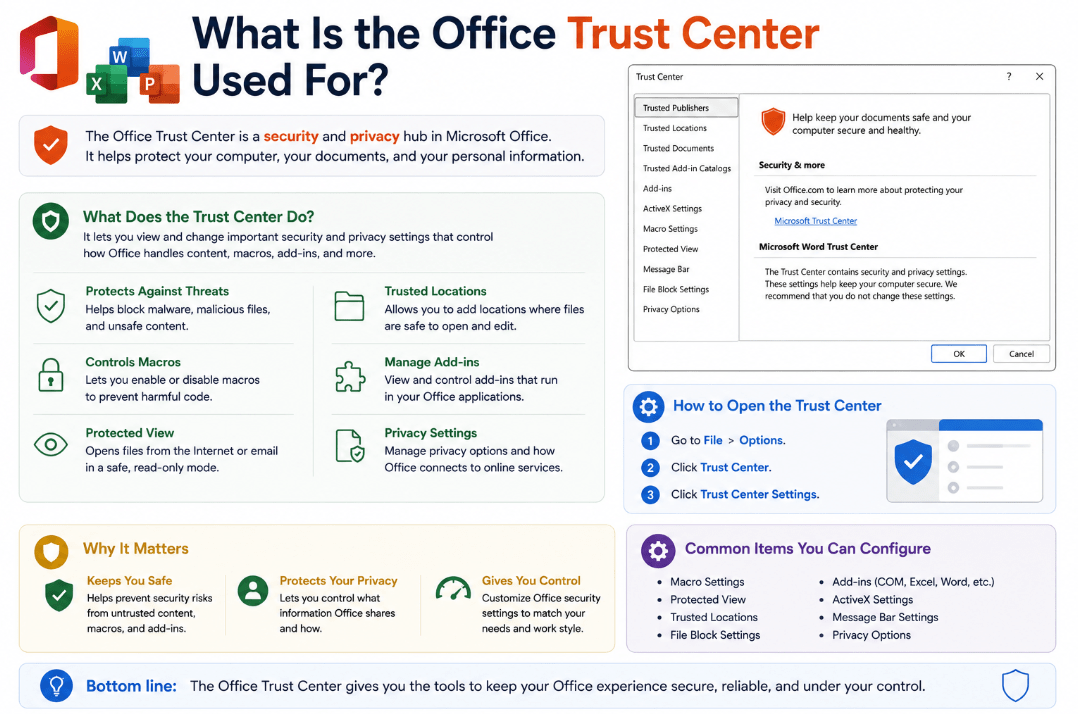
The Trust Center is a central place inside Microsoft Office where you can review and manage security and privacy settings.
It controls how Office handles potentially risky content such as macros, add-ins, downloaded files, external connections, and trusted documents.
Where Is the Office Trust Center?
In a desktop Office application such as Word, Excel, or PowerPoint:
- Click File.
- Select Options.
- Choose Trust Center.
- Click Trust Center Settings.
The available options may vary slightly depending on the Office application and version you’re using.
Microsoft warns that changing Trust Center settings can significantly increase or reduce the security of your computer, so they shouldn’t be changed without understanding what they do.
What Does the Office Trust Center Control?
The Trust Center contains several security-related categories.
Depending on the Office app, these can include:
- Trusted Publishers
- Trusted Locations
- Trusted Documents
- Add-ins
- ActiveX Settings
- Macro Settings
- Protected View
- External Content
- File Block Settings
- Message Bar options
- Privacy settings
You usually don’t need to change most of these settings during normal Office use.
What Are Macro Settings?
Macros can automate repetitive tasks in programs such as Excel and Word.
However, macros can also contain harmful code if they come from an untrusted source.
The Trust Center controls how Office handles macro-enabled documents.
When potentially unsafe macro content is blocked, Office may display a security warning instead of automatically allowing it to run.
For most users, it is better to leave Microsoft’s default macro protections enabled rather than allowing all macros.
What Is Protected View?
Protected View is another important Trust Center feature.
Files downloaded from the internet, opened from potentially unsafe locations, or received as email attachments may open in a restricted read-only mode.
While Protected View is active, most editing functions are disabled.
This allows you to inspect the document before deciding whether you trust it enough to enable editing.
If Word or Excel displays a yellow bar saying Protected View, that doesn’t necessarily mean the file contains malware. It means Office considers the source potentially less trustworthy.
What Are Trusted Locations?
A Trusted Location is a folder that Office considers safe.
Files stored there can bypass some normal Trust Center security checks.
This can be useful in businesses that regularly use trusted files containing:
- Macros
- ActiveX controls
- Data connections
- Other active content
However, Microsoft recommends using trusted locations carefully because files placed there may not receive the same security checks as files stored elsewhere.
For normal home use, there is usually little reason to add large folders such as Downloads as trusted locations.
What Are Trusted Documents?
Office can also remember individual documents that you’ve previously marked as trusted.
For example, if you open a legitimate macro-enabled Excel workbook and choose to enable its content, Office may remember that decision.
The next time you open that file, you may not receive the same warning.
This saves time when working repeatedly with files you know are safe.
Does the Trust Center Control Add-ins?
Yes.
Office add-ins can extend Word, Excel, PowerPoint, and other applications with extra functionality.
The Trust Center includes settings that can control whether certain add-ins are allowed to run.
For example, Office can require application add-ins to be signed by a Trusted Publisher. Unsigned add-ins can then be prevented from loading.
This can be useful when troubleshooting suspicious or problematic add-ins.
What Is Active Content?
Microsoft uses the term active content for features inside Office files that can perform additional actions.
Examples include:
- VBA macros
- Excel 4.0 macros
- ActiveX controls
- Add-ins
- External data connections
Because active content can potentially introduce security risks, the Trust Center can prevent it from automatically running in untrusted files.
This is often why Office displays the familiar Security Warning – Some active content has been disabled message.
Should You Change Trust Center Settings?
Most users should leave the default settings alone unless they have a specific reason to change them.
Be particularly careful with settings that:
- Enable all macros
- Disable Protected View
- Allow unrestricted ActiveX content
- Turn large folders into trusted locations
Removing these protections may stop annoying security warnings, but it can also make unsafe Office files easier to run.
If a trusted document is being blocked, it is usually better to understand why Office is blocking it rather than disabling protections globally.
Is the Trust Center the Same in Every Office App?
The general Trust Center interface is similar across Word, Excel, PowerPoint, Outlook, and other desktop Office applications.
However, some options are application-specific.
Excel, for example, has settings related to external data and certain macro types that may not be relevant in Word.
Microsoft also notes that some newer privacy controls have moved to separate account privacy settings in newer Office versions.
Summary
The Office Trust Center acts as the security control panel for many important Microsoft Office features.
For everyday use, keeping the default security settings enabled is generally the best approach.
Need Microsoft Office for Word, Excel, and PowerPoint? Explore our Microsoft Office keys and choose the version that fits your work today.