
Instructions
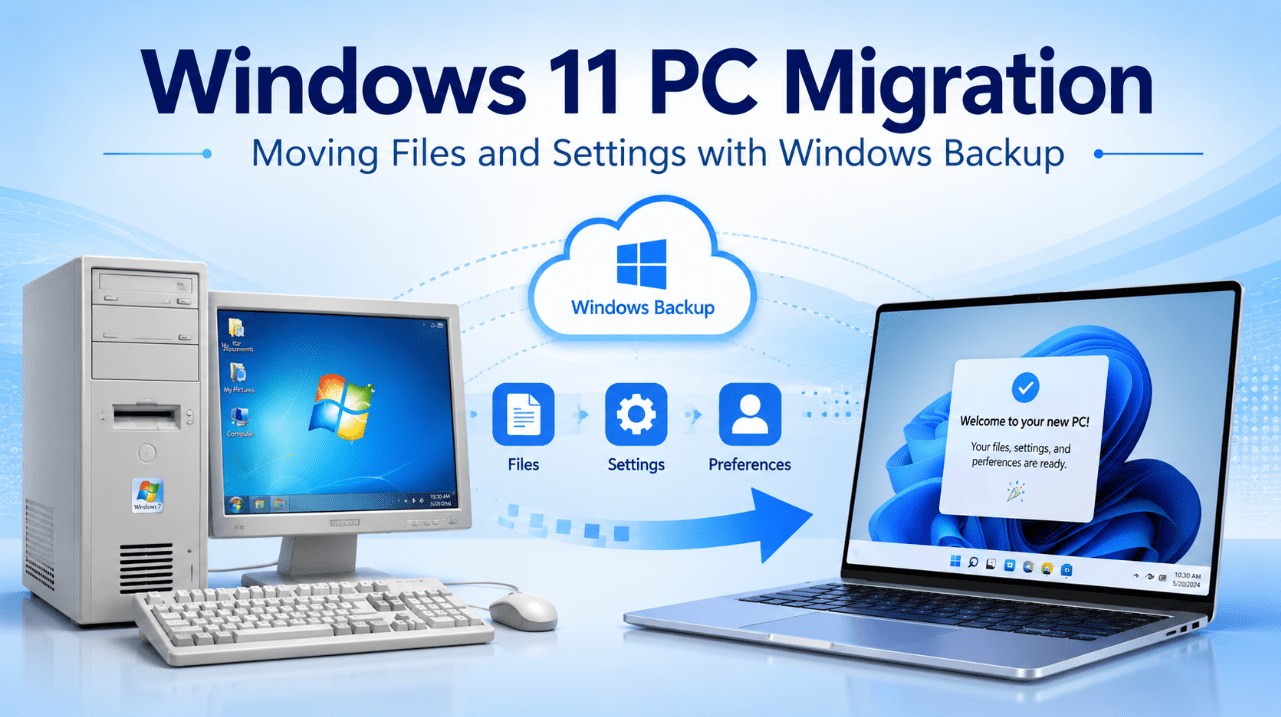
Windows 11 PC Migration: Moving Files and Settings with Windows Backup
Jun
Moving to a new computer used to mean copying folders manually, rebuilding settings and trying to remember every application you had installed.
Windows Backup makes the process easier by saving selected folders, Windows preferences and information about many of your applications to your Microsoft account.
When the new Windows 11 PC is set up, you can sign in with the same personal Microsoft account and restore an available backup.
However, Windows Backup is not a complete clone of the old computer. It does not automatically copy every desktop application, every local file or the entire Windows installation.
Microsoft also currently marks its separate direct PC-to-PC transfer feature as unavailable. The recommended built-in approach is therefore:
- Windows Backup for settings and app information
- OneDrive for backed-up folders
- An external drive for local files that are not in OneDrive
- Manual reinstallation of desktop applications
Preparing a compatible new computer? Browse our Windows 11 product keys.
What Windows Backup Can Move
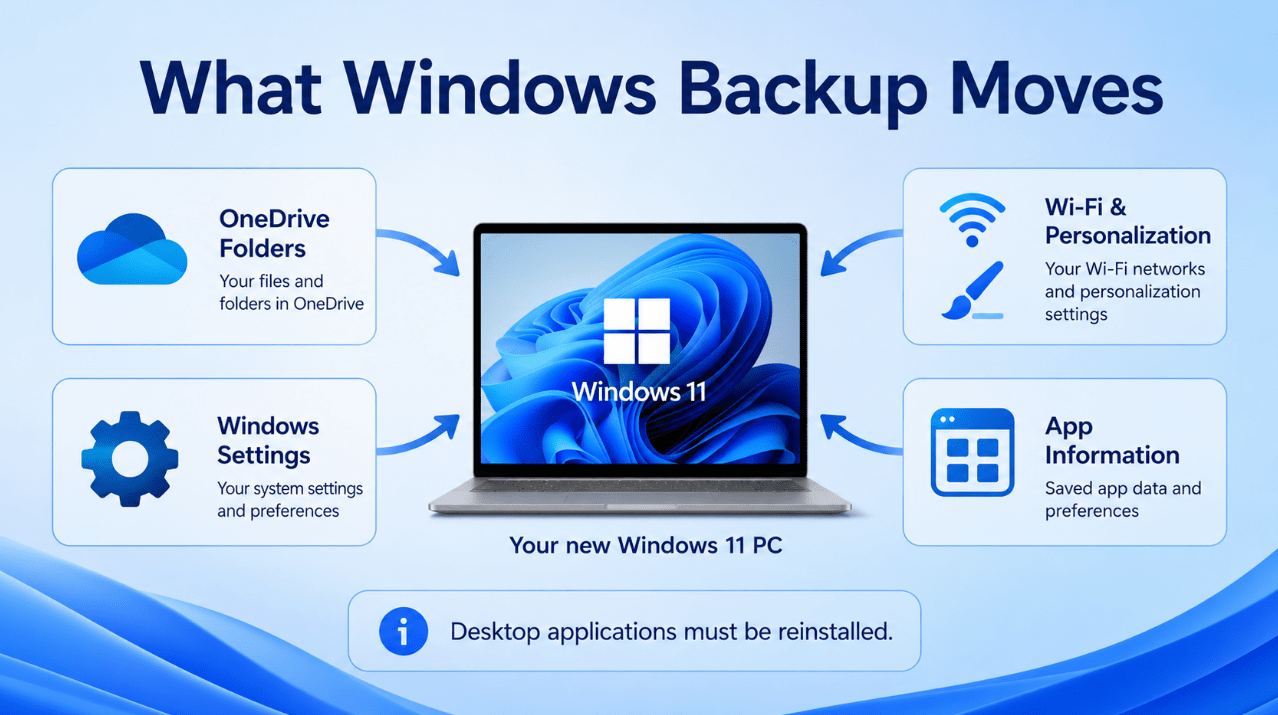
Windows Backup can save several important parts of your current setup.
Selected User Folders
Windows Backup uses OneDrive to protect supported folders such as:
- Desktop
- Documents
- Pictures
- Videos
- Music
Once the files are synced, they become available after you sign in to OneDrive on the new PC.
Windows Settings and Preferences
Windows Backup can remember supported settings in categories including:
- Accessibility
- Accounts
- Wi-Fi networks and passwords
- Personalisation
- Wallpaper and colours
- Language preferences
- Dictionary settings
- File Explorer preferences
- Notification settings
- Some printer and mouse settings
The exact settings restored can vary by Windows version and device.
Application Information
Windows can remember many installed applications and restore their pins.
For Microsoft Store apps, selecting a restored app pin can begin installation again.
For applications that are not available through the Microsoft Store, Windows may direct you to the developer’s website.
The application itself is not copied from the old PC.
What Windows Backup Does Not Fully Transfer
It is important to understand the limitations before erasing or selling the old computer.
Windows Backup does not automatically transfer:
- Installed desktop applications
- Program Files folders
- The complete Windows installation
- All locally stored files outside selected OneDrive folders
- Every application setting
- Hardware drivers
- All saved passwords
- Product keys for every application
- Large files that exceed available OneDrive storage
You should plan to reinstall applications such as:
- Microsoft Office
- Microsoft Project
- Microsoft Visio
- Web browsers
- Creative software
- Games
- Printer utilities
- Specialist business applications
Keep the old PC available until the new one has been fully checked.
Before You Begin
A careful migration reduces the chance of missing files or licences.
Update the Old PC
Install current Windows updates before creating the backup.
Also update OneDrive and any important applications.
Sign In with a Personal Microsoft Account
Windows Backup is primarily designed for consumer devices using a personal Microsoft account.
A work or school account may not support the same backup and restore experience.
Check OneDrive Storage
A free Microsoft account includes limited OneDrive storage.
If the selected folders are larger than the available space, you will need to:
- Free storage
- Purchase additional storage
- Reduce the selected folders
- Copy some files to an external drive
Record Important Software Information
Before moving, save:
- Product names and editions
- Product keys where applicable
- Microsoft account details
- Installer links
- Purchase receipts
- Email account settings
- Browser recovery information
Do not rely on Windows Backup to preserve every activation detail.
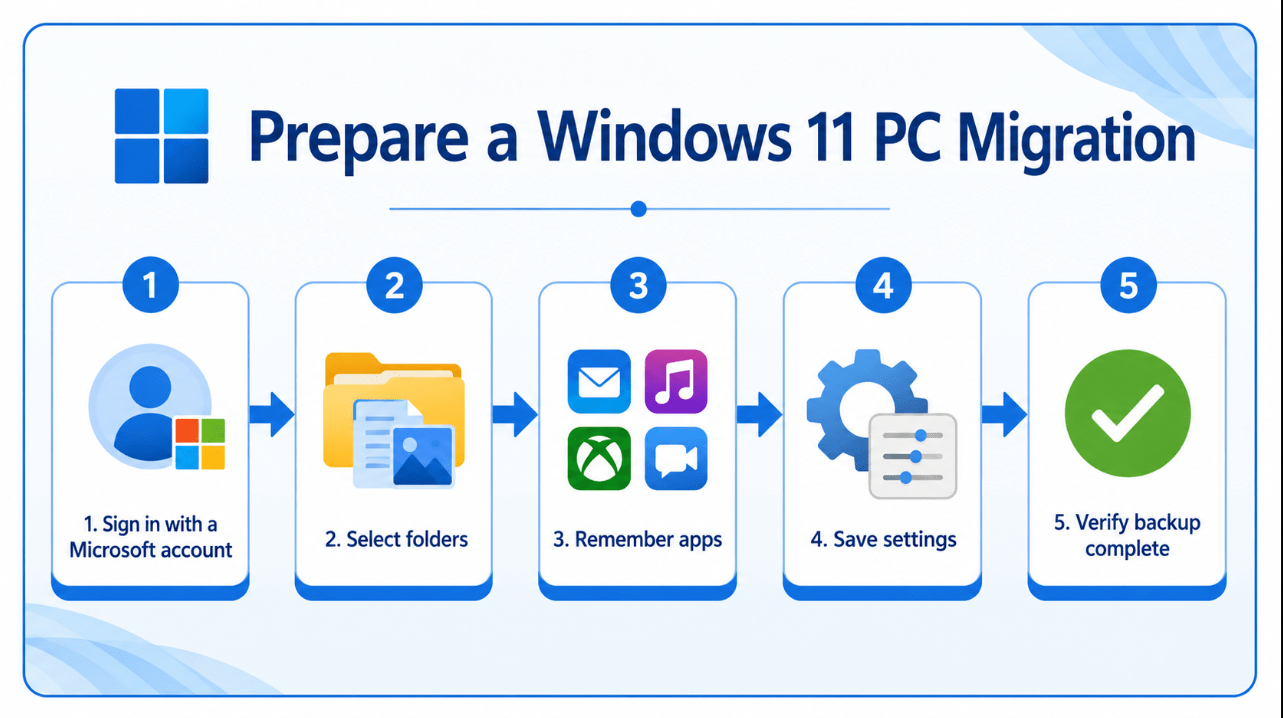
How to Back Up the Old PC
Step 1: Open Windows Backup
Select Start, search for Windows Backup, and open the application.
You can also review backup settings through:
Settings > Accounts > Windows backup
Step 2: Select Folders
Expand Folders and choose which supported folders should sync to OneDrive.
Common choices include Desktop, Documents and Pictures.
Step 3: Review Applications
Expand Apps and allow Windows to remember supported application information.
This helps recreate app pins and provides quicker access to reinstallers.
Step 4: Review Settings
Enable the settings and preferences that should be restored.
Check categories such as:
- Accessibility
- Accounts and Wi-Fi
- Personalisation
- Language preferences
- Other Windows settings
Step 5: Start the Backup
Select Back up and allow the process to finish.
Do not assume that the backup is complete simply because the application has opened. Check the status of every category.
Copy Local-Only Files Separately
Files stored outside the selected OneDrive folders may not be included.
Check locations such as:
- Downloads
- Custom folders on the C drive
- Other internal drives
- Old email archives
- Application export folders
- Game saves
- Scanned documents
- Desktop folders belonging to another user
Copy important local-only files to:
- An external SSD
- An external hard drive
- A network drive
- Another trusted cloud-storage service
Open several files from the backup drive to confirm that the copy is readable.
Restoring During New Windows 11 Setup
The best time to restore Windows Backup is during the initial setup of the new PC.
Step 1: Start the New PC
Follow the normal Windows 11 setup screens.
Step 2: Connect to the Internet
The restore experience needs an internet connection to find the backup and access OneDrive files.
Step 3: Sign In with the Same Microsoft Account
Use the personal Microsoft account that created the backup.
Windows should detect available backups associated with that account.
Step 4: Choose the Correct Backup
When several PCs are backed up, review the device names and dates carefully.
Select the backup belonging to the old computer.
Step 5: Complete Windows Setup
After the desktop appears:
- Allow OneDrive to sync
- Review restored settings
- Select app pins to reinstall applications
- Install remaining desktop software manually
- Copy local files from the external drive
Reinstalling Office, Project and Visio
Windows Backup may restore an application pin, but it does not copy the installed Office suite or its complete activation.
Reinstall the exact edition covered by the licence.
For example:
- Office Home & Business 2024
- Office Professional Plus 2024
- Project Professional 2024
- Visio Professional 2024
Use the correct installer and activation method for the licence.
Before installing:
- Remove any unwanted Microsoft 365 trial.
- Confirm whether the licence is for Windows or Mac.
- Match the installed edition to the purchased product.
- Match 32-bit or 64-bit architecture where other Office products are installed.
- Sign in with the correct Microsoft account when required.
Browse our Microsoft Office licences, Project Professional licences and Visio Professional licences when rebuilding the software setup.
Using OneDrive vs an External Drive
OneDrive Is Better When:
- Your important folders fit within the available storage
- You want cloud backup after migration
- Both PCs have a fast internet connection
- You use the same files across several devices
- You want automatic folder syncing
An External Drive Is Better When:
- You have many large files
- Internet upload speed is slow
- You do not want to store certain files in the cloud
- You need to move custom folders
- You want a separate offline backup
For important migrations, using both methods provides additional protection.
Windows 10 to Windows 11 Migration
Windows Backup can help prepare files and preferences on a Windows 10 computer for restoration on Windows 11.
This is particularly relevant because standard Windows 10 support ended on 14 October 2025.
Before replacing the old PC:
- Confirm that the new device runs Windows 11
- Back up important folders
- Export specialist application data
- Save licence details
- Check whether older hardware or software is still required
- Keep the old PC temporarily after migration
Read our guide to the cost of staying on Windows 10 in 2026 for more information.
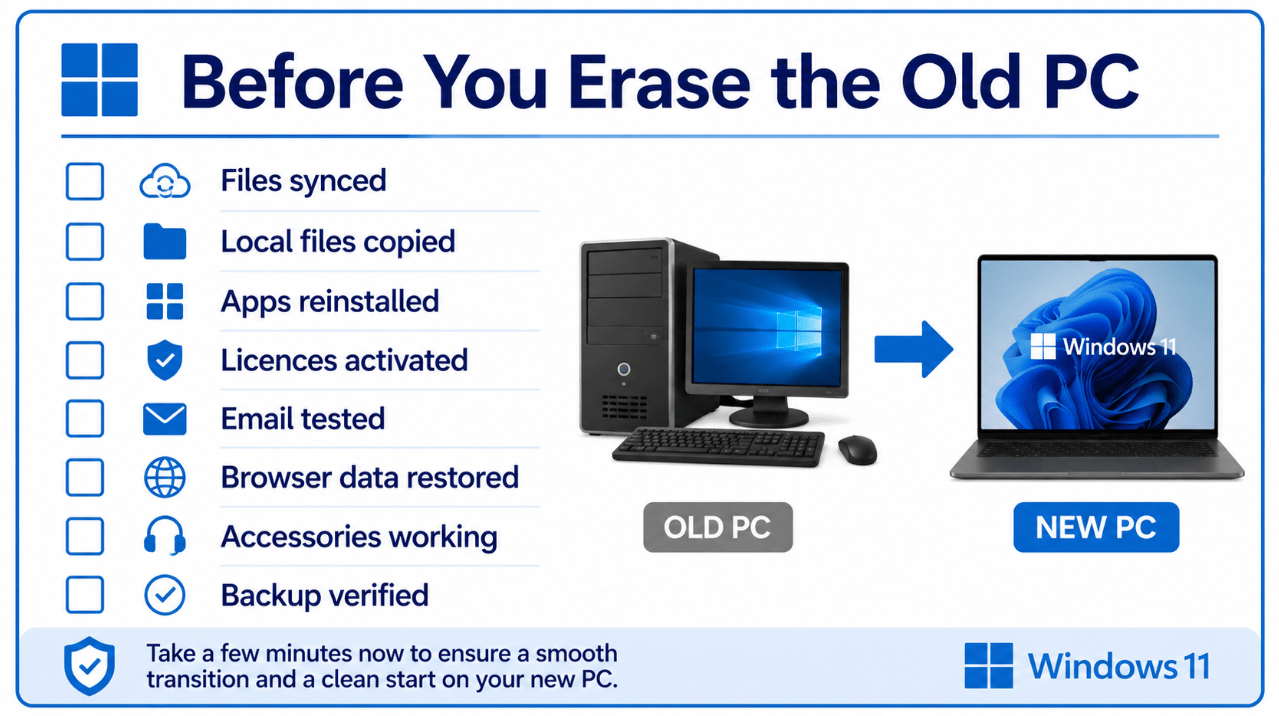
Migration Checklist
Before switching permanently to the new PC, confirm that:
- Important OneDrive folders have synced
- External-drive files open correctly
- Browser bookmarks are available
- Email accounts work
- Office documents open
- Office, Project and Visio are activated
- Printers and accessories work
- Password-manager access is restored
- Two-factor authentication methods are available
- Personal files have been checked
- The old PC has not yet been erased
Preparing a new or upgraded Windows computer?
Browse our Windows 11 Home licences and Windows 11 Pro licences, then rebuild your productivity setup with our Office 2024 product keys.