
Instructions
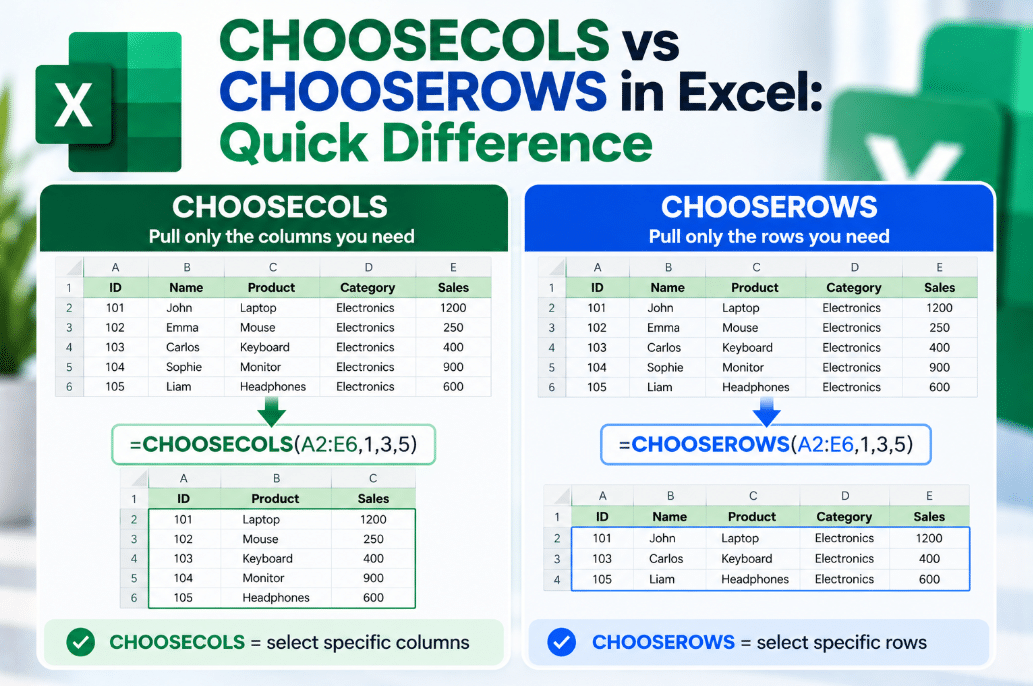
CHOOSECOLS vs CHOOSEROWS in Excel: Quick Difference
Sep
Working with a large Excel table but only need certain rows or columns?
The CHOOSECOLS vs CHOOSEROWS difference is simple:
CHOOSECOLS selects columns.
CHOOSEROWS selects rows.
Both functions create a new dynamic array without changing your original data.
What Does CHOOSECOLS Do?
CHOOSECOLS returns selected columns from a range or array.
Its syntax is:
=CHOOSECOLS(array,col_num1,[col_num2],...)
For example, suppose A2 contains five columns.
To return only columns 1 and 4:
=CHOOSECOLS(A2:E20,1,4)
Excel returns those two columns in a new spilled array.
Microsoft also allows you to select columns more than once or return them in a different order.
What Does CHOOSEROWS Do?
CHOOSEROWS works the same way, but vertically.
Its syntax is:
=CHOOSEROWS(array,row_num1,[row_num2],...)
For example:
=CHOOSEROWS(A2:E20,1,3,5)
returns rows 1, 3, and 5 from the selected range.
The original table remains unchanged.
CHOOSECOLS vs CHOOSEROWS: Quick Comparison
| Function | What It Selects |
|---|---|
| CHOOSECOLS | Specific columns |
| CHOOSEROWS | Specific rows |
| Positive numbers | Count from the beginning |
| Negative numbers | Count from the end |
A simple way to remember it is:
COLS = columns
ROWS = rows
Select Non-Adjacent Columns
Suppose A2 contains:
- Product
- Category
- Supplier
- Price
- Stock
- Region
If you only need Product, Price, and Region:
=CHOOSECOLS(A2:F100,1,4,6)
Excel returns only those three columns.
This is useful for creating a smaller report from a large dataset without manually copying the data.
Select Specific Rows
Imagine A2 contains a list of records and you only want rows 1, 4, and 7.
Use:
=CHOOSEROWS(A2:D20,1,4,7)
Excel returns just those rows.
This can be useful when creating summaries, examples, or smaller subsets of a larger table.
Select From the End
Both functions support negative numbers.
For example:
=CHOOSECOLS(A2:F20,-1)
returns the final column.
And:
=CHOOSEROWS(A2:F20,-1)
returns the final row.
Microsoft’s CHOOSEROWS examples also demonstrate using negative numbers to return rows from the end of an array.
You can also use:
=CHOOSECOLS(A2:F20,-1,-2)
to return the last column followed by the second-to-last column.
Can You Change the Order?
Yes.
You are not limited to the original row or column order.
For example:
=CHOOSECOLS(A2:D20,4,1,2)
returns column 4 first, then column 1, then column 2.
Likewise:
=CHOOSEROWS(A2:D20,5,1,3)
returns row 5 first, followed by rows 1 and 3.
This makes both functions useful for quickly rearranging data.
Can You Repeat Rows or Columns?
Yes.
Microsoft shows that CHOOSECOLS and CHOOSEROWS can return the same row or column multiple times.
For example:
=CHOOSECOLS(A2:E20,1,3,1)
returns column 1, column 3, and column 1 again.
The same works with CHOOSEROWS.
What Causes a #VALUE! Error?
Both functions return #VALUE! if you request a position that does not exist.
For example, if your range contains only four columns:
=CHOOSECOLS(A2:D20,5)
returns an error.
Microsoft also notes that using 0 as the row or column number produces #VALUE!.
When Should You Use Each Function?
Use CHOOSECOLS when you want to:
- Build a smaller report
- Remove unnecessary fields
- Reorder columns
- Extract non-adjacent columns
- Feed selected columns into another formula
Use CHOOSEROWS when you want to:
- Pull specific records
- Create a small subset
- Return selected rows
- Rearrange rows
- Extract rows from the top or bottom
Which Excel Versions Support Them?
Microsoft currently lists both functions for:
- Excel for Microsoft 365
- Excel for Microsoft 365 for Mac
- Excel 2024
- Excel 2024 for Mac
They are not available in older perpetual releases such as Excel 2021.
If Excel shows #NAME?, your version may not support these functions.
Final Thoughts
The CHOOSECOLS vs CHOOSEROWS difference is straightforward.
Use CHOOSECOLS when you want to return specific columns from a range.
Use CHOOSEROWS when you want to return specific rows.
Both are useful for creating cleaner dynamic reports without modifying the original data, and they work especially well alongside functions such as FILTER, SORT, TAKE, and DROP.
Need Microsoft Office with modern Excel functions? Explore our Microsoft Office keys and choose the version that fits your work today.