
Instructions
Excel REGEXTEST: Check Whether Text Matches a Pattern
Oct
Need to check whether text follows a particular format without manually inspecting every cell?
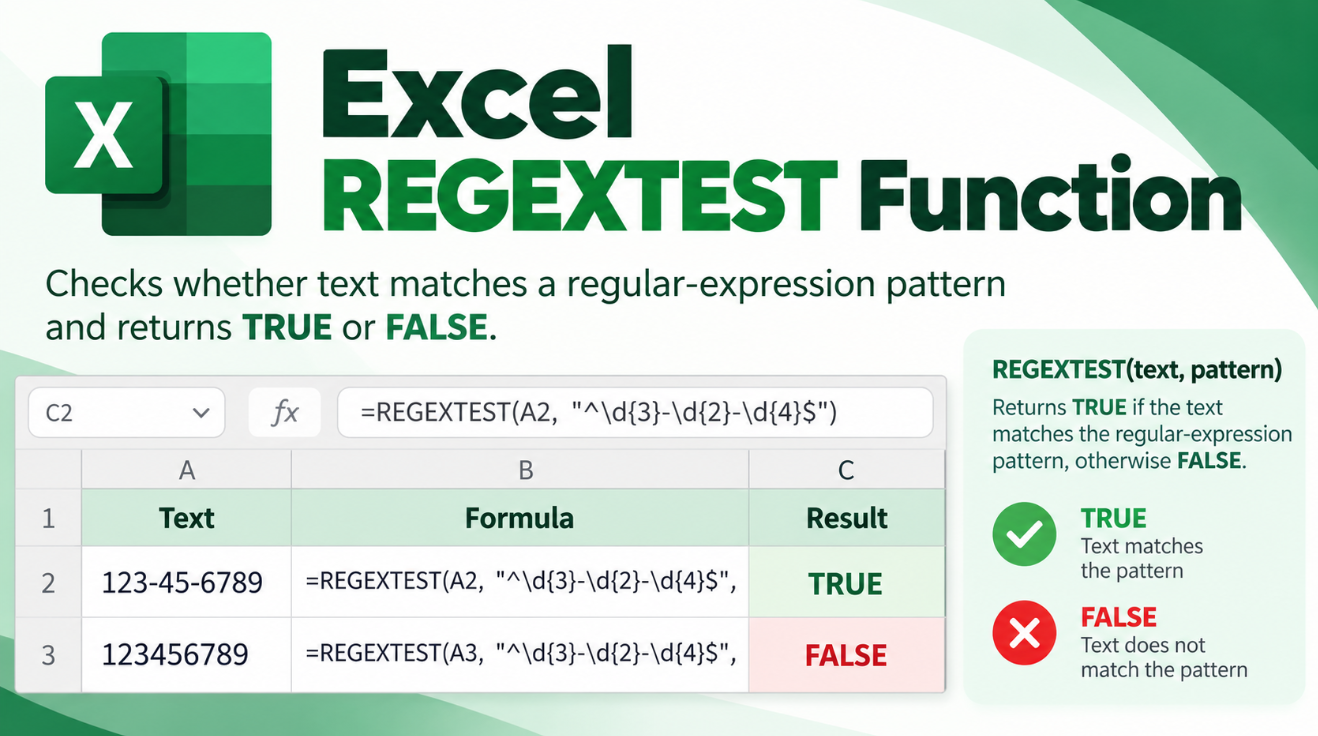
The Excel REGEXTEST function can look for patterns such as numbers, product codes, phone numbers, prefixes, or combinations of letters and digits and return a simple TRUE or FALSE result.
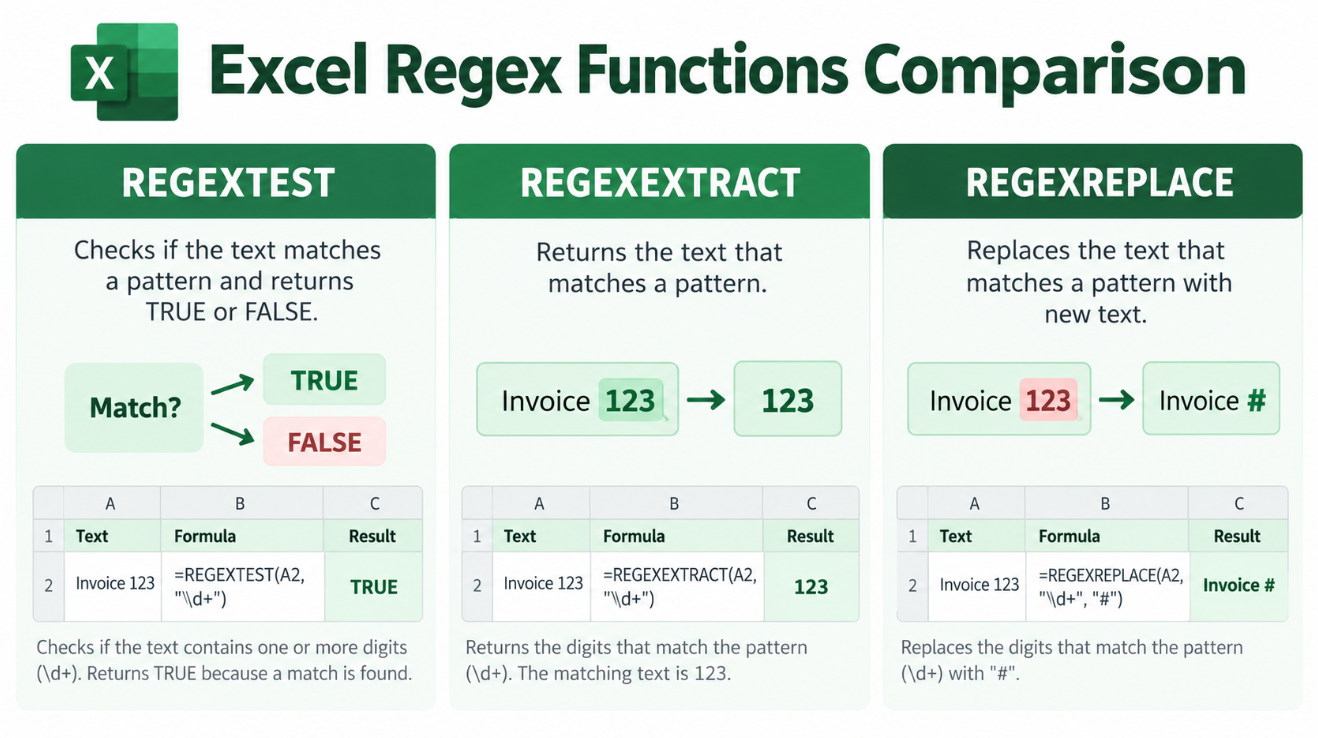
Unlike REGEXEXTRACT, which returns the matching text, or REGEXREPLACE, which changes it, REGEXTEST simply answers one question:
Does this text match the pattern?
Microsoft says Excel’s regex functions use the PCRE2 style of regular expressions.
What Does Excel REGEXTEST Do?
The syntax is:
=REGEXTEST(text,pattern,[case_sensitivity])
The arguments are:
text – The text or cell you want Excel to examine.
pattern – The regular-expression pattern you want to find.
case_sensitivity – Optional. Use 0 for case-sensitive matching or 1 for case-insensitive matching.
Case-sensitive matching is the default.
Simple REGEXTEST Example
Suppose A2 contains:
Order 45821
Use:
=REGEXTEST(A2,”[0-9]”)
Excel returns:
TRUE
because the text contains at least one numeric digit.
If A2 contains:
Order Pending
the same formula returns:
FALSE
because no number appears in the text.
This makes REGEXTEST useful when you only need to determine whether a certain type of value exists.
Check Whether Text Contains a Number
A very common example is:
=REGEXTEST(A2,”[0-9]+”)
The pattern:
[0-9]+
means one or more digits.
So all of these would return TRUE:
Order 4582
Customer123
2026 Report
while:
Pending Order
would return FALSE.
Check a Product Code Format
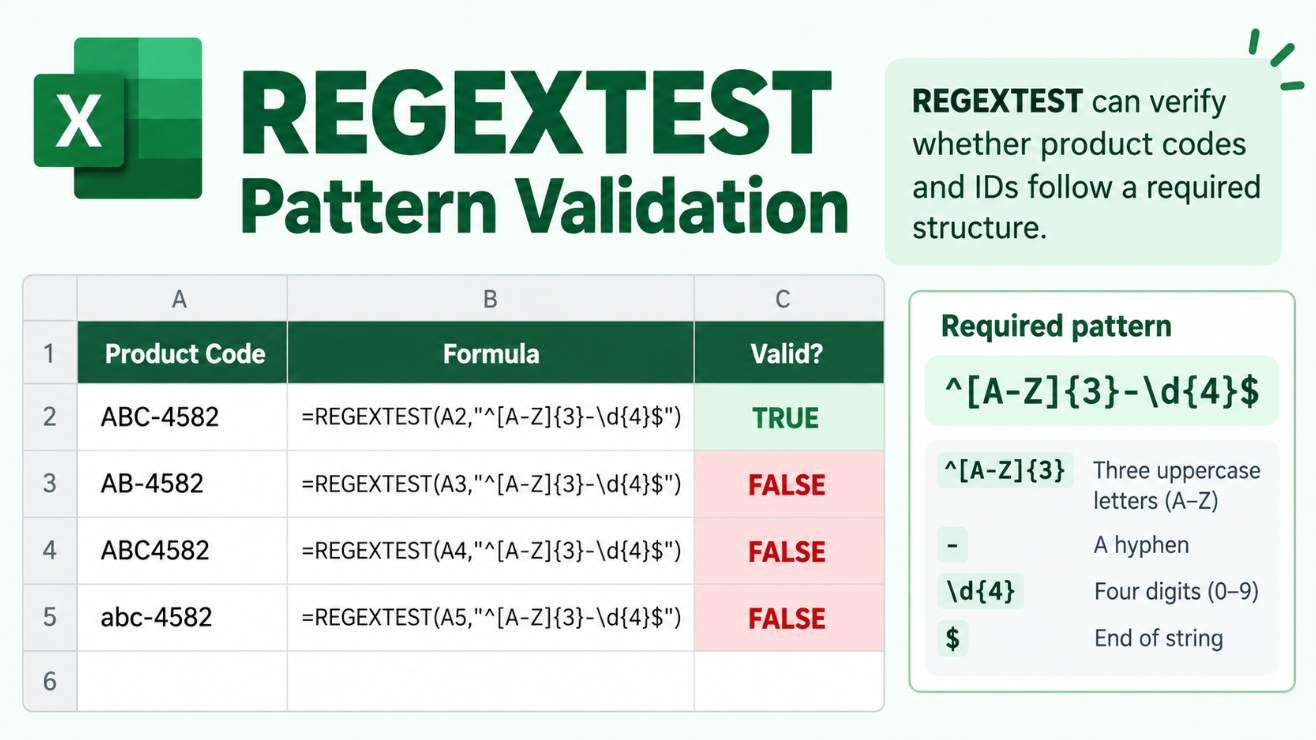
Suppose your product codes should always look like:
ABC-4582
That means:
- Three uppercase letters
- One hyphen
- Four digits
You can test the format with:
=REGEXTEST(A2,”^[A-Z]{3}-[0-9]{4}$”)
Here:
^ means the beginning of the text.
[A-Z]{3} means exactly three uppercase letters.
– means a literal hyphen.
[0-9]{4} means exactly four digits.
$ means the end of the text.
So:
ABC-4582
returns TRUE.
But:
AB-4582
or:
ABC4582
returns FALSE.
Why Are ^ and $ Important?
Without ^ and $, REGEXTEST can find a matching pattern anywhere inside the text.
For example:
=REGEXTEST(A2,”[0-9]{4}”)
returns TRUE for:
Invoice number 4582 approved
because Excel finds four consecutive digits somewhere in the string.
But:
=REGEXTEST(A2,”^[0-9]{4}$”)
only returns TRUE if the entire cell contains exactly four digits.
That difference is important when using REGEXTEST for format validation.
Check a Phone Number Format
Microsoft demonstrates REGEXTEST with a phone-number pattern.
For a format such as:
(378) 555-4195
you can use:
=REGEXTEST(A2,”^\([0-9]{3}\) [0-9]{3}-[0-9]{4}$”)
This checks whether the entire cell follows the structure:
(###) ###-####
Microsoft uses this pattern in its official REGEXTEST documentation.
If the number is written differently, such as:
+1 378 555 4195
the formula returns FALSE.
That can be useful when you need data entered in one consistent format.
Check Whether Text Starts With Something
Suppose all order IDs should begin with:
ORD-
Use:
=REGEXTEST(A2,”^ORD-“)
This returns TRUE for:
ORD-45821
but FALSE for:
NEW-ORD-45821
because ^ requires the match to appear at the beginning.
Check Whether Text Ends With Something
The $ symbol checks the end of the string.
For example:
=REGEXTEST(A2,”\.pdf$”)
returns TRUE if the text ends in:
So:
invoice.pdf
returns TRUE.
invoice.pdf.backup
returns FALSE.
The backslash tells the regex engine to treat the period as an actual . character rather than its special regex meaning.
Make REGEXTEST Case-Insensitive
Suppose you want to find the word:
office
regardless of capitalization.
Use:
=REGEXTEST(A2,”office”,1)
The final 1 makes the check case-insensitive.
That means Excel can match:
Office
OFFICE
office
or:
OfFiCe
Microsoft defines 0 as case-sensitive and 1 as case-insensitive.
Use REGEXTEST With IF
Because REGEXTEST returns TRUE or FALSE, it works naturally with IF.
For example:
=IF(REGEXTEST(A2,”^[A-Z]{3}-[0-9]{4}$”),”Valid”,”Invalid”)
Instead of displaying TRUE or FALSE, Excel shows:
Valid
or:
Invalid
This is useful for checking imported records, order IDs, SKU codes, reference numbers, and other structured data.
Useful REGEXTEST Patterns
A few basic patterns are enough to handle many everyday checks:
| Pattern | What It Checks |
| [0-9] | Contains a digit |
| [0-9]+ | Contains one or more digits |
| [A-Z] | Contains an uppercase letter |
| [a-z] | Contains a lowercase letter |
| ^[A-Z] | Starts with an uppercase letter |
| [0-9]$ | Ends with a number |
| ^[0-9]{5}$ | Exactly five digits |
| ^[A-Z]{3}-[0-9]{4}$ | Structured code such as ABC-4582 |
Microsoft confirms that REGEXTEST, REGEXEXTRACT, and REGEXREPLACE use PCRE2-style regex patterns.
REGEXTEST vs REGEXEXTRACT
These two functions answer different questions.
REGEXTEST asks:
Does a match exist?
and returns TRUE or FALSE.
REGEXEXTRACT asks:
What text matched?
For example:
=REGEXTEST(A2,”[0-9]+”)
might return:
TRUE
while:
=REGEXEXTRACT(A2,”[0-9]+”)
could return:
45821
REGEXTEST vs REGEXREPLACE
REGEXREPLACE finds a pattern and changes it.
For example:
=REGEXREPLACE(A2,”[0-9]+”,”XXXXX”)
could change:
Order 45821
into:
Order XXXXX
REGEXTEST would leave the text untouched and simply return TRUE because a number exists.
REGEXTEST vs COUNTIF or SEARCH
Traditional Excel functions can already perform many simple text checks.
For example:
=ISNUMBER(SEARCH(“Office”,A2))
can test whether a cell contains the word Office.
For simple fixed text, that may still be easier.
REGEXTEST becomes more useful when you need to check a structure rather than an exact word.
For example:
Three letters + hyphen + four digits
is much easier to express with:
^[A-Z]{3}-[0-9]{4}$
than with a long combination of LEFT, MID, LEN, AND, and other functions.
Can REGEXTEST Validate Email Addresses?
You can use REGEXTEST to check whether an email address follows a basic pattern.
However, email-address rules can become surprisingly complicated.
A simple regex might help identify obvious formatting errors, but you should not assume that a short formula perfectly validates every legitimate email address.
REGEXTEST is better viewed as a pattern check than proof that the email account actually exists.
Which Excel Versions Support REGEXTEST?
Microsoft currently lists REGEXTEST for:
Excel for Microsoft 365 and Excel for Microsoft 365 for Mac.
Microsoft’s alphabetical Excel function directory also labels REGEXTEST as a Microsoft 365 function.
It is therefore not currently listed as a standard perpetual Excel 2024 function.
If you enter REGEXTEST and Excel displays:
#NAME?
your Excel version or update channel may not support the function.
When Is Excel REGEXTEST Most Useful?
REGEXTEST works particularly well when you need to check whether imported or user-entered data follows a known pattern.
Typical examples include product codes, invoice IDs, account references, phone-number formats, tracking numbers, filenames, prefixes, numeric IDs, and structured codes.
For fixed words or very simple checks, SEARCH or COUNTIF may remain easier.
But for structured patterns, REGEXTEST can replace much longer formulas.
Frequently Asked Questions
What does REGEXTEST return?
It returns TRUE when any part of the text matches the pattern and FALSE when there is no match.
Is REGEXTEST case-sensitive?
Yes, by default. Use the optional case_sensitivity argument with a value of 1 for case-insensitive matching.
Can REGEXTEST check an entire cell?
Yes. Use ^ at the beginning and $ at the end of your regex pattern to require the entire text to match.
Can REGEXTEST check whether a cell contains numbers?
Yes. For example:
=REGEXTEST(A2,”[0-9]+”)
Can I use REGEXTEST with IF?
Yes. Because REGEXTEST returns TRUE or FALSE, it works naturally with IF to display messages such as Valid or Invalid.
Is REGEXTEST available in Excel 2024?
Microsoft currently identifies REGEXTEST as a Microsoft 365 function, not a standard Excel 2024 perpetual-license function.
Final Thoughts
Excel REGEXTEST gives Microsoft 365 users a simple way to check whether text matches a particular structure.
You can use it to identify numbers, verify product codes, check prefixes and suffixes, test phone-number formats, or validate structured imported data.
The biggest advantage is that REGEXTEST looks for patterns, not just exact words.
And because it returns TRUE or FALSE, it works especially well with IF formulas and other logical tests.
For a one-time Office license with Word, Excel and PowerPoint for everyday work, explore our Office keys and choose the edition that matches your PC.