
Instructions
Excel SORT vs SORTBY: What’s the Difference?
Sep
Excel gives you two modern functions for sorting data dynamically: SORT and SORTBY.
They sound almost identical, but there is an important difference.
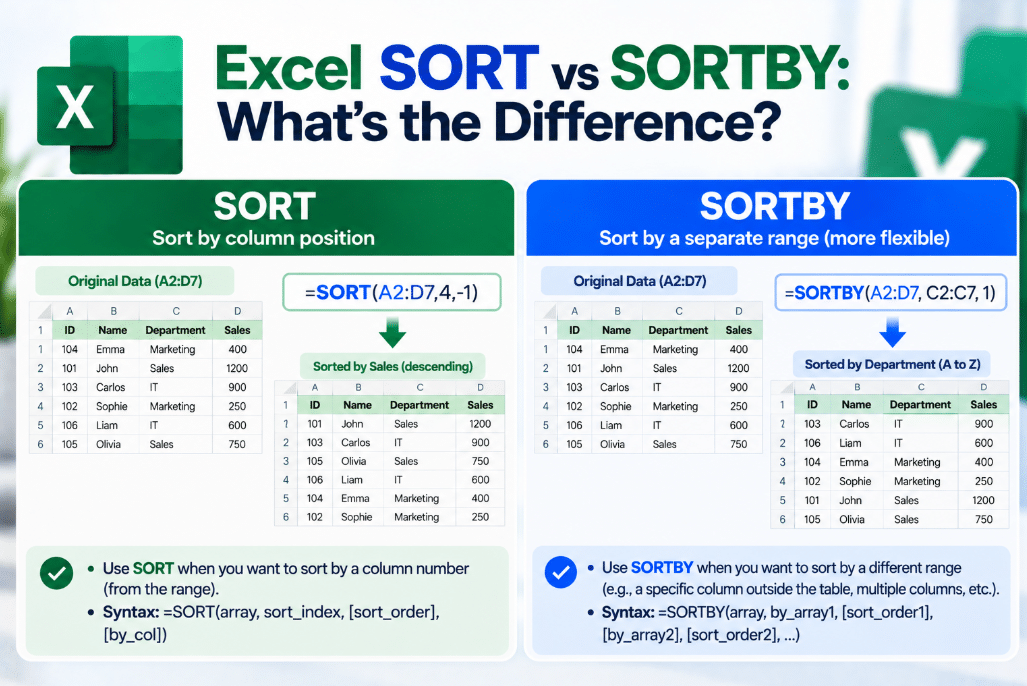
When comparing Excel SORT vs SORTBY, SORT chooses the column to sort using its position inside the array, while SORTBY lets you point directly to the range containing the values you want to sort by.
What Does the SORT Function Do?
SORT rearranges the contents of a range or array.
Its syntax is:
=SORT(array,[sort_index],[sort_order],[by_col])
Suppose A2 contains:
- Product
- Category
- Price
To sort the table by Price, which is column 3, use:
=SORT(A2:C20,3,1)
The 3 tells Excel to sort by the third column.
The 1 means ascending order.
Use -1 for descending order.
What Does SORTBY Do?
SORTBY also sorts a range, but instead of giving Excel a column number, you provide the actual range containing the sorting values.
Its syntax is:
=SORTBY(array,by_array1,[sort_order1],...)
Using the same example:
=SORTBY(A2:C20,C2:C20,1)
This tells Excel:
- Return A2
- Sort it using values in C2
- Sort from lowest to highest
Microsoft describes SORTBY as sorting one array based on values in a corresponding range or array.
Excel SORT vs SORTBY: Quick Difference
| Function | How You Choose the Sort Column | |
|---|---|---|
| SORT | By column or row number | |
| SORTBY | By directly referencing a range | |
| Multiple sort criteria | Limited | Yes |
| More flexible if columns move | Less | More |
The easiest way to remember it is:
SORT → sort by position
SORTBY → sort by a specific range
Simple SORT Example
Suppose A2 contains employee information:
| Name | Department | Salary |
|---|
To sort from lowest salary to highest:
=SORT(A2:C10,3,1)
To sort from highest salary to lowest:
=SORT(A2:C10,3,-1)
Because Salary is the third column, the sort index is 3.
Simple SORTBY Example
The same result can be created with:
=SORTBY(A2:C10,C2:C10,1)
or descending:
=SORTBY(A2:C10,C2:C10,-1)
Instead of remembering that Salary is column 3, you simply reference the salary range directly.
This can make formulas easier to understand later.
Why Is SORTBY More Flexible?
Imagine your table starts as:
Name | Department | Salary
and your SORT formula is:
=SORT(A2:C20,3,-1)
Now someone inserts a new column before Salary.
Salary is no longer column 3.
Your formula may need to be changed.
With SORTBY:
=SORTBY(A2:D20,D2:D20,-1)
the sorting rule directly references the salary values.
Microsoft specifically notes that SORTBY is often better for worksheet data because it references ranges rather than relying on a fixed column index.
Sort by Multiple Columns With SORTBY
One of SORTBY’s biggest advantages is multiple-level sorting.
Suppose you want to sort employees:
- By Department alphabetically
- Then by Salary from highest to lowest
You could use:
=SORTBY(A2:C20,B2:B20,1,C2:C20,-1)
Excel first sorts by Department.
If multiple employees are in the same department, it then sorts those employees by Salary.
SORTBY supports multiple sorting ranges and sort orders in the same formula.
Can SORT Sort Horizontally?
Yes.
SORT includes an optional by_col argument.
By default, Excel sorts rows.
For example:
=SORT(A1:F3,1,1,TRUE)
tells Excel to sort columns instead.
For normal tables, however, vertical row sorting is much more common.
Both Functions Create Dynamic Arrays
Neither function permanently changes your original dataset.
Instead, Excel returns a new dynamic array containing the sorted result.
This means:
- Your original data stays unchanged
- The sorted result spills automatically
- Changes in the source data can update the sorted result
- You can combine the result with other dynamic-array functions
Both SORT and SORTBY return spilled arrays.
Combine SORT With FILTER
SORT works especially well with FILTER.
For example:
=SORT(FILTER(A2:C100,B2:B100="Sales"),3,-1)
This formula:
- Finds only employees in Sales
- Sorts the results by column 3
- Returns the highest values first
You can build dynamic reports without manually using the Data → Sort menu.
SORTBY Can Sort by Data You Don’t Display
This is another useful advantage.
Imagine A2 contains:
- Product
- Price
and C2 contains an internal popularity score that you do not want to display.
You can use:
=SORTBY(A2:B20,C2:C20,-1)
Excel returns only columns A and B, but sorts them according to the hidden values in column C.
SORT cannot do this as naturally because its sort index must refer to a position inside the returned array.
What Sort Order Numbers Mean
Both functions use:
1 → Ascending
Examples:
- A to Z
- Smallest to largest
- Oldest to newest
-1 → Descending
Examples:
- Z to A
- Largest to smallest
- Newest to oldest
If you leave the sort order out, Excel uses ascending order by default.
Which Function Should You Use?
Use SORT when:
- You have a simple array
- You know the position of the sorting column
- You only need a straightforward sort
- The structure of the range is unlikely to change
Use SORTBY when:
- You want to reference the sort range directly
- You need multiple sorting levels
- Columns may be added or removed
- You want to sort by data outside the returned array
For larger or changing worksheets, SORTBY is often the more flexible option.
Which Excel Versions Support SORT and SORTBY?
Microsoft currently lists both functions for:
- Excel for Microsoft 365
- Excel for Microsoft 365 for Mac
- Excel 2024
- Excel 2024 for Mac
- Excel 2021
- Excel 2021 for Mac
So unlike some newer functions such as TAKE or WRAPROWS, SORT and SORTBY are also available in Excel 2021.
Final Thoughts
The Excel SORT vs SORTBY difference comes down to how the sorting rule is defined.
Use SORT when you want to sort by a numbered column or row inside your selected array.
Use SORTBY when you want to reference the actual sorting range directly or sort using several criteria.
Both functions are excellent for building dynamic reports because they update automatically without changing your original data.
Need Microsoft Office with modern Excel functions? Explore our Microsoft Office keys and choose the version that fits your work today.