
Instructions
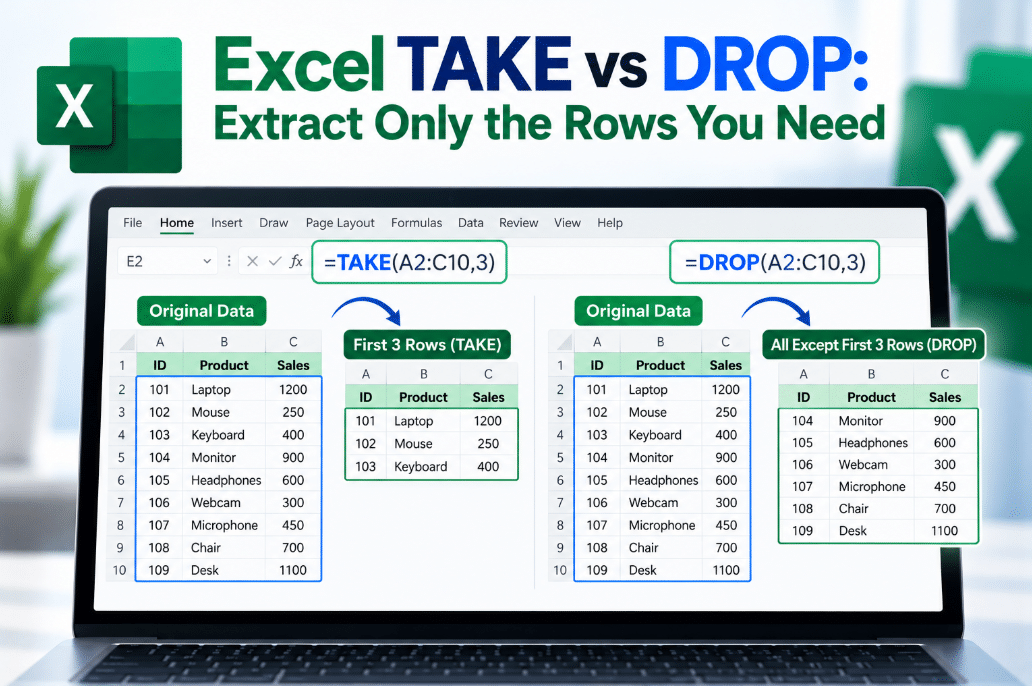
Excel TAKE vs DROP: Extract Only the Rows You Need
Sep
Working with a large list but only need the first few rows, the last few results, or everything except a header?
Excel TAKE vs DROP gives you two simple functions for doing exactly that.
TAKE returns the part of an array you want to keep, while DROP removes the part you do not need.
What Does the TAKE Function Do?
TAKE returns a selected number of rows or columns from an array.
Its syntax is:
=TAKE(array,rows,[columns])
For example, if your data is in A2 and you want only the first five rows:
=TAKE(A2:C20,5)
Excel returns the first five rows.
If you want the last five rows, use a negative number:
=TAKE(A2:C20,-5)
Microsoft confirms that positive values take from the beginning of an array, while negative values take from the end.
What Does the DROP Function Do?
DROP does the opposite.
Instead of returning a selected number of rows, it removes them.
Its syntax is:
=DROP(array,rows,[columns])
For example:
=DROP(A2:C20,5)
removes the first five rows and returns everything below them.
Using:
=DROP(A2:C20,-5)
removes the final five rows instead.
TAKE vs DROP: Quick Difference
| Function | What It Does |
|---|---|
| TAKE | Keeps a selected number of rows or columns |
| DROP | Removes a selected number of rows or columns |
| Positive number | Works from the beginning |
| Negative number | Works from the end |
A simple way to remember it is:
TAKE = keep these rows
DROP = remove these rows
Get the First 10 Rows
Suppose A2 contains a sales report.
To return only the first 10 records:
=TAKE(A2:D100,10)
Excel creates a dynamic array containing those rows.
This can be useful for:
- Top lists
- Report previews
- Dashboard sections
- Showing only a limited number of records
Get the Last 10 Rows
Use a negative number:
=TAKE(A2:D100,-10)
This returns the last 10 rows.
It can be useful when your latest records are added to the bottom of a list.
Remove a Header Row With DROP
DROP is particularly useful when your source data contains rows you do not want.
Suppose A1 contains a header row followed by data.
Use:
=DROP(A1:D100,1)
Excel removes the first row and returns everything else.
Microsoft specifically highlights removing headers and footers as a useful DROP scenario.
Can TAKE and DROP Work With Columns?
Yes.
Both functions can also work horizontally.
For example:
=TAKE(A2:F20,,3)
returns the first three columns.
Using:
=TAKE(A2:F20,,-2)
returns the last two columns.
DROP works the same way:
=DROP(A2:F20,,2)
removes the first two columns.
Can You Use Rows and Columns Together?
Yes.
For example:
=TAKE(A2:F20,5,3)
returns:
- The first 5 rows
- The first 3 columns
Similarly:
=DROP(A2:F20,2,1)
removes:
- The first 2 rows
- The first column
This makes both functions useful for quickly trimming large arrays.
TAKE and DROP With Other Excel Functions
These functions become even more useful when combined with dynamic array formulas.
For example:
=TAKE(SORT(A2:C100,3,-1),5)
could sort data and then return only the first five results.
You can also combine them with:
- FILTER
- SORT
- SORTBY
- UNIQUE
- VSTACK
- HSTACK
This lets you build smaller reports without manually copying or deleting data.
What Happens If You Use 0?
Using zero for the row or column argument returns an empty array, so Excel displays a #CALC! error.
For example:
=TAKE(A2:A10,0)
will not return a valid result.
Use at least 1 or -1 when selecting rows or columns.
Which Excel Versions Support TAKE and DROP?
Microsoft currently lists both functions for:
- Excel for Microsoft 365
- Excel for Microsoft 365 for Mac
- Excel 2024
- Excel 2024 for Mac
They are not available in older perpetual versions such as Excel 2021.
If Excel returns #NAME?, your version may not support these functions.
Final Thoughts
The Excel TAKE vs DROP difference is easy to remember.
Use TAKE when you want to keep a specific number of rows or columns.
Use DROP when you want to remove rows or columns and return everything else.
Both work especially well with dynamic arrays and can make it much easier to create smaller reports, remove headers, show recent records, or extract only the data you actually need.
Need Microsoft Office with modern Excel functions? Explore our Microsoft Office keys and choose the version that fits your work today.