
Instructions
How to Add a Signature in Microsoft Word
May
If you want to sign a document in Word, there are a few different ways to do it. Microsoft explains that you can add a signature line, insert a picture of your handwritten signature, or use a digital signature in supported Office desktop files. Which method makes the most sense depends on whether you want a visual signature, a fill-in signing area, or a more formal digital signing process.
For most users, the easiest options are either inserting a signature line or adding an image of a handwritten signature. Microsoft’s Word support page covers both of these methods directly, and its digital-signature support pages explain the more advanced certificate-based option.
The Short Answer
To add a signature in Microsoft Word, you can use one of these methods:
- insert a signature line
- insert an image of your handwritten signature
- add a digital signature in a supported Office file
Microsoft says the standard Word method for a visible signing area is Insert > Signature Line, while image signatures are added through Insert > Pictures. Digital signatures are handled through the signature line workflow and Office’s digital-signature tools.
Method 1: Add a Signature Line in Word
A signature line is the best option if you want to show where someone should sign a document.
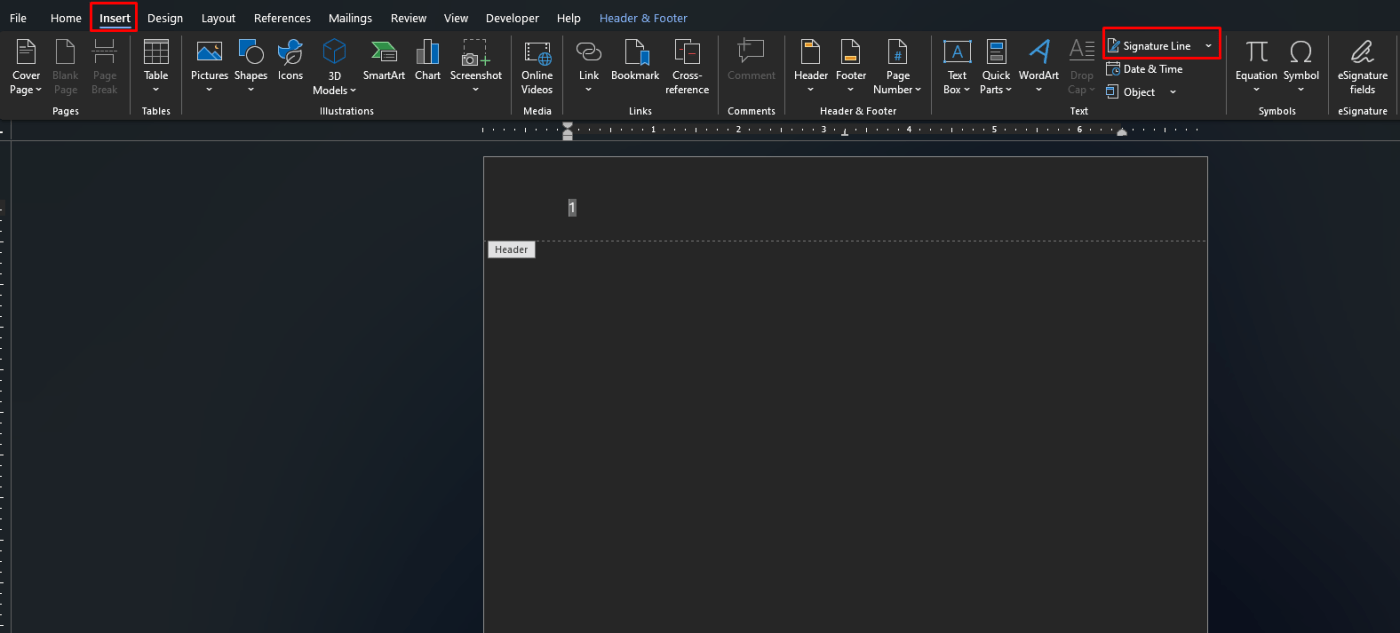
Microsoft says to click where you want the line, then go to Insert > Signature Line, and choose Microsoft Office Signature Line. After that, Word opens a Signature Setup box where you can add the suggested signer’s name and title before placing the line into the document.
When to use a signature line
A signature line is useful for:
- contracts
- approval forms
- business documents
- letters that need a clear signing area
It is a clean option because Word marks the spot clearly instead of making you draw a line manually. Microsoft’s support page describes it as the built-in way to show where a document should be signed.
Method 2: Insert a Picture of Your Handwritten Signature
If you want your actual handwritten signature to appear in the document, Microsoft says you can scan it and insert it as an image. The file can be saved in common formats such as BMP, GIF, JPG, or PNG, then inserted into Word from the Insert tab.
How to do it
Microsoft’s Word support says the process is:
- write your signature on paper
- scan it and save it as an image file
- in Word, go to Insert > Pictures
- choose the saved signature image
This method works well if you want the signature to look personal and visual inside the document.

Method 3: Add a Digital Signature
If you need more than a visual signature, Microsoft also supports digital signatures in Office files.
Microsoft says a digital signature is an electronic, encrypted stamp of authentication that confirms the document came from the signer and has not been altered. In Word or Excel desktop files, you can sign a signature line by right-clicking it and choosing Sign.
What digital signatures are for
Digital signatures are more formal than picture signatures. They are useful for:
- official approvals
- documents that need proof of authenticity
- workflows where document integrity matters
Microsoft also explains that using a digital signature may require a digital certificate.
How to Sign a Signature Line in Word
If a signature line is already in the document, Microsoft says you can right-click the line and choose Sign. In desktop Office, you can then type your name next to the X, and Word adds a visible representation of your signature together with the digital signature process.
This is one of the easiest ways to use the built-in signing tools in Word when the document is already prepared for signing.
How to Save a Signature for Reuse
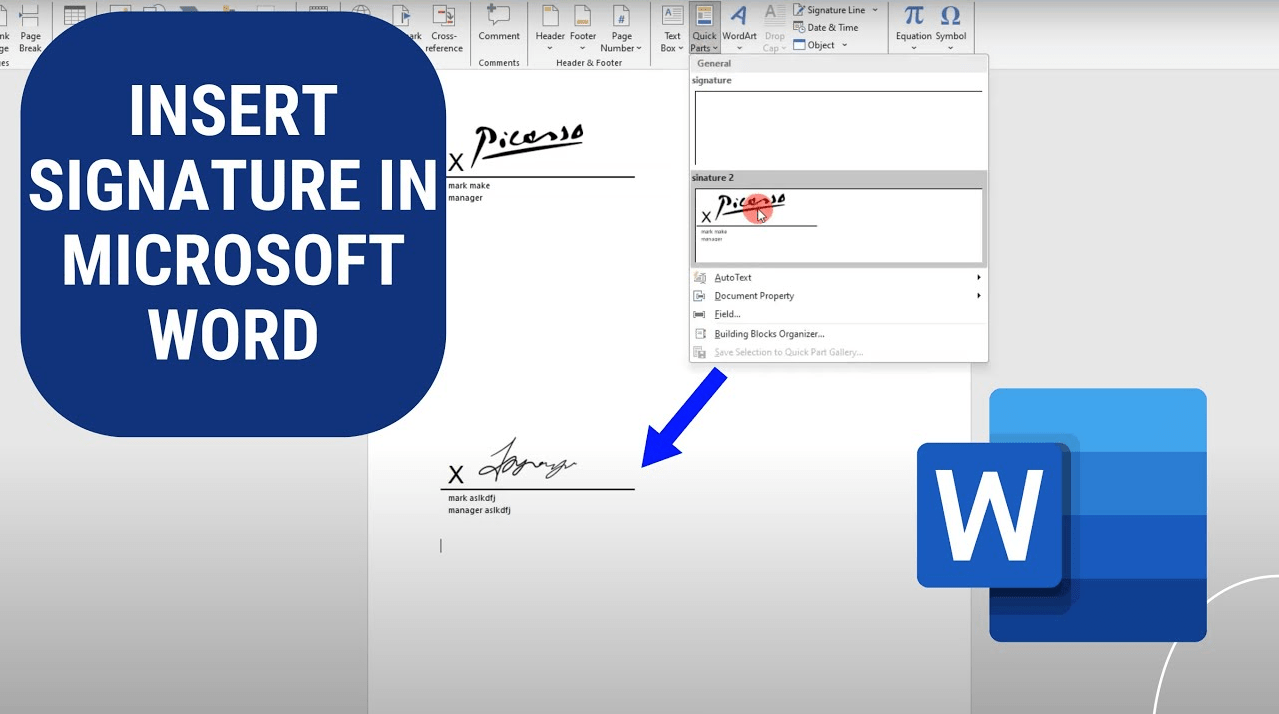
If you use the same image signature often, Microsoft also describes saving a signature block as a reusable Quick Parts or AutoText entry. That way, you do not have to insert and resize the image from scratch every time. Microsoft’s support page explains that you can select the signature block and save it to the Quick Parts gallery for later use.
This is especially useful for:
- business letters
- invoices
- proposals
- repeated document workflows
Can You Add a Signature in Word for the Web?
Yes, but the process is simpler.
Microsoft says that in Word for the web, you can place the cursor where you want the signature, then use Insert > Picture to add the image file of your signature. That means Word for the web supports the image-signature method, even though the full desktop signature-line workflow is more closely tied to the desktop app experience.
FAQ
How do I add a signature in Microsoft Word?
Microsoft says you can add a signature by inserting a signature line from Insert > Signature Line or by inserting an image of your handwritten signature through Insert > Pictures.
Can I insert a handwritten signature in Word?
Yes. Microsoft says you can scan your handwritten signature, save it as an image file, and insert it into Word.
Can Word use digital signatures?
Yes. Microsoft says Office desktop files support digital signatures, and a digital signature is an encrypted stamp of authentication that helps verify the signer and the document.
Can I reuse my signature in Word?
Yes. Microsoft explains that you can save a signature block as Quick Parts or AutoText so you can insert it again later more easily.
Get affordable Office keys with instant delivery, hassle-free activation, and the tools you need to work smarter every day.