
Instructions
How to Make Labels in Word
May
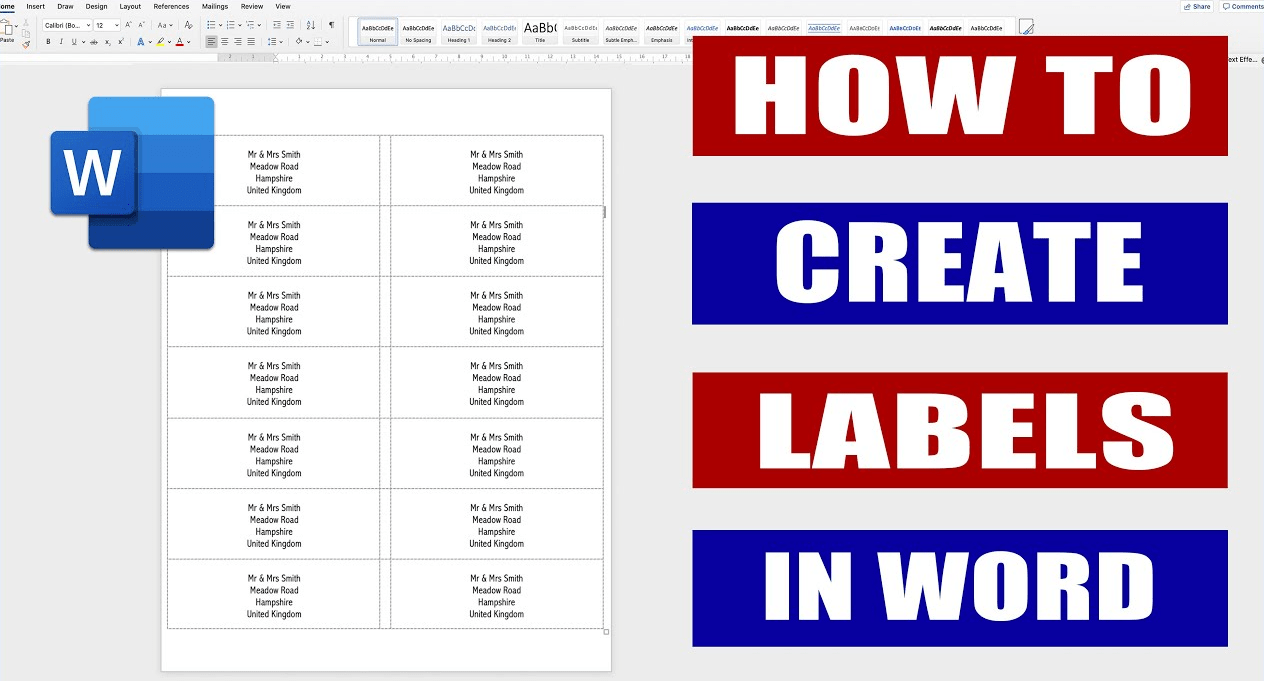
Making labels in Word is easier than many people think. Microsoft says Word has built-in label tools that let you create a single label, a full page of identical labels, or a sheet of different labels. You can also use mail merge if you want to print mailing labels from an address list.
This makes Word useful for address labels, return labels, file labels, name tags, and product-style label sheets. Microsoft’s support pages also explain that if Word does not show your exact label product number, you can create a custom label manually.
The Short Answer
To make labels in Word:
- go to Mailings
- click Labels
- choose your label vendor and product number
- type the text you want
- choose Single label or Full page of the same label
- print the labels or create a new document first
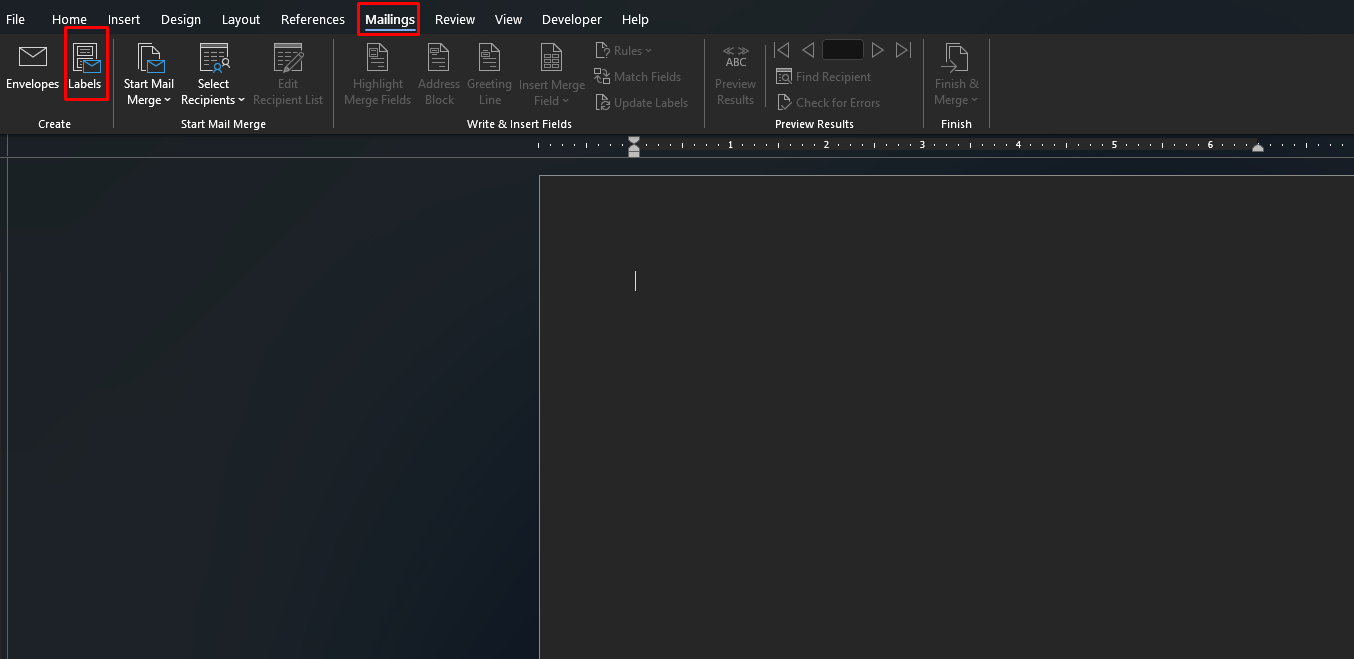
Microsoft says the normal path is Mailings > Labels, then choosing label options and either printing directly or creating a document to edit later.
How to Make a Full Page of the Same Label
This is the easiest method if you want all labels on the sheet to match.
Microsoft says to go to Mailings > Labels, then select Options and choose the correct label vendor and product number. After that, type your text in the address or delivery area, choose Full page of the same label, and then either print the sheet or create a new document to save and edit later.
What this method is good for
This is useful for:
- return address labels
- file labels
- storage labels
- product labels with the same wording
- school or office organization labels
How to Make Just One Label in Word
Sometimes you only need one label instead of a full sheet.
Microsoft says that from the Mailings > Labels dialog, you can choose Single label and then select the row and column position where Word should place that label on the sheet. This is useful if you are using a partially used label sheet.
How to Make a Page of Different Labels
If each label needs different text, Word handles that too.
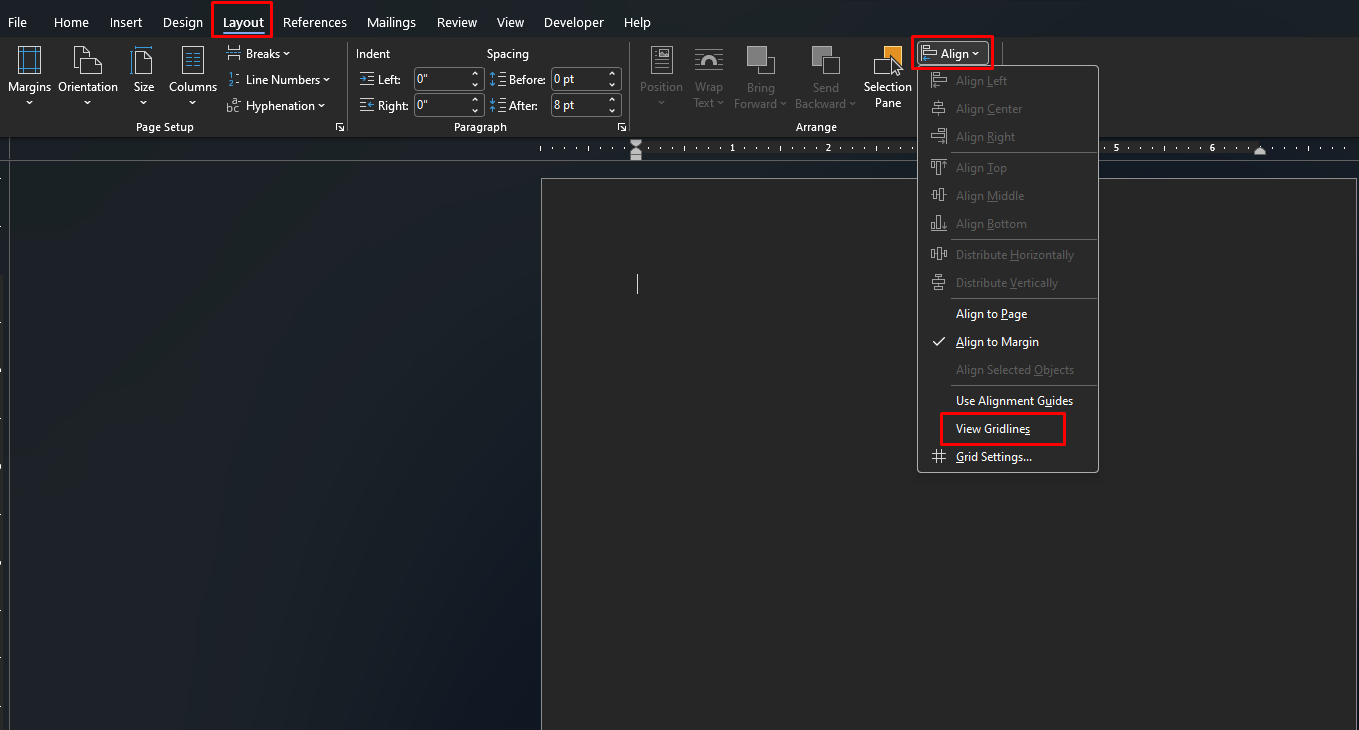
Microsoft says you can go to Mailings > Labels, choose the label type in Options, then select New Document. Word opens a new file containing a table sized to match the label product, and you can type different information into each label cell. If gridlines are not showing, Microsoft says you can turn them on with Layout > Align > View Gridlines.
This is useful for
- name tags
- different address labels
- folder labels
- classroom labels
- product or inventory labels with different names
How to Make Mailing Labels from an Excel List
If you need labels for many different names and addresses, mail merge is the best option.
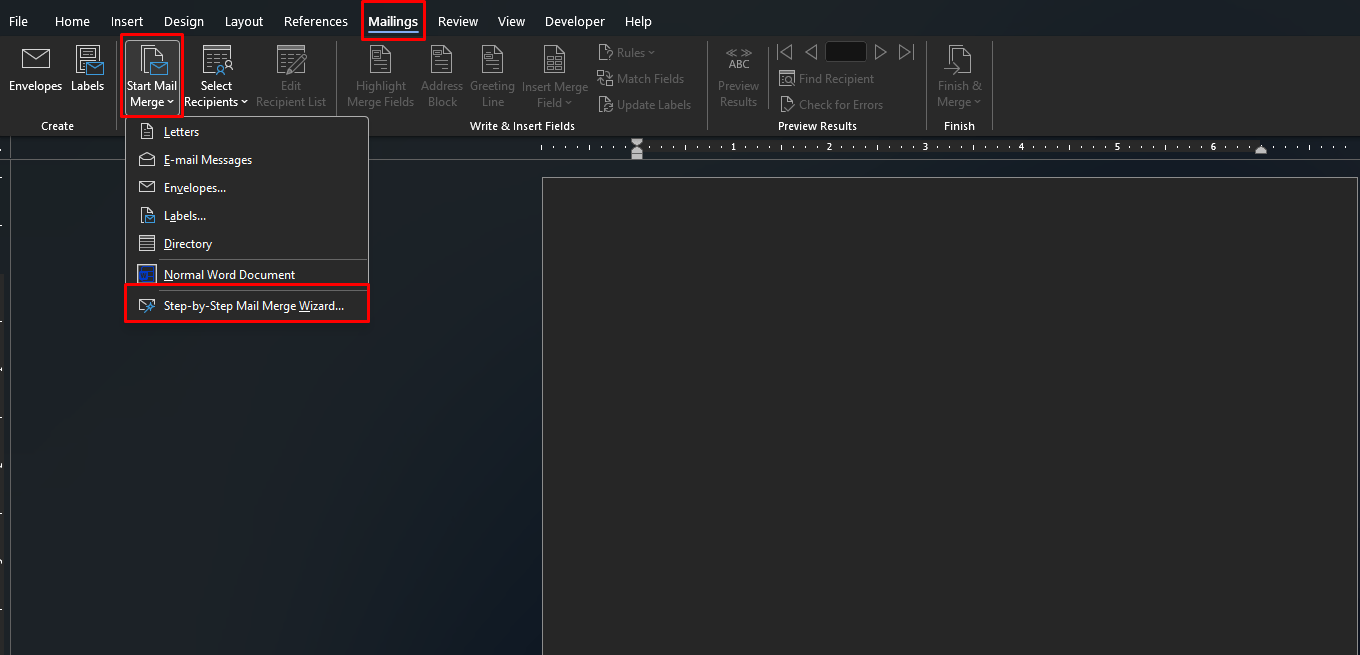
Microsoft says you can use an Excel spreadsheet as the address list and then create mailing labels through Word’s mail merge tools. The wizard path begins at Mailings > Start Mail Merge > Step-by-Step Mail Merge Wizard, then Labels, followed by choosing the label size, selecting recipients, and arranging the label layout.
Basic mail merge flow
Microsoft’s support page describes the process like this:
- prepare your address list in Excel
- go to Mailings > Start Mail Merge > Step-by-Step Mail Merge Wizard
- choose Labels
- select your label vendor and product number
- connect the Excel recipient list
- insert the address block or merge fields
- choose Update all labels
- preview the results
- print or save the merged labels document
This is the best method when every label is different but follows the same structure.
How to Choose the Right Label Size in Word
Microsoft says one of the most important steps is choosing the right label vendor and product number in the Options dialog. The product number is usually printed on the label packaging. If you do not see your exact label, Microsoft says you can select New Label and enter the label information manually.
This matters because if the size is wrong, the text may not line up with the physical labels when printed.
Can You Make Labels in Word for the Web?
Word for the web has more limited label tools.
Microsoft says Word for the web does not directly support creating labels through the normal label dialog. Instead, you can use a label template when creating a new document, and for a sheet of identical labels you can fill out one label and copy or paste it for the rest.
FAQ
How do I make labels in Word?
Microsoft says to go to Mailings > Labels, choose your label vendor and product number, enter your text, and then print the labels or create a new document first.
Can I make a full sheet of the same label in Word?
Yes. Microsoft says you can choose Full page of the same label in the Labels dialog.
Can I make different labels on one page in Word?
Yes. Microsoft says you can create a New Document from the Labels dialog, and Word opens a label-sized table where each cell can contain different text.
How do I print mailing labels from Excel in Word?
Microsoft says to use Mailings > Start Mail Merge > Step-by-Step Mail Merge Wizard, then choose Labels and connect your Excel list.
Save time on everyday work with genuine Office keys, instant delivery, and quick activation that gets you started right away.