
Instructions
How to Sort and Filter Data in Excel
May
Sorting and filtering are two of the most useful tools in Excel when you want to organize a list, clean up a table, or focus on only the rows that matter. Microsoft says sorting helps you arrange data by text, numbers, dates, colors, or icons, while filtering helps you show only the records that meet certain criteria.
This is useful for sales lists, student data, attendance sheets, budgets, inventory, and almost any spreadsheet with multiple rows. Microsoft’s support pages explain that Excel can sort from A to Z, smallest to largest, oldest to newest, and also sort by more than one column, while filters can narrow data in a range or table to just the values you want to see.
How to Sort Data in Excel
Sorting changes the order of your rows based on the values in a column.
Microsoft says you can sort:
- text from A to Z or Z to A
- numbers from Smallest to Largest or Largest to Smallest
- dates from Oldest to Newest or Newest to Oldest
How to sort text
Microsoft says to:
- select a cell in the column you want to sort
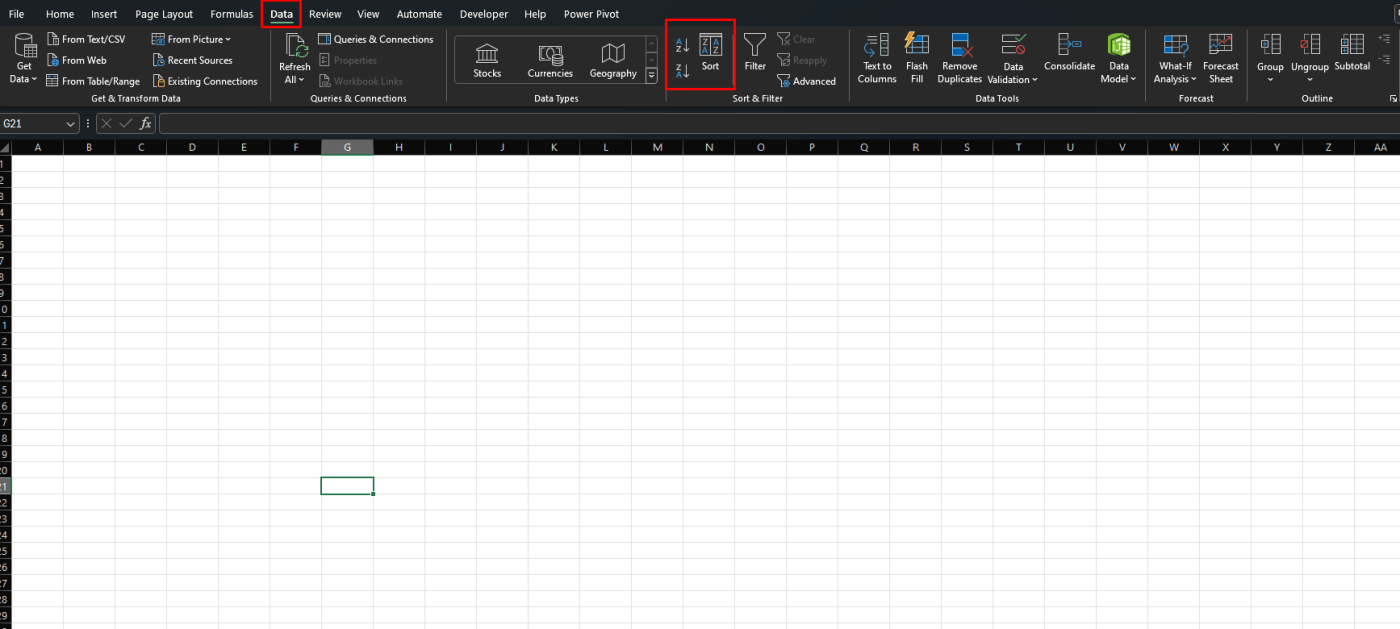
- go to Data
- choose Sort A to Z or Sort Z to A
This is useful for:
- names
- product lists
- city names
- category labels
How to sort numbers
Microsoft says to:
- select a cell in the number column
- go to Data
- choose Sort Smallest to Largest or Sort Largest to Smallest
This is useful for:
- prices
- scores
- quantities
- totals
How to sort dates
Microsoft says to:
- select a cell in the date column
- go to Data
- choose Sort Oldest to Newest or Sort Newest to Oldest
This is useful for:
- deadlines
- attendance dates
- invoice dates
- schedules
How to Sort by More Than One Column
Sometimes one column is not enough.
Microsoft says Excel can sort by up to 64 columns, and this is useful when you want to group rows by one column and then sort inside those groups by another column. It gives the example of sorting first by Department and then by Employee name.
How to do it
Microsoft says to:
- select any cell in the data range
- go to Data > Sort
- choose the first column in Sort by
- choose the sort type and order
- click Add Level
- choose the next column and repeat as needed
This is useful for:
- sorting by class, then student name
- sorting by department, then role
- sorting by month, then sales amount
How to Sort by Color or Icon
Excel can also sort by formatting, not just values.
Microsoft says you can sort by:
- cell color
- font color
- cell icon
To do this, Microsoft says to open Data > Sort, choose the column, then under Sort On select Cell Color, Font Color, or Cell Icon.
This is useful if:
- you already highlighted urgent items
- you use conditional formatting
- you want flagged rows grouped together
How to Filter Data in Excel
Filtering hides the rows you do not want to see right now.
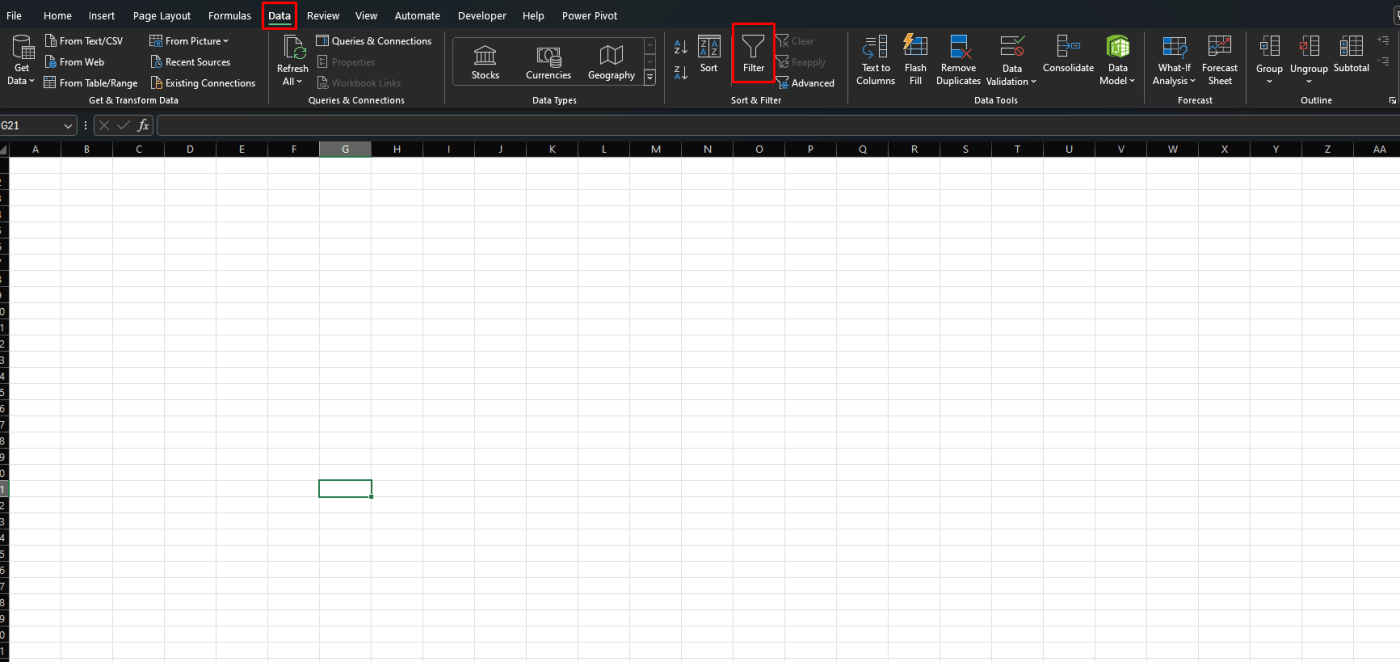
Microsoft says to select the data, then go to Data > Filter. Excel adds filter arrows to the header row, and you can use those arrows to choose which rows stay visible.
This is useful when:
- you only want one category
- you only want certain dates
- you want to hide blanks
- you want to focus on a small part of a large table
How to Filter by Specific Values
This is the most common filtering method.
Microsoft says once filter arrows appear, you can use the drop-down menu in a column to select or clear specific values and show only matching rows.
This is useful for:
- showing only one salesperson
- showing only one product
- showing only one status like Complete
- showing only certain cities or names
How to Filter by Text, Numbers, or Dates
Excel also supports more detailed filtering.
Microsoft says filtering options include Text Filters, Number Filters, and Date Filters depending on the type of data in the column.
That means you can filter for things like:
- text that contains a word
- numbers greater than a target
- dates before or after a certain point
How to Reapply a Sort or Filter
If the underlying data changes, your results may need refreshing.
Microsoft says you can use Reapply after changing data so the current sort or filter runs again on the updated range or table.
This is useful when:
- new rows were added
- values changed
- dates were updated
- the filter result no longer looks right
FAQ
How do I sort data in Excel?
Microsoft says to select a cell in the column you want to sort, then go to Data and choose options like Sort A to Z, Sort Z to A, Smallest to Largest, or Largest to Smallest depending on the data type.
How do I filter data in Excel?
Microsoft says to select the data and use Data > Filter, then use the filter arrows in the header row to choose which values remain visible.
Can I sort by more than one column in Excel?
Yes. Microsoft says Excel can sort by up to 64 columns, and you can add extra levels in the Sort dialog with Add Level.
Why is Excel sorting my numbers or dates incorrectly?
Microsoft says this often happens when numbers or dates are stored as text instead of proper numeric or date values. It also notes that leading spaces can affect text sorting.
Get genuine Office keys with instant delivery and easy activation, so your Excel tools are ready whenever you need to organize data faster.