
Instructions
How to Use COUNTIF in Excel
May
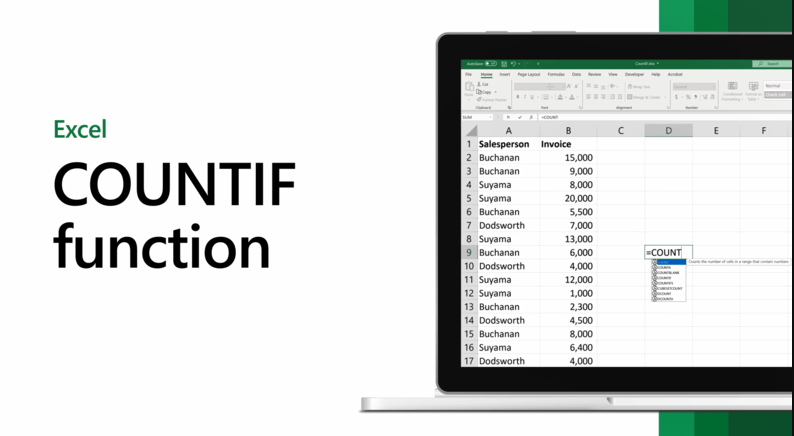
COUNTIF is one of the most useful Excel functions when you want to count how many cells match one condition. Microsoft says COUNTIF is a statistical function that counts the number of cells that meet a criterion, such as counting how many times a particular city or product appears in a list.
This makes COUNTIF useful for attendance sheets, sales categories, task trackers, inventory lists, grades, and almost any spreadsheet where you need to count matching entries quickly. If you need more than one condition, Microsoft notes that you should use COUNTIFS instead.
The Short Answer
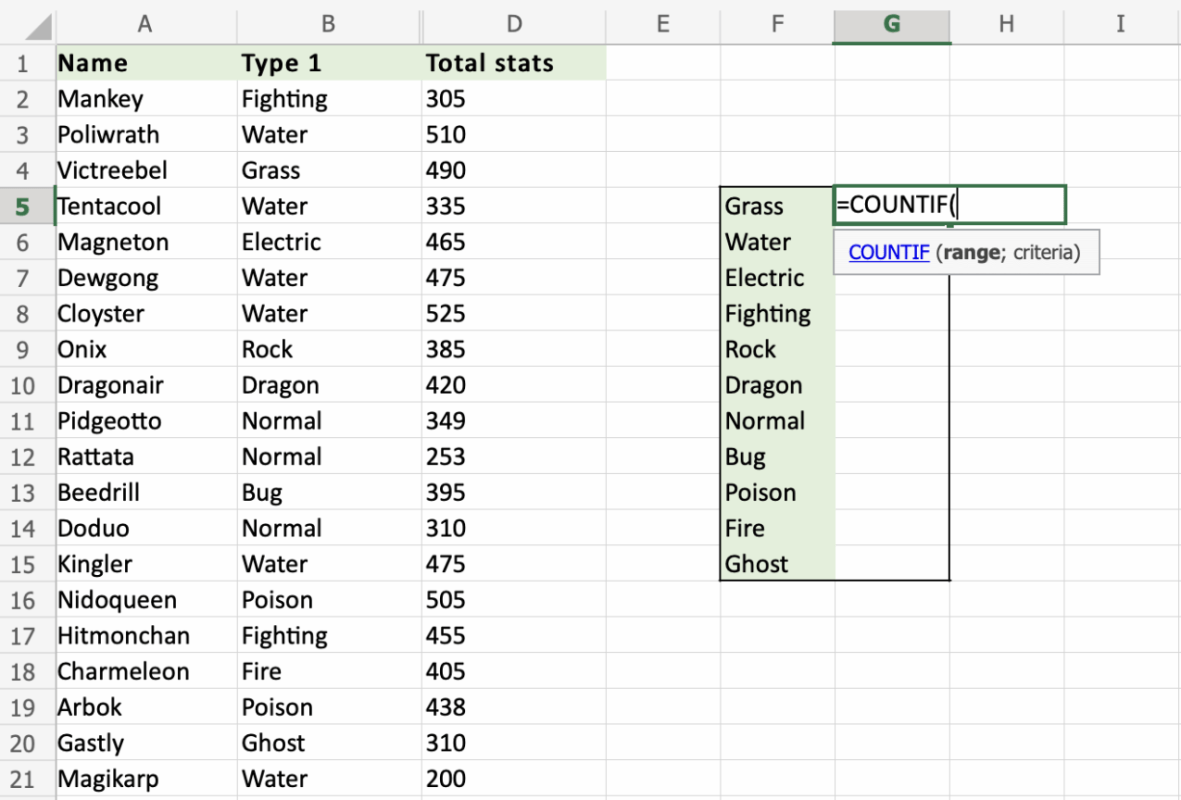
The basic COUNTIF formula in Excel is:
=COUNTIF(range, criteria)
Microsoft says:
- range is where Excel looks
- criteria is what Excel is looking for
How COUNTIF Works
Microsoft says COUNTIF counts the number of cells within a range that meet a criterion. In simple terms, Excel checks each cell in the selected range and adds 1 to the count every time the condition matches.
That means COUNTIF has two main parts:
- range = the cells Excel checks
- criteria = the rule Excel uses
Simple COUNTIF Example
Microsoft gives this example:
=COUNTIF(A2:A5,"apples")
Microsoft says this counts how many cells in A2:A5 contain apples, and the result is 2 in its sample data.
This is useful when you want to count:
- how many times a product appears
- how many rows contain a certain category
- how often a certain word shows up
COUNTIF Using a Cell Reference
You do not always have to type the value directly into the formula.
Microsoft also gives this example:
=COUNTIF(A2:A5,A4)
Microsoft says this counts how many cells in A2:A5 match the value in A4. In its example, the result is 1.
This is useful when:
- the search term changes often
- you want the formula to stay flexible
- you want users to type the value into a cell instead of editing the formula
How to Use COUNTIF with Numbers
COUNTIF also works very well with number conditions.
Microsoft gives this example:
=COUNTIF(B2:B5,">55")
Microsoft says this counts how many cells in B2:B5 contain a value greater than 55, and in its sample the result is 2.
You can use criteria like:
">55""<100""=50"">=70""<=10"
This is useful for:
- counting scores above a target
- counting values below a threshold
- checking how many entries meet a goal
How to Use COUNTIF with “Not Equal To”
Microsoft also shows that you can count cells that do not match something.
Its example uses:
=COUNTIF(B2:B5,"<>"&B4)
This uses the <> operator, which means “not equal to.” Microsoft includes this example on its COUNTIF page.
This is useful when you want to count:
- cells that are different from a specific value
- entries that do not match a category
- items that are not blank, depending on the condition you use
How to Count More Than One Value
COUNTIF handles one condition at a time, but Microsoft’s example shows that you can combine multiple COUNTIF formulas if needed.
Microsoft gives this example:
=COUNTIF(A2:A5,A2)+COUNTIF(A2:A5,A3)
Microsoft says this counts both the number of cells matching A2 and the number matching A3, and the result is 3 in the sample. It also notes that you could use COUNTIFS when you need multiple criteria logic.
This is useful when:
- you want to count two named categories together
- you want a quick combined result
- you are not yet using COUNTIFS
COUNTIF with Text vs Numbers
COUNTIF can work with both text and numbers.
Microsoft’s examples show:
- text criteria like
"apples" - numeric criteria like
">55"
A simple rule is:
- put text in quotes
- put comparison-based number rules in quotes too, like
">10"
COUNTIF vs COUNTIFS
This is one of the most important differences to understand.
Microsoft says COUNTIF counts cells that meet one criterion. If you need to count cells based on multiple conditions, you should use COUNTIFS instead.
So:
- use COUNTIF for one rule
- use COUNTIFS for two or more rules
FAQ
What is COUNTIF in Excel?
Microsoft says COUNTIF is a statistical function that counts the number of cells that meet a criterion.
What is the syntax of COUNTIF?
Microsoft shows the formula as:
=COUNTIF(range, criteria)
Can COUNTIF count text and numbers?
Yes. Microsoft’s examples include both text criteria like "apples" and number criteria like ">55".
What is the difference between COUNTIF and COUNTIFS?
Microsoft notes that COUNTIF is for one criterion, while COUNTIFS is used when you need multiple criteria.
Work faster in Excel with genuine Office keys, instant delivery, and simple activation that gets your tools ready in minutes.