
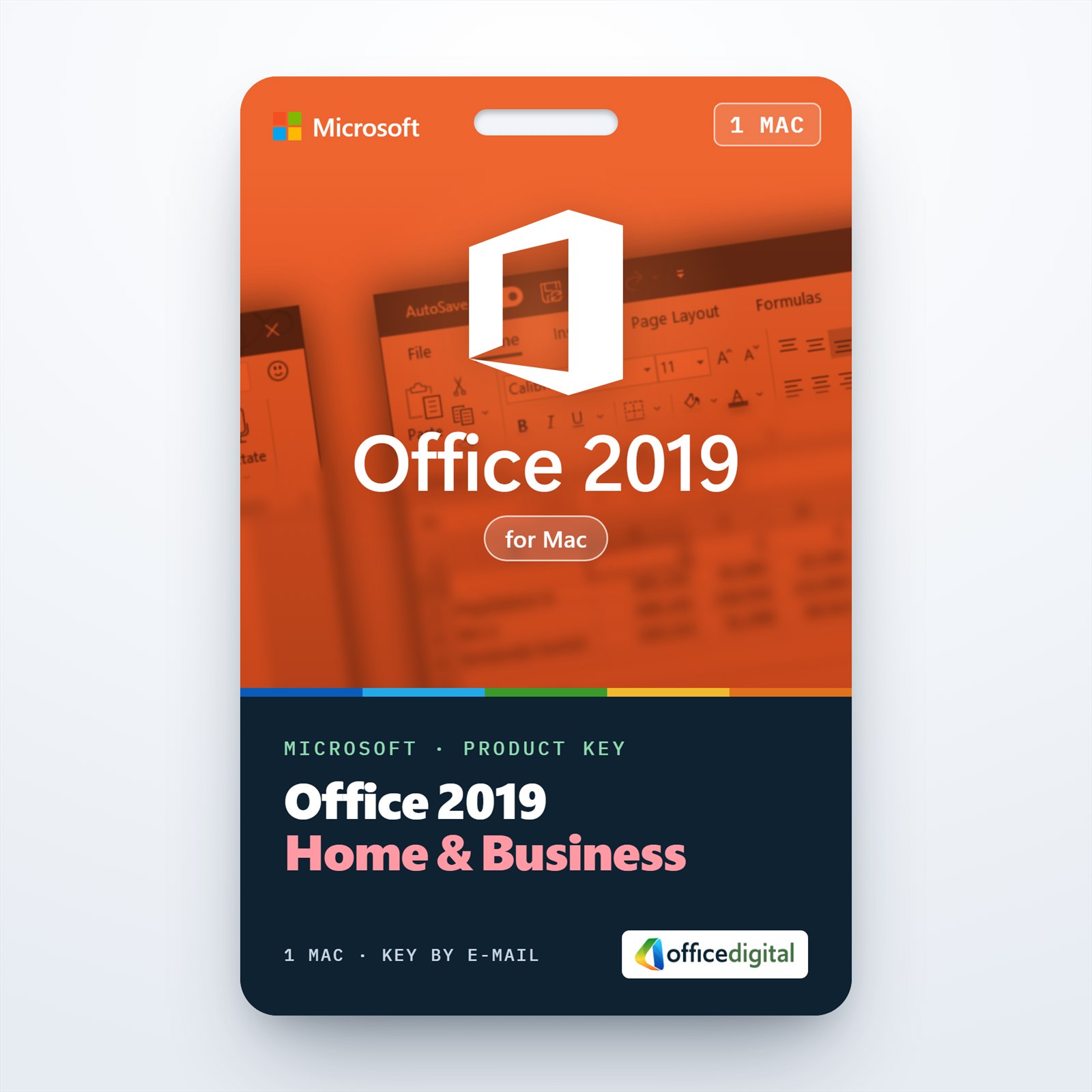
Office 2019 Home & Business (MAC Version)
- License
- Retail
- Delivery
- Instant, by e-mail
- Download
- Official Microsoft
- Brand
- Microsoft
€89,00
One-time payment · no subscription
- Instant delivery to your e-mailkey + download links
- Key won't activate? We replace itunused keys: refund within 7 days
- Official invoice with every order
- 24/7 live chat help with activation
Office 2019 Home & Business for one Mac: Outlook, Word, Excel, PowerPoint and OneNote, licensed for business use too. Paid once; Access and Publisher are not made for the Mac.
What you get with Office 2019 Home & Business for Mac
Office 2019 Home & Business for Mac installs Outlook, Word, Excel, PowerPoint and OneNote on one Mac. Home & Business is the edition that includes Outlook and allows business use, so it fits freelancers and small offices as well as home users. The license is perpetual: one payment and no renewal. We e-mail the key with a link to Microsoft’s Mac installer and setup notes, and send the PDF invoice when the order is completed.

What the 2019 Mac apps can do
- Outlook 2019 for Mac lets you set trackpad swipe gestures to delete, archive, flag or mark a message as read, and handles meetings that start and end in different time zones.
- Excel 2019 for Mac brings the TEXTJOIN, CONCAT and IFS functions, timeline filters for PivotTables, and lets you deselect single cells from a selection.
- PowerPoint 2019 for Mac includes the Morph transition, a built-in icon library and online videos that play inside the slide.
- Word 2019 for Mac has Learning Tools for text spacing, column width, page color and reading aloud, plus Microsoft Translator for selected text.
- OneNote keeps notes, sketches and clippings in notebooks next to the other four apps.

Office 2019 for Mac or a newer edition?
Office 2019 for Mac makes sense when your other Macs already use Office 2019 and you want the same version on each of them. Microsoft lists Office Home & Business 2021 for Mac for the current macOS versions, so on a Mac with a recent macOS that 2021 edition is the safer choice. There is no Access or Publisher in any Mac edition; on Windows, Office 2019 Professional Plus includes both.
How to activate Office 2019 Home & Business for Mac
- Using Safari or another browser, open setup.office.com and select Get Started.
- Sign in to the Microsoft account you will use for Office (new accounts can be created there).
- Enter the key, select Next, pick the language you want and select Redeem; the Office 2019 installer package for Mac then downloads.
- Open the downloaded package, accept the license terms and let the installer finish; macOS asks for your administrator password.
- Launch Outlook or Word, select Sign in and use the account from step 2. Office activates over the internet.
The complete walkthrough with screenshots is in our Office 2019 Home & Business for Mac setup guide. If Office doesn’t activate, our live chat and e-mail support are there 24/7.
System requirements
| Processor | Intel processor in Microsoft’s 2019 listing; Microsoft’s Apple silicon article also covers Office 2019 |
|---|---|
| Memory | 4 GB RAM |
| Hard disk | 10 GB of available disk space; APFS or HFS+ (Mac OS Extended) |
| Display | 1280 × 800 screen resolution |
| Operating system | Microsoft described it as “the three most recent versions of macOS” at the time; no version numbers are listed |
| Other | Internet connection and a Microsoft account to redeem and activate |
Questions about Office 2019 Home & Business for Mac
Which macOS versions does it run on?
Microsoft’s requirements page described Office 2019 for Mac as supported on the latest three macOS releases of its time rather than giving version numbers, and its current page has no Mac entry for 2019. Tell our support which macOS your Mac runs before you order, or choose Office 2021 for Mac, which Microsoft lists for the three latest macOS releases.
Is Outlook part of the Mac version?
Yes. Outlook is what separates Home & Business from Home & Student, and it comes with this Mac edition.
Can I put it on a MacBook and an iMac?
No. The license covers one Mac; a second computer needs its own license.
Be the first to review “Office 2019 Home & Business (MAC Version)”
You must be logged in to post a review.
- Genuine Retail licenses. Every key is a genuine license that activates with Microsoft, or with ESET or Avast for antivirus. Unless the License line next to the price says OEM, it is a Retail license.
- Replacement if a key won't activate. Contact our support on live chat or by e-mail, day or night: we help you finish the activation or send a replacement key.
- Refund for unused keys. A key that has not been redeemed can be refunded within 7 calendar days of purchase, as set out in our Refund Policy.
- Invoice and instructions. Every order comes with a PDF invoice and instructions to download, install and activate the software.
You may also need
Reviews
There are no reviews yet.