
-
×
 SQL Server 2022 Standard
1 × $405,31
SQL Server 2022 Standard
1 × $405,31
Microsoft SQL Server 2016 Standard – License
- License
- Retail
- Delivery
- Instant, by e-mail
- Download
- Official Microsoft
- Brand
- Microsoft
$251,30
One-time payment · no subscription
- Instant delivery to your e-mailkey + download links
- Key won't activate? We replace itunused keys: refund within 7 days
- Official invoice with every order
- 24/7 live chat help with activation
Pay with SKU SQL_S16
Product key for SQL Server 2016 Standard on Windows Server 2012 to 2019 or Windows 10. From Service Pack 1, Standard runs In-Memory OLTP, columnstore and Always Encrypted.
What you get with SQL Server 2016 Standard
You get a product key for SQL Server 2016 Standard, which installs the Standard edition of Microsoft’s 2016 database server on one Windows machine. Since Service Pack 1, this edition also runs features that used to require Enterprise, such as In-Memory OLTP, columnstore indexes, table partitioning and Always Encrypted. The key is sent by e-mail together with the link to Microsoft’s installer. You pay for it once.
Standard edition features in SQL Server 2016
- In-Memory OLTP with up to 32 GB of memory-optimized data per database, and columnstore indexes with a 32 GB segment cache.
- Partitioning, data compression, change data capture and database snapshots, all opened to Standard with Service Pack 1.
- Always Encrypted, row-level security, dynamic data masking and database-level auditing to protect and track sensitive data.
- Temporal tables, native JSON functions and Query Store for keeping history, handling JSON data and tracking query plans.
- Basic availability groups (two nodes, one database each), failover cluster instances on up to two nodes, log shipping, and compressed or encrypted backups.
- Basic R integration through R Services and a PolyBase compute node.
A single instance is capped at 24 cores or 4 sockets, whichever is lower, with 128 GB for the buffer pool. Transparent data encryption is not part of SQL Server 2016 Standard; Microsoft added it to Standard in SQL Server 2019.
Check your Windows version first
Microsoft supports SQL Server 2016 with Service Pack 3 on Windows Server 2012, 2012 R2, 2016 and 2019, and on Windows 10. It is not listed for Windows Server 2022, Windows Server 2025 or Windows 11. For those systems, choose SQL Server 2019 Standard or SQL Server 2022 Standard, which also include TDE in the Standard edition.
How to activate SQL Server 2016 Standard
- Get the SQL Server 2016 media through the Microsoft link we send, and start setup.exe as an administrator. Setup adds .NET Framework 4.6 if it is missing.
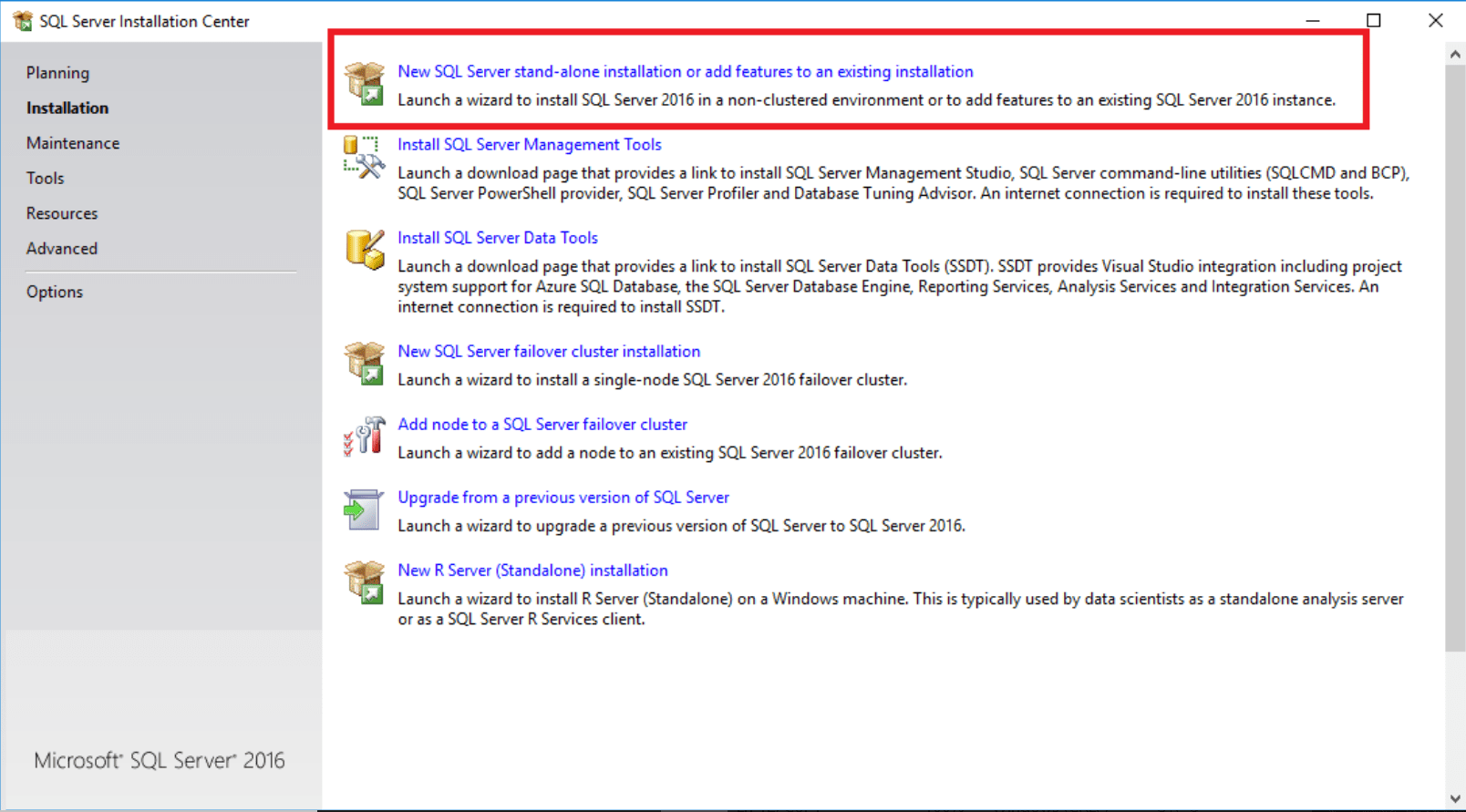
- In Installation Center, open the Installation page and select the first option to set up a new standalone instance.
- Type your key on the Product Key screen so that Setup selects the Standard edition, then accept the license terms.
- Choose the features, at minimum Database Engine Services, set the instance name, the service accounts and the authentication mode, and name at least one SQL Server administrator.
- Install, then download SQL Server Management Studio separately from Microsoft to manage the instance.
Instances already installed as Express, Evaluation or Developer take the key through Maintenance, then Edition Upgrade. Our SQL Server activation guide has the screens step by step.
System requirements
| Processor | x64 only; at least 1.4 GHz (Microsoft recommends 2.0 GHz or more) |
|---|---|
| RAM | 1 GB or more (Microsoft recommends 4 GB and up) |
| Hard disk | 6 GB of free space |
| Operating system | Windows Server 2012, 2012 R2, 2016 or 2019; Windows 10 (with Service Pack 3) |
| .NET Framework | 4.6 (installed by Setup) |
| Screen resolution | 800 x 600 (Super-VGA) or more |
Questions about SQL Server 2016 Standard
Does SQL Server 2016 Standard include transparent data encryption?
No. In SQL Server 2016, TDE is an Enterprise feature. Always Encrypted and backup encryption are available in Standard.
Can I upgrade a free Express installation to Standard with this key?
Yes, with Edition Upgrade in Installation Center. Afterwards, enable the SQL Server Agent service and set its account in SQL Server Configuration Manager, because Express does not use the Agent.
Can I install it on Windows Server 2022?
Microsoft does not list that combination as supported. On Windows Server 2022 or 2025, use SQL Server 2019 or 2022 instead.
Be the first to review “Microsoft SQL Server 2016 Standard – License”
You must be logged in to post a review.
- Genuine Retail licenses. Every key is a genuine license that activates with Microsoft, or with ESET or Avast for antivirus. Unless the License line next to the price says OEM, it is a Retail license.
- Replacement if a key won't activate. Contact our support on live chat or by e-mail, day or night: we help you finish the activation or send a replacement key.
- Refund for unused keys. A key that has not been redeemed can be refunded within 7 calendar days of purchase, as set out in our Refund Policy.
- Invoice and instructions. Every order comes with a PDF invoice and instructions to download, install and activate the software.
You may also need
Reviews
There are no reviews yet.