
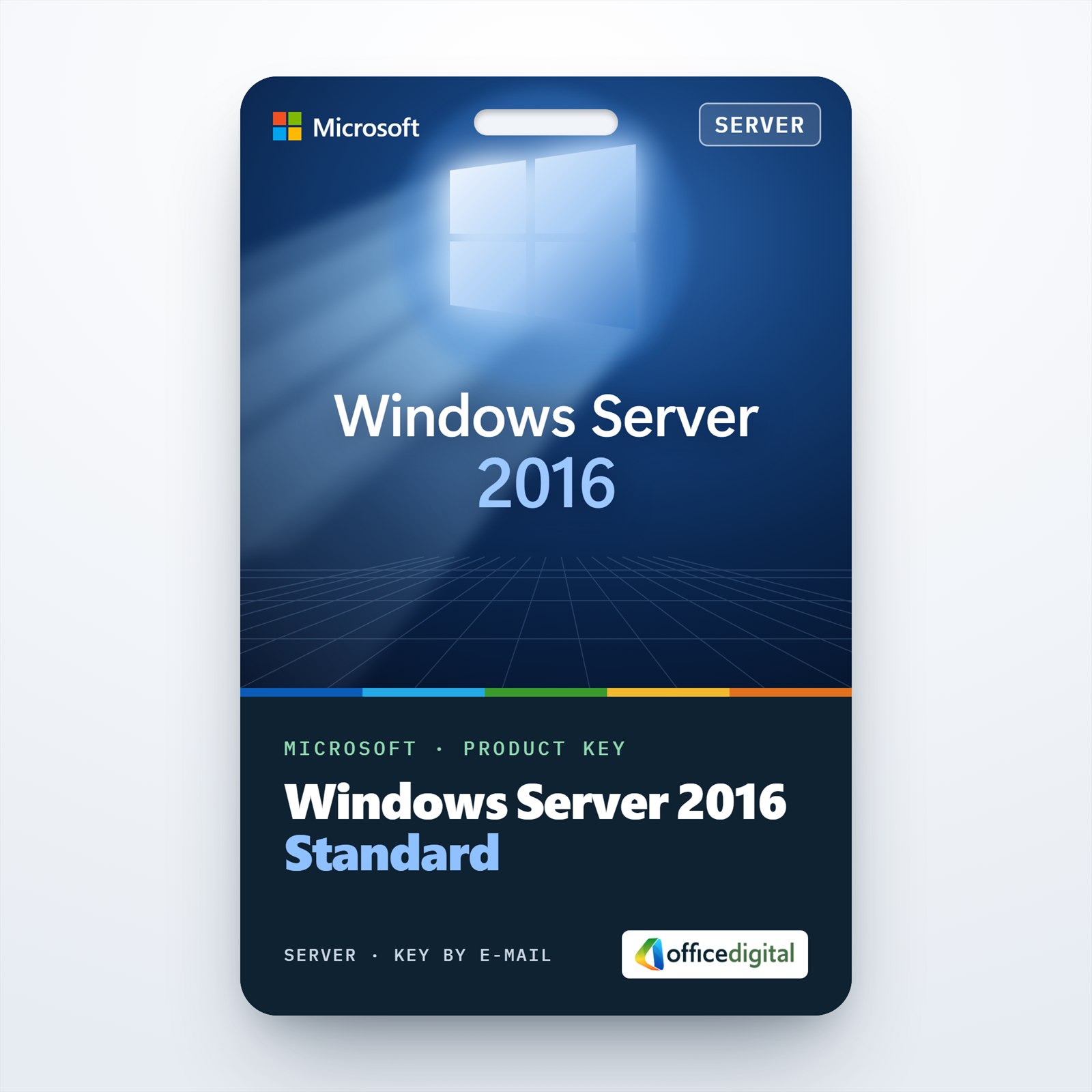
Windows Server Standard 2016
- License
- Retail
- Delivery
- Instant, by e-mail
- Download
- Official Microsoft
- Brand
- Microsoft
€49,99
One-time payment · no subscription
- Instant delivery to your e-mailkey + download links
- Key won't activate? We replace itunused keys: refund within 7 days
- Official invoice with every order
- 24/7 live chat help with activation
Windows Server Standard 2016 (version 1607) for one physical server, with rights to two Windows Server VMs on Hyper-V. It also offers the Essentials Experience role; CALs are separate.
What you get with Windows Server Standard 2016
You get a product key for Windows Server Standard 2016, release 1607, which Microsoft describes as the edition for low-density or non-virtualized servers. A Standard license permits two Windows Server operating system environments on one physical server: two Hyper-V guests on a host that does nothing else, or one installation directly on the hardware. The key arrives by e-mail with the Microsoft download link and installation notes, and you receive the PDF invoice once the order is complete. It is bought once and kept.
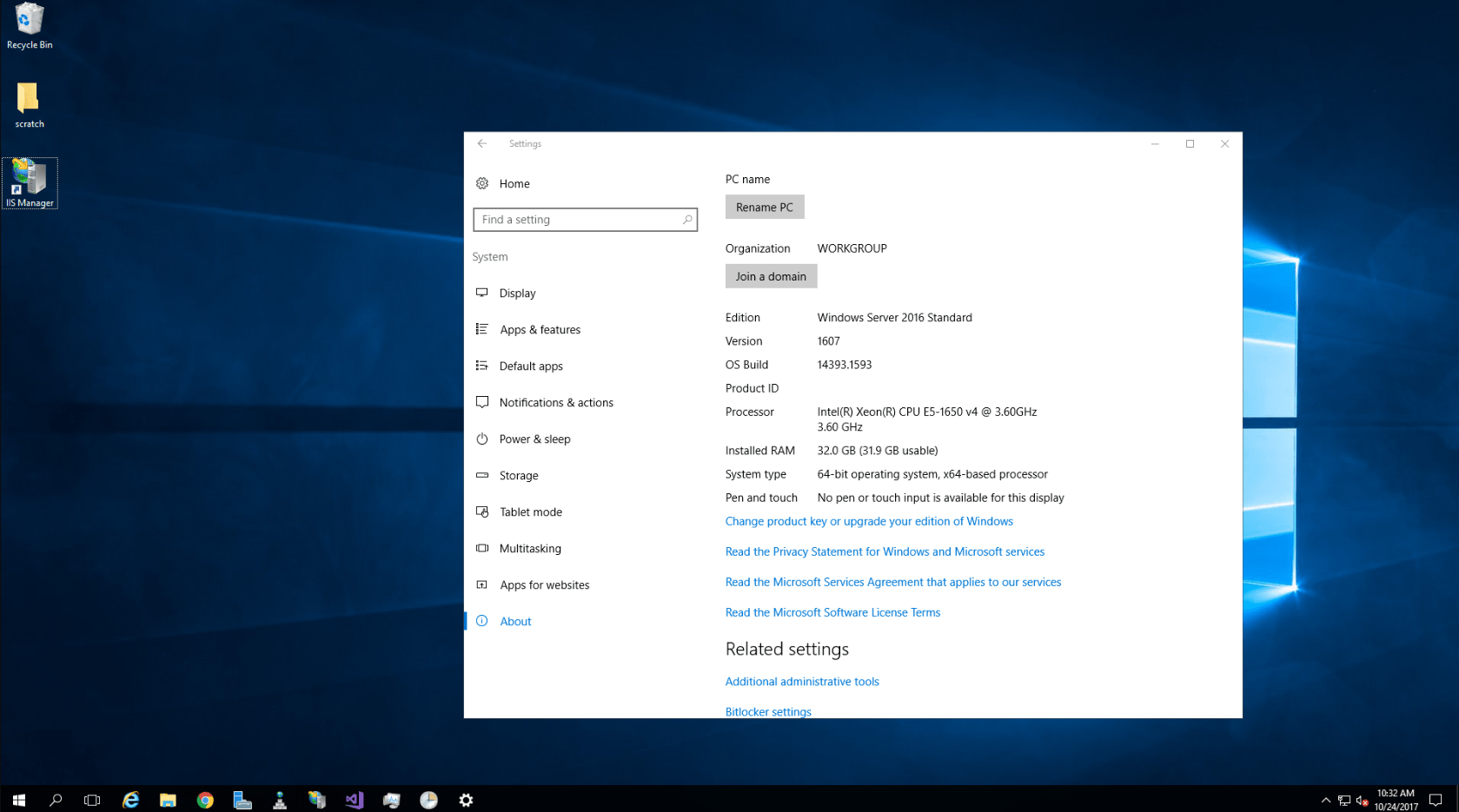
Roles and features in Standard 2016
- Active Directory Domain Services, Federation Services and Certificate Services for identity and internal certificates.
- Hyper-V for two Windows Server guests per license, and Windows Server containers.
- File services with DFS, data deduplication, Storage Spaces and Work Folders.
- Windows Server Essentials Experience, a role that brings the Essentials Dashboard, client PC backup and Remote Web Access to a Standard server.
- Remote Desktop Services and IIS, installed as roles when you need them.
Four features are Datacenter-only in 2016: Storage Spaces Direct, Storage Replica, Network Controller and Host Guardian Hyper-V Support for shielded VMs.
Which 2016 edition do you need?
Standard 2016 was the first release licensed per physical core: Microsoft counts every core, with at least 8 per processor and 16 per server. It suits a server that runs its own roles or up to two Windows Server VMs. Hosts with more guests, or anyone who needs the four Datacenter-only features above, should look at Windows Server Datacenter 2016. Buyers who can choose the release freely may prefer Windows Server Standard 2019, which moved Storage Replica into Standard.
Activating Windows Server Standard 2016
- Download the Windows Server 2016 ISO from the Microsoft link in the e-mail and install Windows Server 2016 Standard, choosing Desktop Experience if you want the graphical shell.
- Open Settings → System → About and click “Change product key or upgrade your edition of Windows”; enter the key there.
- Server Core installs use slmgr /ipk and your key, followed by slmgr /ato, in a command prompt run as administrator.
- For a Desktop Experience evaluation installation, DISM /online /Set-Edition:ServerStandard /ProductKey:your-key /AcceptEula switches it to the full edition, unless the server is a domain controller.
Our walkthrough for installing and activating Windows Server has the matching screenshots.
System requirements
| Processor | 1.4 GHz, 64-bit, x64-compatible; NX and DEP, CMPXCHG16b, LAHF/SAHF, PrefetchW, EPT or NPT |
|---|---|
| RAM | Desktop Experience needs 2 GB and Server Core 1 GB; use ECC memory in physical servers |
| Hard disk | 32 GB minimum; no IDE/PATA drives for boot or data |
| Network | Ethernet, at least 1 Gbit/s |
| Optional extras | DVD drive for disc installs, TPM 2.0, UEFI Secure Boot, Super VGA monitor |
Questions about Windows Server Standard 2016
Which RDS CALs work with a 2016 session host?
RDS CALs for Windows Server 2016 or any later version. Our Windows Server 2016 RDS 5 User CAL fits a small team; Windows Server CALs are needed as well.
Can I upgrade my Windows Server 2012 R2 server to 2016?
Yes. Windows Server 2012 and 2012 R2 upgrade to 2016 in place from the installation media, provided you keep the same installation type and language.
Can I add more virtual machines later?
Yes, by licensing all of the server’s cores with Standard again for each extra pair of VMs, or by moving the host to Datacenter.
Be the first to review “Windows Server Standard 2016”
You must be logged in to post a review.
- Genuine Retail licenses. Every key is a genuine license that activates with Microsoft, or with ESET or Avast for antivirus. Unless the License line next to the price says OEM, it is a Retail license.
- Replacement if a key won't activate. Contact our support on live chat or by e-mail, day or night: we help you finish the activation or send a replacement key.
- Refund for unused keys. A key that has not been redeemed can be refunded within 7 calendar days of purchase, as set out in our Refund Policy.
- Invoice and instructions. Every order comes with a PDF invoice and instructions to download, install and activate the software.
You may also need
Reviews
There are no reviews yet.