
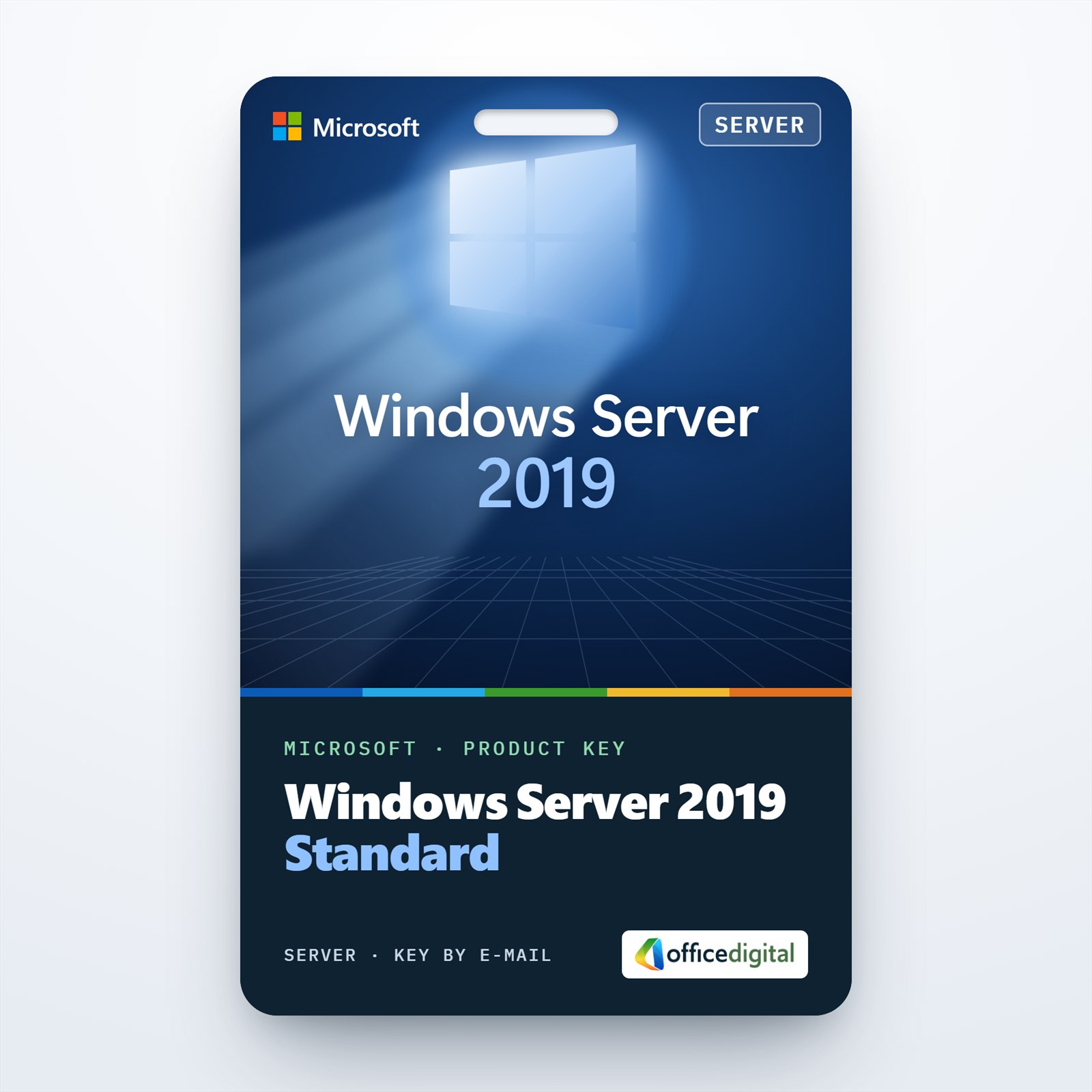
Windows Server Standard 2019
- License
- Retail
- Delivery
- Instant, by e-mail
- Download
- Official Microsoft
- Brand
- Microsoft
€44,99
One-time payment · no subscription
- Instant delivery to your e-mailkey + download links
- Key won't activate? We replace itunused keys: refund within 7 days
- Official invoice with every order
- 24/7 live chat help with activation
Windows Server Standard 2019 for one physical server with up to 16 cores. Covers two Windows Server VMs on Hyper-V; Windows Server CALs and RDS CALs are not included.
What you get with Windows Server Standard 2019
You buy a Windows Server Standard 2019 product key that licenses one physical server with up to 16 cores. Standard allows two Windows Server operating system environments on that server, for example two Hyper-V guests while the host only runs Hyper-V. Delivery is by e-mail: the key, a link to Microsoft’s installation files and setup instructions, followed by a PDF invoice when the order completes. One payment, perpetual use.
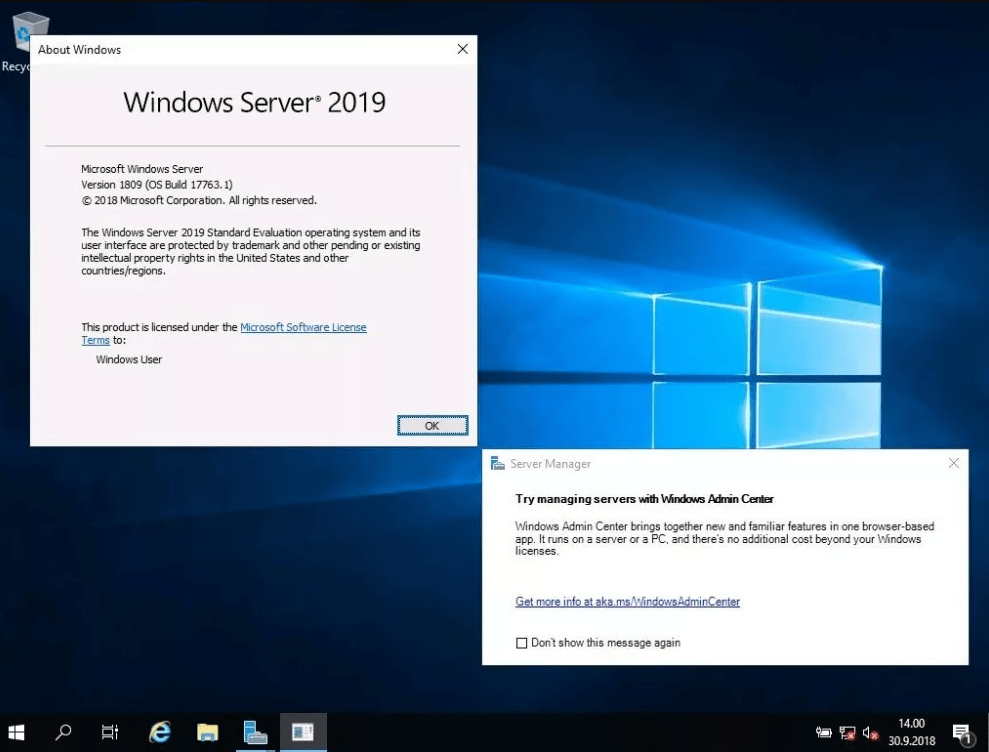
What’s in Windows Server 2019 Standard
- The core infrastructure roles: Active Directory Domain Services, DNS, DHCP, Group Policy management and Certificate Services.
- Storage Migration Service, which inventories an older file server and moves its shares, data and identity to a new one.
- Storage Replica, which was Datacenter-only in 2016 and is part of Standard from 2019.
- System Insights, a local predictive-analytics feature that forecasts CPU, network and storage usage.
- Windows Subsystem for Linux, Hyper-V, and unlimited Windows Server containers with up to two Hyper-V isolated containers.
- Windows Admin Center, Microsoft’s browser-based management app, manages the server at no cost beyond your Windows licenses.
When Standard 2019 is the right edition
Standard suits a physical server that runs your domain, files, printing or a business application, with no more than two Windows Server VMs. Microsoft counts every physical core and applies a floor of 8 cores per CPU and 16 per machine, so a single- or dual-CPU machine with 16 cores in total is covered. More guests, Storage Spaces Direct, shielded VMs or software-defined networking call for Windows Server Datacenter 2019. For a newer platform on the same per-core terms there is Windows Server 2022 Standard.
Activation of Windows Server Standard 2019
- Fetch the Windows Server 2019 ISO from the Microsoft link in your e-mail and install Windows Server 2019 Standard, with or without Desktop Experience.
- On the desktop version, Settings → Update & Security → Activation has a Change product key button; click it and type in your key.
- Server Core has no Settings app, so use slmgr /ipk with the key and then slmgr /ato from an elevated command prompt.
- A Desktop Experience evaluation installation is converted by running DISM /online /Set-Edition:ServerStandard /ProductKey:your-key /AcceptEula, but not while it is a domain controller.
The full sequence, with screenshots, is in our Windows Server setup and activation guide.
System requirements
| Processor | 1.4 GHz x64 processor; needs EPT/NPT (SLAT), PrefetchW, NX/DEP, LAHF/SAHF and CMPXCHG16b |
|---|---|
| RAM | Server Core: 1 GB. Desktop Experience: 2 GB. ECC memory on physical servers |
| Disk | 32 GB for the system partition, on a PCI Express storage controller |
| Network | 1 gigabit Ethernet adapter |
| Only for some features | UEFI 2.3.1c firmware with Secure Boot, a TPM 2.0 chip, graphics at 1024 × 768 or higher |
Questions about Windows Server Standard 2019
Which client access licenses do I need?
Every person or device using the server needs a Windows Server CAL, plus RDS CALs for 2019 or later if people work in Remote Desktop sessions. Our Windows Server 2019 RDS 10 User CAL covers ten named users.
Can I upgrade Windows Server 2012 R2 or 2016 to 2019?
Yes. Both have a supported in-place upgrade path to 2019 from the installation media, keeping roles and data. Your current installation type, Server Core or Desktop Experience, carries over unchanged.
What if my server has more than 16 cores?
Then the extra cores need additional Standard core licenses, because Microsoft requires every physical core to be licensed.
Be the first to review “Windows Server Standard 2019”
You must be logged in to post a review.
- Genuine Retail licenses. Every key is a genuine license that activates with Microsoft, or with ESET or Avast for antivirus. Unless the License line next to the price says OEM, it is a Retail license.
- Replacement if a key won't activate. Contact our support on live chat or by e-mail, day or night: we help you finish the activation or send a replacement key.
- Refund for unused keys. A key that has not been redeemed can be refunded within 7 calendar days of purchase, as set out in our Refund Policy.
- Invoice and instructions. Every order comes with a PDF invoice and instructions to download, install and activate the software.
You may also need
Reviews
There are no reviews yet.