
-
×
 Windows Server 2012 50 USER CAL
1 × $149,29
Windows Server 2012 50 USER CAL
1 × $149,29 -
×
 Windows Server 2019 RDS 10 User CAL
1 × $103,00
Windows Server 2019 RDS 10 User CAL
1 × $103,00
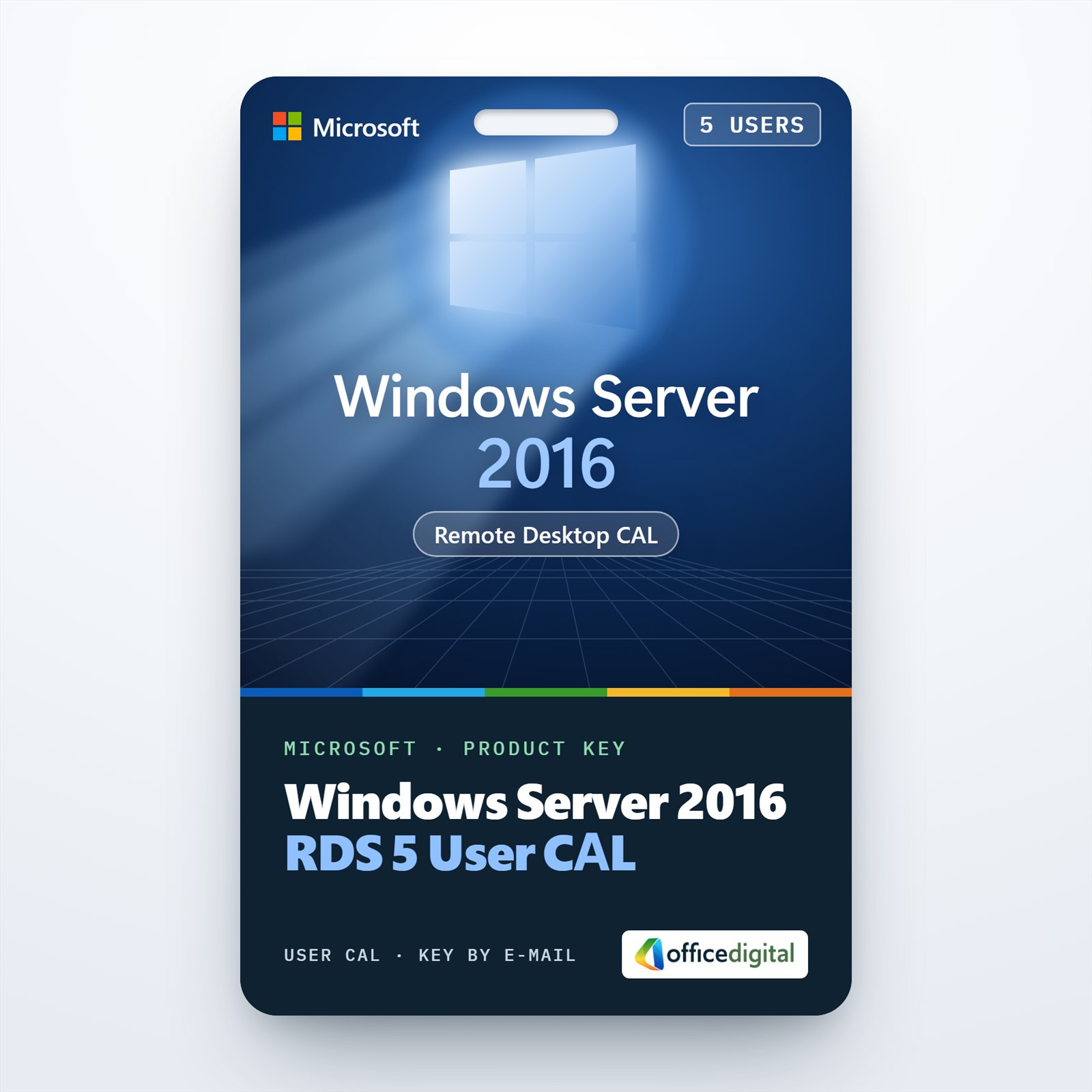
Windows Server 2016 RDS 5 User CAL
- License
- Retail · 5 users
- Delivery
- Instant, by e-mail
- Download
- Official Microsoft
- Brand
- Microsoft
$57,85
One-time payment · no subscription
- Instant delivery to your e-mailkey + download links
- Key won't activate? We replace itunused keys: refund within 7 days
- Official invoice with every order
- 24/7 live chat help with activation
Pay with SKU WS-RDS5CAL
Five per-user Remote Desktop Services client access licenses for RD Session Hosts running Windows Server 2016. You install them in Remote Desktop Licensing Manager.
What you get with the Windows Server 2016 RDS 5 User CAL
The Windows Server 2016 RDS 5 User CAL is a pack of five Remote Desktop Services client access licenses for a session host running Windows Server 2016. Each license belongs to one named person, who can then connect from an office PC, a laptop or a home computer. The license code comes by e-mail, and you add it to the server that issues Remote Desktop licenses in your network. You pay once; there is no subscription.
Five people, any number of devices
Microsoft sells RDS CALs in two types. A per-user CAL is assigned to an account in Active Directory and follows that person to every device. A per-device CAL is tied to one computer and suits shared PCs used in shifts. This pack is per user, so it fits a small office where each person has a laptop and sometimes works from home.
- Per-user CALs need domain-joined servers. In a workgroup, Microsoft only allows per-device CALs.
- The license server does not block a sixth user, so keeping to five people is up to you. Remote Desktop Licensing Manager can report which users hold a CAL.
- The pack covers Remote Desktop rights only. Each user also needs a Windows Server CAL for the server itself, which is not part of this pack.
Which session hosts the 2016 CALs cover
An RDS CAL works on session hosts of its own version or older, never newer. These Windows Server 2016 CALs are accepted by a session host running Windows Server 2016, and not by hosts on 2019, 2022 or 2025. The license server that holds them can run Windows Server 2016 or a later version.
If your session hosts already run 2019, the Windows Server 2019 RDS 10 User CAL is the matching pack. A team that is bigger than five can take the Windows Server 2016 RDS 50 User CAL instead.
How to activate the Windows Server 2016 RDS 5 User CAL
- On the server that will hand out licenses, open Server Manager, choose Manage, then Add Roles and Features, and add the Remote Desktop Licensing role service.
- Start Remote Desktop Licensing Manager from the Tools menu, select your server and choose Action, then Activate Server. The automatic connection method is the quickest.
- Right-click the server name, pick Install Licenses, choose the license program and type in the code from your e-mail.
- Select Windows Server 2016, the per-user CAL type and a quantity of 5. The wizard checks the code with the Microsoft Clearinghouse; click Finish.
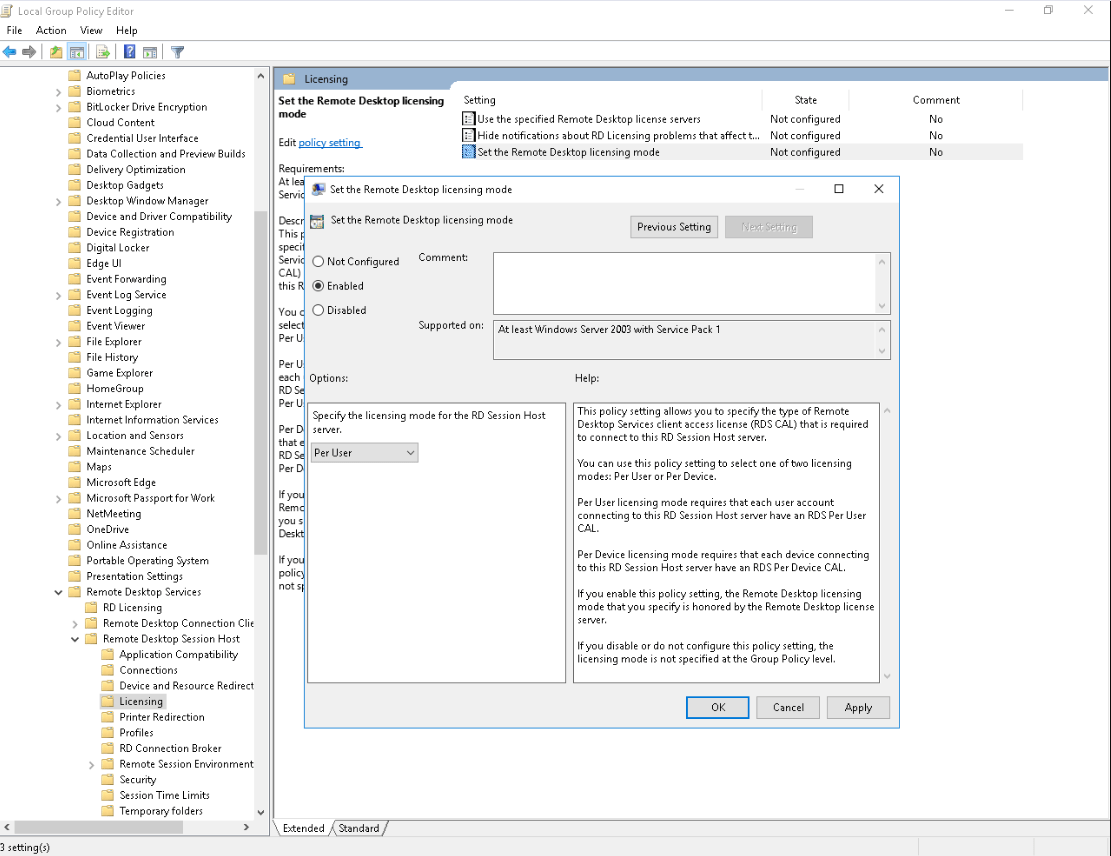
- Point the session host to the license server and set the mode to Per User: in an RDS deployment, under RD Licensing in the deployment properties; without a Connection Broker, through the two licensing policies in Group Policy.
If the server operating system is not set up yet, start with our guide to installing Windows Server.
System requirements
| RD Session Host | Windows Server 2016 |
|---|---|
| License server | Windows Server 2016 or later, with the Remote Desktop Licensing role service |
| Licensing mode | Per User, on domain-joined servers |
| Activation | Internet access on the computer that runs Remote Desktop Licensing Manager |
| Server hardware | 1.4 GHz 64-bit processor, 2 GB RAM (Desktop Experience), 32 GB disk |
| Also required | A Windows Server CAL for each of the five users |
Questions about the Windows Server 2016 RDS 5 User CAL
Can users sign in before the CALs are installed?
Yes, for a while. Microsoft gives a 120-day grace period in which no license server is needed. After that, each user needs a CAL issued by an activated license server.
Can I give a CAL to a new colleague?
Yes, but under most license agreements a per-user CAL can only move to a different person after 90 days, apart from special cases.
What if the code is not accepted?
Our support helps with the Clearinghouse step or sends a replacement code; the refund policy covers unused codes.
Be the first to review “Windows Server 2016 RDS 5 User CAL”
You must be logged in to post a review.
- Genuine Retail licenses. Every key is a genuine license that activates with Microsoft, or with ESET or Avast for antivirus. Unless the License line next to the price says OEM, it is a Retail license.
- Replacement if a key won't activate. Contact our support on live chat or by e-mail, day or night: we help you finish the activation or send a replacement key.
- Refund for unused keys. A key that has not been redeemed can be refunded within 7 calendar days of purchase, as set out in our Refund Policy.
- Invoice and instructions. Every order comes with a PDF invoice and instructions to download, install and activate the software.
You may also need
Reviews
There are no reviews yet.