
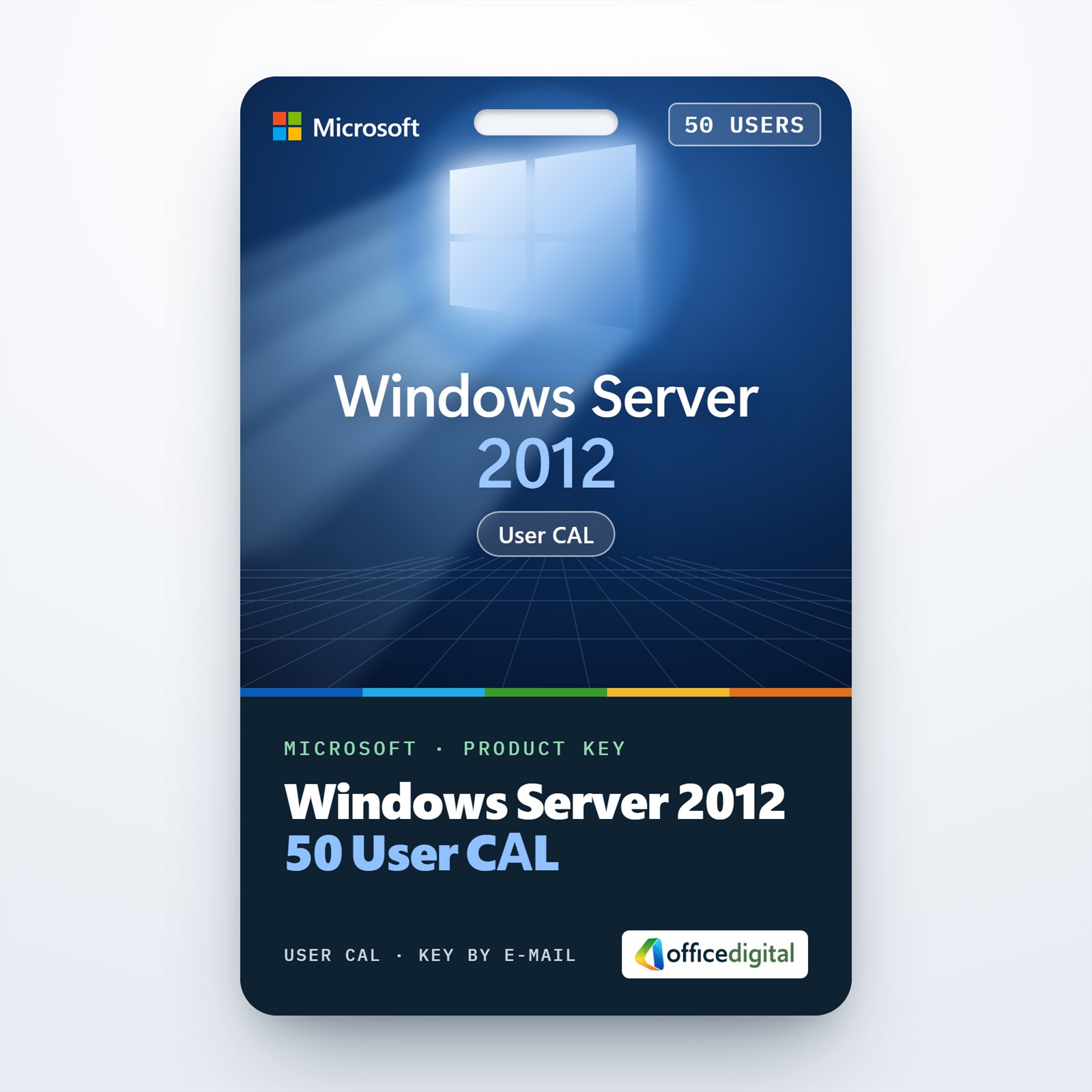
Windows Server 2012 50 USER CAL
- License
- Retail · 50 users
- Delivery
- Instant, by e-mail
- Download
- Official Microsoft
- Brand
- Microsoft
€129,00
One-time payment · no subscription
- Instant delivery to your e-mailkey + download links
- Key won't activate? We replace itunused keys: refund within 7 days
- Official invoice with every order
- 24/7 live chat help with activation
Fifty Windows Server 2012 user client access licenses: each lets one named person use your Windows Server 2012 servers from any device. Remote Desktop needs RDS CALs on top.
What you get with the Windows Server 2012 50 User CAL
The Windows Server 2012 50 User CAL is a set of fifty client access licenses for Windows Server 2012. Each license lets one named person use the services of your Windows Server 2012 Standard or Datacenter servers, for example shared folders, printers or signing in to the domain, from any device. A Windows Server CAL is a license right rather than software, so there is nothing to install. The license details arrive by e-mail, and the purchase is a single payment.

User CALs or device CALs
Microsoft offers Windows Server CALs in two forms. With a user CAL you license every person who accesses the server, however many devices that person uses. With a device CAL you license every device that accesses the server, however many people share it. This pack is the user version: 50 named people, each covered on a work PC, a laptop and a phone.
User CALs fit offices where most staff have more than one device. If 50 people share a handful of PCs, device CALs would mean fewer licenses.
What the 50 user CALs do not cover
- Remote Desktop sessions. Microsoft treats the Remote Desktop Services CAL as an additive license, needed in addition to the Windows Server CAL. This pack contains no RDS CALs.
- The server license. Windows Server 2012 itself is licensed separately with its own product key.
- Newer server versions. Under Microsoft’s Product Terms, a CAL covers its own version of the server software and earlier versions. Servers running Windows Server 2016 or later, such as Windows Server 2022 Standard, need CALs of their own version.
How to set up the Windows Server 2012 50 User CAL
- Install and activate Windows Server 2012 Standard or Datacenter with the server’s own product key.
- Keep the e-mail with the license details and the PDF invoice. They are your record that 50 user CALs were bought.
- Assign the CALs to named people, for example in a simple list of the 50 accounts that use the server.
- Do not look for a CAL screen in Windows Server: the operating system does not ask for Windows Server CALs or count them.
- If those users also open Remote Desktop sessions on the server, buy RDS CALs and install them in Remote Desktop Licensing Manager.
For installing and activating the server software, follow our Windows Server installation and activation steps.
System requirements
| Server software covered | Windows Server 2012 Standard or Datacenter, and earlier versions |
|---|---|
| Licensed users | 50 named users, from any number of devices each |
| Installation | None: CALs are not entered in Windows Server |
| Remote Desktop | Needs RDS CALs in addition |
| Windows Server 2012 minimum hardware | 1.4 GHz 64-bit processor, 512 MB RAM, 32 GB disk, gigabit Ethernet adapter |
Questions about the Windows Server 2012 50 User CAL
Where do I enter the CALs in Windows Server 2012?
Nowhere. Microsoft describes a CAL as a license, not a software product, and Windows Server 2012 has no field for Windows Server CALs.
Can our 50 users work on the server through Remote Desktop with this pack?
Not with this pack alone. Remote Desktop Services access needs one RDS CAL per user as well, installed on an RD license server.
Do these CALs cover a Windows Server 2019 machine?
No. A CAL covers its own server version and older ones, so access to Windows Server 2019 needs 2019 CALs or newer.
Be the first to review “Windows Server 2012 50 USER CAL”
You must be logged in to post a review.
- Genuine Retail licenses. Every key is a genuine license that activates with Microsoft, or with ESET or Avast for antivirus. Unless the License line next to the price says OEM, it is a Retail license.
- Replacement if a key won't activate. Contact our support on live chat or by e-mail, day or night: we help you finish the activation or send a replacement key.
- Refund for unused keys. A key that has not been redeemed can be refunded within 7 calendar days of purchase, as set out in our Refund Policy.
- Invoice and instructions. Every order comes with a PDF invoice and instructions to download, install and activate the software.
You may also need
Reviews
There are no reviews yet.