
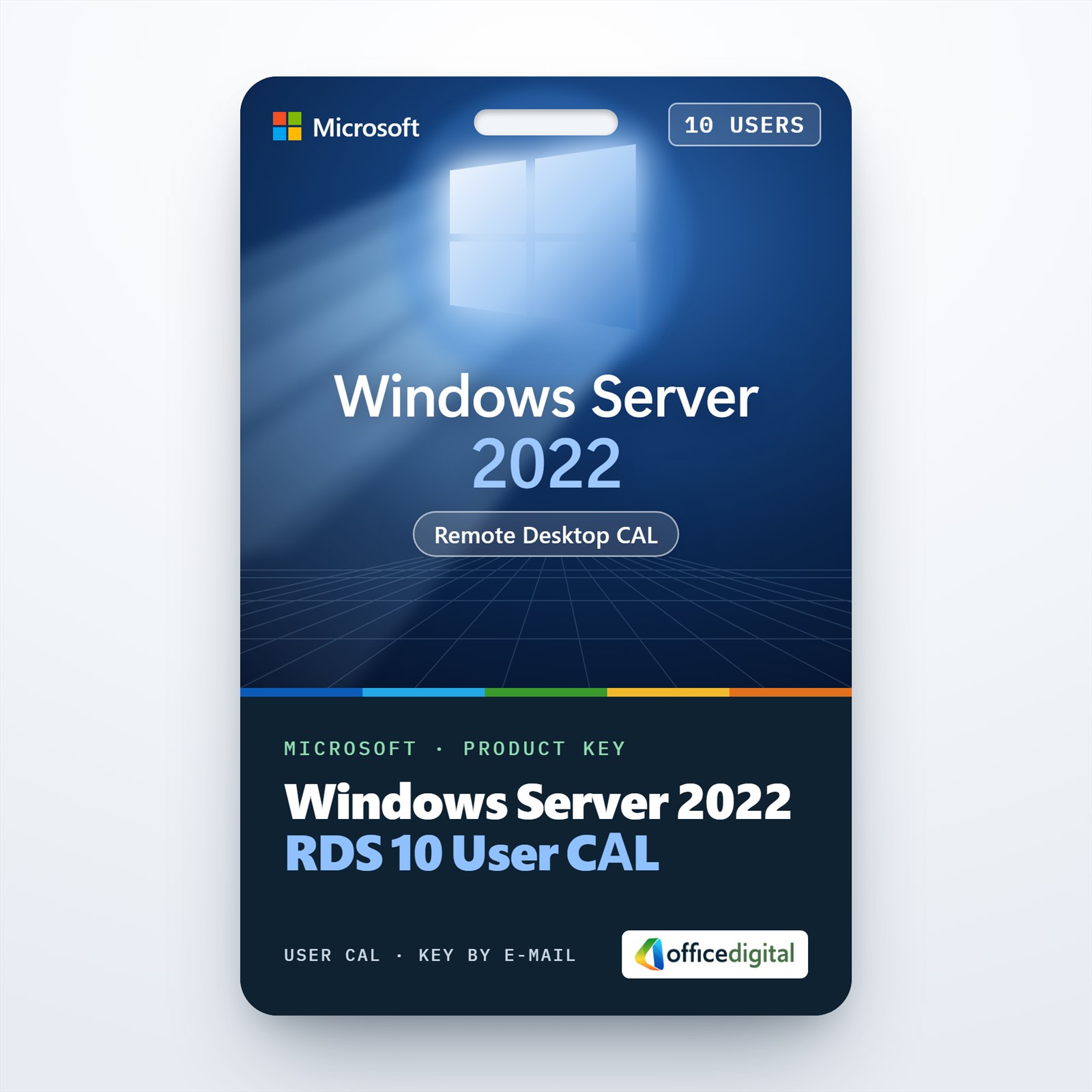
Windows Server 2022 RDS 10 User CAL
- License
- Retail · 10 users
- Delivery
- Instant, by e-mail
- Download
- Official Microsoft
- Brand
- Microsoft
€159,99
One-time payment · no subscription
- Instant delivery to your e-mailkey + download links
- Key won't activate? We replace itunused keys: refund within 7 days
- Official invoice with every order
- 24/7 live chat help with activation
Ten Remote Desktop Services user CALs for Windows Server 2022, valid on 2022, 2019 and 2016 session hosts. You install them on a 2022 or 2025 RD license server.
What you get with the Windows Server 2022 RDS 10 User CAL
This is a Windows Server 2022 RDS 10 User CAL pack: ten per-user client access licenses for Remote Desktop Services. Ten named colleagues can run remote desktops or published apps on your Windows Server 2022 session hosts, each from as many devices as they like. Because they are 2022 CALs, they are also accepted by hosts on Windows Server 2019 and 2016. You get one license code by e-mail for the Remote Desktop license server and pay a single time.
Per user or per device for ten people
Per-user CALs follow the person. Someone who starts a session from the office in the morning and from home in the evening uses one CAL. Per-device CALs follow the computer and only pay off when several people share the same machine.
Microsoft limits per-user CALs to servers joined to Active Directory. The license server records which user holds a CAL but does not refuse an eleventh person, so keep your own list. Each of the ten users also needs an ordinary Windows Server CAL; the RDS CAL is an extra license on top and does not include it.
Where 2022 RDS CALs can be used
Microsoft’s rule is that an RDS CAL licenses session hosts running its own Windows Server version or an older one. For these CALs that means Windows Server 2022, 2019 and 2016 hosts. A session host on Windows Server 2025 needs 2025 CALs. The license server must run Windows Server 2022 or 2025; older license servers cannot take 2022 CALs.
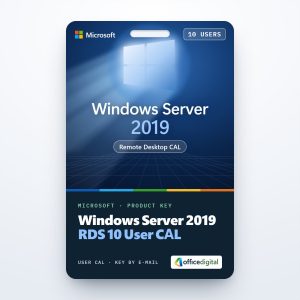
For a larger team, the Windows Server 2022 RDS 50 User CAL covers 50 people with one code. Where hosts and license server are all on 2019, ten users can also be covered by the Windows Server 2019 RDS 10 User CAL.
How to activate the Windows Server 2022 RDS 10 User CAL
- On a server running Windows Server 2022 or 2025, add the Remote Desktop Licensing role service with Add Roles and Features in Server Manager.
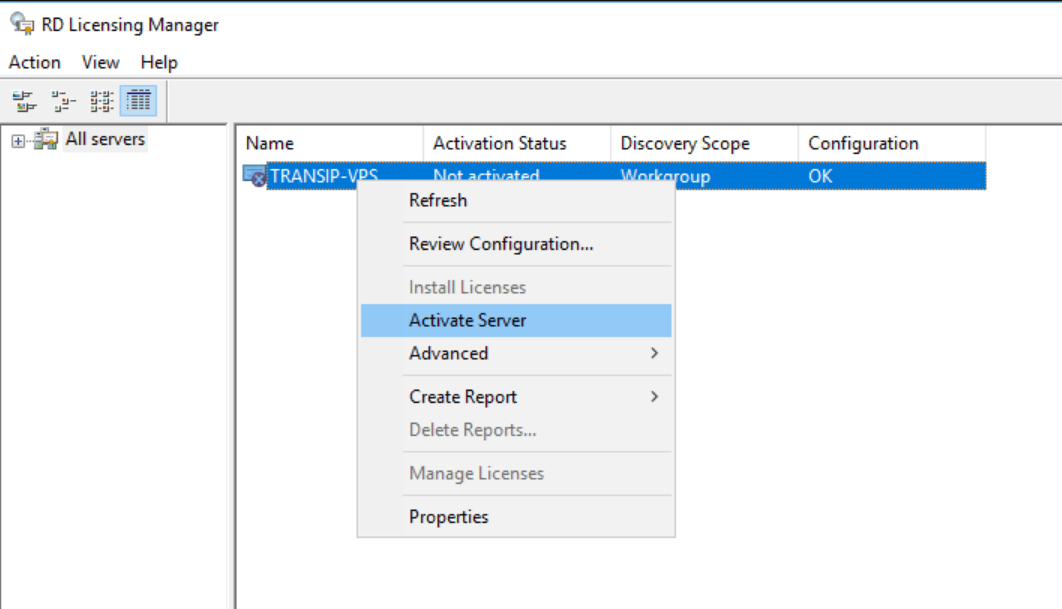
- From Tools, open Remote Desktop Services and then Remote Desktop Licensing Manager. Select the server and use Action, Activate Server.
- Start the Install Licenses wizard (right-click the server), choose the license program and enter the code you received.
- Set the product version to Windows Server 2022, the license type to per user and the quantity to 10, then finish once the Clearinghouse has validated the code.
- For session hosts outside a Connection Broker deployment, open the Group Policy editor and find the Licensing folder of Remote Desktop Session Host (under the computer’s Administrative Templates, in the Remote Desktop Services components). Name your license server in the policy that specifies license servers, and pick Per User in the licensing mode policy.
In a full RDS deployment you make the same setting on the RD Licensing page of the deployment properties. If the 2022 server still has to be installed, see how we install and activate Windows Server.
System requirements
| Session hosts | Windows Server 2022, 2019 or 2016 |
|---|---|
| License server | Windows Server 2022 or Windows Server 2025 |
| Mode | Per User in an Active Directory domain |
| Activation | Internet on the PC running Remote Desktop Licensing Manager (automatic or web browser method) |
| Windows Server 2022 minimum hardware | 64-bit processor at 1.4 GHz or faster; RAM 2 GB with Desktop Experience or 1 GB for Server Core; 32 GB disk; gigabit Ethernet |
| Additional license | Windows Server CAL for each of the ten users |
Questions about the Windows Server 2022 RDS 10 User CAL
Will these CALs work when we move to Windows Server 2025?
A license server running Windows Server 2025 can also hold these CALs. Session hosts on 2025, however, only accept 2025 RDS CALs.
Can people connect before the license server is set up?
Yes, during Microsoft’s 120-day grace period. After it ends, a session only starts when the user has a CAL from an activated license server.
Is there help with the licensing wizard?
Yes. Our support answers on live chat and by e-mail around the clock, including questions about installing and activating the CALs.
Be the first to review “Windows Server 2022 RDS 10 User CAL”
You must be logged in to post a review.
- Genuine Retail licenses. Every key is a genuine license that activates with Microsoft, or with ESET or Avast for antivirus. Unless the License line next to the price says OEM, it is a Retail license.
- Replacement if a key won't activate. Contact our support on live chat or by e-mail, day or night: we help you finish the activation or send a replacement key.
- Refund for unused keys. A key that has not been redeemed can be refunded within 7 calendar days of purchase, as set out in our Refund Policy.
- Invoice and instructions. Every order comes with a PDF invoice and instructions to download, install and activate the software.
You may also need
Reviews
There are no reviews yet.