
Instructions
Python in Excel: What Can You Actually Do With =PY?
Oct
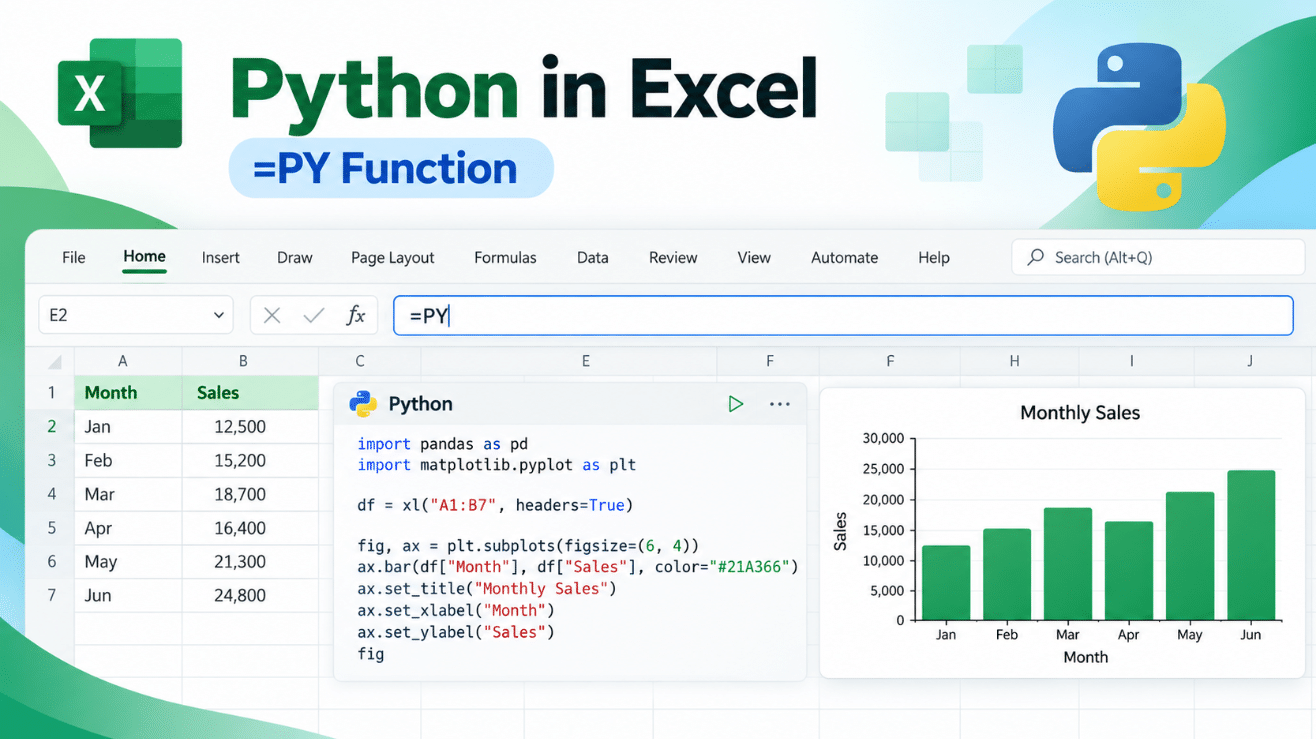
Python in Excel lets you write Python code directly inside an Excel workbook and return the results to your spreadsheet.
Instead of exporting data to a separate Python environment, you can analyze Excel ranges, create charts, work with pandas DataFrames, run statistical calculations, and use popular Python libraries without leaving Excel.
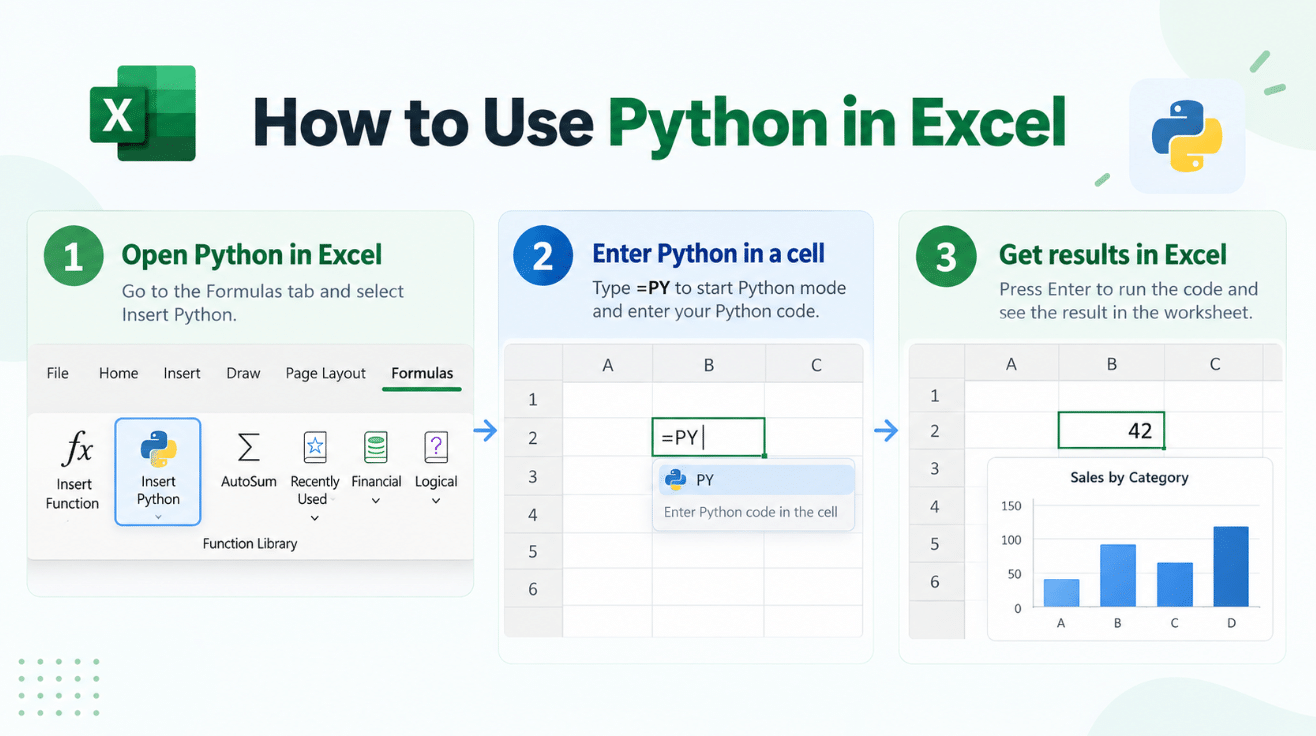
The feature is built around Excel’s Python experience, which you can start from the Formulas → Insert Python command or by entering =PY and selecting the PY option from Excel’s AutoComplete menu. Python calculations then run in Microsoft’s cloud rather than directly on your PC.
What Is Python in Excel?
Python in Excel combines normal Excel data with the Python programming language.
You can reference worksheet ranges, tables, named ranges, images, and even Power Query connections from Python code using Excel’s built-in xl() function.
For example, a Python cell can reference an Excel table and turn it into a pandas DataFrame for analysis.
That means you can use Excel as the familiar front end while Python handles more advanced calculations behind the scenes.
How Do You Start Using =PY in Excel?
There are two main ways to start.
You can go to:
Formulas → Insert Python
or type:
=PY
into a cell and choose PY from the function suggestions.
Once Python is enabled in the cell, Excel changes the editing experience so you can enter Python code directly.
One important detail: =PY() does not behave like a normal Excel formula that you manually build entirely in the formula bar.
Microsoft says the Python editor generates and manages the actual PY formula for you.
What Can Python in Excel Actually Do?
This is where the feature becomes interesting.
Python in Excel is useful for tasks that would otherwise require long formulas, Power Query transformations, PivotTables, or exporting the workbook into a separate analytics tool.
You can use it for:
- Data cleaning
- Statistical analysis
- Trend analysis
- Forecast preparation
- Data visualization
- Working with large datasets
- Creating pandas DataFrames
- Machine-learning experiments
- Pattern detection
- Text analysis
- Scientific calculations
The exact possibilities depend on the Python libraries available in the Excel environment.
Analyze Excel Data With pandas
One of the biggest advantages of Python in Excel is access to pandas.
pandas is one of the most widely used Python libraries for working with structured data.
Suppose an Excel range contains sales information.
You can reference it from Python using something similar to:
xl(“A1:D100”, headers=True)
Excel can pass that range to Python as structured data.
You can then use pandas to:
- Calculate averages
- Group records
- Find missing values
- Create summaries
- Sort or filter data
- Calculate percentages
- Compare categories
- Analyze trends
Microsoft says two-dimensional Excel ranges are typically represented as pandas DataFrames inside Python in Excel.
Create Charts With Python
Python in Excel can also generate visualizations.
Microsoft includes Matplotlib and seaborn among the Python libraries available by default.
That means you can create visualizations such as:
- Line charts
- Bar charts
- Scatter plots
- Histograms
- Box plots
- Heatmaps
- Statistical charts
This can be useful when Excel’s normal chart tools do not provide the exact visualization you need.
The Python-generated image can then be returned directly into the workbook.
Use NumPy for Mathematical Analysis
Python in Excel also includes NumPy.
NumPy is commonly used for numerical calculations and arrays.
It can help with:
- Matrix operations
- Mathematical transformations
- Statistical calculations
- Large numerical datasets
- Scientific analysis
For normal spreadsheets, Excel formulas may still be easier.
But for complex mathematical work, NumPy can sometimes make the calculation much simpler.
Perform Statistical Analysis
The built-in Python environment also includes statsmodels, while additional supported libraries such as SciPy and scikit-learn can be imported from the provided Anaconda environment.
That opens the door to more advanced tasks such as:
- Regression analysis
- Statistical modelling
- Correlation analysis
- Probability calculations
- Forecasting experiments
- Machine-learning workflows
This makes Python in Excel particularly interesting for analysts, researchers, finance professionals, students, and data teams.
Can Python Read Normal Excel Cells?
Yes.
Python code can access workbook data through Excel’s special:
xl()
function.
Microsoft says xl() can reference:
- Cell ranges
- Named ranges
- Excel tables
- Images
- Power Query connections
For example:
xl(“A1:C20”, headers=True)
can bring an Excel range into the Python environment.
This is what connects your normal spreadsheet data with Python code.
Can Python Return Results Back to Excel?
Yes.
A Python formula can return either:
- An Excel value
- A Python object
For example, a calculation could return a number, table, or image that appears back in the worksheet.
Microsoft’s PY function uses a return type to determine whether Excel should display the result as normal Excel data or keep it as a Python object.
Python DataFrames can also be converted back into Excel values when you want the result to appear as a normal worksheet table.
Which Python Libraries Are Included?
Python in Excel comes with a collection of open-source libraries supplied through Anaconda.
The core libraries loaded by default include:
- pandas
- NumPy
- Matplotlib
- seaborn
- statsmodels
Additional supported libraries can also be imported when needed.
Microsoft’s current list includes packages such as:
- SciPy
- scikit-learn
- NLTK
- NetworkX
- Pillow
- BeautifulSoup
- SymPy
- plotnine
- wordcloud
and many others.
This is one reason Python in Excel can handle much more advanced analysis than traditional spreadsheet formulas alone.
Does Python Run on Your Computer?
No.
This is one of the most important things to understand about Python in Excel.
The Python code does not run locally inside your normal Excel application.
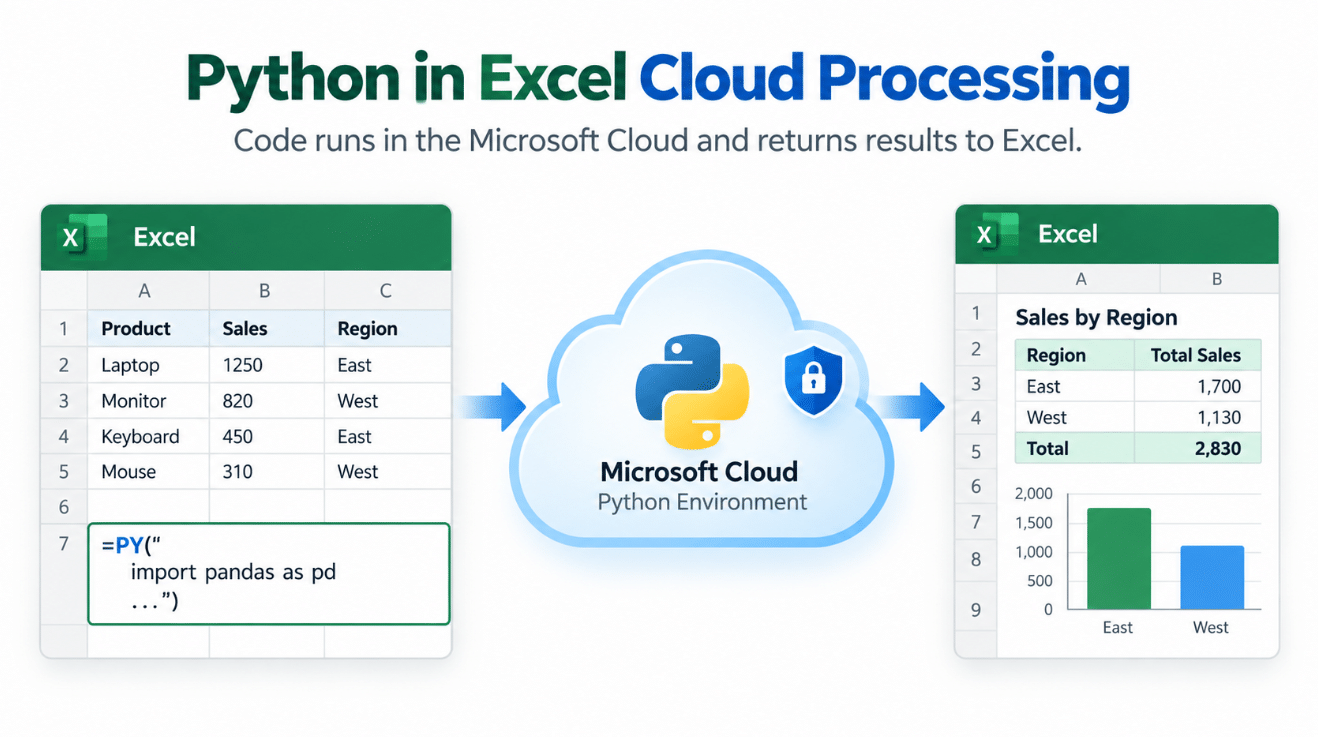
Microsoft runs the code inside an isolated container in the Microsoft Cloud.
Because of this, Python in Excel requires an internet connection.
Your workbook sends the required data to the secure Python environment, the calculation runs there, and the result is returned to Excel.
Can Python in Excel Access Your Computer?
No.
Microsoft places strong restrictions on the Python environment.
Python code running inside Excel does not have direct access to:
- Files on your computer
- Your devices
- Your Microsoft account
- Your user token
- Your local network
Microsoft also says Python code cannot make normal network requests from the secure container.
This means you cannot simply write Python code that browses through your local hard drive or downloads arbitrary data directly from the internet.
Workbook data is accessed through approved Excel references such as xl().
Why Does Python in Excel Need the Internet If Python Has No Network Access?
This can sound contradictory.
The feature itself needs internet access because the Python code runs on Microsoft’s cloud servers.
However, the Python code inside that secure environment is not allowed to freely access the internet.
So:
Excel → Microsoft Cloud: Allowed
Python code → arbitrary internet websites: Restricted
This helps Microsoft isolate the Python environment while still letting Excel use cloud-based processing.
Is Python in Excel Safe?
Microsoft says Python code runs inside hypervisor-isolated cloud containers with enterprise-level security.
The company also states that data is not persisted in the Python cloud environment after the container is destroyed, and Python does not receive direct access to your computer or account.
Workbooks downloaded from untrusted locations also follow normal Excel security protections.
For example, Python formulas do not automatically run when a workbook is opened in Protected View.
Python in Excel vs Normal Excel Formulas
Python does not replace formulas such as:
SUM
FILTER
XLOOKUP
SORT
or:
PIVOTBY
For everyday calculations, normal Excel formulas are usually faster and easier to understand.
Python becomes useful when you need more advanced:
- Data transformations
- Statistical analysis
- Custom visualizations
- Machine learning
- Complex text processing
- Large-scale data manipulation
A good rule is:
Use Excel formulas for normal spreadsheet work.
Use Python when the analysis becomes too complex for normal formulas.
Python in Excel vs VBA
Python and VBA are also very different tools.
VBA is mainly used for automating Excel and interacting with the workbook interface.
Python in Excel is primarily designed for data analysis and calculations.
Microsoft specifically limits Python’s access to workbook properties such as VBA code, macros, charts, and PivotTables.
So Python in Excel is not a direct replacement for VBA macros.
If you need to automate buttons, worksheets, dialogs, or other Office actions, VBA or Office Scripts may still be more appropriate.
Do You Need to Install Python?
No.
You do not need to separately install Python, Anaconda, pandas, or another Python environment on your computer.
Microsoft provides the Python runtime and supported libraries through its cloud infrastructure.
This makes the feature much easier for beginners who want to experiment with Python without setting up a development environment.
Which Excel Versions Support Python?
Python in Excel currently requires a qualifying Microsoft 365 subscription.
Microsoft lists support across:
- Excel for Windows
- Excel for the web
- Excel for Mac
Availability can still vary by subscription type, update channel, and platform.
Microsoft currently says the feature is not available on:
- Excel for iPad
- Excel for iPhone
- Excel for Android
Workbooks containing Python can still be viewed on unsupported platforms, but Python cells cannot recalculate there.
Does Office 2024 Include Python in Excel?
No – not as a normal perpetual Office 2024 feature.
Python in Excel is tied to qualifying Microsoft 365 subscriptions and Microsoft’s connected cloud service.
That distinction matters if you are deciding between Office 2024 and Microsoft 365.
Office 2024 still includes modern Excel features, but purchasing a perpetual Office 2024 license does not automatically provide Python in Excel.
What Is the Python in Excel Add-On?
Most qualifying Microsoft 365 users can use Python in Excel with standard compute.
Microsoft also offers a separate Python in Excel add-on for users who need:
- Faster premium compute
- More Python processing capacity
- Additional calculation modes
The add-on can provide manual, partial, and automatic Python recalculation options, while standard access primarily focuses on automatic recalculation.
Most normal users will not need the add-on just to experiment with Python.
Who Is Python in Excel Actually For?
Python in Excel is most useful if you regularly work with:
- Large datasets
- Financial models
- Statistical reports
- Scientific data
- Business analytics
- Complex charts
- Data cleaning
- Machine-learning experiments
For someone who mainly uses Excel for budgets, invoices, lists, or simple formulas, Python may be unnecessary.
But for advanced users, it brings powerful data-analysis tools directly into a familiar spreadsheet environment.
Frequently Asked Questions
What does =PY do in Excel?
It activates Excel’s Python editing experience, allowing Python code to run through Microsoft’s cloud environment and return results to the worksheet.
Do I need to know Python?
Not necessarily, but basic Python knowledge helps. Beginners can start with simple examples and gradually learn pandas, NumPy, and chart libraries.
Does Python in Excel work offline?
No. Microsoft says an internet connection is required because Python calculations run in the Microsoft Cloud.
Can Python in Excel access my local files?
No. Python code does not have direct access to files or devices on your computer.
Is Python included in Excel 2024?
Not as a standard perpetual-license feature. Python in Excel requires a qualifying Microsoft 365 subscription.
Can Python replace Excel formulas?
It can replace some complex formula workflows, but normal Excel formulas are still usually better for simple spreadsheet calculations.
Final Thoughts
Python in Excel turns Excel into a much more capable data-analysis environment.
With =PY, you can work with pandas DataFrames, NumPy calculations, statistical models, advanced charts, and many other Python tools while keeping your data inside the Excel workbook experience.
The biggest limitation is that Python runs in Microsoft’s cloud rather than locally, so an internet connection and a qualifying Microsoft 365 subscription are required.
For basic spreadsheet tasks, traditional Excel formulas remain easier.
But for advanced analysis, Python in Excel can dramatically expand what is possible without leaving Excel.
Looking for a permanent desktop suite for Word, Excel, and PowerPoint? Explore our Office key options and choose the edition that fits your everyday Office needs.