
Instructions
TEXTBEFORE vs TEXTAFTER in Excel: Quick Guide
Sep
Need to extract part of a text string without building a long combination of LEFT, RIGHT, FIND, or SEARCH formulas?
TEXTBEFORE vs TEXTAFTER makes this much easier.
TEXTBEFORE returns everything before a selected character or piece of text, while TEXTAFTER returns everything after it.
What Does TEXTBEFORE Do?
TEXTBEFORE extracts the part of a text string that appears before a delimiter.
Its basic syntax is:
=TEXTBEFORE(text,delimiter)
Suppose A2 contains:
John Smith
You can enter:
=TEXTBEFORE(A2," ")
Excel returns:
John
The space between John and Smith is the delimiter.
What Does TEXTAFTER Do?
TEXTAFTER does the opposite.
Its basic syntax is:
=TEXTAFTER(text,delimiter)
Using the same value:
John Smith
enter:
=TEXTAFTER(A2," ")
Excel returns:
Smith
Microsoft defines the two functions as direct opposites of each other.
TEXTBEFORE vs TEXTAFTER: Quick Difference
| Function | Returns |
|---|---|
| TEXTBEFORE | Text before the delimiter |
| TEXTAFTER | Text after the delimiter |
For example, if A2 contains:
ORDER-45821
then:
=TEXTBEFORE(A2,"-")
returns:
ORDER
while:
=TEXTAFTER(A2,"-")
returns:
45821
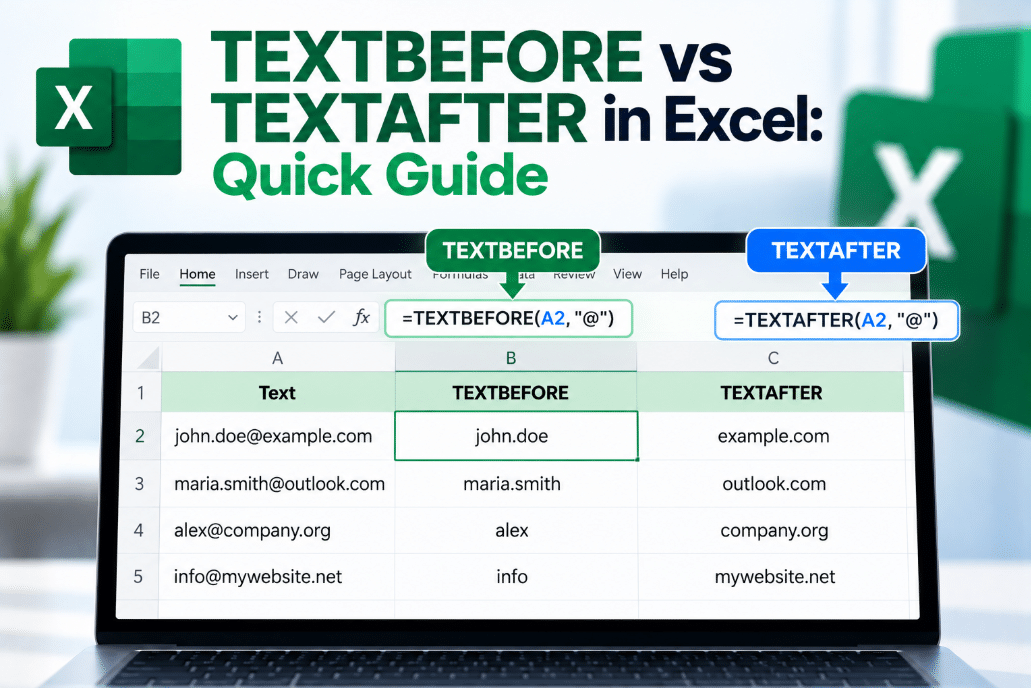
Extract a Name From an Email Address
Suppose A2 contains:
Use:
=TEXTBEFORE(A2,"@")
Excel returns:
john.smith
If you instead use:
=TEXTAFTER(A2,"@")
Excel returns:
example.com
This makes the functions useful for cleaning email lists and imported data.
Use the Second Delimiter Instead
Both functions can also choose which occurrence of a delimiter to use.
For example:
Product-Blue-XL
Using:
=TEXTBEFORE(A2,"-",2)
returns:
Product-Blue
The 2 tells Excel to use the second hyphen rather than the first.
TEXTAFTER works the same way:
=TEXTAFTER(A2,"-",2)
returns:
XL
Microsoft also allows negative instance numbers, which make Excel search from the end of the text instead.
Search From the End
Suppose you have:
report.final.pdf
If you want everything before the last period, use:
=TEXTBEFORE(A2,".",-1)
The result is:
report.final
If you want only the final file extension:
=TEXTAFTER(A2,".",-1)
returns:
pdf
This is especially useful when text contains the same delimiter several times.
What Happens If the Delimiter Is Missing?
By default, Excel returns #N/A if it cannot find the delimiter.
For example:
=TEXTBEFORE("Excel","-")
returns:
#N/A
You can provide your own result using the optional if_not_found argument.
For example:
=TEXTBEFORE(A2,"-",,,,A2)
This tells Excel to return the original value if no hyphen exists.
Are the Functions Case-Sensitive?
By default, yes.
However, both functions include an optional match_mode argument that lets you make the search case-insensitive.
For many everyday formulas, you will not need to change this setting.
TEXTBEFORE and TEXTAFTER vs TEXTSPLIT
The three functions are related but useful in different situations.
Use TEXTBEFORE when you only need the part before a delimiter.
Use TEXTAFTER when you only need the part after it.
Use TEXTSPLIT when you want to separate the entire text into several cells.
For example:
John Smith
=TEXTBEFORE(A2," ") → John
=TEXTAFTER(A2," ") → Smith
=TEXTSPLIT(A2," ") → John | Smith
Which Excel Versions Support Them?
Microsoft currently lists TEXTBEFORE and TEXTAFTER for:
- Excel for Microsoft 365
- Excel for Microsoft 365 for Mac
- Excel 2024
- Excel 2024 for Mac
They are not available in older perpetual releases such as Excel 2021.
If Excel returns #NAME? when you enter one of these functions, your Excel version may not support it.
Final Thoughts
The TEXTBEFORE vs TEXTAFTER difference is simple:
TEXTBEFORE extracts what comes before a delimiter.
TEXTAFTER extracts what comes after it.
They are especially useful for separating names, email addresses, product codes, file extensions, and imported data without building complicated text formulas.
For many everyday text-cleaning tasks, they are much easier to read and maintain than combinations of LEFT, RIGHT, MID, and FIND.
Need Microsoft Office with modern Excel functions? Explore our Microsoft Office keys and choose the version that fits your work today.