
Instructions
TOCOL vs TOROW in Excel: Reshape Data Quickly
Sep
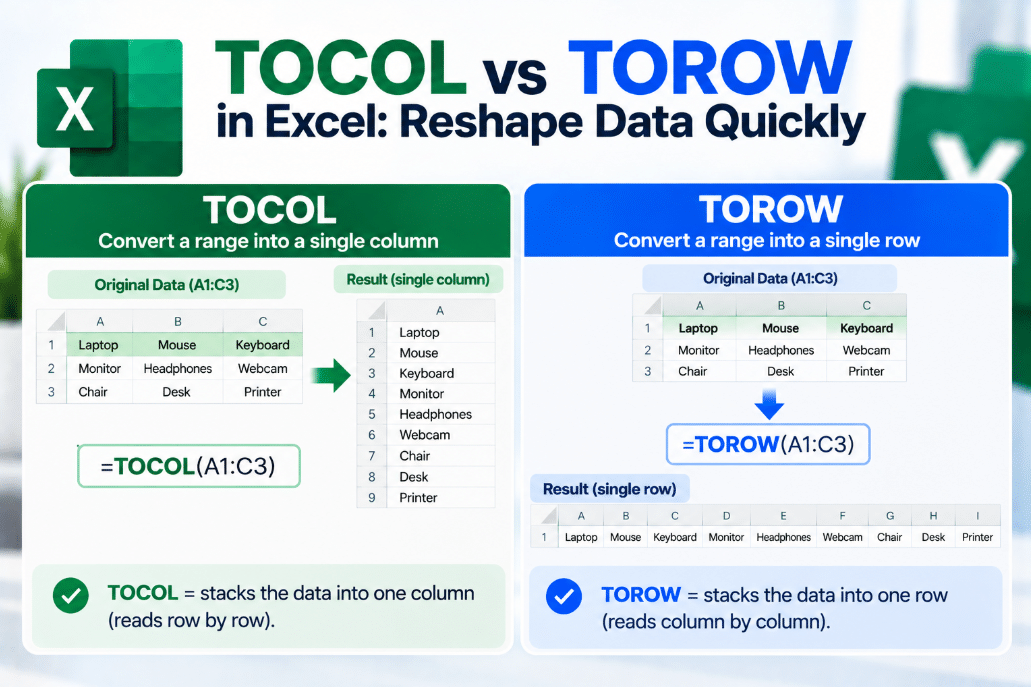
Have data spread across several rows and columns but need it converted into one simple list?
TOCOL vs TOROW in Excel gives you two functions for reshaping a range without manually copying and rearranging cells.
The difference is straightforward:
TOCOL turns the data into one column.
TOROW turns the data into one row.
What Does TOCOL Do?
TOCOL takes an array or range and returns all its values in a single vertical column.
Its syntax is:
=TOCOL(array,[ignore],[scan_by_column])
For example, suppose A1 contains:
1 2 34 5 6
Using:
=TOCOL(A1:C2)
returns:
123456
Microsoft says TOCOL scans the source by row by default and returns the results as one column.
What Does TOROW Do?
TOROW works almost exactly the same way, except the result is horizontal.
Its syntax is:
=TOROW(array,[ignore],[scan_by_column])
Using the same A1 range:
=TOROW(A1:C2)
returns:
1 2 3 4 5 6
So the original two-dimensional table becomes one long row.
TOCOL vs TOROW: Quick Difference
| Function | Result |
|---|---|
| TOCOL | One vertical column |
| TOROW | One horizontal row |
| Default scan | Row by row |
| Can ignore blanks | Yes |
| Can ignore errors | Yes |
The easiest way to remember them is:
TOCOL = To Column
TOROW = To Row
Ignore Blank Cells
One of the most useful options is the ignore argument.
Suppose your range contains blank cells.
Use:
=TOCOL(A1:C10,1)
The 1 tells Excel to ignore blanks.
The same works with TOROW:
=TOROW(A1:C10,1)
This can quickly create a clean list from a range containing gaps.
Microsoft provides four ignore options:
- 0 – Keep everything
- 1 – Ignore blanks
- 2 – Ignore errors
- 3 – Ignore blanks and errors
Ignore Both Blanks and Errors
Suppose your source contains empty cells and errors such as #N/A.
Use:
=TOCOL(A1:C20,3)
Excel returns one column while excluding both blank cells and error values.
For a horizontal result:
=TOROW(A1:C20,3)
This can be especially useful when cleaning imported data or preparing a range for another formula.
Scan by Row vs Scan by Column
By default, both functions read the source row by row.
For this range:
1 2 34 5 6
the normal TOCOL result is:
123456
But you can tell Excel to scan by column instead:
=TOCOL(A1:C2,,TRUE)
The result becomes:
142536
The same option works with TOROW.
Microsoft confirms that setting scan_by_column to TRUE makes Excel process the source column by column instead of row by row.
When Is TOCOL Useful?
TOCOL is useful when you need a normal vertical list from data scattered across a table.
For example:
- Combine several columns into one list
- Create a dropdown source
- Prepare data for UNIQUE
- Clean imported ranges
- Build a single list from a matrix
- Remove blanks while reshaping data
You could combine it with UNIQUE:
=UNIQUE(TOCOL(A1:D100,1))
This creates one column from the entire range, ignores blanks, and then removes duplicates.
When Is TOROW Useful?
TOROW is useful when you want the same idea horizontally.
For example:
- Build a single horizontal summary
- Flatten a table for another calculation
- Prepare data for a dashboard
- Create a compact one-row result
- Rearrange data without copying cells
It is less common than a vertical list in many spreadsheets, but it can be very useful when another formula expects horizontal data.
TOCOL and TOROW vs WRAPROWS and WRAPCOLS
These functions do almost the opposite jobs.
TOCOL and TOROW flatten a two-dimensional range into one line.
WRAPROWS and WRAPCOLS take one long list and turn it back into a multi-row or multi-column layout.
For example:
=TOCOL(A1:C10)
turns a table into one column.
Then something like:
=WRAPROWS(TOCOL(A1:C10),5)
could reshape that column into rows containing five items each.
This makes the functions useful together when reorganizing data.
Which Excel Versions Support Them?
Microsoft currently lists both TOCOL and TOROW for:
- Excel for Microsoft 365
- Excel for Microsoft 365 for Mac
- Excel 2024
- Excel 2024 for Mac
Microsoft’s Excel function list identifies both as Excel 2024 functions.
They are not available in older perpetual releases such as Excel 2021.
If Excel returns #NAME?, your version may not support them.
Final Thoughts
The TOCOL vs TOROW in Excel difference is simply the direction of the result.
Use TOCOL when you want to reshape a range into one vertical column.
Use TOROW when you want the same data returned in one horizontal row.
Both can also ignore blanks and errors and let you control whether Excel reads the source by rows or columns.
For cleaning and reshaping modern Excel data, they can replace a surprising amount of manual copying and rearranging.
Need Microsoft Office with modern Excel functions? Explore our Microsoft Office keys and choose the version that fits your work today.