
Instructions
Windows 11 Secure Boot Certificates Are Expiring: Do You Need to Do Anything?
Oct
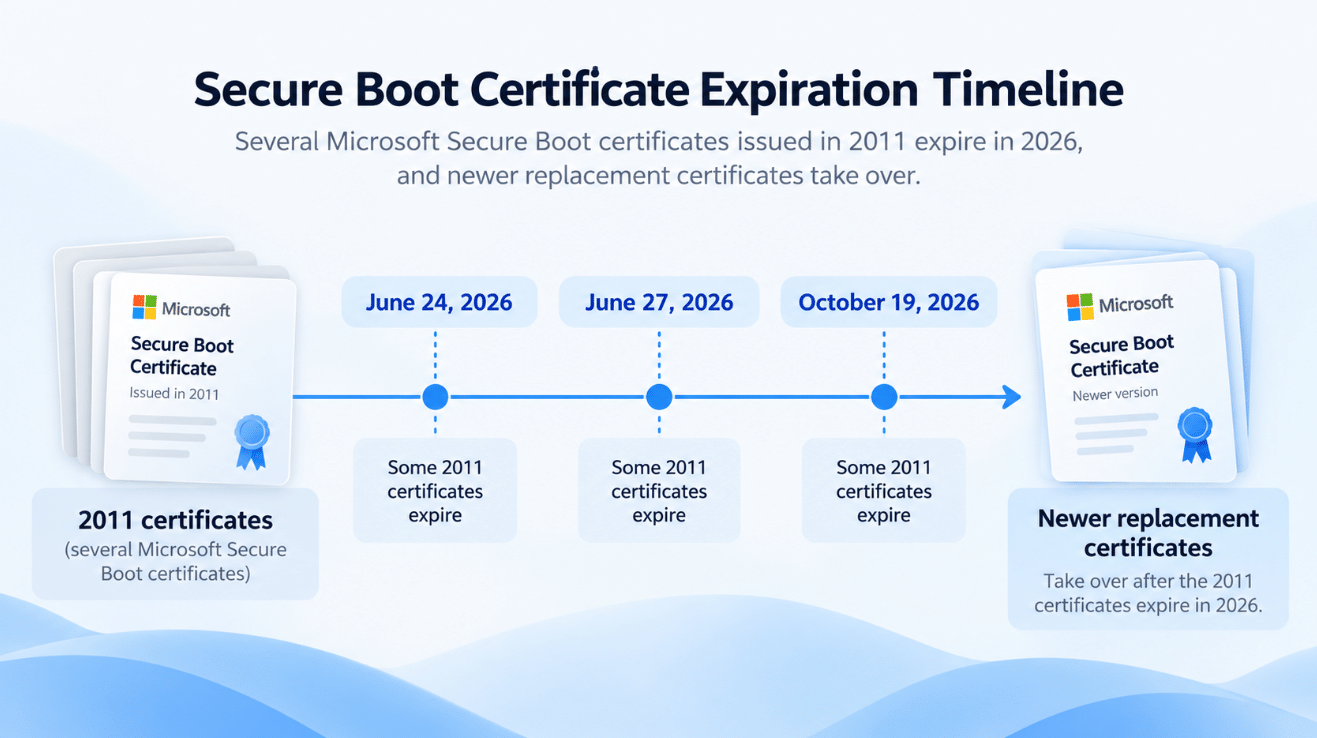
Microsoft is replacing several old Windows 11 Secure Boot certificates that were originally issued in 2011 and are reaching their expiration dates in 2026.
One important certificate, Microsoft Windows Production PCA 2011, expires on October 19, 2026. That sounds alarming, but it does not mean your Windows 11 PC will suddenly stop working on that date.
For most home users, Microsoft is delivering the newer certificates automatically through Windows Update. However, it is still worth checking that your PC has received them—especially if you use an older computer or have delayed Windows or firmware updates.
What Is Secure Boot?
Secure Boot is a security feature built into modern UEFI firmware.
Before Windows starts, Secure Boot checks whether important boot software has been digitally signed by a trusted source.
This helps prevent malicious software from loading before Windows and bypassing normal operating-system security.
In simple terms, Secure Boot asks:
“Can I trust this software before I allow it to start?”
The certificates stored in your computer’s firmware help answer that question.
Why Are Windows 11 Secure Boot Certificates Expiring?
The certificates are not expiring because something has gone wrong with Windows 11.
Digital certificates have defined validity periods. Several Microsoft Secure Boot certificates used by Windows devices were issued back in 2011.
Microsoft is therefore replacing them with newer certificates issued in 2023.
The main transition includes:
| Older certificate | Expiration date | Replacement |
| Microsoft Corporation KEK CA 2011 | June 24, 2026 | Microsoft Corporation KEK 2K CA 2023 |
| Microsoft UEFI CA 2011 | June 27, 2026 | Microsoft UEFI CA 2023 |
| Microsoft Windows Production PCA 2011 | October 19, 2026 | Windows UEFI CA 2023 |
These certificates perform different jobs inside the Secure Boot trust system, including authorizing database updates and verifying Windows boot components.
For normal Windows users, the technical differences are less important than making sure the PC receives the new certificates.
Will Windows 11 Stop Booting When the Certificate Expires?
No.
This is the most important point.
If a PC reaches the expiration date without receiving the newer certificates, Microsoft says it should still:
- Start Windows normally
- Run installed applications
- Connect to the internet
- Receive normal Windows updates
- Continue everyday PC use
The problem is more gradual.
A PC using the old Secure Boot trust configuration may no longer be able to receive new protections for the early Windows boot process.
That can include future:
- Windows Boot Manager security updates
- Secure Boot database updates
- Revocation-list updates
- Boot-level vulnerability mitigations
- Certain BitLocker-related security protections
So this is primarily a long-term security issue, not an October 19 “your computer stops working” deadline.
Do You Need to Update the Certificates Yourself?
For most Windows 11 home users, no manual certificate installation should be necessary.
Microsoft is distributing the newer Secure Boot certificates through Windows Update.
Your best course of action is to:
- Keep Windows 11 fully updated.
- Restart the PC when Windows asks you to.
- Install firmware or BIOS/UEFI updates offered by your PC manufacturer.
- Check Windows Security for the Secure Boot certificate status.
Some older PCs may require a firmware update before Windows can successfully apply the new certificates.
Avoid downloading random certificate files or manually modifying Secure Boot databases unless you are following official instructions for a managed or specialist environment.
How to Check Your Secure Boot Certificate Status in Windows 11
Microsoft has made this easier in newer versions of Windows.
Open:
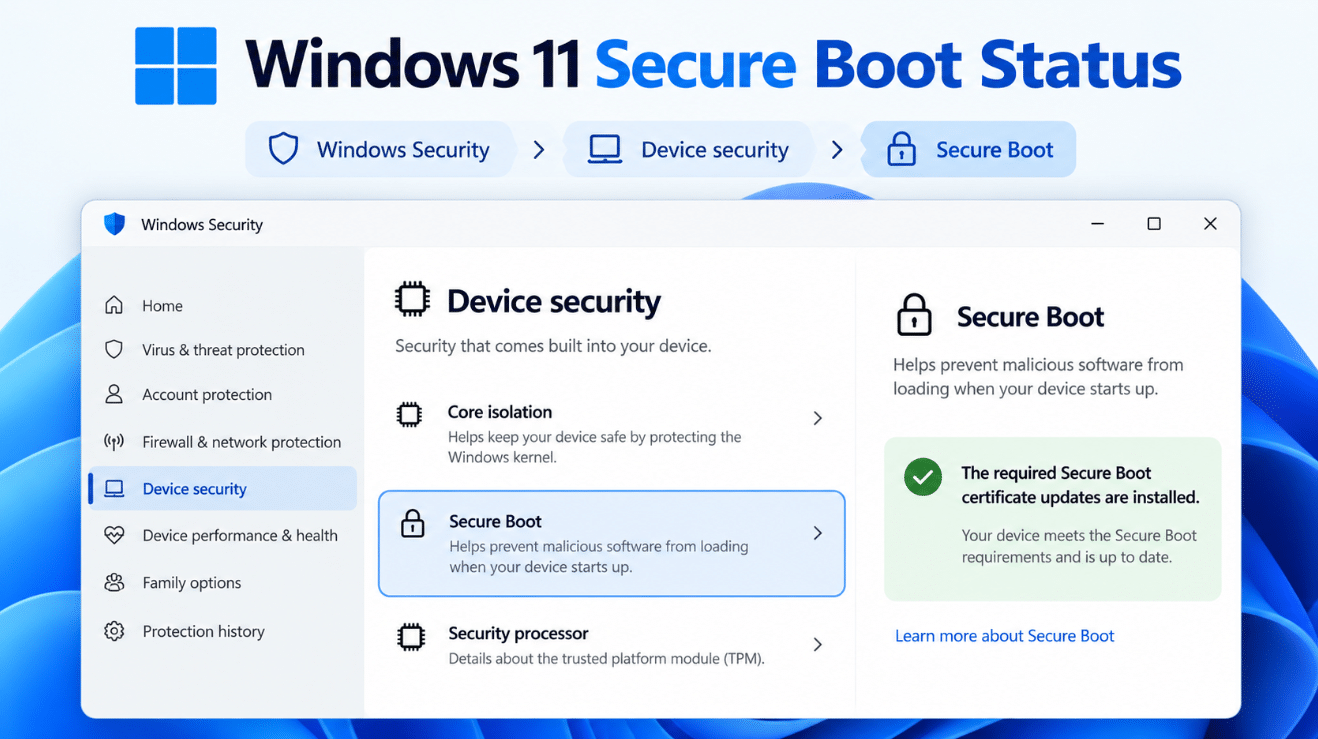
Windows Security → Device security → Secure Boot
Windows can now display information about both Secure Boot itself and the certificate update status.
If You See a Fully Updated Message
The ideal message says that:
Secure Boot is on and all required certificate updates have been applied.
If you see this, no additional action is needed.
If Windows Says the Certificates Are Not Yet Updated
Windows may say that your PC is still using an older boot trust configuration.
First:
Settings → Windows Update → Check for updates
Install everything available and restart the computer if required.
Then check Windows Security again.
Microsoft says many devices in this state should receive the update automatically.
If You See a Yellow Warning
A yellow Secure Boot warning can mean Windows has detected a recommendation or a hardware/firmware limitation affecting the certificate update.
Make sure Windows is current and check your computer manufacturer’s support page for BIOS or UEFI firmware updates.
If Windows specifically says the automated certificate update is not supported by your hardware or firmware, Microsoft recommends contacting the device manufacturer.
If You See a Red Warning
A red warning is more serious.
It can mean Windows has a boot-related security update that cannot be applied using your computer’s current trust configuration.
Follow the guidance displayed inside Windows Security rather than ignoring or dismissing the warning.
A Green Checkmark Alone May Not Be Enough
There is one detail worth knowing.
Microsoft says a green Secure Boot icon by itself does not necessarily prove that all the newer certificates have been installed.
Look for the accompanying message confirming that:
all required certificate updates have been applied.
That wording provides a clearer indication that the transition is complete.
What If You Cannot See the Certificate Status?
Microsoft began adding the expanded Secure Boot certificate information to Windows Security in 2026.
The feature has been rolling out through Windows service and monthly updates.
If you only see whether Secure Boot is On or Off, make sure your Windows installation is fully updated.
You can also check again after future cumulative updates.
Should You Enable Secure Boot If It Is Off?
That is a different issue from the certificate expiration itself.
Windows 11 normally expects Secure Boot capability, but some PCs may have it disabled because of custom configurations, dual-boot setups, firmware changes, or hardware history.
Do not start changing UEFI settings blindly just because you read about the 2026 certificate expiration.
If Secure Boot is currently disabled, first determine why it is disabled.
Changing boot-related firmware settings incorrectly can create startup or BitLocker recovery problems.
Should You Disable Secure Boot to Avoid the Certificate Problem?
No.
Microsoft specifically advises against disabling Secure Boot as a workaround.
Turning it off removes an important protection against malicious or untrusted software loading during startup.
An older Secure Boot configuration is still safer than disabling Secure Boot completely.
The correct solution is to keep Windows and your computer’s firmware updated so the newer certificates can be installed.
Could BitLocker Be Affected?
Potentially, but this does not mean BitLocker will suddenly stop working.
Microsoft notes that some protections that rely on Secure Boot trust—including BitLocker hardening—can be affected over time if the PC cannot receive future boot-level security updates.
Certificate or firmware changes can also occasionally trigger a BitLocker recovery request on some systems.
For that reason, if you use BitLocker or Device Encryption, it is a good idea to make sure you know where your recovery key is stored before performing major BIOS or firmware updates.
What About Older Windows 11 PCs?
Older hardware deserves more attention.
Microsoft can deliver the Windows side of the Secure Boot update, but the PC’s UEFI firmware must also correctly support the certificate changes.
Some older devices may therefore need:
- A BIOS/UEFI firmware update
- A manufacturer-specific Secure Boot update
- Additional troubleshooting if the update is blocked
If Windows Security reports a hardware or firmware limitation, visit the support website for your laptop or motherboard manufacturer.
Do not install firmware intended for a different model.
What Should You Do Right Now?
For a normal Windows 11 home PC, the checklist is simple:
- Open Settings → Windows Update.
- Install all available Windows updates.
- Restart your PC.
- Open Windows Security → Device security → Secure Boot.
- Check whether Windows says all required certificate updates have been applied.
- If Windows reports a firmware limitation, check your PC manufacturer’s support page.
- Keep Secure Boot enabled.
You do not normally need to manually replace certificates yourself.
Windows 11 Secure Boot Certificates: Key Dates to Know
Several certificates are involved, so the 2026 transition is not based on a single date.
The first old certificates reached expiration in June 2026.
Another important certificate – Microsoft Windows Production PCA 2011 – expires October 19, 2026.
Microsoft has already been rolling out the replacement certificates rather than waiting until the expiration dates.
That is why many fully updated PCs may already show that no further certificate changes are needed.
Frequently Asked Questions
Will my PC stop working after October 19, 2026?
No. Microsoft says PCs without the newer certificates should continue to start and operate normally. The main issue is losing access to future boot-level security protections.
Will Windows Update install the new certificates automatically?
For most supported consumer PCs, yes. Microsoft is delivering the newer certificates through Windows Update.
How do I know if my Windows 11 PC has been updated?
Open Windows Security → Device security → Secure Boot and look for a message confirming that all required certificate updates have been applied.
Do I need to update my BIOS?
Not necessarily. However, some PCs require an OEM firmware update before the Secure Boot certificate transition can complete successfully.
Should I turn Secure Boot off?
No. Microsoft recommends leaving Secure Boot enabled. Disabling it reduces protection against boot-level attacks.
Final Thoughts
The expiration of Windows 11 Secure Boot certificates sounds more dramatic than it actually is.
Your PC is not expected to stop booting simply because an older certificate reaches its expiration date.
The real concern is that a computer still using the old Secure Boot trust configuration may gradually lose access to newer protections against boot-level threats.
For most Windows 11 users, keeping Windows updated and checking Windows Security → Device security → Secure Boot is all that is required.
If Windows confirms that all required certificate updates have been applied, you are already prepared for the transition.
Planning a new PC installation or upgrading your Windows edition? Browse our Windows 11 Pro key options and choose the right license for your system.