
Instructions
Word 2024 Viewing, Reviewing and Editing Modes Explained
Jun
Word 2024 makes it easier to control how you interact with a document.
Instead of relying only on the Ribbon or manually turning Track Changes on and off, supported documents can offer three clear working modes:
- Viewing
- Reviewing
- Editing
Each mode is designed for a different stage of the document workflow.
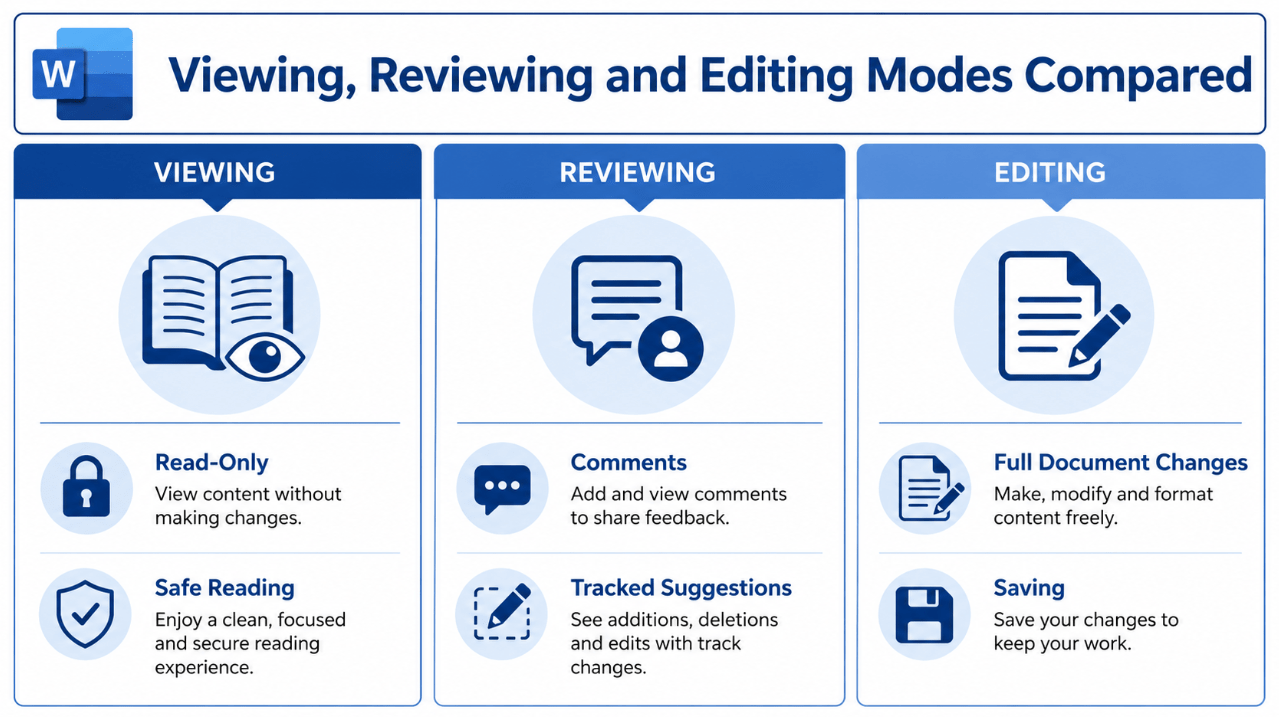
Viewing protects the document from accidental changes. Reviewing allows comments and suggested revisions. Editing provides full control over the document when you have permission.
The available modes can depend on the document, sharing permissions, storage location and Office edition.
Need a one-time Office licence? Browse our Office 2024 product keys.
Quick Comparison
| Mode | What You Can Do | Best Used For |
|---|---|---|
| Viewing | Read without changing content | Reading final or reference documents |
| Reviewing | Add comments and suggest revisions | Feedback and approval workflows |
| Editing | Make and save direct changes | Writing, formatting and final updates |
The mode switcher helps users avoid editing a document accidentally or making direct changes when only feedback is required.
Viewing Mode
Viewing is a read-only working mode.
When a document is in Viewing mode, you can read and navigate through it without changing the content.
This helps prevent accidental typing, deleting or formatting while you are reviewing information.
Viewing mode is useful for:
- Reading a finished report
- Checking a contract before commenting
- Presenting a reference document
- Reviewing a shared file without changing it
- Reading policies or instructions
- Checking formatting before publication
You can normally still:
- Scroll through the document
- Use zoom controls
- Search for words
- Follow links
- View document structure
- Copy permitted content
You cannot directly revise the document while remaining in Viewing mode.
Viewing Mode vs Read Mode
Viewing mode and Read Mode are related but not identical.
Viewing mode controls whether document changes are allowed.
Read Mode, available from the View tab, changes the layout to make reading more comfortable by hiding many editing tools and giving more space to the pages.
A document can therefore be protected from edits through Viewing mode while also being displayed in a reading-focused layout.
Reviewing Mode
Reviewing mode is designed for feedback.
It allows users to comment on the document and suggest revisions without directly replacing the original text as normal edits.
When Reviewing mode is selected, Word automatically uses a personal Track Changes setting so that your suggested changes can be identified.
Reviewing mode is useful when:
- A manager needs to approve a report
- A client wants to suggest wording changes
- A teacher reviews an assignment
- Several people provide feedback
- An author wants to protect the original wording
- A document is moving through an approval process
Reviewers can normally:
- Add comments
- Suggest text changes
- Delete or insert text as tracked revisions
- Review existing comments
- Reply to discussion threads
- Mark comments as resolved
The document owner or an editor can then accept or reject suggested revisions.
Reviewing Mode vs Normal Track Changes
Reviewing mode automatically creates a safer review workflow.
Normal Editing mode with Track Changes enabled can produce a similar visible result, but the user still has full editing permission and may be able to turn tracking off.
Reviewing mode is more suitable when the document owner wants someone to suggest changes without giving unrestricted editing access.
Editing Mode
Editing mode gives full editorial access when the user has permission.
It allows you to:
- Type and delete text
- Change formatting
- Insert images and tables
- Modify page layout
- Update styles
- Use Track Changes
- Accept or reject revisions
- Save changes to the document
Editing mode is best for:
- Writing a new document
- Making approved revisions
- Formatting the final version
- Correcting errors
- Updating tables and images
- Preparing a file for distribution
Editing mode should be used carefully when several people are working on the same document.
When feedback rather than direct changes is required, Reviewing mode usually provides a clearer workflow.
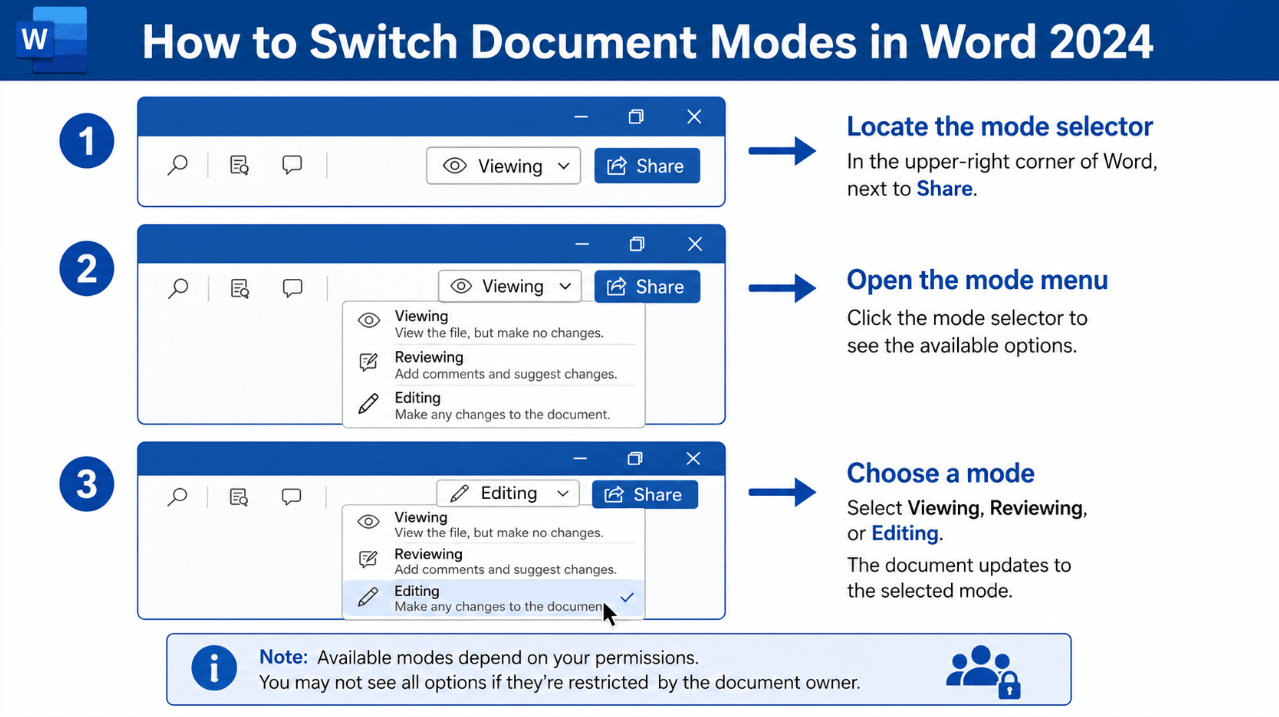
How to Switch Between Modes
When the feature is available:
- Open the Word document.
- Look in the upper-right corner of the Word window.
- Find the mode button near Share.
- Select the current mode name.
- Choose Viewing, Reviewing or Editing.
- Confirm that the button now displays the selected mode.
The options shown depend on your permissions.
When you have full editing access, all three modes may be available.
When you only have permission to read or review, Editing may not appear.
Why Is Editing Mode Missing?
Editing mode may be unavailable for several reasons.
You Do Not Have Edit Permission
The document owner may have shared the file with view-only or review-only access.
In this situation, request editing permission from the owner.
The Document Is Read-Only
The document may be configured to open as read-only.
Check:
File > Info > Protect Document
The Always Open Read-Only option may be enabled.
The File Is in Protected View
Documents downloaded from the internet or received from an untrusted location may open in Protected View.
Only enable editing when you trust the file and its source.
An Organisation Controls the File
A company or school may apply security policies that prevent editing.
These restrictions may require help from the document owner or IT administrator.
The Document Has Editing Restrictions
The author may have used Word’s Restrict Editing controls to limit formatting or changes.
The mode selector cannot remove restrictions that are protected by document permissions or a password.
Permissions Matter
The mode selector does not automatically give users more access.
It only allows users to choose from the permissions already granted.
For example:
- A view-only user cannot switch to Editing.
- A reviewer can suggest changes but may not make direct edits.
- An editor can usually choose any available mode.
This makes the feature useful for teams because the document owner can control how each person participates.
Best Mode for Common Tasks
Reading a Final Document
Use Viewing.
It prevents accidental changes while you read.
Giving Feedback
Use Reviewing.
Your comments and suggested revisions remain visible for approval.
Writing or Formatting
Use Editing.
You have full control over the document.
Checking a Document Before Sending
Start in Editing to make final corrections, then switch to Viewing for a clean final read-through.
Working with a Client
Share the document with review access when you want feedback without giving full editing control.
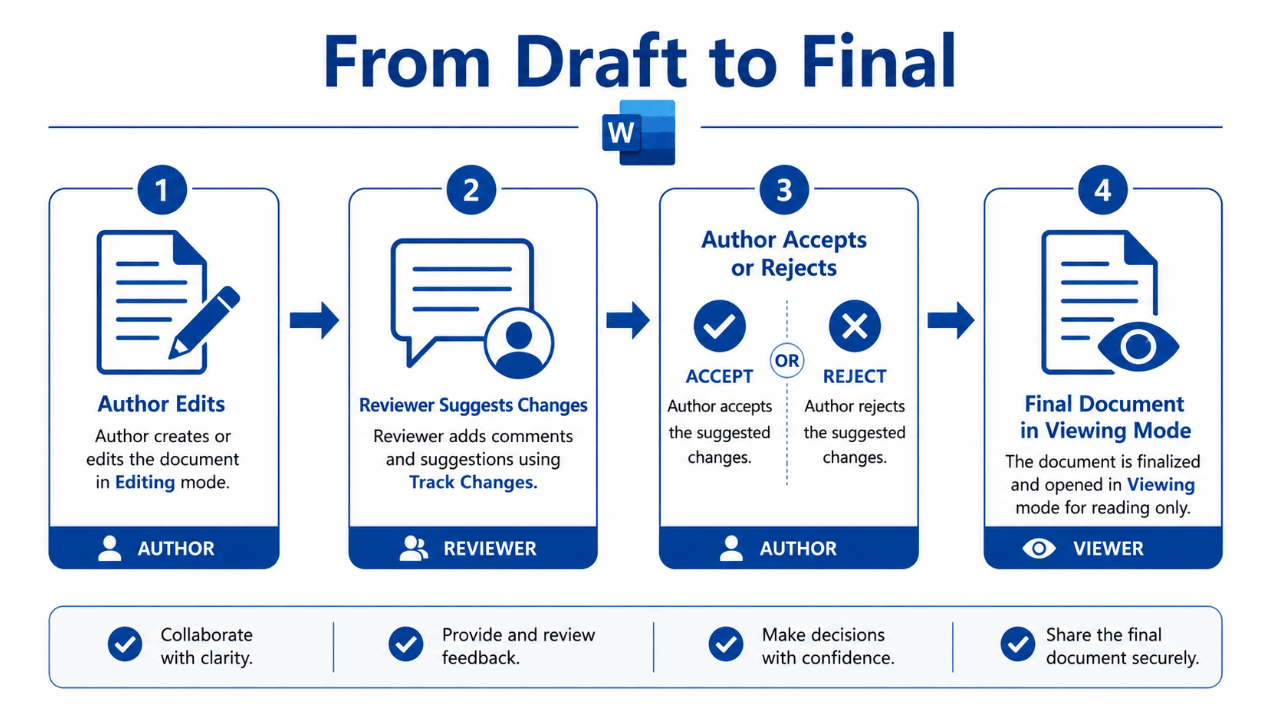
Recommended Review Workflow
A simple Word 2024 workflow is:
- The author creates the document in Editing mode.
- The file is shared with reviewers.
- Reviewers use Reviewing mode.
- The author checks comments and tracked changes.
- Approved revisions are accepted.
- Resolved comments are removed.
- The final file is checked in Viewing mode.
- The document is exported or shared.
This separates writing, feedback and final approval clearly.
Create, edit and review documents with the latest one-time Office release.
Browse our Office 2024 licences, including Office Home & Business 2024 and Office Professional Plus 2024.