
Instructions
WRAPROWS vs WRAPCOLS in Excel: What’s the Difference?
Sep
Have one long Excel list that you want to turn into a cleaner table?
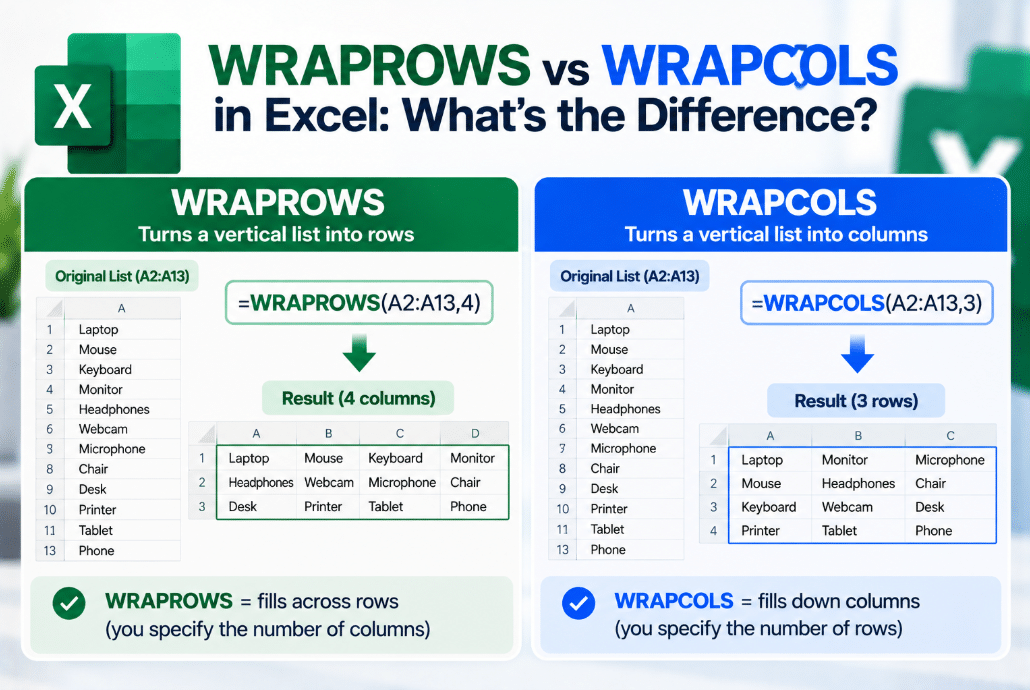
WRAPROWS vs WRAPCOLS gives you two similar functions for reshaping that list.
The difference is simple:
WRAPROWS fills values across rows.
WRAPCOLS fills values down columns.
What Does WRAPROWS Do?
WRAPROWS takes a one-dimensional row or column and rearranges it into multiple rows.
Its syntax is:
=WRAPROWS(vector,wrap_count,[pad_with])
The wrap_count tells Excel how many values should appear in each row.
For example, if A1 contains the numbers 1 through 9:
=WRAPROWS(A1:A9,3)
returns:
1 2 34 5 67 8 9
Microsoft describes WRAPROWS as filling the new array row by row.
What Does WRAPCOLS Do?
WRAPCOLS works in the opposite direction.
Its syntax is:
=WRAPCOLS(vector,wrap_count,[pad_with])
Using the same list:
=WRAPCOLS(A1:A9,3)
returns:
1 4 72 5 83 6 9
Instead of filling left to right first, Excel fills each column from top to bottom.
WRAPROWS vs WRAPCOLS: Quick Difference
| Function | How It Fills the Table |
|---|---|
| WRAPROWS | Across each row |
| WRAPCOLS | Down each column |
| Wrap count in WRAPROWS | Values per row |
| Wrap count in WRAPCOLS | Values per column |
An easy way to remember it is:
WRAPROWS → build rows
WRAPCOLS → build columns
Example With Product Names
Suppose A2 contains:
- Keyboard
- Mouse
- Monitor
- Headset
- Webcam
- Speaker
Using:
=WRAPROWS(A2:A7,3)
creates:
Keyboard Mouse MonitorHeadset Webcam Speaker
Using:
=WRAPCOLS(A2:A7,3)
creates:
Keyboard HeadsetMouse WebcamMonitor Speaker
Both contain the same data, but the reading order is different.
What Does the Wrap Count Mean?
The wrap count controls the maximum number of values before Excel starts a new row or column.
With WRAPROWS:
=WRAPROWS(A1:A12,4)
means four values per row.
With WRAPCOLS:
=WRAPCOLS(A1:A12,4)
means four values per column.
This is the main setting you change when adjusting the shape of your result.
What Happens If the Final Row or Column Is Not Full?
If Excel runs out of values before the final row or column is complete, the empty positions display #N/A by default.
For example:
=WRAPROWS(A1:A10,4)
needs three rows, but the last row only contains two values.
You can replace the #N/A results with blanks:
=WRAPROWS(A1:A10,4,"")
The same works with WRAPCOLS:
=WRAPCOLS(A1:A10,4,"")
Microsoft calls this optional third argument pad_with.
When Should You Use WRAPROWS?
WRAPROWS works well when people naturally read your data from left to right.
It can be useful for:
- Product lists
- Name lists
- Codes
- Labels
- Dashboard layouts
- Printable tables
If you want each line to contain a fixed number of items, WRAPROWS is usually the more natural choice.
When Should You Use WRAPCOLS?
WRAPCOLS is better when you want to read values vertically before moving to the next column.
It can be useful for:
- Multi-column lists
- Printed directories
- Compact reference tables
- Labels arranged vertically
- Data that needs a column-first layout
The function you choose depends mainly on how you want people to read the final table.
Can They Reshape a Normal Table?
Not directly.
Both functions expect the source to be a one-dimensional array — one row or one column.
If you provide a range that already contains several rows and columns, Excel can return #VALUE!.
If necessary, functions such as TOCOL or TOROW can first convert a two-dimensional range into a single list before wrapping it again.
What Happens If Wrap Count Is 0?
The wrap count must be at least 1.
For example:
=WRAPROWS(A1:A10,0)
or:
=WRAPCOLS(A1:A10,0)
returns #NUM! because Excel cannot create rows or columns containing zero items.
Which Excel Versions Support Them?
Microsoft currently lists both functions for:
- Excel for Microsoft 365
- Excel for Microsoft 365 for Mac
- Excel 2024
- Excel 2024 for Mac
Microsoft also identifies WRAPROWS and WRAPCOLS as Excel 2024 functions.
If Excel returns #NAME?, your version may not support them.
Final Thoughts
The WRAPROWS vs WRAPCOLS difference is mainly about direction.
Use WRAPROWS when you want Excel to fill values across rows.
Use WRAPCOLS when you want Excel to fill values down columns.
Both are useful for turning one long list into a cleaner table without manually moving or copying values.
Need Microsoft Office with modern Excel functions? Explore our Microsoft Office keys and choose the version that fits your work today.