
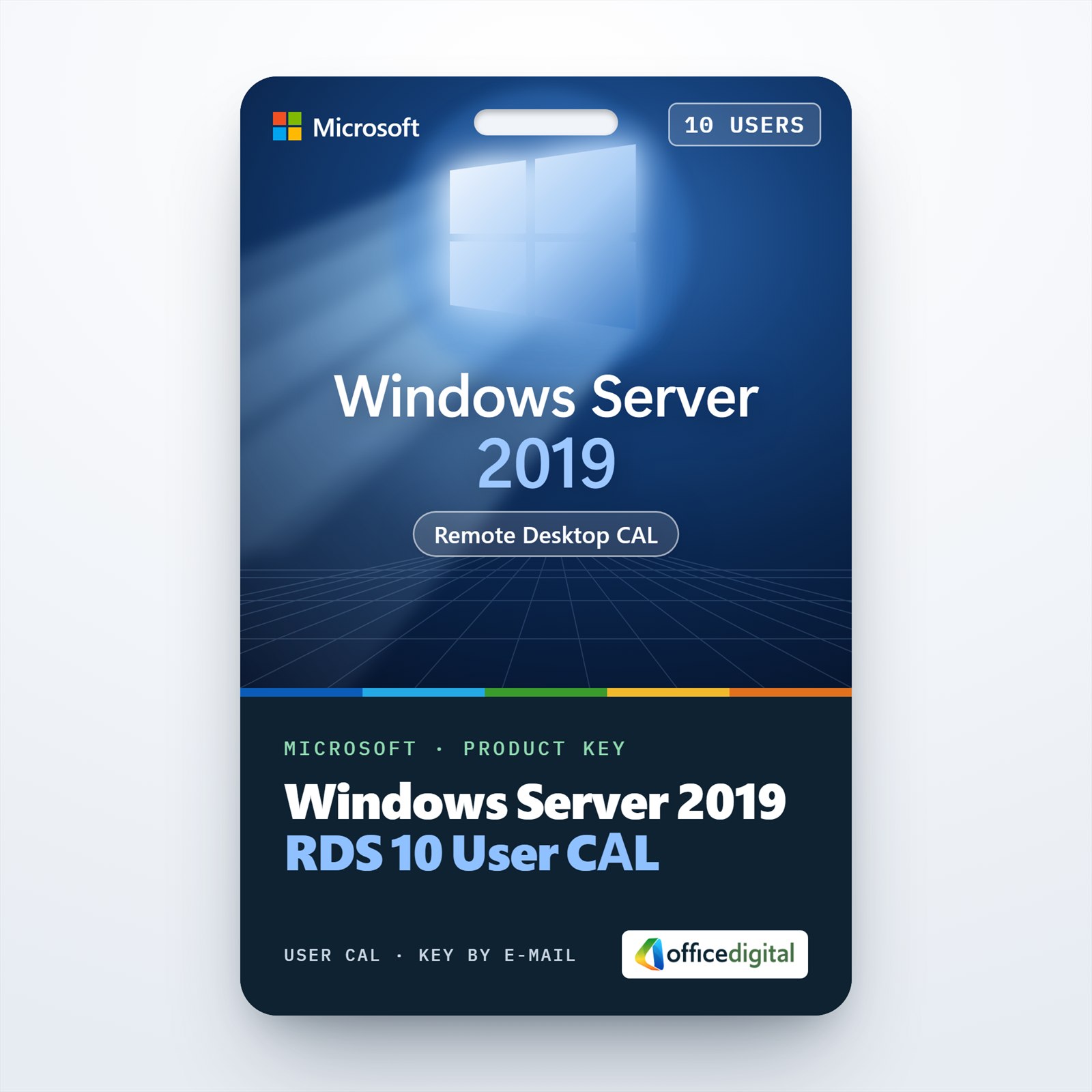
Windows Server 2019 RDS 10 User CAL
- License
- Retail · 10 users
- Delivery
- Instant, by e-mail
- Download
- Official Microsoft
- Brand
- Microsoft
€89,00
One-time payment · no subscription
- Instant delivery to your e-mailkey + download links
- Key won't activate? We replace itunused keys: refund within 7 days
- Official invoice with every order
- 24/7 live chat help with activation
Ten per-user Remote Desktop Services CALs for Windows Server 2019. They license sessions on 2019 and 2016 RD Session Hosts and need a license server on 2019 or later.
What you get with the Windows Server 2019 RDS 10 User CAL
With the Windows Server 2019 RDS 10 User CAL you license ten people for Remote Desktop Services. Each person gets one per-user CAL and may use remote desktops or RemoteApp programs on your session hosts from a desktop, a notebook or a tablet. The licenses are 2019 CALs, so they also cover hosts that still run Windows Server 2016. We e-mail the license code; you enter it in Remote Desktop Licensing Manager, and you pay for it once.
One license per person
Microsoft assigns a per-user RDS CAL to a user account in Active Directory. The person keeps it on every device, which suits staff who switch between an office PC and a laptop. If several people share one terminal in turns, per-device CALs are the better fit, because they are counted per computer.
- Workgroup servers can only use per-device CALs; per-user licensing needs a domain.
- Remote Desktop Licensing Manager tracks the per-user CALs it issues and can produce a usage report, but it does not stop an eleventh user. Staying within ten is your job.
- RDS CALs come on top of the base license: every one of the ten users also needs a Windows Server CAL, which is sold separately.
2019 CALs on 2016 and 2019 servers
Newer RDS CALs license older session hosts, but not the other way round. These 2019 CALs work on RD Session Hosts running Windows Server 2019 or 2016, and not on 2022 or 2025. Watch the license server version too: it has to run Windows Server 2019, 2022 or 2025, because a 2016 license server cannot hold 2019 CALs.
Hosts on Windows Server 2022 need the Windows Server 2022 RDS 10 User CAL. For a team of up to fifty, the Windows Server 2019 RDS 50 User CAL is one code instead of several.
How to activate the Windows Server 2019 RDS 10 User CAL
- Install the Remote Desktop Licensing role service on a Windows Server 2019 or newer machine through the Add Roles and Features wizard.
- In Server Manager choose Tools, Remote Desktop Services, Remote Desktop Licensing Manager. Right-click the server, choose Activate Server and complete the wizard with the automatic connection.
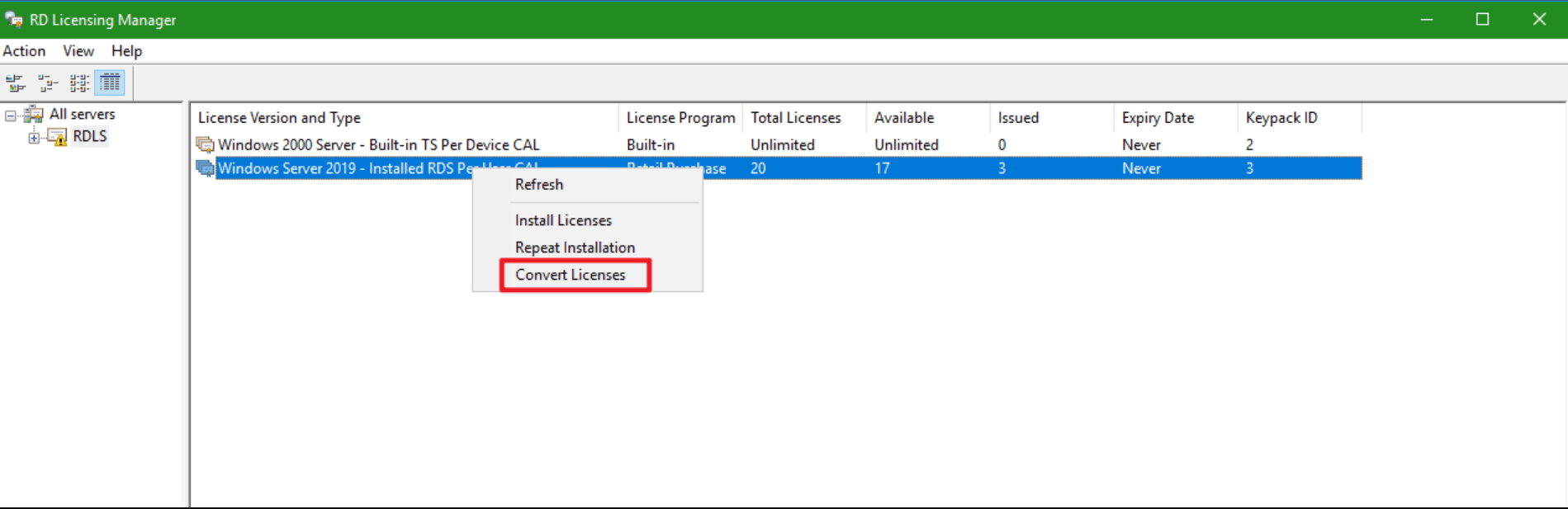
- Right-click the server again, choose Install Licenses, select your license program and paste the code from the e-mail.
- When asked, pick Windows Server 2019, Per User and 10 licenses. The wizard confirms them with the Microsoft Clearinghouse.
- On the RD Connection Broker, open Server Manager, go to Remote Desktop Services and then Overview, choose Edit Deployment Properties from the Tasks menu, open RD Licensing, select Per User and add the license server.
Our step-by-step Windows Server guide explains how to install and activate the server that the licensing role runs on.
System requirements
| RD Session Host versions | Windows Server 2019 or Windows Server 2016 |
|---|---|
| RD license server | Windows Server 2019, 2022 or 2025 |
| Licensing mode | Per User; servers joined to an Active Directory domain |
| Internet | Needed on the computer running Remote Desktop Licensing Manager during activation, not on the license server |
| Windows Server 2019 minimum | 1.4 GHz 64-bit processor with NX, DEP and SLAT support; 2 GB RAM with Desktop Experience; 32 GB of disk space |
| Base access license | One Windows Server CAL per user, bought separately |
Questions about the Windows Server 2019 RDS 10 User CAL
Can I install these CALs on a Windows Server 2016 license server?
No. Microsoft only lets a license server hold CALs of its own version or older, so 2019 CALs need a license server on 2019 or later. The session hosts themselves may still run 2016.
Do remote users get locked out while I wait for the code?
Not at first. A new deployment runs for 120 days without a license server. After that grace period, users need a CAL from an activated license server to start a session.
Can I return the CALs if the project is cancelled?
A code that has not been installed yet can be refunded within 7 days, as set out in our refund policy.
Be the first to review “Windows Server 2019 RDS 10 User CAL”
You must be logged in to post a review.
- Genuine Retail licenses. Every key is a genuine license that activates with Microsoft, or with ESET or Avast for antivirus. Unless the License line next to the price says OEM, it is a Retail license.
- Replacement if a key won't activate. Contact our support on live chat or by e-mail, day or night: we help you finish the activation or send a replacement key.
- Refund for unused keys. A key that has not been redeemed can be refunded within 7 calendar days of purchase, as set out in our Refund Policy.
- Invoice and instructions. Every order comes with a PDF invoice and instructions to download, install and activate the software.
You may also need
Reviews
There are no reviews yet.