
Instructions
Excel IMAGE Function: Put Pictures Inside Cells
Sep
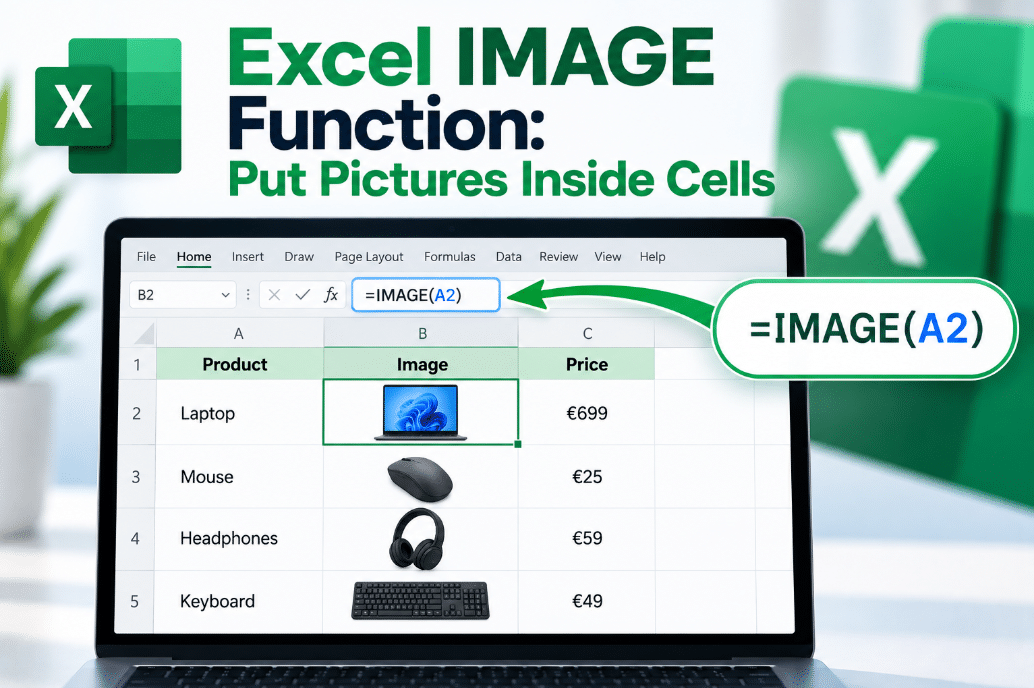
Excel cells are normally filled with numbers, text, and formulas. But modern versions of Excel can also treat pictures much more like normal cell content.
The Excel IMAGE function lets you display an image directly inside a cell using an online image source. The picture then moves and resizes with the cell, making it useful for product lists, inventories, employee directories, and other visual spreadsheets.
What Is the Excel IMAGE Function?
IMAGE is an Excel function that retrieves an image from an online source and displays it inside a worksheet cell.
Its basic syntax is:
=IMAGE(source)
For example:
=IMAGE("https://example.com/product.jpg")
If the image URL is valid and accessible, Excel displays the picture inside the cell instead of showing the URL as text.
Microsoft lists IMAGE as a function available in Excel 2024 and Microsoft 365.
What Is the Full IMAGE Formula?
The complete syntax is:
=IMAGE(source, [alt_text], [sizing], [height], [width])
The arguments mean:
source – The HTTPS address of the image.
alt_text – Optional text describing the picture for accessibility.
sizing – Controls how the picture fits inside the cell.
height – Custom image height when using custom sizing.
width – Custom image width when using custom sizing.
You only need the source argument for a basic image.
A Simple IMAGE Function Example
Imagine column A contains product names and column B contains image URLs.
You could enter:
=IMAGE(B2)
in column C.
Excel retrieves the image referenced in B2 and displays it directly inside C2.
This is much easier than manually inserting and resizing dozens of product pictures.
If you copy the formula down the column, each row can automatically display its own image.
How Do the Sizing Options Work?
The IMAGE function supports four sizing modes.
0 – Fit
Fits the image inside the cell while maintaining its original proportions.
1 – Fill
Fills the entire cell, even if the image proportions need to change.
2 – Original size
Keeps the image at its original dimensions, even if it extends beyond the cell.
3 – Custom
Lets you specify the height and width yourself.
For example:
=IMAGE(A2,"Product photo",3,100,150)
This displays the image at a custom height of 100 pixels and width of 150 pixels.
For most spreadsheets, sizing option 0 is the simplest choice.
Why Put Images Inside Cells?
Before this feature, pictures in Excel usually floated above the worksheet.
That could become frustrating when you:
- Resized rows
- Sorted data
- Filtered a table
- Moved cells
- Added new records
Pictures stored inside cells behave much more naturally with the spreadsheet.
Microsoft specifically highlights uses such as inventories, employee lists, games, and other visual datasets.
Can You Sort and Filter Images?
Yes.
Because the images behave like cell content, they can move with their associated rows when you sort or filter a table.
For example, imagine an inventory containing:
- Product name
- Price
- Stock quantity
- Product image
If you sort the table by price, the picture remains associated with the correct product.
That makes in-cell images much more useful for structured datasets than traditional floating pictures.
Can IMAGE Use Pictures Stored on Your PC?
The IMAGE function itself uses an HTTPS image source, so you cannot simply enter a normal local file path such as:
C:\Pictures\photo.jpg
However, Excel 2024 and Microsoft 365 also provide a separate Place in Cell feature.
Go to:
Insert → Pictures → Place in Cell
That option can insert pictures directly from your computer, stock images, or online sources without using a formula.
So:
IMAGE function → useful for images retrieved from URLs
Place in Cell → useful for inserting local pictures manually
Which Image Formats Are Supported?
Microsoft lists support for formats including:
- JPG/JPEG
- PNG
- BMP
- GIF
- TIFF
- ICO
- WEBP
Some format support can vary between Excel platforms.
Why Does IMAGE Sometimes Show an Error?
You may encounter several errors.
#CONNECT!
Excel cannot connect to the server containing the image.
#BLOCKED!
Your Office security settings are preventing access to the external image.
#VALUE!
The formula contains an invalid argument, unsupported image format, or incorrect sizing value.
IMAGE also may not work when an image requires you to sign in or when the URL redirects somewhere else.
For best results, use a direct HTTPS link to an image that can be accessed without authentication.
IMAGE Function vs Manually Inserting Pictures
Use the IMAGE function when your spreadsheet contains image URLs or when pictures should change automatically based on cell data.
Use Place in Cell when you simply want to add a picture stored on your computer.
Both approaches allow images to behave as cell content rather than floating separately over the worksheet.
Final Thoughts
The Excel IMAGE function turns pictures into useful spreadsheet data instead of separate floating objects.
With a simple formula such as =IMAGE(A2), Excel can retrieve an online picture and display it directly inside a cell.
It is particularly useful for product catalogs, inventories, employee directories, and any spreadsheet where images need to stay connected to individual rows of data.
Need Microsoft Office with modern Excel features? Explore our Microsoft Office keys and choose the version that fits your work today.