
Instructions
How to Add Hyperlinks in PowerPoint

May
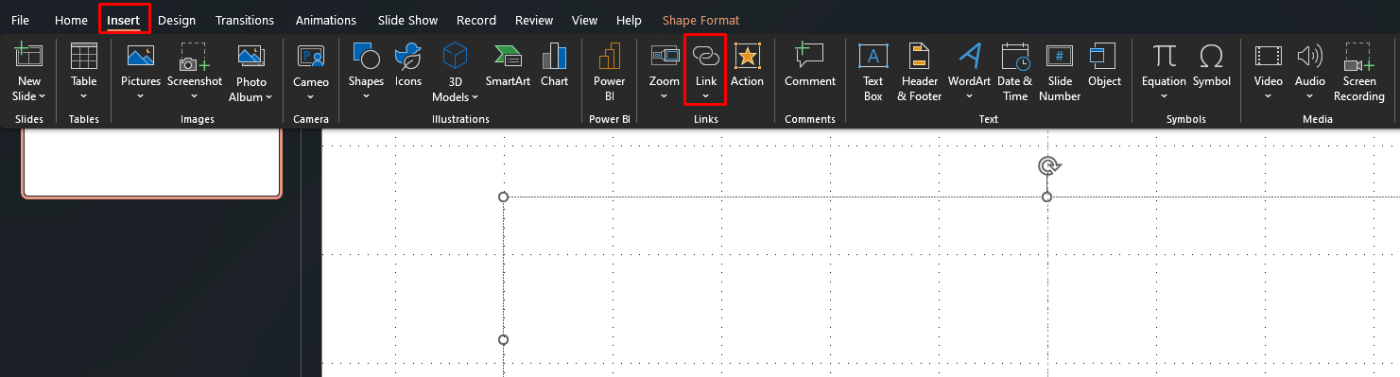
Hyperlinks in PowerPoint are useful when you want to connect text, pictures, or shapes to a website, another file, an email address, or a specific slide in the same presentation. Microsoft says you can select the text, shape, or picture you want to use as a hyperlink, then go to Insert > Link > Insert Link and choose the type of destination you want.
This makes hyperlinks useful for interactive presentations, navigation menus, reference slides, clickable resources, and linked files. Microsoft also says PowerPoint supports linking to a specific slide in the current presentation, a new document, an email address, or an existing file or webpage.
How to Add a Hyperlink to a Website in PowerPoint
This is one of the most common hyperlink types.
Microsoft says to select the text or picture that should act as the hyperlink, then go to Insert > Link. Under Link to, choose Existing File or Web Page, and then enter the web address.
This is useful for:
- linking to online sources
- linking to company pages
- linking to videos or articles
- linking to external resources during a presentation
How to Add a Hyperlink to Another Slide in the Same Presentation
PowerPoint can also link to a specific slide inside the same deck.
Microsoft says to select the text, shape, or picture, then go to Insert > Link and choose Place in This Document. It also says you can then select the specific slide you want to link to. Another Microsoft page explains that under Select a place in this document, you can expand Slide Titles and choose the target slide.
This is especially useful for:
- interactive menus
- non-linear presentations
- section navigation
- clickable table-of-contents slides
How to Add a Hyperlink to an Email Address
If you want a click to open an email app, PowerPoint supports that too.
Microsoft says to select the text or picture, go to Insert > Link, then under Link to choose E-mail Address and enter the email address you want to use.
This is useful for:
- contact slides
- support information
- follow-up contact details
- business presentations with response options
How to Add a Hyperlink to Another File
PowerPoint can also link to files.
Microsoft says under Link to, you can choose Existing File or Web Page, then browse to and select the file you want to link to.
This is useful for:
- linking to another presentation
- linking to a document
- linking to a spreadsheet
- opening supporting materials during a presentation
How to Add a Hyperlink to a New Document
Microsoft says that from Insert > Link > Insert Link, you can choose Create New Document to link from your presentation to another presentation or new file.
This is more specialized, but useful when:
- the presentation is part of a linked set of files
- you want to connect to a supporting deck
- you are building a navigation-based presentation system
How to Open a Hyperlink During a Presentation
A hyperlink behaves differently during editing and slideshow mode.
Microsoft says that during a slide show, you can open a hyperlink by clicking the underlined text or linked object. It also says the slideshow remains active when the linked webpage or file opens, and you may need to close the linked item to return to the presentation.
This matters because a link that looks correct while editing is usually meant to be clicked during the actual slideshow.
How to Edit an Existing Hyperlink
If you already inserted a hyperlink and want to change it, PowerPoint supports editing it.
Microsoft’s hyperlink guidance says you can create or edit a hyperlink by selecting the linked text or picture and reopening the link dialog from the Insert tab or by using the shortcut menu.
This is useful when:
- the web address changed
- you want to point to a different slide
- the displayed text needs updating
- the linked file changed location
How to Change Hyperlink Text Color in PowerPoint
Hyperlink appearance can also be adjusted.
Microsoft says you can change the color of an individual hyperlink by selecting it, then using the Font Color control on the Home tab. It also says you can change hyperlink and followed-hyperlink colors across a presentation through Theme Colors.
This is useful if:
- the default hyperlink color does not match your theme
- the link is hard to see
- you want a more branded look
How to Use Action Buttons for Hyperlink-Style Navigation
PowerPoint also supports action buttons.
Microsoft says action buttons can create hyperlink behavior by choosing Hyperlink to and then selecting a destination such as the next slide, previous slide, last slide, or another PowerPoint presentation.
This is useful for:
- kiosk-style presentations
- clickable navigation
- interactive training decks
- self-running presentations with navigation controls
Useful PowerPoint Hyperlink Shortcuts
Microsoft’s keyboard shortcuts page says Ctrl + K inserts a hyperlink in PowerPoint. It also says that during a presentation, you can move to the next hotspot, including hyperlinks, with Tab, move to the previous hyperlink with Shift + Tab, and open the selected hyperlink with Enter.
These shortcuts are useful if you want to work faster or navigate a presentation without always using the mouse.
FAQ
How do I add a hyperlink in PowerPoint?
Microsoft says to select the text, shape, or picture, then go to Insert > Link > Insert Link and choose the destination type you want.
Can I link to another slide in the same PowerPoint?
Yes. Microsoft says to use Place in This Document and then select the specific slide you want to link to.
Can I hyperlink an email address in PowerPoint?
Yes. Microsoft says you can choose E-mail Address in the link dialog and enter the address you want to use.
What is the shortcut to insert a hyperlink in PowerPoint?
Microsoft’s keyboard shortcuts page says Ctrl + K inserts a hyperlink.
Create more interactive presentations with genuine Office keys, instant delivery, and easy activation that gets PowerPoint ready when you need it.