
Instructions
How to Highlight Duplicates in Excel

May
Highlighting duplicates in Excel is one of the fastest ways to spot repeated values in a list. Microsoft says you can use Conditional Formatting to find and highlight duplicate data, which makes it easier to review the duplicates and decide whether you want to keep or remove them.
This is useful for sales lists, email lists, product codes, names, inventory sheets, and almost any worksheet where repeated values might matter. Microsoft also notes that duplicate highlighting works on a selected range, but Excel cannot highlight duplicates in the Values area of a PivotTable report.
How to Highlight Duplicates in Excel
This is the standard method most people use.
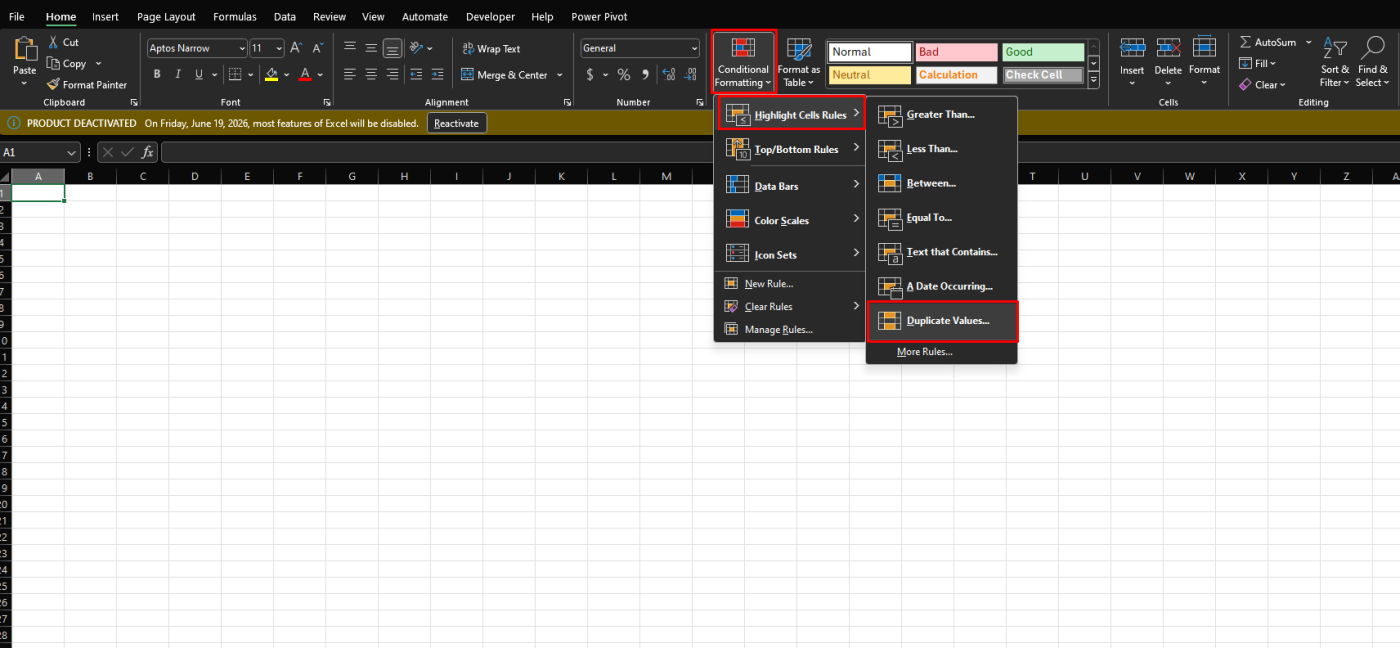
Microsoft says to select the cells you want to check for duplicates, then choose Home > Conditional Formatting > Highlight Cells Rules > Duplicate Values. After that, you can pick the formatting style and confirm it.
What this is useful for
This works well for:
- repeated names
- duplicate email addresses
- repeated product IDs
- repeated invoice numbers
- duplicate entries in imported data
How the Duplicate Values Rule Works
The built-in duplicate rule is part of Conditional Formatting.
Microsoft says the Duplicate Values dialog lets you choose how duplicate values should be formatted. It also explains that you can apply conditional formatting to unique or duplicate values so they are easier to see.
That means Excel is not deleting anything here. It is only visually marking the cells that match the duplicate rule.
How to Choose the Highlight Style
When the Duplicate Values box opens, Excel lets you choose the formatting to apply.
Microsoft says that in the box next to values with, you can pick the formatting you want for duplicate values, then select OK.
This is useful because you can choose a style that stands out clearly without changing the actual cell values.
How to Highlight Unique Values Instead
Sometimes you want the opposite.
Microsoft says you can also apply conditional formatting to unique values, not just duplicates. In the advanced rule setup, it says to choose Format only unique or duplicate values, then select whether you want unique or duplicate.
This is useful when:
- you want to find records that appear only once
- you want to separate one-time entries from repeated ones
- you are checking list quality
How to Edit the Duplicate Highlight Rule
If you want to change the color or adjust the rule later, Excel lets you edit it.
Microsoft says to:
- select the cells with the rule
- go to Home > Conditional Formatting > Manage Rules
- select the duplicate rule
- choose Edit Rule
This is useful if:
- the color is too strong or too weak
- you want to switch from duplicate to unique
- the rule needs to apply to a different range
How to Change the Range the Rule Applies To
If you add more data later, the duplicate rule may need to cover a larger range.
Microsoft says that in Manage Rules, you can change the range in the Applies to box by selecting a new cell range on the worksheet.
This matters because if the rule only covers part of your table, new rows outside that range will not be checked.
How to Remove Duplicate Highlighting
If you no longer want the highlighting, you can remove the rule.
Microsoft says to go to Home > Conditional Formatting > Manage Rules, select the rule, and then edit or remove it. It also explains that highlighting duplicates is different from actually removing duplicates.
That means:
- Conditional Formatting only marks duplicates
- Remove Duplicates actually deletes repeated entries
Highlighting Duplicates vs Removing Duplicates
This is an important difference.
Microsoft says conditional formatting helps you find and highlight duplicate data so you can review it first. It separately says that Remove Duplicates permanently deletes duplicate data, and recommends moving or copying the original data first so you do not lose anything by mistake.
So:
- use highlight duplicates when you want to inspect the data
- use remove duplicates only when you are sure you want repeated entries deleted
FAQ
How do I highlight duplicates in Excel?
Microsoft says to select the cells, then go to Home > Conditional Formatting > Highlight Cells Rules > Duplicate Values.
Does highlighting duplicates delete them?
No. Microsoft says conditional formatting only helps you find and highlight duplicate data. Removing duplicates is a separate feature that permanently deletes repeated entries.
Can I change the duplicate highlight color in Excel?
Yes. Microsoft says you can edit the rule through Home > Conditional Formatting > Manage Rules, then use Edit Rule.
Can Excel highlight unique values too?
Yes. Microsoft says you can create a conditional formatting rule for unique or duplicate values.
Clean up data faster with genuine Office keys, instant delivery, and easy activation that keeps Excel ready whenever you need it.