
Instructions
How to Make a Table of Contents in Word
Apr
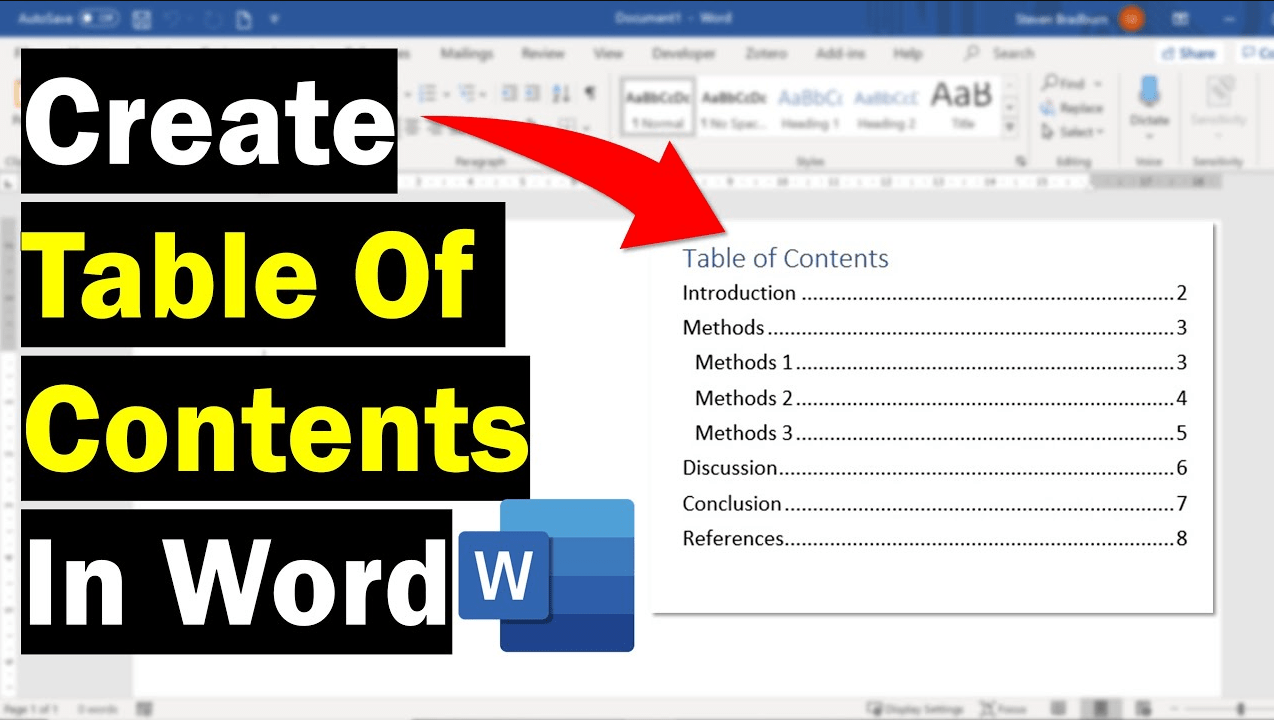
A table of contents in Word makes long documents easier to read, navigate, and update. It is especially useful for reports, school projects, guides, eBooks, manuals, and business documents. Microsoft says Word builds an automatic table of contents by using the headings in your document, which means it can update the table later if page numbers or heading text change.
The most important thing to know is that Word does not build a proper automatic table of contents from manually bolded text. Microsoft says you should use heading styles such as Heading 1, Heading 2, and Heading 3, because Word uses those headings to create the table of contents.
The Short Answer
To make a table of contents in Word:
- apply Heading styles to your section titles
- click where you want the table of contents
- go to References
- select Table of Contents
- choose an Automatic Table of Contents
Microsoft says this is the standard way to create a table of contents in Word, and it can then be updated later when the document changes.
Step 1: Use Heading Styles First
This is the part that matters most.
If you want Word to create the table of contents automatically, your headings need to be formatted with built-in heading styles. Microsoft says missing table of contents entries usually happen because headings were not formatted as headings.
How to apply a heading style
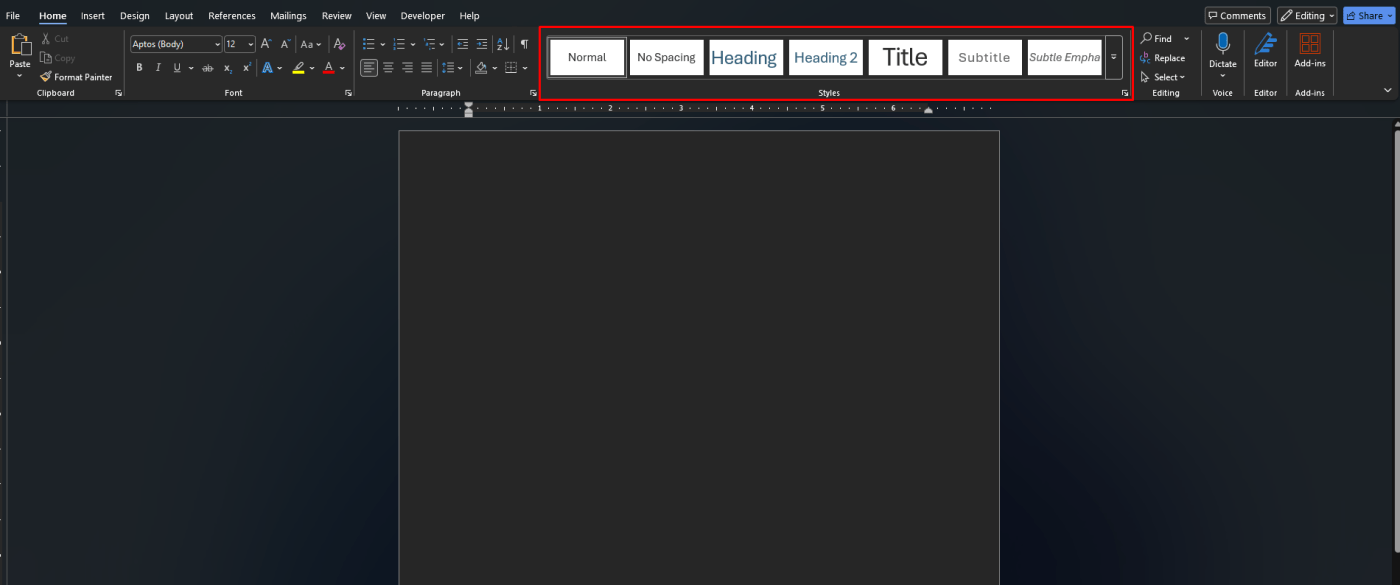
- select the text you want to use as a heading
- go to Home
- in Styles, choose Heading 1, Heading 2, or another heading level
In general:
- Heading 1 = main sections
- Heading 2 = subsections
- Heading 3 = smaller subsections
Microsoft says using heading styles also helps with reorganizing and reformatting the document later.
Step 2: Insert the Table of Contents
Once your headings are set, inserting the table is easy.
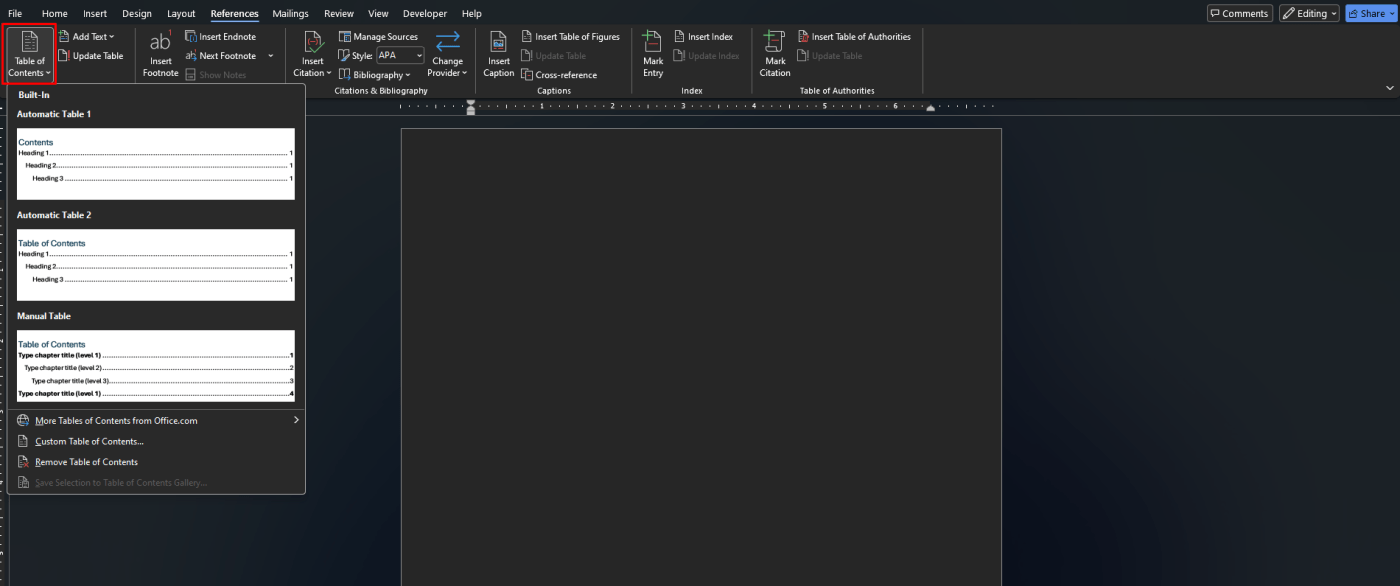
Microsoft says to click where you want the table of contents, usually near the beginning of the document, then go to References > Table of Contents and choose an automatic style.
How to insert it
- place your cursor where the table should appear
- open the References tab
- click Table of Contents
- choose one of the Automatic Table of Contents options
Word will then generate the table using your headings and page numbers.
Step 3: Update the Table of Contents
If you change your document later, the table of contents can be updated instead of remade from scratch.
Microsoft says you can right-click the table of contents and choose Update Field, or use References > Update Table. Word then lets you choose whether to update only the page numbers or the entire table.
When to update page numbers only
Use this when:
- the headings stayed the same
- only the page numbers changed
When to update the entire table
Use this when:
- you renamed headings
- you added new sections
- you removed sections
- you changed heading levels
How to Customize a Table of Contents in Word
If you want more control over how it looks, Word lets you customize it.
Microsoft says you can go to References > Table of Contents > Custom Table of Contents to change things like:
- how many heading levels appear
- whether page numbers show
- whether dotted leaders appear
- the formatting of table of contents text styles
This is useful if you want a cleaner design or need the table to match the formatting of an academic or business document.
Why the Table of Contents Is Not Working
Most table of contents problems come from one issue: the headings were not set correctly.
Microsoft says missing entries usually happen because the text was not formatted with heading styles. If a section is missing, select that heading, apply a built-in heading style, and then update the table of contents.
Automatic vs Manual Table of Contents
Word gives you both options, but the automatic one is usually better.
Microsoft says if you use a Manual Table of Contents style, Word will not use your headings to build it and will not update it automatically. Instead, it uses placeholder text that you edit yourself.
For most users, an Automatic Table of Contents is the better choice because:
- it saves time
- it updates easily
- it stays accurate when the document changes
Best Use Cases for a Table of Contents in Word
A table of contents is especially useful for:
- school assignments
- research papers
- reports
- business proposals
- user guides
- manuals
- eBooks
- long articles
In any long document, it improves readability and helps readers jump to the sections they need.
Quick Verdict
If you are working on a long document, making a table of contents in Word is one of the best formatting features to use. The key is simple: use proper Heading styles first, then insert an Automatic Table of Contents from the References tab. Microsoft’s support pages make clear that once the headings are set properly, Word can build and update the table for you automatically.
FAQ
How do I make a table of contents in Word?
Microsoft says to apply heading styles to your headings, place the cursor where you want the table, then go to References > Table of Contents and choose an automatic style.
Why is my table of contents missing headings?
Microsoft says this usually happens because the heading text was not formatted using built-in heading styles such as Heading 1 or Heading 2.
Can I update a table of contents in Word?
Yes. Microsoft says you can right-click the table of contents and choose Update Field, or use References > Update Table.
Can I customize the table of contents in Word?
Yes. Microsoft says you can use Custom Table of Contents to change formatting, page numbers, tab leaders, and how many heading levels are shown.
Get affordable Office keys with instant delivery and hassle-free activation, and upgrade your productivity today.