
Instructions
How to Track Changes in Word
Apr
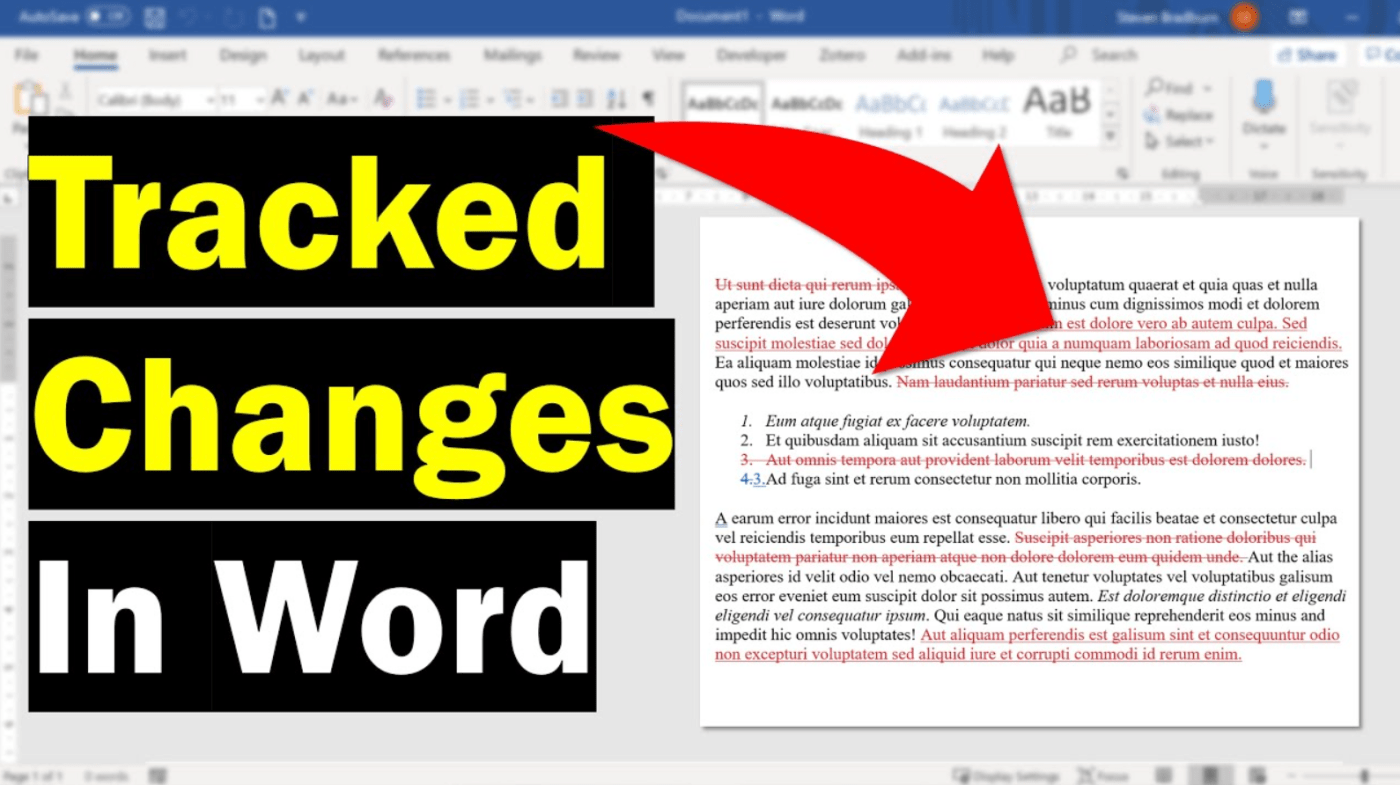
Track Changes in Word is one of the most useful features for editing and collaboration. It lets you see insertions, deletions, formatting changes, and reviewer edits without permanently changing the original text right away. Microsoft says that when Track Changes is on, deletions are marked with strikethrough, additions are underlined, and different authors’ edits appear in different colors.
This makes Track Changes especially useful for school assignments, reports, business documents, contracts, and any file that needs review before the edits are finalized. Word also lets you control whose changes are tracked, how markup is displayed, and whether changes appear inline or in balloons.
The Short Answer
To track changes in Word:
- open the Review tab
- click Track Changes
- start editing the document
- review the markup
- accept or reject changes when you are done
Microsoft says the standard path is Review > Track Changes, and Word then marks edits until tracking is turned off.
How to Turn On Track Changes in Word
This is the first step.
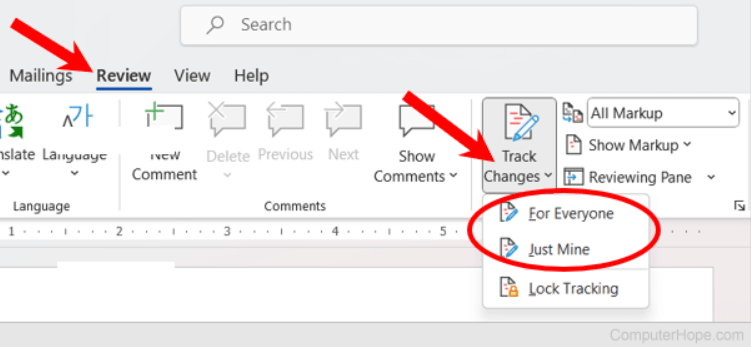
Microsoft says to go to Review > Track Changes to turn the feature on or off. When it is on, the Track Changes section is highlighted, and Word begins marking edits in the document.
What Word tracks
When Track Changes is active, Word can show:
- inserted text
- deleted text
- formatting changes
- edits from multiple reviewers
Microsoft says additions are shown with underline, while deletions are shown with strikethrough.
How to Track Only Your Changes or Everyone’s Changes
Word gives you more than one tracking mode.
Microsoft says you can choose:
- For Everyone
- Just Mine
This is found under Review > Track Changes, where Word lets you decide whether to track changes from all collaborators or only your own edits.
This is useful if you want cleaner reviewing in shared documents or if you only want your changes marked.
How to View Tracked Changes in Word
Not every reviewer wants to see markup the same way.
Microsoft says Word offers several display views under the Review tab:
- Simple Markup
- All Markup
- No Markup
- Original
Simple Markup shows tracked changes with a red line in the margin, while All Markup shows the full colored changes in the document. No Markup hides the visible markup while keeping the changes in the file, and Original shows the document without tracked changes displayed.
How to Show Changes in Balloons or Inline
Word also lets you control where the revisions appear.
Microsoft says to go to Review > Show Markup > Balloons and choose how revisions display. You can show revisions in balloons, show all revisions inline, or show only formatting in balloons. Microsoft also notes that balloon display requires Print Layout or Web Layout view.
Inline view
Inline view places the edits directly in the text, which many users prefer for shorter documents.
Balloon view
Balloon view moves some revisions to the margins, which can make longer documents easier to review.
How to Filter Tracked Changes
This is one of the most useful review tools in Word.
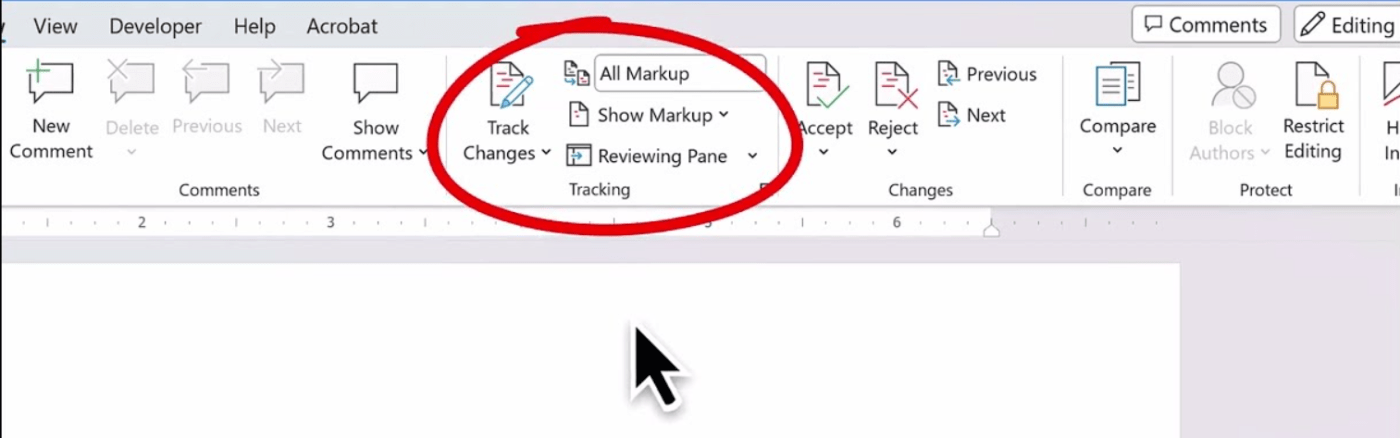
Microsoft says the Show Markup menu lets you filter changes by:
- insertions and deletions
- formatting
- reviewers
That means you can simplify a busy document by showing only the types of changes you want to see.
How to Accept or Reject Changes in Word
Track Changes is only half the process. The other half is deciding what stays.
Word lets you review edits one by one and then accept or reject them. Microsoft’s Track Changes page explains that you can preview what the final document will look like and review the suggested edits directly in Word’s review interface.
In practice, this is how most people finish the review process:
- move through each marked change
- accept the edits you want to keep
- reject the edits you do not want
This is what turns a marked-up draft into the final version.
How to Stop Other People from Turning It Off
This is useful for review-heavy documents.
Microsoft says you can use Review > Track Changes > Lock Tracking if you want to use a password to keep others from turning Track Changes off.
That can be helpful for controlled review workflows where edits must remain visible.
Why Track Changes Is Useful
Track Changes is helpful because it makes editing safer and more transparent.
It lets you:
- review edits before finalizing them
- collaborate more clearly
- see exactly what changed
- separate drafting from approval
For students, teachers, writers, editors, and business users, this is one of the most valuable built-in Word features.
FAQ
How do I turn on Track Changes in Word?
Microsoft says to go to Review > Track Changes. When it is on, Word starts marking edits in the document.
What does Track Changes show in Word?
Microsoft says it shows additions with underline, deletions with strikethrough, and uses different colors for different authors’ edits.
Can I track only my own changes in Word?
Yes. Microsoft says Word lets you choose Just Mine or For Everyone under Review > Track Changes.
Can I hide tracked changes without deleting them?
Yes. Microsoft says No Markup hides the visible markup, but the tracked changes remain in the document until they are accepted or rejected.
Get affordable Office keys with instant delivery and hassle-free activation, and upgrade your productivity today.