
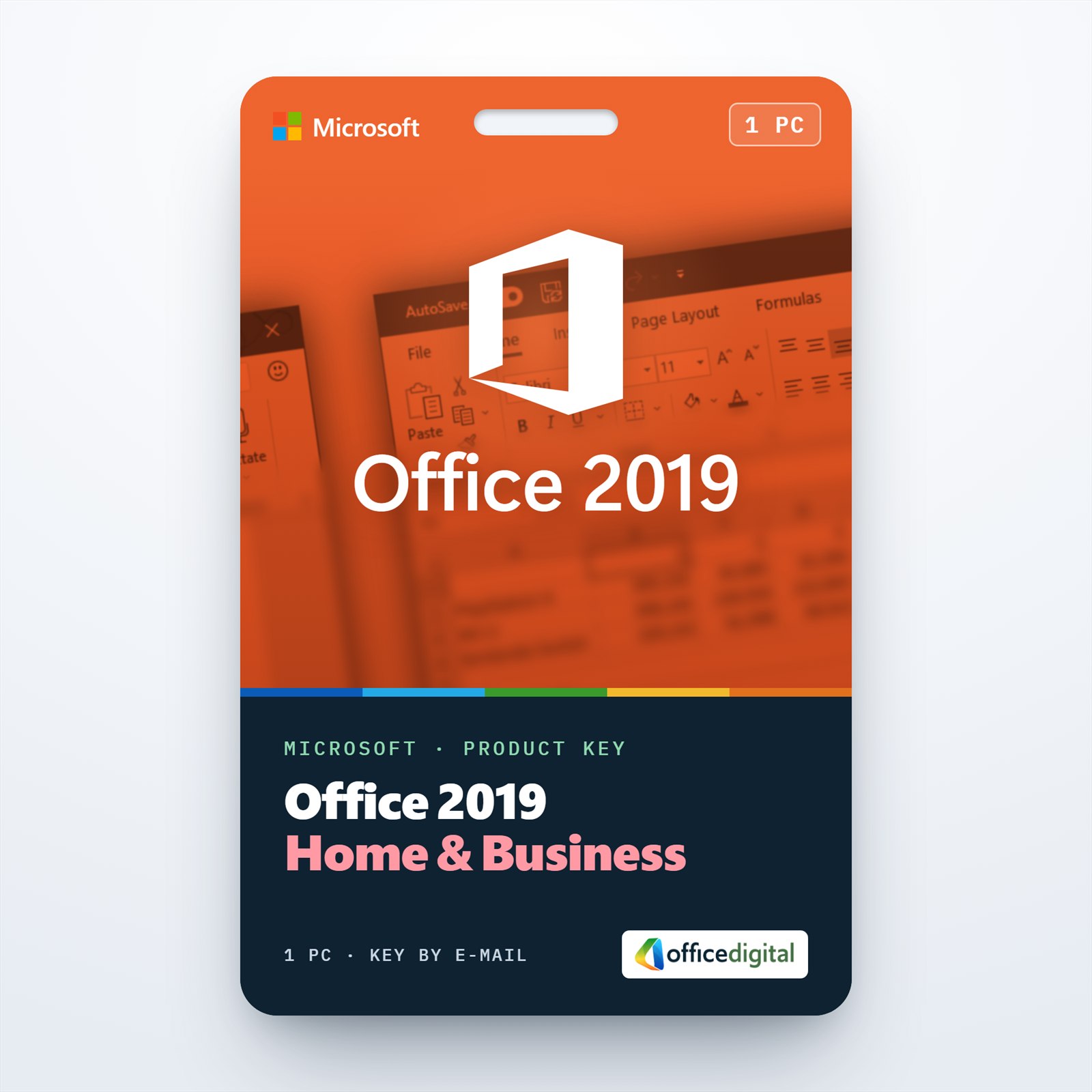
Office 2019 Home & Business for Windows(Phone activation)
- License
- Retail
- Delivery
- Instant, by e-mail
- Download
- Official Microsoft
- Brand
- Microsoft
€29,99
One-time payment · no subscription
Out of stock
Office 2019 Home & Business for one Windows PC: Outlook, Word, Excel, PowerPoint and OneNote, licensed for business work too. Activation uses an installation ID and a confirmation ID.
What you get with Office 2019 Home & Business for Windows
Office 2019 Home & Business for Windows installs Outlook, Word, Excel, PowerPoint and OneNote on a single PC, and unlike Home & Student it may be used for business work. The key activates through the Office Activation Wizard with an installation ID and a confirmation ID, which our guide explains with screenshots. It is a one-time payment with nothing to renew. We send the key, Microsoft’s download link and instructions by e-mail, followed by a PDF invoice.

The five apps in Office 2019 Home & Business
- Outlook 2019 handles e-mail, calendar and contacts, and lets you create a meeting that starts in one time zone and ends in another, converting the times for you.
- Word 2019 writes math equations in LaTeX syntax and has Learning Tools that change text spacing and page color or read the document aloud.
- Excel 2019 adds functions such as IFS, SWITCH and TEXTJOIN, and you can now deselect a wrongly picked cell without starting the selection again.
- PowerPoint 2019 can run a slide show from a Bluetooth pen such as the Surface Pen and offers a built-in library of icons for slides.
- OneNote is installed together with Office 2019 for meeting notes and to-do lists.
Why this key uses a confirmation ID
Most Office keys activate over the internet with one choice in the Activation Wizard. This one takes the wizard’s other route: Office shows an installation ID made of number blocks, you exchange it for a confirmation ID on Microsoft’s online activation page, and you type that confirmation ID back into Office. The PC you activate does not need to be online for this step, because the ID exchange can be done on a phone or another computer.
Home & Business or another Office edition?
Home & Business is aimed at small offices and home workers who need Outlook next to the core apps. It does not contain Access or Publisher; those come with Office 2019 Professional Plus. If you work on a Mac, choose Office 2019 Home & Business for Mac, because this key is for Windows only.
How to activate Office 2019 Home & Business for Windows
- Open setup.office.com, select Get Started and log in to your Microsoft account; a new one can be created there.
- Enter the product key, select Next, set your language and select Redeem. The Office 2019 download starts.
- Run the downloaded setup file on the PC and let Office install.
- Open Word or Excel and wait a few seconds for the Activation Wizard. Pick the option that displays an installation ID under Step 2.
- Enter that installation ID on Microsoft’s online activation page to receive the confirmation ID.
- Type the confirmation ID into Step 3 of the wizard and select Next. File → Account then reads “Product Activated”.
The full walkthrough, with screenshots of the wizard, is in our Office 2019 Home & Business activation guide.
System requirements
| Processor | At least 1.1 GHz with 2 cores |
|---|---|
| Memory | 4 GB RAM; 2 GB RAM (32-bit) |
| Hard disk | 4 GB of available disk space |
| Display | 1280 × 768 screen resolution |
| Graphics | Hardware acceleration requires DirectX 9 or later |
| Operating system | Windows 11 on Microsoft’s current list; Windows 10 and Windows Server 2019 at release |
| Not supported | macOS (this is the Windows edition) |
Questions about Office 2019 Home & Business for Windows
Can I activate a PC that has no internet connection?
Yes. Install from a downloaded copy, read the installation ID off the wizard, and get the confirmation ID with your phone or a second computer.
Are Access and Publisher part of Home & Business 2019?
No. You get Word, Excel, PowerPoint, Outlook and OneNote; Access and Publisher are in Office 2019 Professional Plus.
What if the confirmation ID is refused?
Check that each block of the installation ID was copied in the right order, then contact our support by live chat or e-mail; if the key cannot be activated, we send a replacement key.
Be the first to review “Office 2019 Home & Business for Windows(Phone activation)”
You must be logged in to post a review.
- Genuine Retail licenses. Every key is a genuine license that activates with Microsoft, or with ESET or Avast for antivirus. Unless the License line next to the price says OEM, it is a Retail license.
- Replacement if a key won't activate. Contact our support on live chat or by e-mail, day or night: we help you finish the activation or send a replacement key.
- Refund for unused keys. A key that has not been redeemed can be refunded within 7 calendar days of purchase, as set out in our Refund Policy.
- Invoice and instructions. Every order comes with a PDF invoice and instructions to download, install and activate the software.
You may also need
Reviews
There are no reviews yet.