
-
×
 Office 2019 Home & Student - 1PC - GLOBAL
1 × €49,99
Office 2019 Home & Student - 1PC - GLOBAL
1 × €49,99
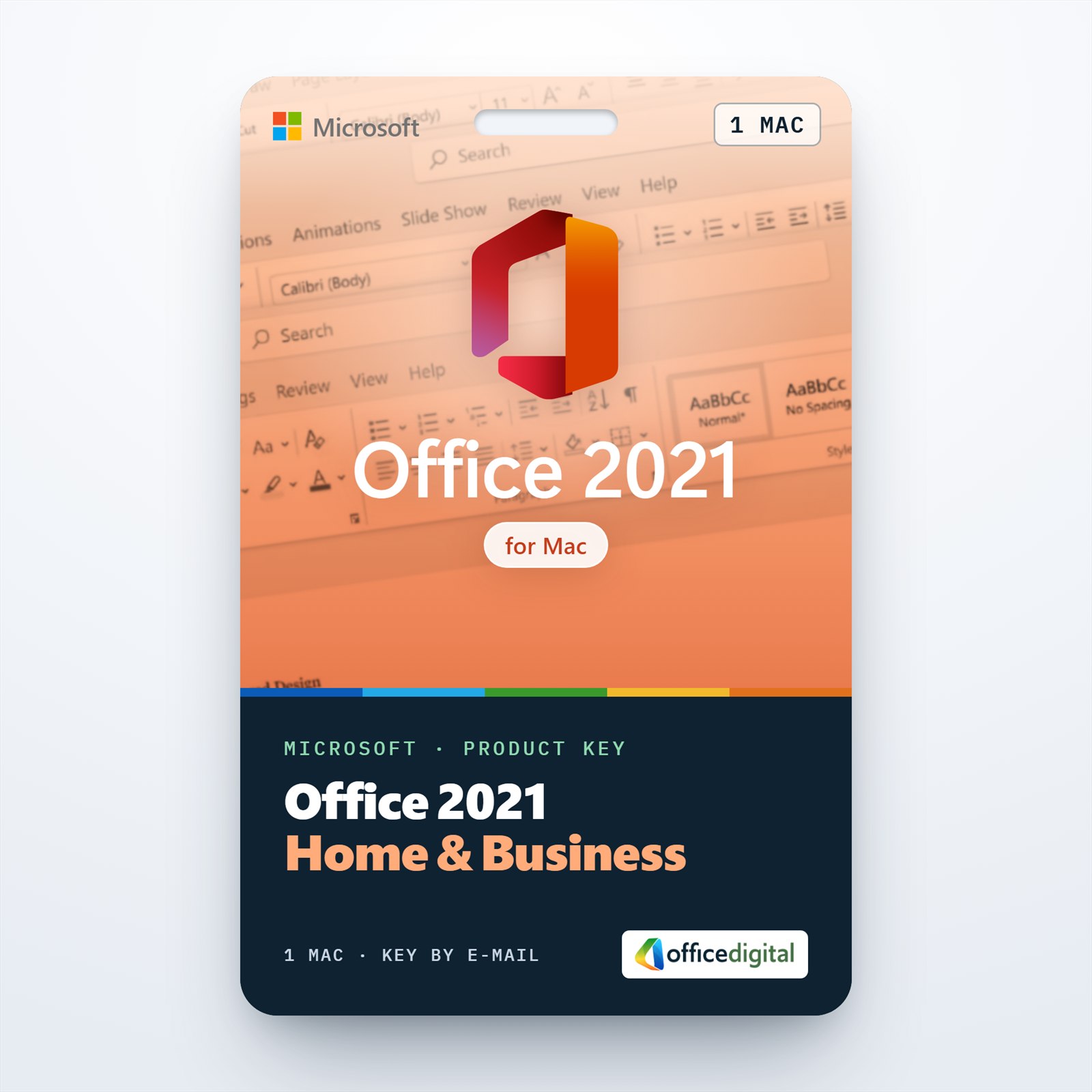
Office Home & Business 2021 for MAC (1PC) License
- License
- Retail · 1 PC
- Delivery
- Instant, by e-mail
- Download
- Official Microsoft
- Brand
- Microsoft
€99,99
One-time payment · no subscription
- Instant delivery to your e-mailkey + download links
- Key won't activate? We replace itunused keys: refund within 7 days
- Official invoice with every order
- 24/7 live chat help with activation
Pay with SKU MO21HB1PCBIND
Office Home & Business 2021 for one Mac: Word, Excel, PowerPoint, Outlook and OneNote as Universal apps for Apple silicon and Intel Macs. One payment, no subscription.
What you get with Office Home & Business 2021 for Mac
Office Home & Business 2021 for Mac is the one-Mac edition of Office 2021, with Word, Excel, PowerPoint, Outlook and OneNote. The apps are Universal builds that run natively on Macs with Apple silicon as well as on Intel Macs, and the Home & Business license covers work for your business as well as personal use. You pay once for a perpetual license. The key arrives by e-mail with the link to Microsoft’s Mac installer, and the PDF invoice follows when the order is complete.
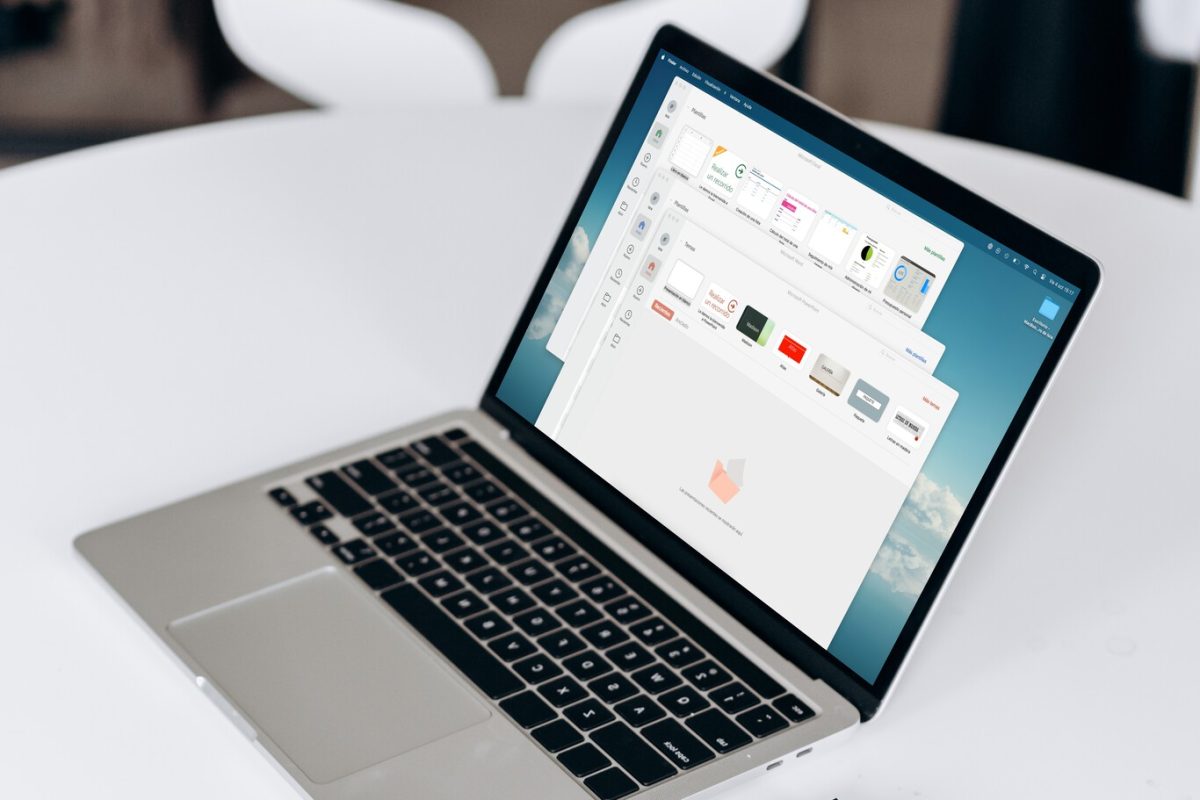
The five apps and what 2021 brought to the Mac
- Excel 2021 for Mac has XLOOKUP, dynamic array functions such as FILTER, SORT and UNIQUE, the LET and XMATCH functions, and a Watch Window that tracks chosen cells across sheets and workbooks.
- Word 2021 offers a Dark Mode that also darkens the page, more page colors in Immersive Reader, and Read Aloud with more natural-sounding voices.
- PowerPoint 2021 adds Ink Replay for drawings, exports a slide show as an animated GIF, and gives shapes a hand-drawn Sketched outline.
- Outlook handles mail, calendar and contacts, and OneNote keeps notebooks for meetings and projects.
- Pictures, charts and other graphics can be saved from your documents as SVG files that scale without losing quality.
Which Office for Mac should you choose?
If your Mac runs macOS Sequoia or a newer version, this is the edition to pick: Microsoft lists Office 2021 for Mac for the three most recent macOS versions. Office 2019 Home & Business for Mac has the same five apps without the 2021 additions above, but Microsoft lists no current macOS versions for it, so ask our support about your Mac before choosing it. Access and Publisher are Windows programs and are not part of any Mac edition; if you need them, Office 2021 Professional Plus is the Windows suite that includes both.
How to activate Office Home & Business 2021 for Mac
- Open setup.office.com in Safari and choose Get Started.
- Log in to the Microsoft account that should hold the license (a new account can be made there).
- Enter the key and select Next, then set the language and select Redeem; Safari downloads the Office installer package.
- Double-click the package in Downloads and follow the macOS installer, which asks for your Mac password once.
- Start Word, choose Sign in and use the same Microsoft account. Office activates online; Word → About Word confirms the version.
Our Office Home & Business 2021 for Mac installation guide shows each of these screens and the fixes for common sign-in messages. When activation doesn’t go through, write to our live chat or e-mail support, available 24/7.
System requirements
| Processor | Intel or Apple silicon, as supported by the three most recent macOS versions |
|---|---|
| Operating system | One of the three most recent major macOS versions; as of September 2026 Microsoft names macOS 27, macOS Tahoe 26 and macOS Sequoia 15 |
| Memory | 4 GB RAM |
| Disk space | 10 GB available |
| Display | 1280 × 800 screen resolution |
| Browser | Current version of Safari, Microsoft Edge, Chrome or Firefox |
| Account | A Microsoft account, plus an internet connection for redeeming and activating |
Questions about Office Home & Business 2021 for Mac
Will this key activate Office on a Windows PC?
No. The license is for one Mac; for Windows choose Office 2021 Professional Plus or another Windows edition.
Does it run natively on M-series Macs?
Yes. Microsoft ships Office for Mac as a Universal installer with native code for Apple silicon and for Intel processors, so no Rosetta setting is needed.
Can I transfer it to a new Mac?
Yes, one Mac at a time. Remove Office from the old Mac first; on the new Mac, use the Install button in Services & subscriptions while logged in to the account that holds the license.
Be the first to review “Office Home & Business 2021 for MAC (1PC) License”
You must be logged in to post a review.
- Genuine Retail licenses. Every key is a genuine license that activates with Microsoft, or with ESET or Avast for antivirus. Unless the License line next to the price says OEM, it is a Retail license.
- Replacement if a key won't activate. Contact our support on live chat or by e-mail, day or night: we help you finish the activation or send a replacement key.
- Refund for unused keys. A key that has not been redeemed can be refunded within 7 calendar days of purchase, as set out in our Refund Policy.
- Invoice and instructions. Every order comes with a PDF invoice and instructions to download, install and activate the software.
You may also need
Reviews
There are no reviews yet.