
Instructions
How to Use Presenter View in PowerPoint
May
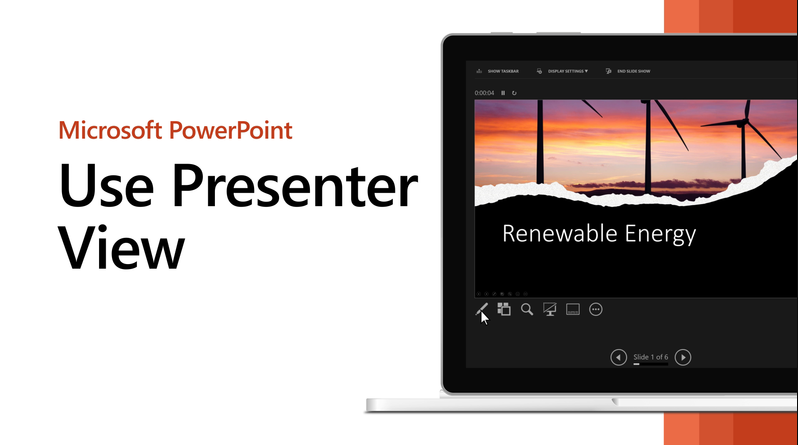
Presenter View in PowerPoint is one of the most useful features for live presenting because it lets you see your current slide, the next slide, and your speaker notes while your audience only sees the slideshow. Microsoft says Presenter View is designed to help you focus while presenting and connect better with your audience.
This is especially useful for school presentations, business talks, training sessions, and any presentation where you want private notes without showing them on the big screen. Microsoft also says that PowerPoint is set to use Presenter View by default when you run a slide show, and that with two displays connected, Presenter View usually appears automatically.
What Presenter View Shows
Presenter View gives you extra information that the audience does not see.
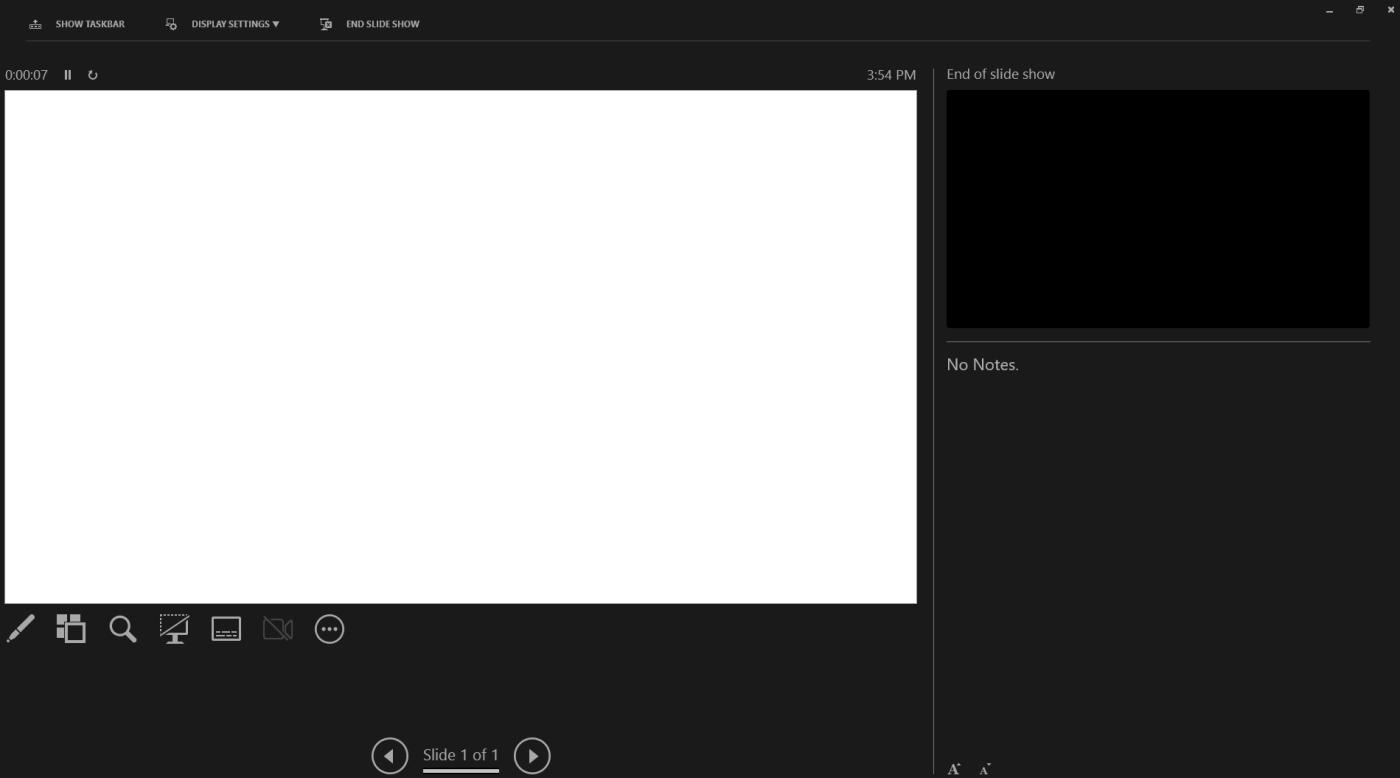
Microsoft says Presenter View can show:
- your current slide
- the next slide
- speaker notes
- the current time
- a slide timer
- navigation controls between slides
This makes it much easier to stay organized while presenting.
How to Turn On Presenter View
This is the first step.
Microsoft says to go to the Slide Show tab and select the Use Presenter View checkbox. It also says you can choose which monitor should display Presenter View.
This is useful because if the wrong display is selected, you may see the slideshow on your laptop instead of the audience screen.
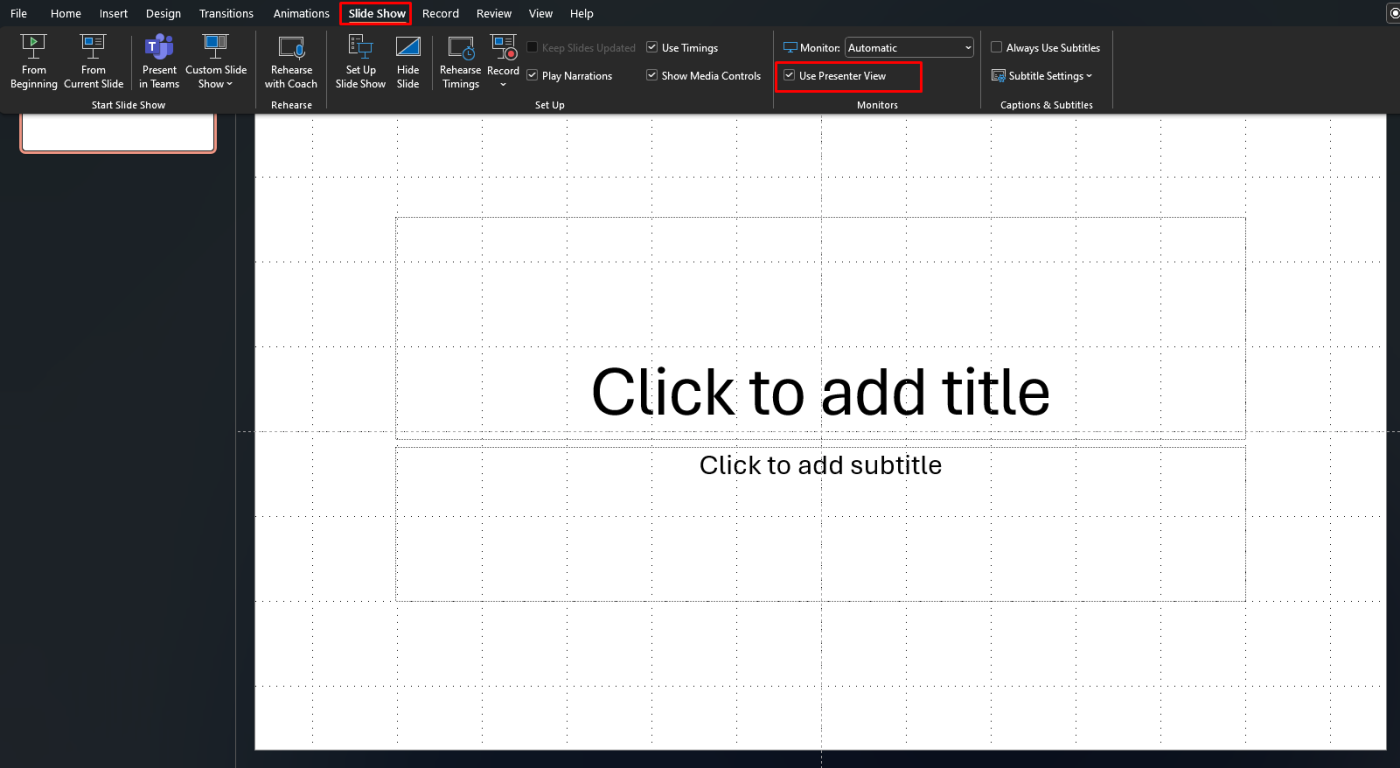
How to Start Presenter View
After enabling it, you start the presentation like a normal slide show.
Microsoft says you can begin from:
- From Beginning
- From Current Slide
- F5 to start from the first slide
- Shift + F5 to start from the current slide
If a second display is connected, Microsoft says Presenter View usually appears automatically on your screen while the audience sees only the slides.
How to Use Presenter View with Two Monitors
Presenter View works best with two displays.
Microsoft says when you play a slide show with two displays connected, the audience sees the full-screen slideshow on one screen while you see Presenter View on the other by default. It also says you can use Swap Displays if Presenter View is showing on the wrong screen.
This is useful for:
- laptops connected to projectors
- classroom presentations
- conference room displays
- HDMI or wireless second-screen setups
How to Use Presenter View on One Monitor
You can still use Presenter View even without a second display.
Microsoft’s keyboard shortcut page says to start a presentation in Presenter View on a single display, press Alt + F5.
This is useful for:
- practicing presentations alone
- rehearsing with notes
- checking timing before the real presentation
How to See Speaker Notes in Presenter View
One of the biggest reasons to use Presenter View is private notes.
Microsoft says your notes appear in a pane on the right while you present, and only you can see them. It also says you can edit notes directly from Presenter View, and that the text wraps automatically with a scroll bar if needed.
This is especially useful when:
- you want reminders without memorizing every line
- you need prompts for key talking points
- you want to stay on track during a longer talk
How to Change the Size of Notes in Presenter View
If your notes look too small, PowerPoint gives you some control.
Microsoft says you can change the size of the text in the Notes pane using the buttons at the lower-left corner of the Notes pane. It also says you can drag the vertical separator line to resize the panes in Presenter View.
This is useful if:
- your notes are long
- you want larger text for easier reading
- you do not need as much preview slide space
How to Navigate Slides in Presenter View
Presenter View also gives you private controls for moving through the presentation.
Microsoft says you can use the arrows next to the slide number to move between slides. It also lists presentation controls and keyboard shortcuts such as:
- N for next slide
- P for previous slide
This is useful because you do not have to rely only on clicking through the slide show blindly.
How to Use the Timer in Presenter View
Presenter View includes pacing help.
Microsoft says you can see the current time and use the timer in Presenter View. It also says there are controls to pause or reset the slide timer in the upper-left area.
This is especially helpful for:
- timed class presentations
- speech practice
- staying within meeting limits
How to Turn Off Presenter View
If you do not want Presenter View, Microsoft says you can turn it off from the Slide Show tab by clearing the Use Presenter View checkbox.
This is useful when:
- you want the same full-screen slideshow on both displays
- you do not need notes
- you are troubleshooting display issues
Presenter View vs Normal Slide Show
These two modes are not the same.
A normal slideshow just shows the slides. Presenter View adds private tools for the speaker, including notes, slide previews, and timing controls. Microsoft’s help pages describe Presenter View as the mode that lets the presenter see notes while the audience sees only the presentation.
So:
- use normal slideshow when you just need full-screen slides
- use Presenter View when you want speaker notes and private controls
FAQ
How do I use Presenter View in PowerPoint?
Microsoft says to go to Slide Show, check Use Presenter View, choose the right monitor, and start the presentation with From Beginning or F5.
What does Presenter View show?
Microsoft says Presenter View shows your current slide, next slide, speaker notes, current time, timer, and navigation controls.
Can I use Presenter View with one monitor?
Yes. Microsoft’s keyboard shortcut page says Alt + F5 starts Presenter View even if you have only a single display.
How do I turn off Presenter View in PowerPoint?
Microsoft says to clear the Use Presenter View checkbox on the Slide Show tab.
Present with more confidence using genuine Office keys, instant delivery, and easy activation that gets PowerPoint ready when you need it.