
Instructions
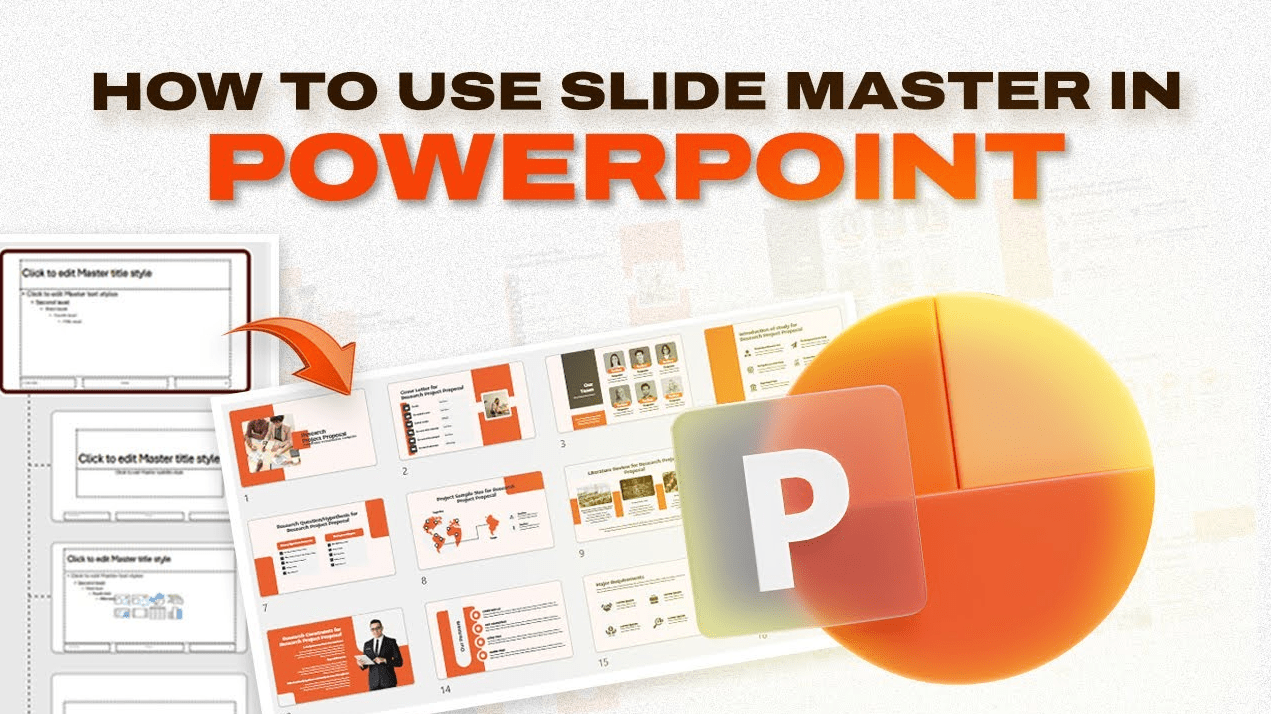
How to Use Slide Master in PowerPoint
May
Slide Master in PowerPoint is one of the most useful features for making a presentation consistent. Microsoft says that when you want all your slides to contain the same fonts and images, such as logos, you can make those changes in one place with the Slide Master and they will be applied across the presentation.
This is especially useful for business presentations, school decks, branded slides, and any presentation where you want the design to stay uniform. Microsoft also explains that the master slide is the top slide in the thumbnail pane in Slide Master view, and that editing the Slide Master affects all slides based on that master.
What Slide Master Does
Slide Master lets you control the overall look of your presentation from one place.
Microsoft says that if you edit the Slide Master, all slides based on that master will contain those changes. It also says that most changes you make will often be to the layout masters related to that master.
This means Slide Master is useful for changing:
- fonts
- logos
- repeated images
- layout structure
- theme-based design elements
How to Open Slide Master in PowerPoint
This is the first step.
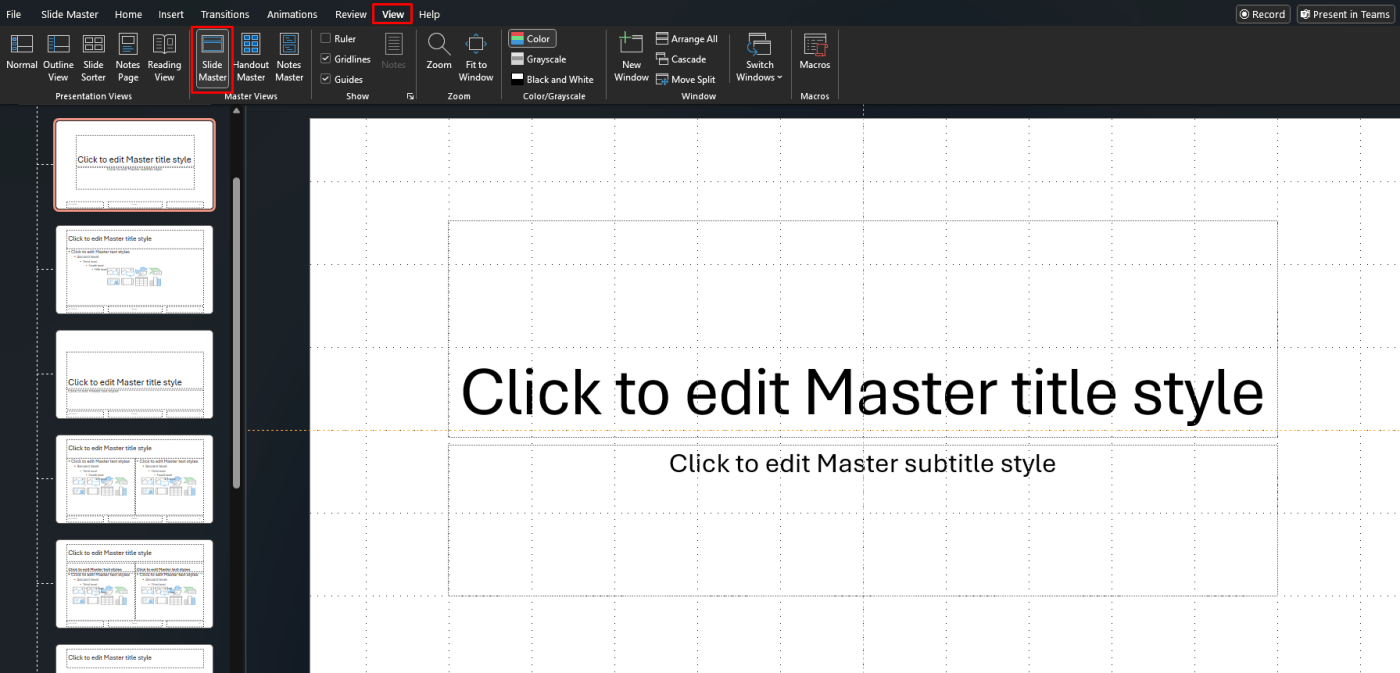
Microsoft says to open Slide Master view by going to the View tab and selecting Slide Master. In that view, the top slide on the left is the master slide, and the layouts below it are the related layout masters.
Slide Master vs Slide Layouts
This is the part many people find confusing.
Microsoft explains that every theme includes a slide master and a related set of layouts. It also says that each layout is set up differently, with different placeholders in different positions, and that in Normal view you apply these layouts to your slides.
So the simplest way to think about it is:
- the Slide Master controls the overall design system
- the layouts control the specific types of slides, like title slides or content slides
When to Edit the Slide Master
Microsoft says it is a good idea to edit the Slide Master and layout masters before you start creating individual slides. It explains that then all new slides will be based on your custom edits. If you change the master later, Microsoft says you may need to reapply the changed layouts to existing slides.
This is useful because it saves time and keeps the deck consistent from the start.
How to Change Fonts and Logos with Slide Master
One of the main reasons to use Slide Master is to add repeated branding elements.
Microsoft says if you want all slides to contain the same fonts and images, such as logos, you should make those changes in the Slide Master. Those edits then carry across the slides based on that master.
This is useful for:
- school presentation branding
- company logos
- repeated footer elements
- consistent title styling
How Layout Masters Work
Microsoft says each theme has several slide layouts, and some are better for text while others are better for graphics. It also explains that when you change a layout master, any new slide based on that layout will reflect those changes. If existing slides were based on the earlier version, you may need to reapply the layout.
This is useful when you want:
- one content layout for text-heavy slides
- another for image slides
- a separate title slide layout
- a custom layout for recurring sections
Why You Sometimes Cannot Edit Something on a Slide
This is a common PowerPoint issue.
Microsoft says that if you are working in Normal view and cannot edit or remove an element, it may be because that element is defined on the Slide Master or a layout master. It says you must switch to Slide Master view to edit that item.
This is especially common with:
- logos
- placeholders
- repeated background graphics
- locked-looking design elements
How Themes Connect to Slide Master
Microsoft says a theme is a palette of colors, fonts, and special effects that complement one another, and that every theme you use in a presentation includes a slide master and a related set of layouts. It also says that if you use more than one theme in a presentation, you will have more than one slide master and multiple layout sets.
That means Slide Master is closely tied to the overall theme of the presentation.
Best Use Cases for Slide Master
Slide Master is especially useful for:
- branded business presentations
- school presentation templates
- recurring meeting decks
- company-wide slide standards
- presentations with repeated logos or formatting
- large decks with many slides
These are practical uses based on Microsoft’s explanation that Slide Master controls shared fonts, images, themes, and layouts across slides.
FAQ
What is Slide Master in PowerPoint?
Microsoft says Slide Master is the place where you make shared changes, such as fonts and images like logos, so those changes apply across the presentation.
How do I open Slide Master in PowerPoint?
Microsoft says to go to View and select Slide Master.
What is the difference between Slide Master and slide layouts?
Microsoft says the Slide Master is the top slide in the thumbnail pane, while the related layout masters below it are used for different slide structures and placeholders.
Why can’t I edit something on my slide in Normal view?
Microsoft says that if an element is defined on the Slide Master or a layout master, you must switch to Slide Master view to edit it.
Build more polished presentations with genuine Office keys, instant delivery, and easy activation that gets PowerPoint ready when you need it.