
Visual Studio Enterprise 2019 for 5 PCs
- License
- Retail · 5 PC
- Delivery
- Instant, by e-mail
- Download
- Official Microsoft
- Brand
- Microsoft
€89,99
One-time payment · no subscription
- Instant delivery to your e-mailkey + download links
- Key won't activate? We replace itunused keys: refund within 7 days
- Official invoice with every order
- 24/7 live chat help with activation
Visual Studio Enterprise 2019 for 5 PCs: one key that activates the 2019 Enterprise IDE on up to five computers, for developers who need IntelliTrace, Microsoft Fakes and code maps.
What you get with Visual Studio Enterprise 2019 for 5 PCs
One product key that activates Visual Studio Enterprise 2019 on up to five PCs, for a small team that works on the 2019 toolset. Each PC runs the full Enterprise edition, with IntelliTrace, Live Unit Testing, code coverage and Microsoft Fakes. Every developer installs Visual Studio from Microsoft’s installer and activates it with the same product key from the order e-mail. It is a one-time purchase that does not renew, and it does not include Visual Studio subscription benefits.
What Enterprise adds for a group of developers on 2019
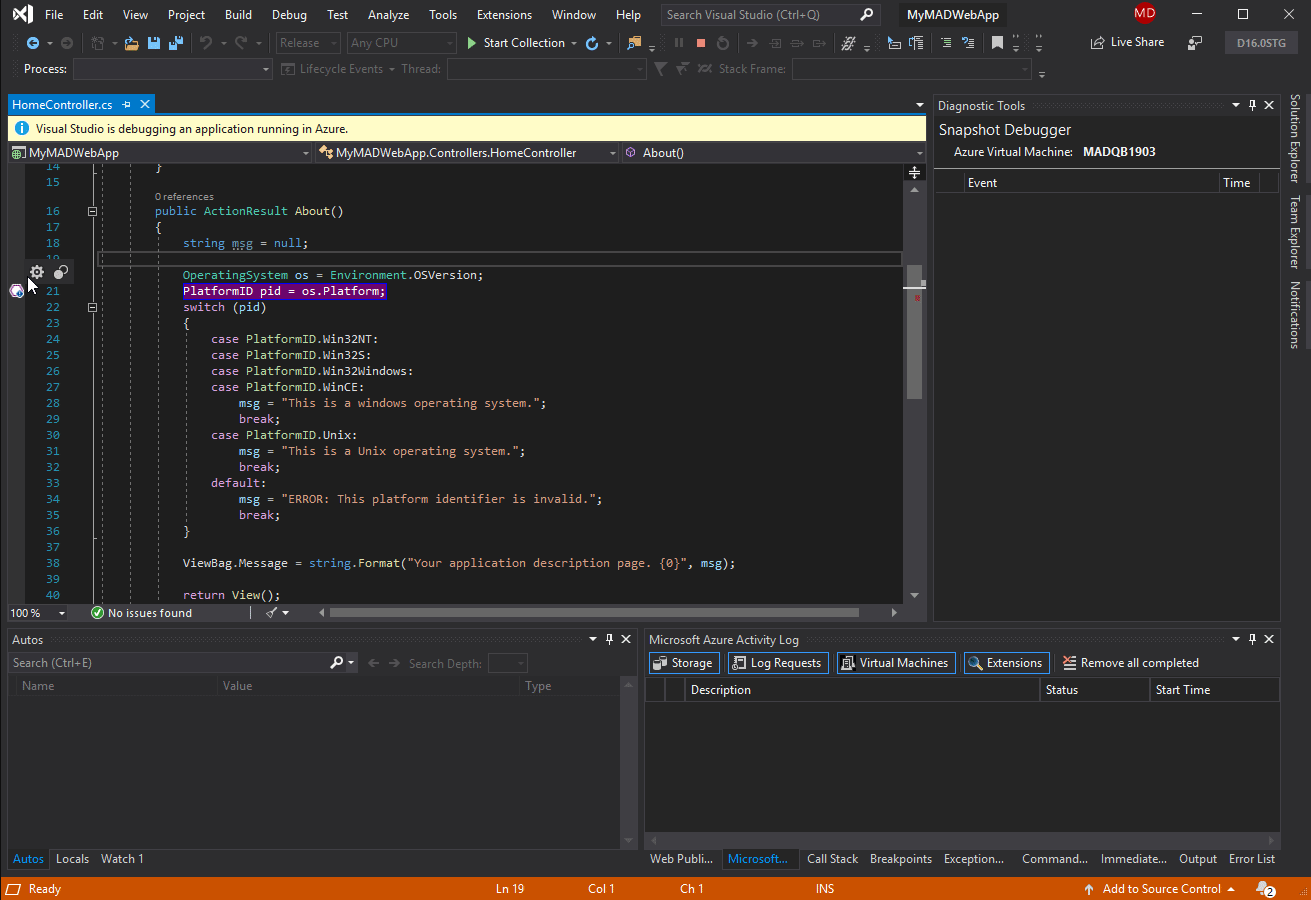
- A dependency diagram stored in the solution defines which layers may call which, and every Enterprise PC checks the code against it; .NET Core projects are supported from version 16.2.
- Coverage results from different PCs can be imported into one Code Coverage Results window and merged, provided they come from the same build.
- IntelliTest helps with older .NET Framework code: it generates parameterized unit tests for C# methods that have no tests yet.
- Microsoft Fakes shims replace calls into assemblies you cannot change, such as System.dll, so a test no longer depends on the system clock or the file system.
- IntelliTrace keeps the event history of each debugging session, so a developer can see what happened before an exception without restarting the app.
- Live Unit Testing shows, line by line, whether the code someone just changed is still covered by passing tests.
Five PCs, one PC or the 2022 version
A single developer only needs Visual Studio Enterprise 2019 for one PC. If new work starts in the newer IDE, order Visual Studio Enterprise 2022 for 5 PCs.
How to activate Visual Studio Enterprise 2019 for 5 PCs
- On each computer, run the Visual Studio Enterprise 2019 installer from the Microsoft download link in your e-mail, using an administrator account.
- Select the workloads that developer needs, for example .NET desktop development or Desktop development with C++.
- In Visual Studio, open File → Account Settings, use the “License with a Product Key” link and type the key from your order.
- Repeat on the next PC with the same key. Administrators can apply the key from a script instead, with Microsoft’s StorePID.exe tool in the Common7\IDE folder of the installation.
Each step is explained in our installation and activation guide for Visual Studio.
System requirements for each PC
| Operating system | Windows 11 (Pro, Pro for Workstations, Enterprise, Education, Pro Education or Home) or Windows Server 2016, 2019, 2022, 2025 in Standard or Datacenter; not on ARM |
|---|---|
| Processor | 1.8 GHz minimum, quad-core or better advised |
| Memory | 2 GB, or 2.5 GB in a virtual machine; Microsoft advises 8 GB |
| Hard disk | 0.8 GB to 210 GB depending on installed features (typically 20–50 GB); install on an SSD for better performance |
| Display | A video card with at least 1280 × 720; 1366 × 768 or higher works better |
| Additional | Setup needs administrator rights and .NET Framework 4.5.2 or newer; Visual Studio 2019 runs on .NET Framework 4.7.2, which setup installs |
Questions about Visual Studio Enterprise 2019 for 5 PCs
Can we run it on virtual machines instead of desktops?
Yes, if each virtual machine is persistent and runs a full Windows operating system with at least 2.5 GB of RAM. Microsoft does not support Visual Studio 2019 under app-virtualization tools such as App-V or MSIX, in Windows containers, or with several people using one machine at the same time.
Will Windows 11 PCs with Arm processors work?
No. Microsoft does not support Visual Studio 2019 on ARM. Use x64 PCs, or Visual Studio 2022, which runs natively on Arm64.
Who do we contact if activation fails on one PC?
Our support team, by live chat or e-mail at any hour. Tell us the error message and we help or send a replacement key; keys not yet redeemed can be refunded under the refund policy.
Be the first to review “Visual Studio Enterprise 2019 for 5 PCs”
You must be logged in to post a review.
- Genuine Retail licenses. Every key is a genuine license that activates with Microsoft, or with ESET or Avast for antivirus. Unless the License line next to the price says OEM, it is a Retail license.
- Replacement if a key won't activate. Contact our support on live chat or by e-mail, day or night: we help you finish the activation or send a replacement key.
- Refund for unused keys. A key that has not been redeemed can be refunded within 7 calendar days of purchase, as set out in our Refund Policy.
- Invoice and instructions. Every order comes with a PDF invoice and instructions to download, install and activate the software.
You may also need

Reviews
There are no reviews yet.