
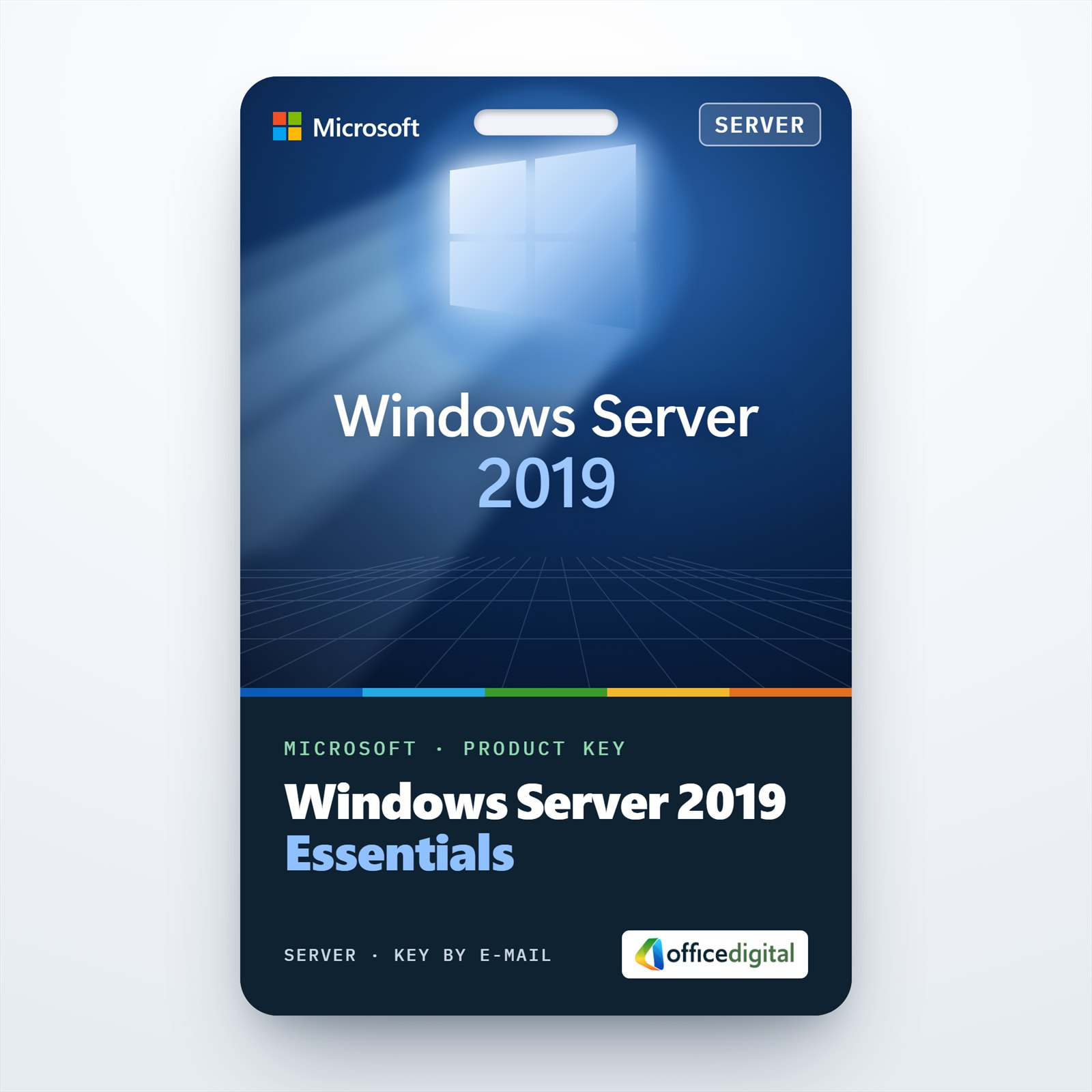
Windows Server Essentials 2019
- License
- Retail
- Delivery
- Instant, by e-mail
- Download
- Official Microsoft
- Brand
- Microsoft
€39,99
One-time payment · no subscription
- Instant delivery to your e-mailkey + download links
- Key won't activate? We replace itunused keys: refund within 7 days
- Official invoice with every order
- 24/7 live chat help with activation
Windows Server Essentials 2019 for one small-business server: 25 user accounts and 50 devices, no client access licenses to buy, on hardware with up to two processors and 64 GB of RAM.
What you get with Windows Server Essentials 2019
This is a key for Windows Server Essentials 2019, Microsoft’s server edition for small businesses. One Essentials license covers one server for at most 25 user accounts and 50 devices, and those users need no Windows Server CALs. You get the key, Microsoft’s download link and installation notes in your e-mail; a PDF invoice follows when the order is completed. There is nothing to renew.
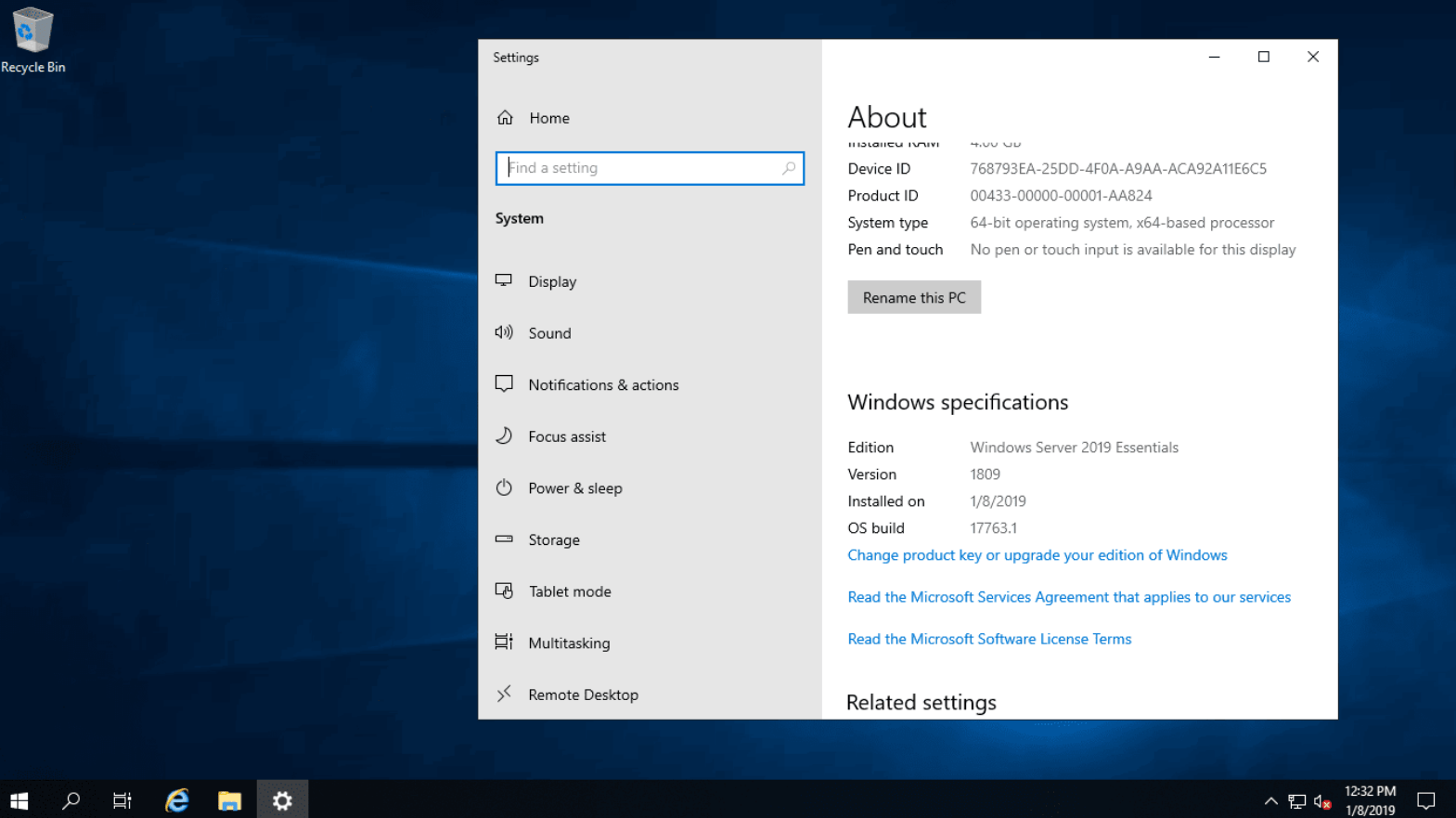
What Essentials 2019 does, and what it no longer has
Essentials 2019 gives a small office the core Windows Server 2019 roles: Active Directory, DNS, DHCP, file and print services and Windows Server Backup. Microsoft also added support for Azure AD Connect, which syncs your local accounts with Microsoft 365 sign-ins.
Unlike Essentials 2016, this release has no Windows Server Essentials Experience role, with three consequences:
- There is no Essentials Dashboard; users, shares and backups are managed in Server Manager, the standard consoles or Windows Admin Center.
- Client PCs can no longer be backed up to the server through Essentials.
- The Remote Web Access site is gone.
Limits to check before you buy
- Hardware: up to two processor sockets, any number of cores, and a maximum of 64 GB of RAM.
- Virtualization: one instance on the physical server and one in a virtual machine on it.
- Domain: if the server is a domain controller, it must be the only one, hold all FSMO roles, sit at the root of the forest and have no trusts with other domains.
- Disks: dynamic disks are not supported.
If you expect more than 25 users, need a second domain controller or more VMs, Windows Server Standard 2019 is the next step, licensed per core and with CALs. If you want the Essentials Dashboard, Windows Server 2016 Essentials still includes it.
Activating Windows Server Essentials 2019
- Download the Essentials 2019 installation image from the Microsoft link in your e-mail and run setup on the server.
- After sign-in, go to Settings → System → About and select “Change product key or upgrade your edition of Windows”, or open Update & Security → Activation.
- Type the 25-character key and confirm; with internet access it activates online.
- On an evaluation install, run slmgr /ipk followed by your key in an elevated prompt: Microsoft documents this as the way to convert Essentials to the full version.
Screenshots of the setup and activation are in our Windows Server install and activation guide.
System requirements
| Processor | Up to two 64-bit sockets at 1.4 GHz or faster; the CPU must offer SLAT, NX/DEP, PrefetchW, LAHF/SAHF and CMPXCHG16b |
|---|---|
| Memory | 2 GB minimum with the desktop; up to 64 GB usable |
| Storage | At least 32 GB for Windows; dynamic disks are not supported |
| Network | Ethernet adapter, 1 Gbit/s |
| Optional | 1024 × 768 screen, Secure Boot-capable UEFI, TPM 2.0 if you use BitLocker |
Questions about Windows Server Essentials 2019
How do I manage users without the old Dashboard?
Create accounts in Active Directory Users and Computers, share folders through Server Manager and schedule server backups in Windows Server Backup. Windows Admin Center, Microsoft’s remote management tool offered at no extra cost, puts most of these tasks in one browser window.
Can I install it in a virtual machine?
Yes. The license allows one running instance on the physical server and one in a virtual machine on that server.
Is 25 users a hard limit?
Yes. Microsoft licenses Essentials for 25 user accounts and 50 devices with no way to add CALs; beyond that you move to Standard.
What does “Lifetime License” in the product name mean?
It stands for a perpetual license: Windows Server Essentials 2019 is paid for once, there is no subscription, and the license itself does not run out.
Be the first to review “Windows Server Essentials 2019”
You must be logged in to post a review.
- Genuine Retail licenses. Every key is a genuine license that activates with Microsoft, or with ESET or Avast for antivirus. Unless the License line next to the price says OEM, it is a Retail license.
- Replacement if a key won't activate. Contact our support on live chat or by e-mail, day or night: we help you finish the activation or send a replacement key.
- Refund for unused keys. A key that has not been redeemed can be refunded within 7 calendar days of purchase, as set out in our Refund Policy.
- Invoice and instructions. Every order comes with a PDF invoice and instructions to download, install and activate the software.
You may also need
Reviews
There are no reviews yet.